Creating a Sale
- Who can use it
- Step 1: Customer
- Step 2: Bike
- Step 3: Pricing
- Step 4: Payment
- Step 5: Confirm
- Understanding the totals
A sale walks you through five steps. On the last step you either save it as a quotation or confirm it to make the invoice. Every sale gets a number such as SAL-000001.
Start from Sales › Bike Sales › New sale, the New sale button on the dashboard, or a customer's page.
Who can use it
Users with Create sales (Sales Executive and Super Admin by default).
Step 1: Customer
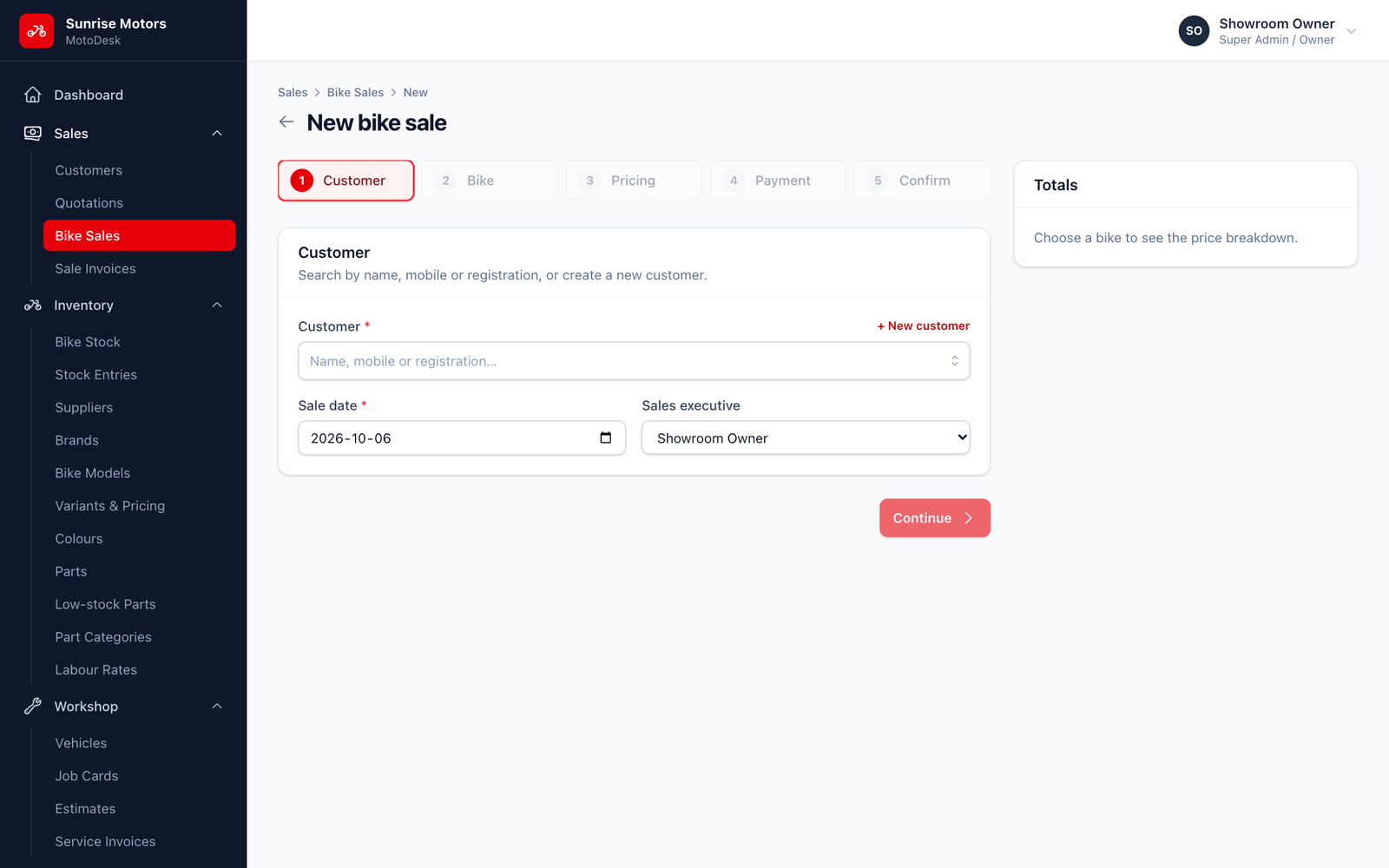
- Customer: search by name, mobile or registration. If the customer is new, click + New customer (quick-create).
- Sale date: today by default.
- Sales executive: who gets credit for the sale (used in the Sales by executive report).
Click Continue.
Step 2: Bike
Search for the bike by model, chassis, engine or stock number. Only bikes that are Available or Reserved are shown. Each one shows its selling price.
Step 3: Pricing
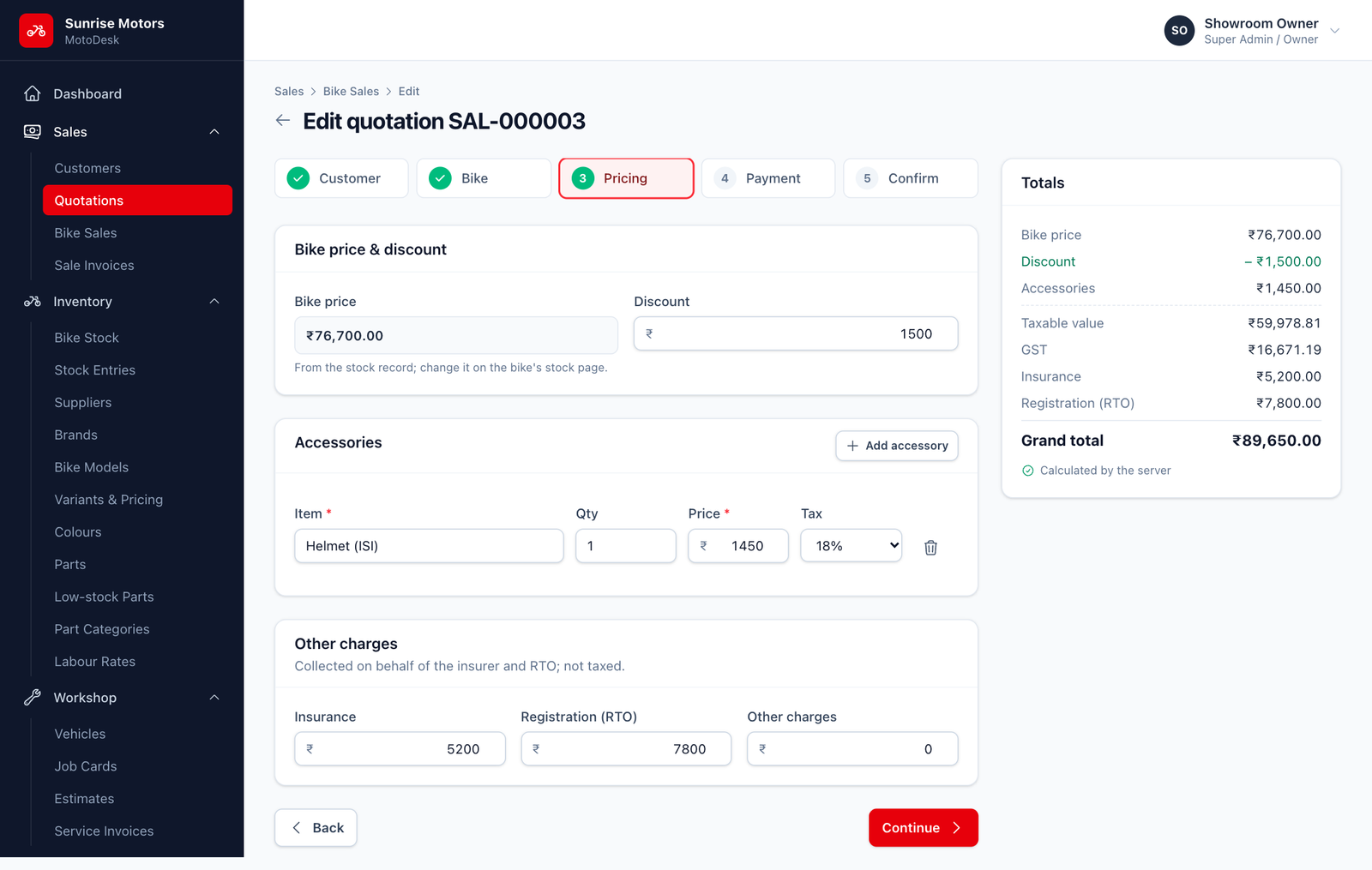
- Bike price & discount. The bike price comes from its stock record. Enter any Discount in rupees.
- Accessories. Click Add accessory for each item, such as a helmet, seat cover or guard: enter Item, Qty, Price and Tax. Click the bin icon to remove one.
- Other charges. Enter Insurance, Registration (RTO) and any Other charges.
Insurance and RTO are collected on behalf of the insurer and the RTO, so MotoDesk does not add GST to them.
Step 4: Payment
If the customer pays something now (for example a booking amount or full payment), enter it here: Amount, Method, Reference / UTR / cheque no., Payment date and Note. MotoDesk shows the balance left after this payment. Leave the amount empty if nothing is paid yet.
The payment cannot be more than the grand total. See Recording Payments for method rules.
Step 5: Confirm
Review everything and add any Notes. Then choose:
- Save as quotation. Keeps it as a draft price quote. Nothing changes in stock and no invoice number is given. See Quotations.
- Confirm sale & invoice. Creates the invoice (
INV-…), marks the bike Sold and records the payment, if you entered one.
Understanding the totals
The Totals panel on the right updates as you go:
| Line | Meaning |
|---|---|
| Bike price | Selling price of the chosen bike. |
| Discount | Your discount (shown in green). |
| Accessories | Total of accessory lines. |
| Taxable value | Amount GST is charged on. |
| GST | Total tax. On the printed invoice it is split into CGST + SGST if that setting is on. |
| Insurance, Registration (RTO), Other charges | Added without tax. |
| Grand total | What the customer pays in total. |
| Paid / Balance due | Money received so far and what is left. |
"Calculated by the server" means MotoDesk has rechecked the maths, so the figures you see are exactly what will be printed.