Job Cards
- Who can use it
- Opening a job card
- The job card list
- The job card page
- Work notes
- Printing the job card
- Rules
A job card is opened every time a vehicle comes into the workshop. It records the customer's complaint, the vehicle's condition, who is working on it and everything done, from reception to delivery. Each job card has a number such as JC-000001.
Who can use it
| Task | Who (by default) |
|---|---|
| Open and edit job cards | Service Advisor, Super Admin (Create & edit job cards) |
| See all job cards | Service Advisor, Super Admin (View all job cards) |
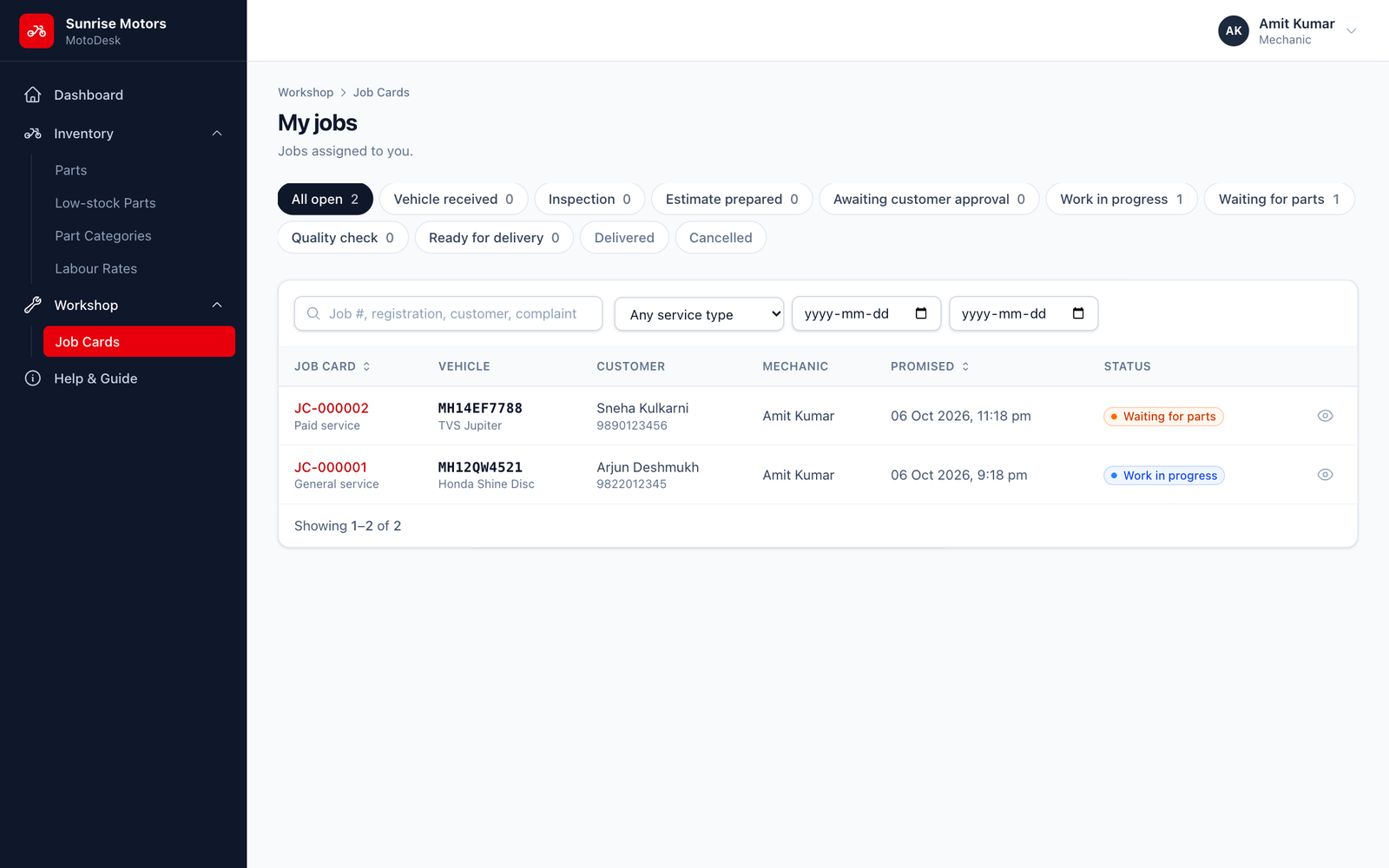
| See only their own jobs | Mechanic (View assigned job cards) |
Opening a job card
Click New job card on the dashboard or under Workshop › Job Cards, or on a vehicle's page.
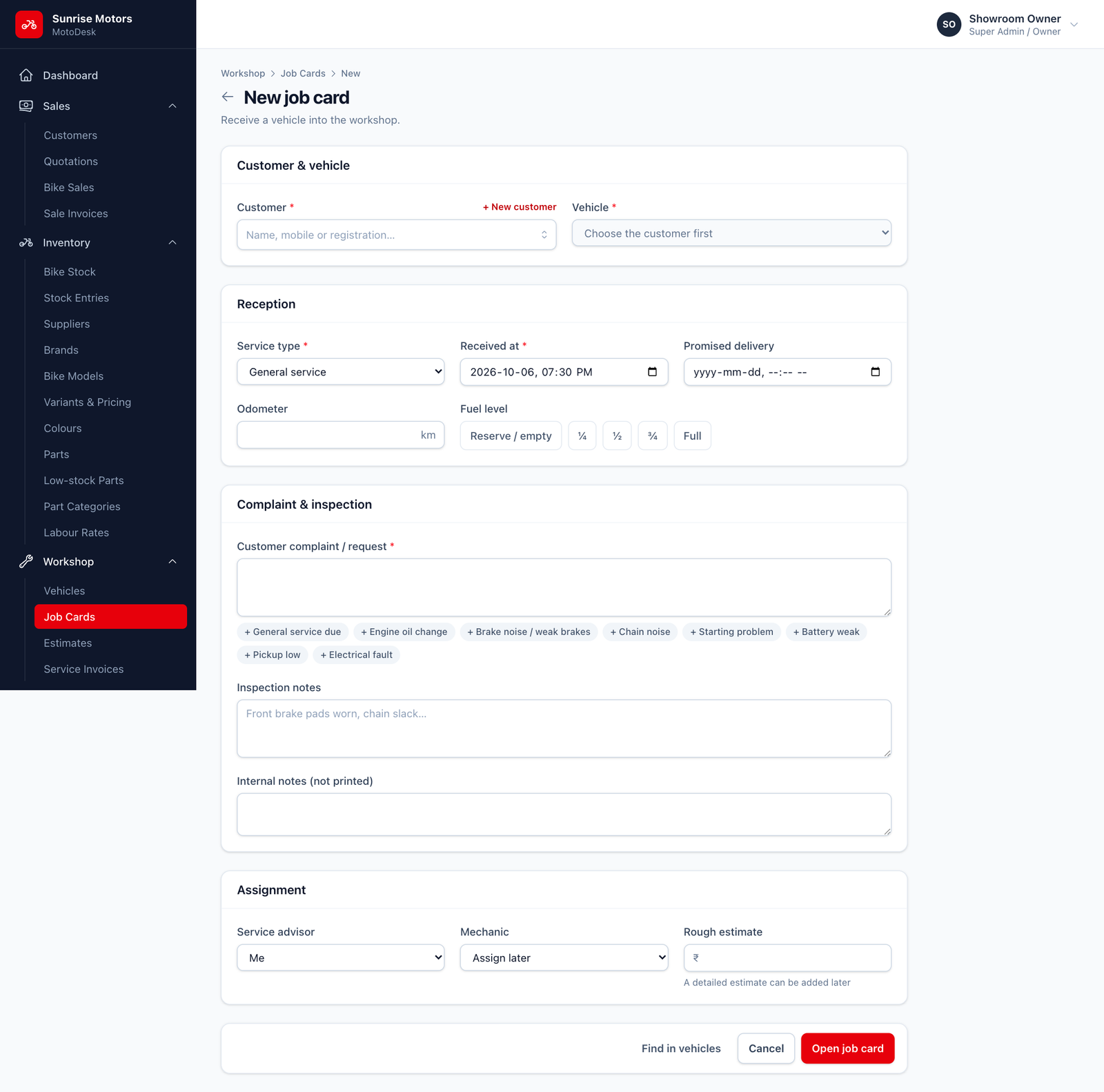
Customer & vehicle
- Choose the Customer (or quick-create a new one), then the Vehicle. Use Find in vehicles to search by registration number.
- If the vehicle is not registered yet, add it first from the customer's page (see Vehicles).
Reception
| Field | What to enter |
|---|---|
| Service type | General service, Paid service, Free service, Warranty, Accident repair, Breakdown or Other. |
| Received at | Date and time the vehicle came in. |
| Promised delivery | When you told the customer it will be ready. |
| Odometer | Current km reading. The vehicle's recorded odometer is updated if this reading is higher (it never goes down). |
| Fuel level | Reserve / empty, ¼, ½, ¾ or Full. |
Complaint & inspection
- Customer complaint / request: required. Write it in the customer's words, for example "Engine oil change, chain noise".
- Inspection notes: what you found on checking the bike, for example "Front brake pads worn, chain slack".
- Internal notes (not printed): notes for staff only.
- Rough estimate: a ballpark figure given to the customer. You can add a detailed estimate later.
Assignment
- Service advisor: you, by default.
- Mechanic: choose now, or Assign later.
Click Open job card. The job starts in status Vehicle received.
The job card list
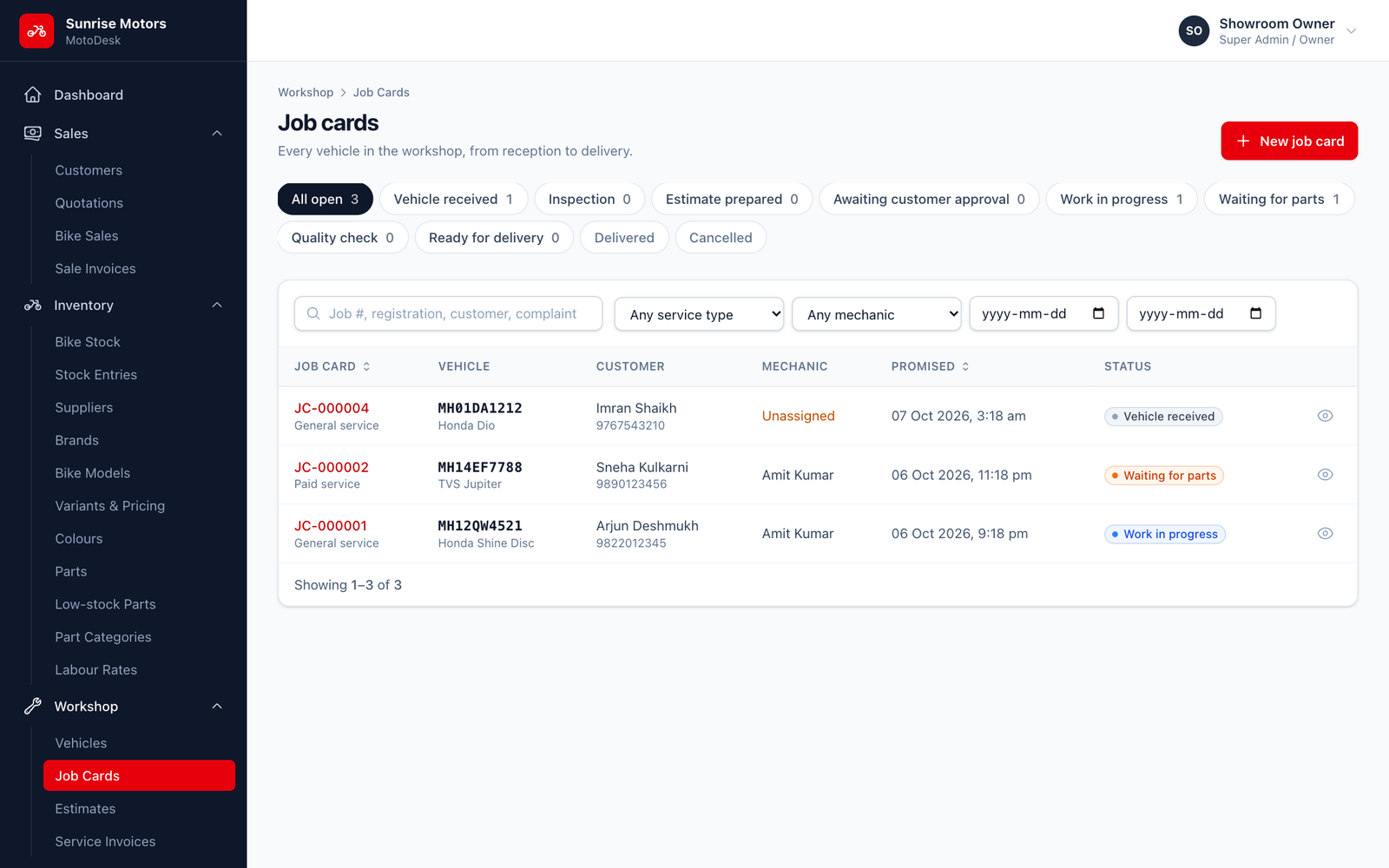
Open Workshop › Job Cards. Search by job number, registration, customer or complaint, and filter by status, Service type, Mechanic and received dates.
Mechanics see a My jobs list containing only the jobs assigned to them:
The job card page
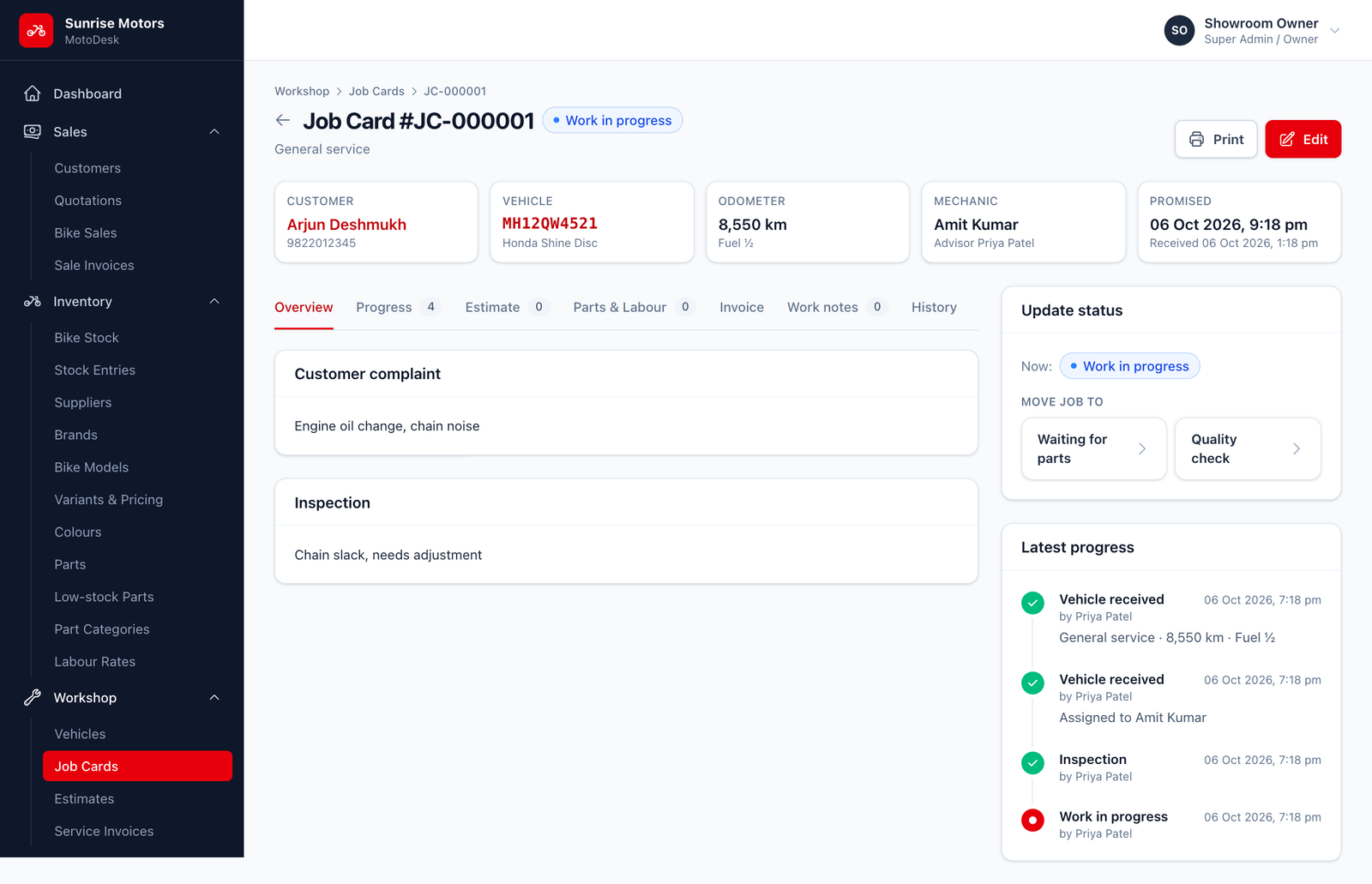
At the top are the Customer, Vehicle, Odometer and fuel, Mechanic and advisor, and the Promised time. The tabs below hold everything about the job:
| Tab | What's in it |
|---|---|
| Overview | Customer complaint, inspection notes, internal notes and the rough estimate. |
| Progress | A timeline of every status change, who made it and when. |
| Estimate | Detailed estimates and the customer's decision. See Estimates. |
| Parts & Labour | The parts and labour actually used. See Parts & Labour Used. |
| Invoice | Generate and view the service invoice. See Service Invoices. |
| Work notes | Notes added by the team during the job. |
| History | A record of every change made to the job card. |
On the right, Update status moves the job to its next stage. See Service Status.
Work notes
On the Work notes tab, type a note (for example "Replaced front brake pads; advised new tyre within 1,000 km") and click Add note. Notes are saved with your name and time and cannot be added once the job is closed.
Printing the job card
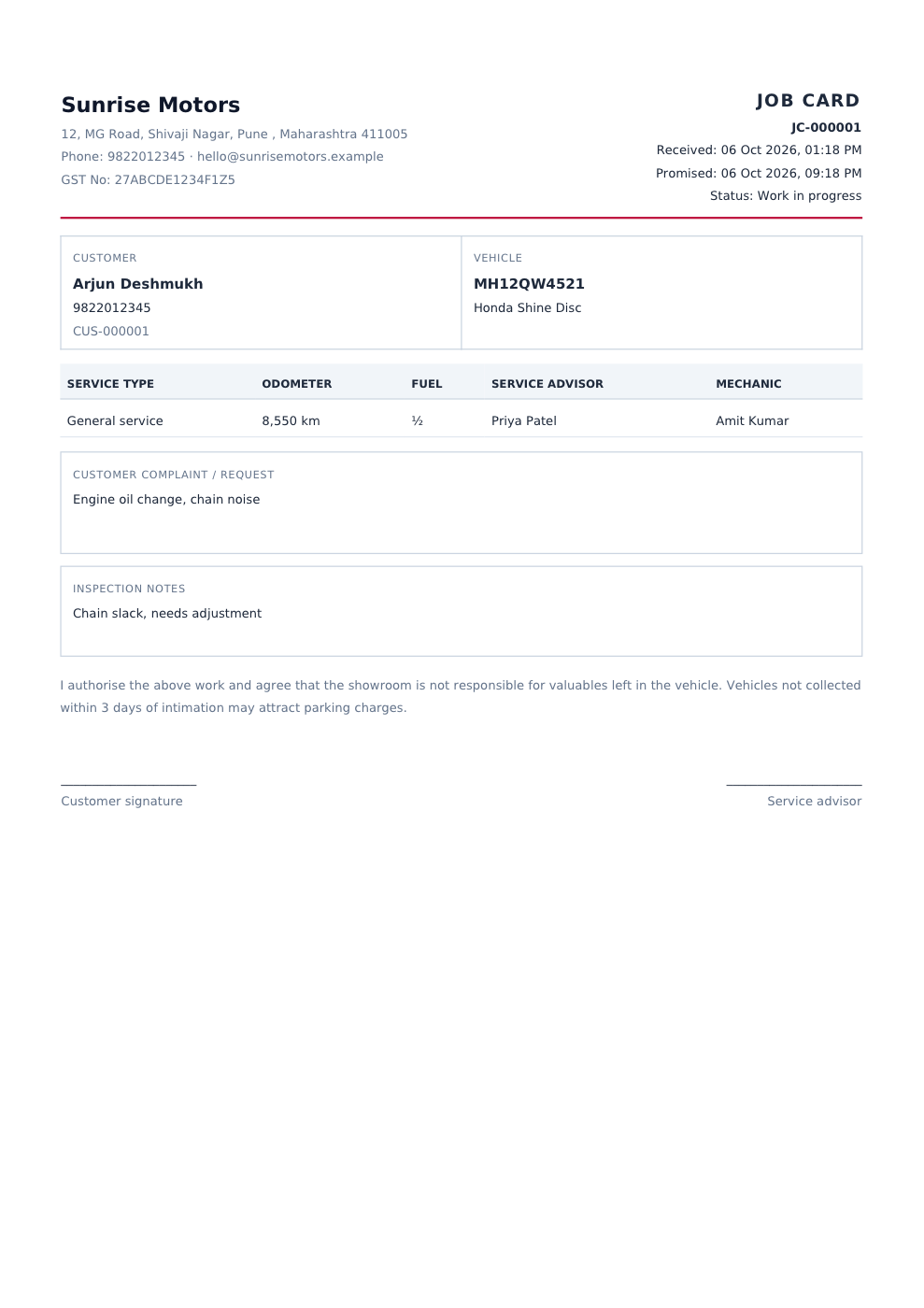
Click Print to get the job card PDF. Give it to the customer, or keep it with the bike, and ask the customer to sign the customer signature line when they hand over the vehicle.
Rules
- A vehicle can have only one open job card at a time. Finish or cancel the existing one first.
- Closed (delivered or cancelled) job cards cannot be edited.