Roles & Permissions
A role is a set of permissions, such as "can view and create quotations, but not delete them". Each user has one role.
Open Administration → Roles & Permissions in the sidebar.
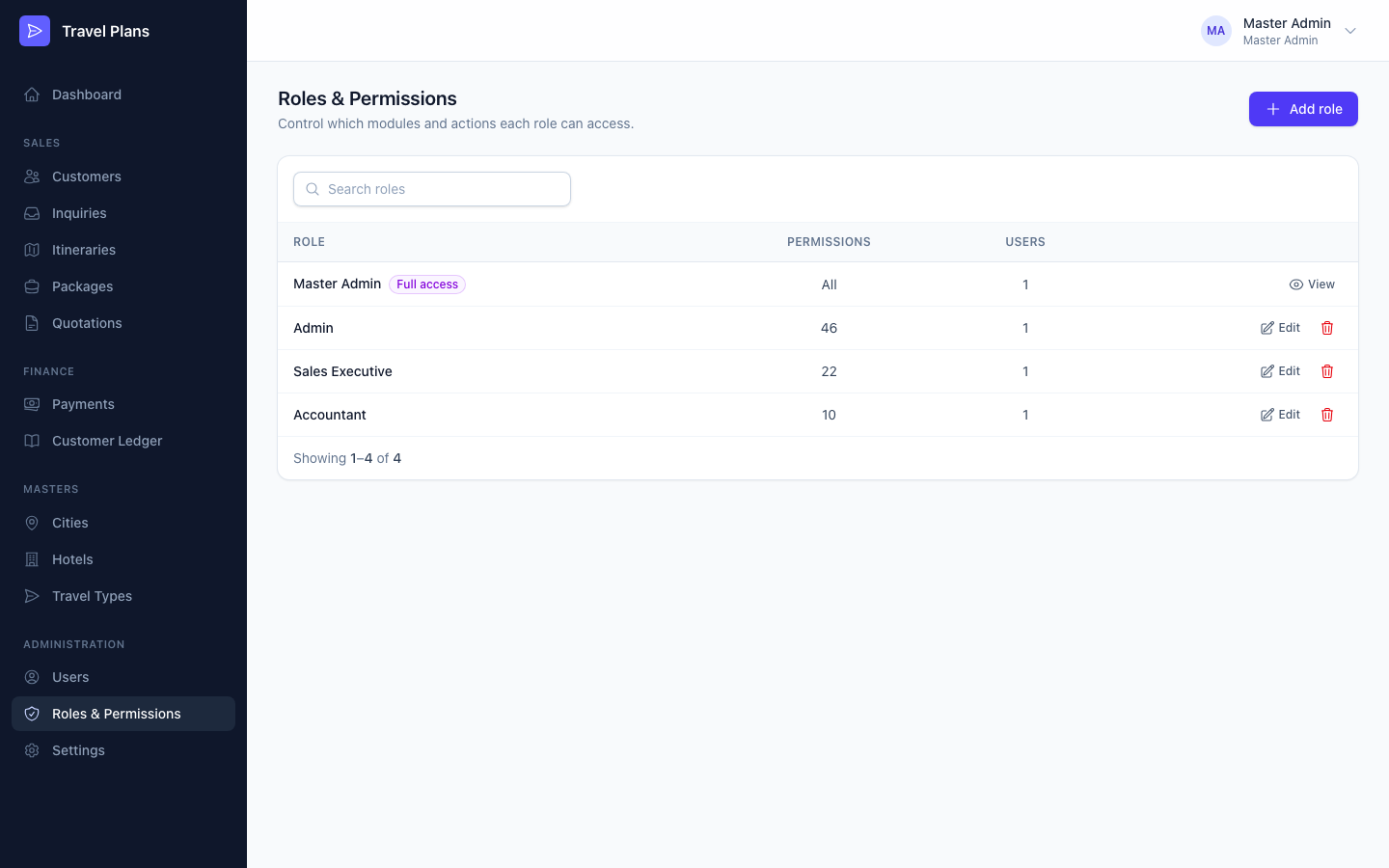
Ready-made roles
| Role | Can do |
|---|---|
| Master Admin | Everything, always. It can't be changed or deleted. |
| Admin | Everything except managing roles |
| Sales Executive | Dashboard. View, create and edit customers, inquiries, itineraries, packages and quotations. Print/PDF itineraries and quotations, and share quotations. View cities, hotels and travel types. No deleting, no finance, no administration. |
| Accountant | Dashboard. View customers and packages. View and download quotations. Everything in Payments and Customer Ledger. |
You can change the Admin, Sales Executive and Accountant roles, or create your own.
Create or edit a role
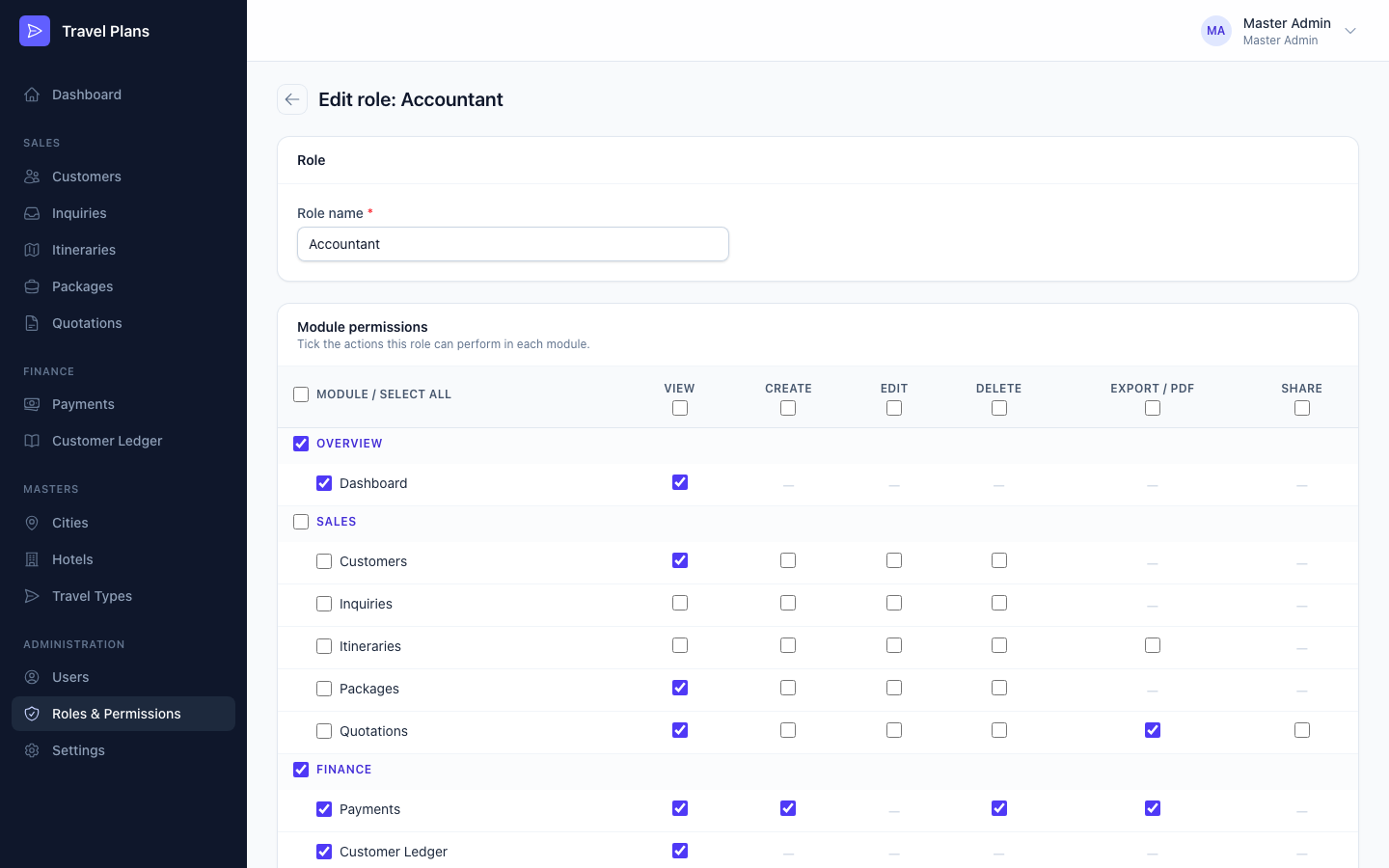
Click Add role, or Edit on a role. Give it a Role name, then tick what it may do in the Module permissions grid. Click Create role or Save role.
| Action | Allows |
|---|---|
| View | Seeing the module in the sidebar, and opening its list and details |
| Create | Adding new records |
| Edit | Changing records, including status changes such as accepting a quotation |
| Delete | Deleting records |
| Export / PDF | Printing and downloading PDFs and receipts |
| Share | Sharing quotations with customers |
A — in the grid means the action doesn't apply to that module.
Use the checkboxes in the headers to save time. The column checkbox ticks an action for every module. The group or module checkbox ticks every action in that row. The top-left box ticks everything.
Changes apply straight away. Buttons a user isn't allowed to use are hidden. If they open a page they can't access, they see Access denied.
Delete a role
Click the trash icon. A role that is still assigned to users can't be deleted: move those users to another role first. The Master Admin role can never be deleted.