Users
Give each staff member their own account, so you can control what they see and track what they do.
Open Administration → Users in the sidebar.
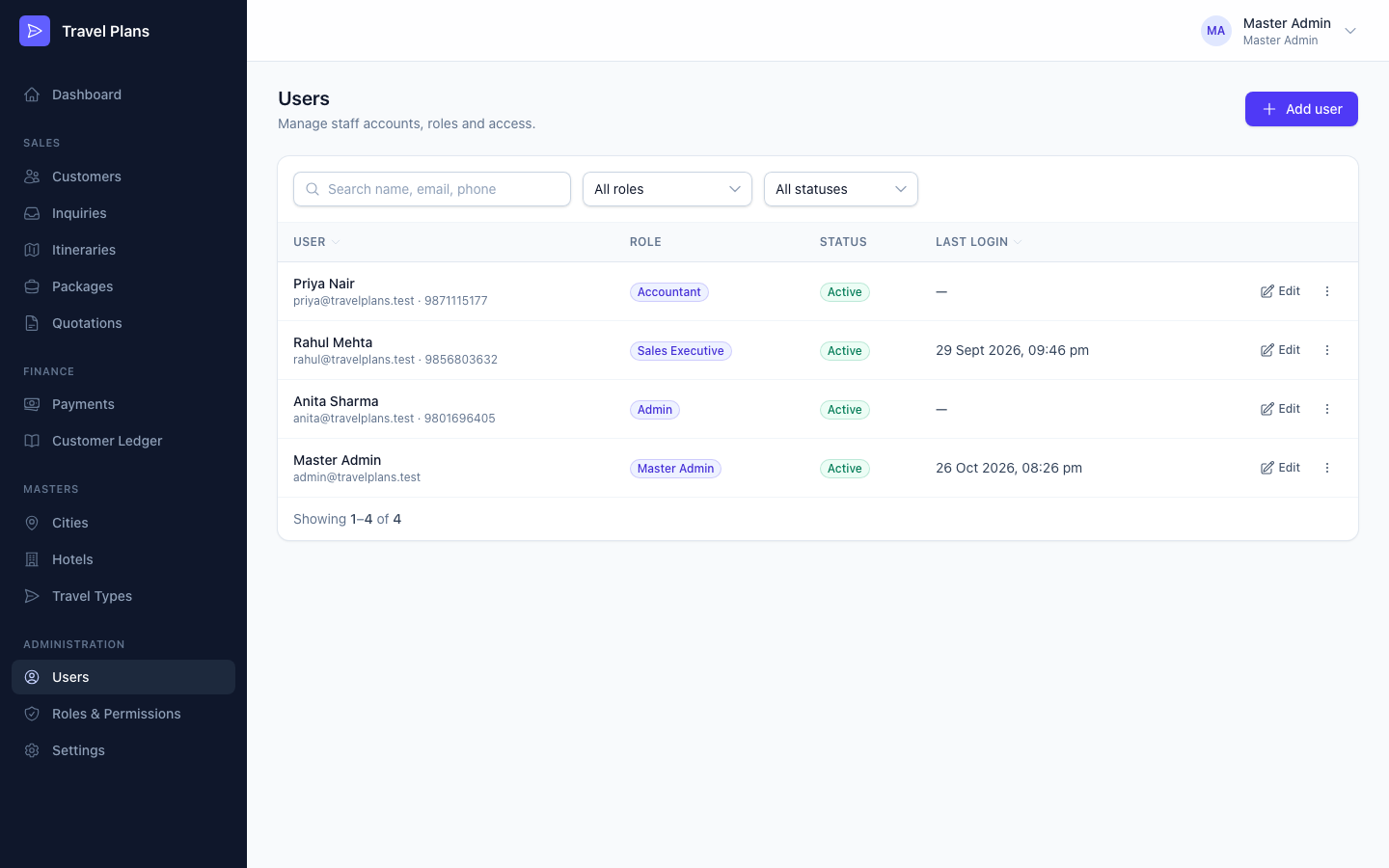
Add a user
Click Add user, fill in the form and click Create user.
| Field | Required | Notes |
|---|---|---|
| Full name | Yes | |
| Phone | No | |
| Yes | The user signs in with this. It must be unique. | |
| Role | Yes | Decides what the user can see and do. See Roles & Permissions. |
| Status | Yes | Active by default. |
| Password / Confirm password | Yes | The user's first password. Give it to them, and ask them to change it from My profile. |
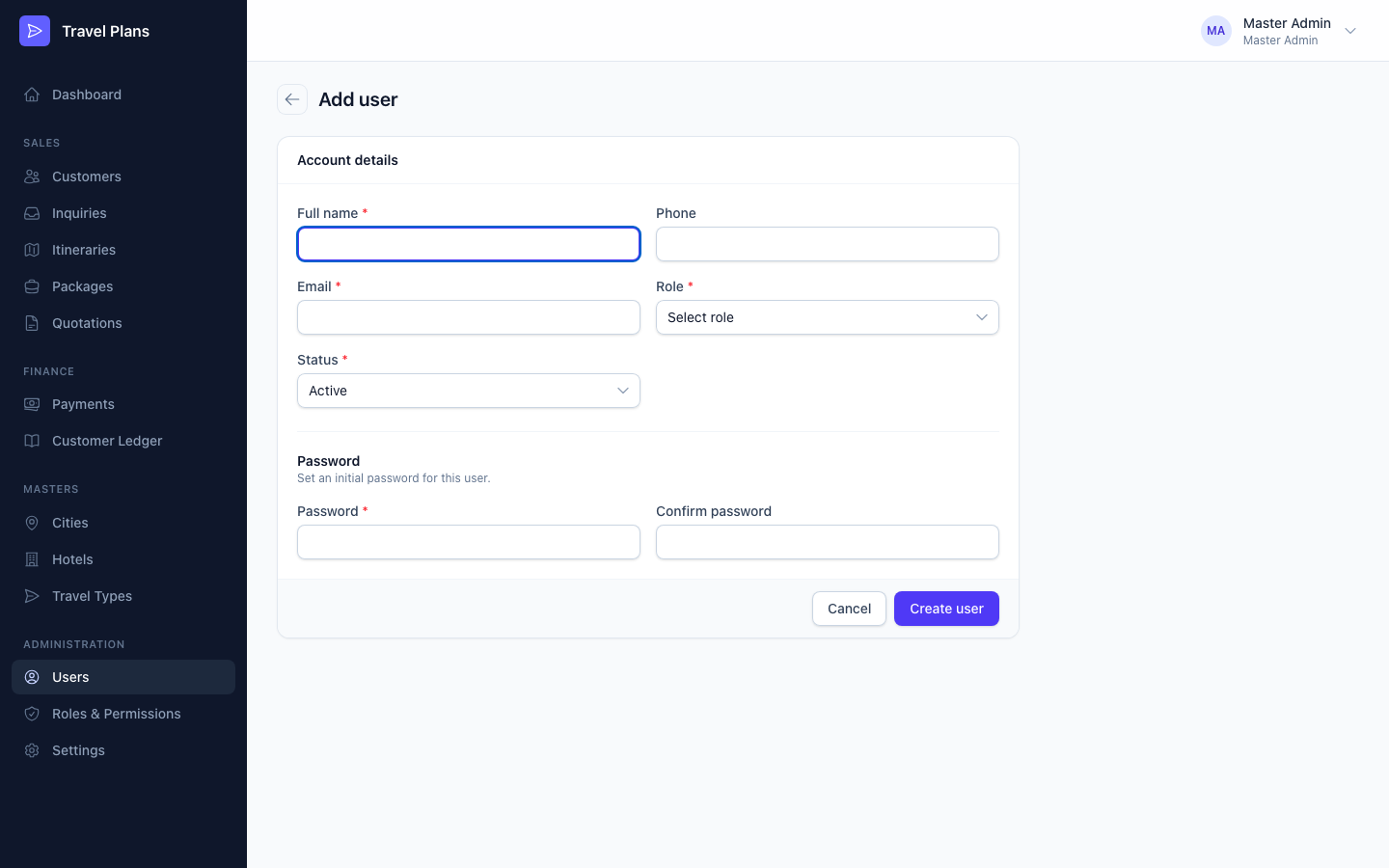
To edit a user, click Edit on their row. Leave the password blank to keep the current one.
Reset a user's password
Open the ⋯ menu on the user's row and choose:
- Set new password: type a new password yourself. The user is signed out of any "remember me" sessions.
- Send reset link: email the user a link so they can choose their own password.
Disable or enable a user
When someone leaves, open the ⋯ menu and choose Disable user. They are signed out at once and can't sign in again. Choose Enable user to restore access.
Users can't be deleted. Disabling keeps their name on everything they created or changed. You also can't disable your own account.
Find a user
Search by name, email or phone. Filter by role or status.