Payments
Record each payment a customer makes against their package. When you save a payment, the customer ledger and the outstanding balance update automatically, and a receipt is ready to download.
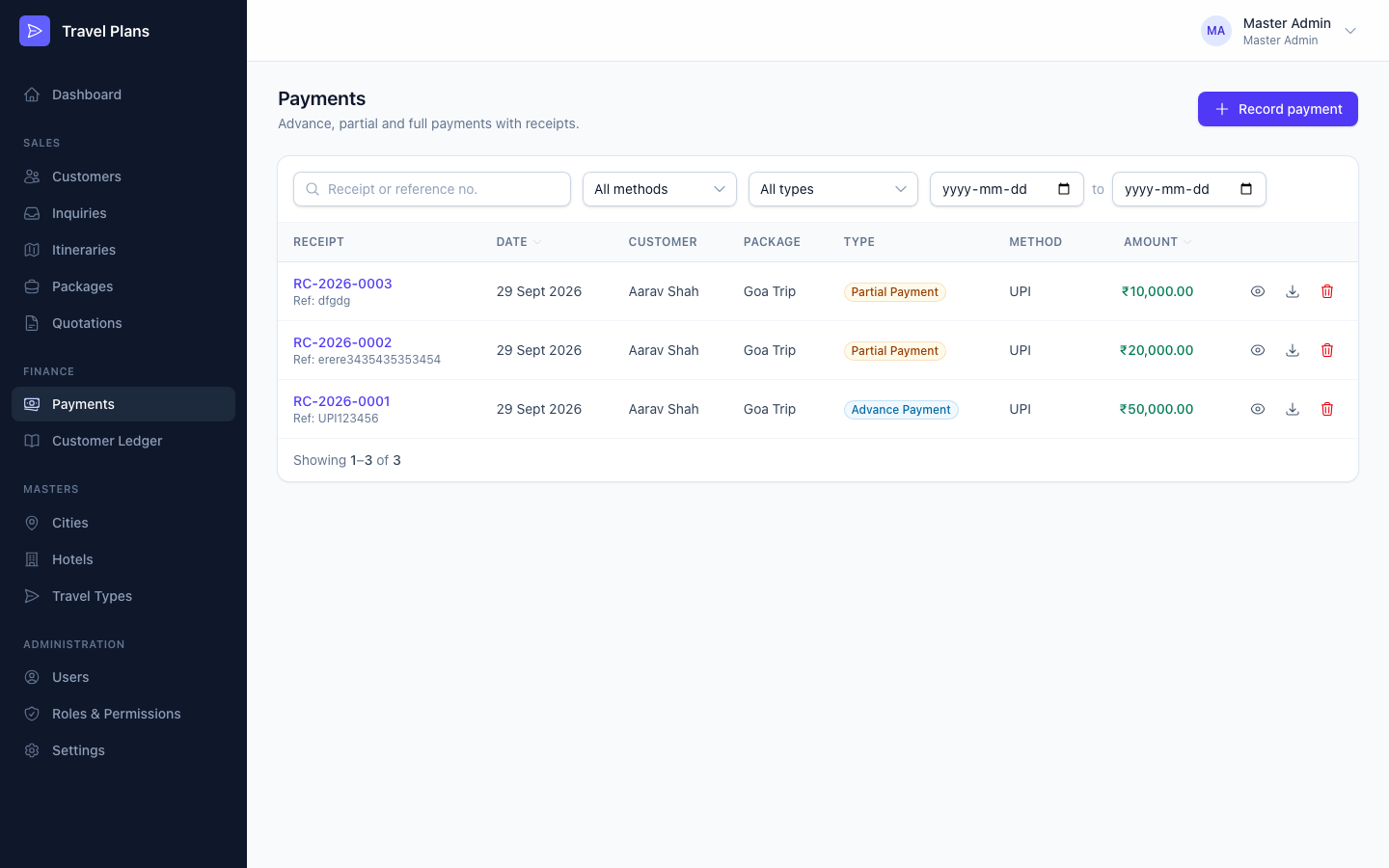
Open Finance → Payments in the sidebar.
Before you start
You can only record a payment against a package that:
- is Confirmed or Completed, and
- still has money outstanding.
A package gets its amount when its quotation is accepted (see Quotations). If no package qualifies, the form shows "Nothing to collect".
Record a payment
Open the form
Click Record payment on the Payments list. You can also click it on a customer's ledger or package page.
Choose the package
Pick it from the Package list. Each entry shows the customer and the package, for example Aarav Shah — Goa Trip. You don't pick the customer: it comes from the package.
Enter the amount and details
Fill in Amount, Payment date, Method and, for anything other than cash, the Reference / transaction no. To collect everything that is due, click Pay full outstanding.
Check the balance and save
The Balance panel on the right shows what is outstanding, this payment, and what will remain. Click Record payment.
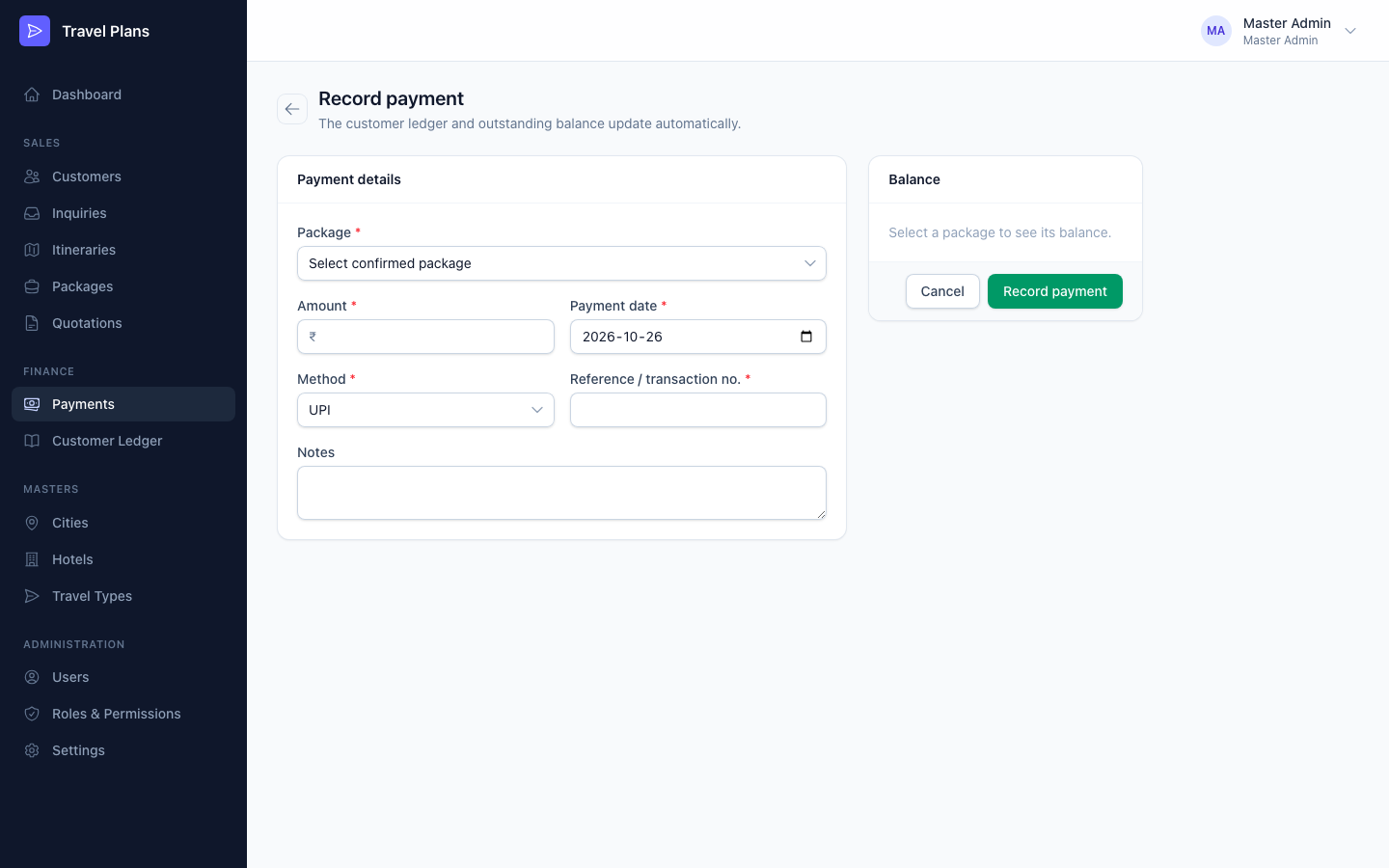
Form fields
| Field | Required | Notes |
|---|---|---|
| Package | Yes | Only confirmed packages that still have a balance due are listed. |
| Amount | Yes | At least ₹1. It cannot be more than the outstanding balance. |
| Payment date | Yes | Today by default. It cannot be a future date. |
| Method | Yes | Cash, UPI, Bank Transfer, Credit Card, Debit Card or Cheque. UPI by default. |
| Reference / transaction no. | Yes, except for cash | The UPI, bank or cheque reference. Up to 100 characters. |
| Notes | No | Anything worth remembering about this payment. |
You can't pay more than is due. If the amount is higher than the outstanding balance, Remaining turns red and the Record payment button is disabled.
Payment types are set for you
You don't choose the payment type. The system sets it when you save:
| Type | When |
|---|---|
| Full Payment | The amount clears the whole outstanding balance. |
| Advance Payment | It is the first payment on the package, and it doesn't clear the balance. |
| Partial Payment | The package already has payments, and this one doesn't clear the balance. |
What happens when you save
- The payment gets a receipt number, for example RC-2026-0001. Numbering starts again each year.
- The payment is added to the customer ledger, and the outstanding balance goes down.
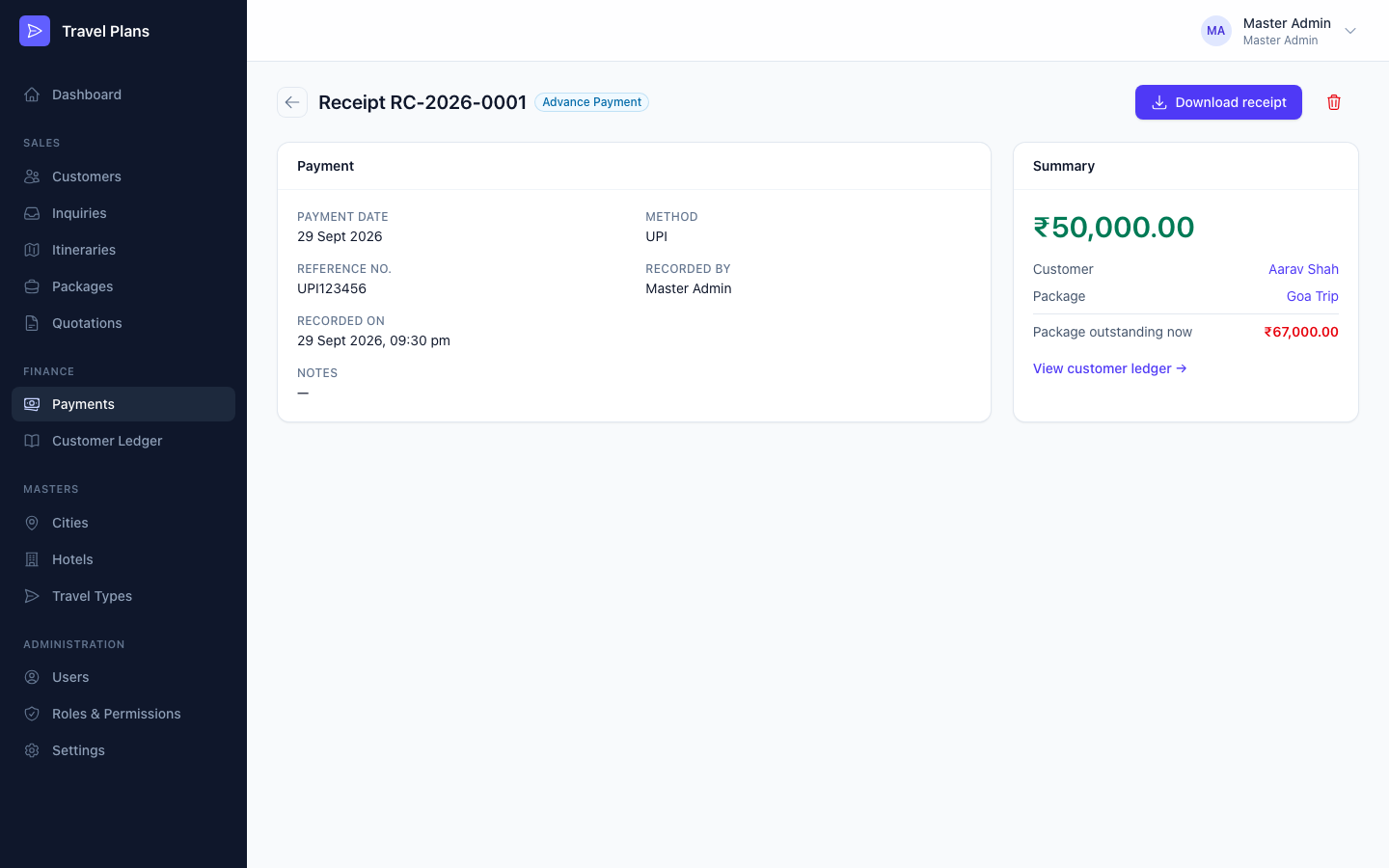
- The payment's page opens.
Download a receipt
Click Download receipt on the payment's page, or click the download icon on the Payments list. The receipt is a PDF that you can print or send to the customer.
The receipt's Outstanding after this payment line shows the package balance on the day you download it. If you download an old receipt after later payments, it shows the newer, lower balance.
Find a payment
Use the filters at the top of the list:
- Search by receipt number or reference number
- All methods: show one payment method
- All types: show advance, partial or full payments
- Date range: payments between two dates
Correct a mistake
Payments can't be edited. To correct one, delete it and record it again.
Deleting a payment removes it from the customer ledger too, and the package's outstanding balance goes back up. You'll be asked to confirm first.
Who can do what
| Permission | Allows |
|---|---|
| Payments: View | See the list and payment details |
| Payments: Create | Record payments |
| Payments: Delete | Delete payments |
| Payments: Export / PDF | Download receipts |
By default, the Admin and Accountant roles have all of these. Sales Executive has none.