Signing in
Your administrator creates your account and gives you your email and first password.
Sign in
- Open the Travel Plans address in your browser.
- Enter your Email and Password.
- Tick Remember me to stay signed in on this computer.
- Click Sign in.
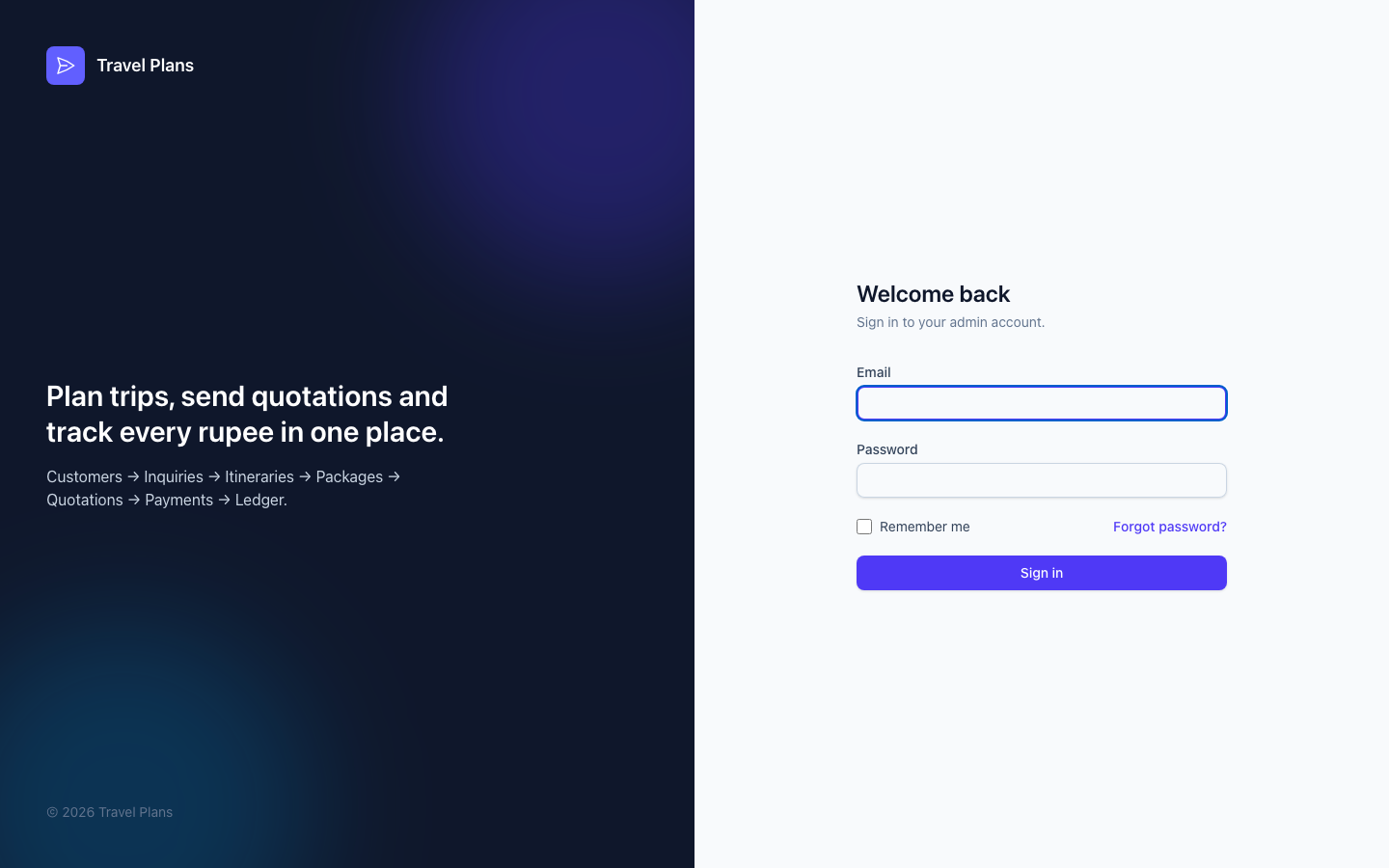
After signing in, you see the first screen you have access to, usually the Dashboard.
After 5 wrong attempts, sign-in is blocked for a short time. Wait a minute and try again, or reset your password.
Forgot your password?
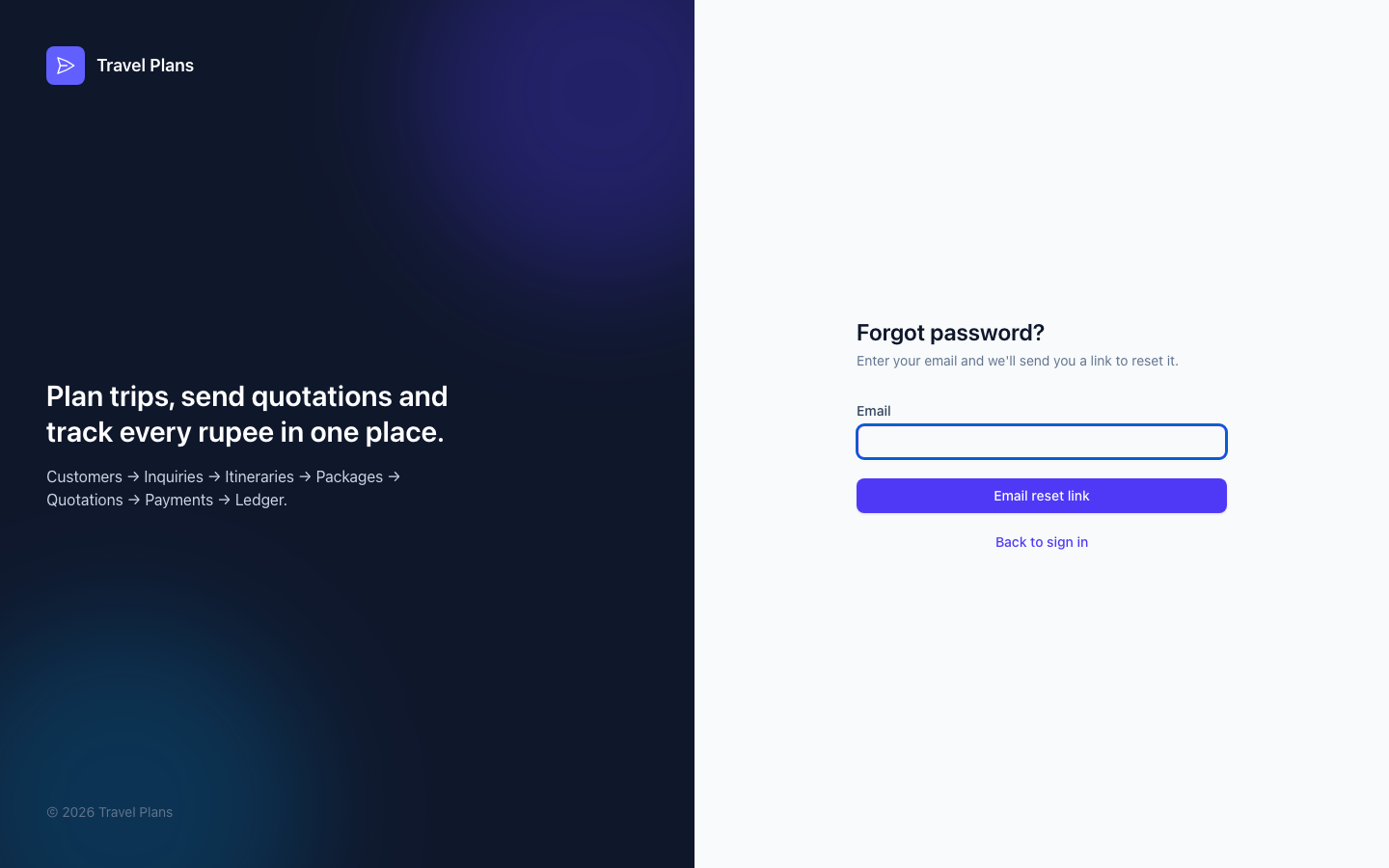
- Click Forgot password? on the sign-in screen.
- Enter your email and click Email reset link.
- Open the email and click the link.
- Enter a New password, confirm it, and click Reset password.
Use at least 8 characters, with upper- and lower-case letters and a number.
Your administrator can also set a new password for you, or send you the link. See Users.
"Your account has been disabled"
Your administrator has switched off your account. Ask them to enable it again.
Sign out
Click your name at the top right, then Sign out.