Itineraries
An itinerary is the day-by-day plan of a trip: where the customer goes, how they travel, where they stay, and what they do each day. It is the main working document of the system, and packages are built from it.
Open Sales → Itineraries in the sidebar.
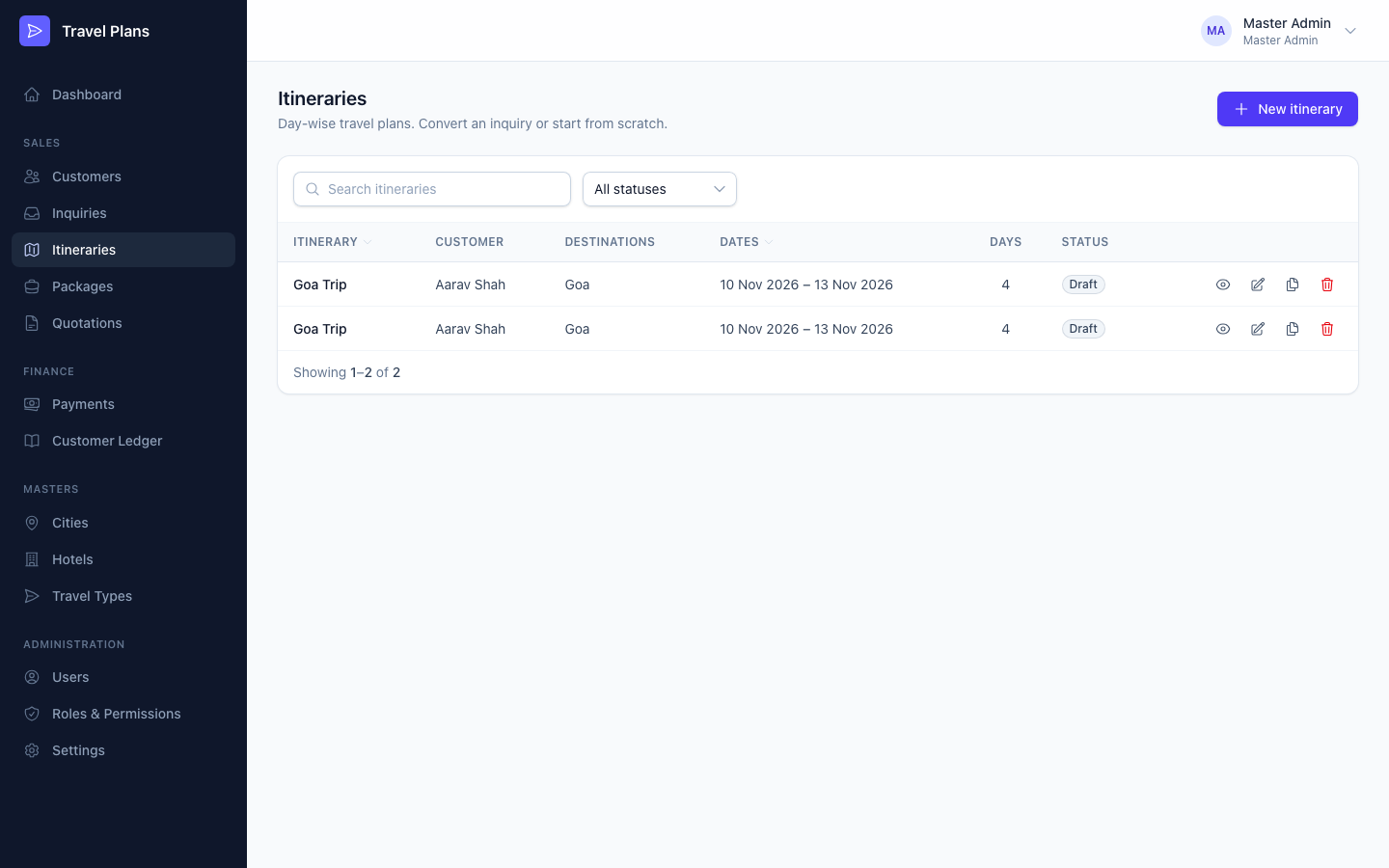
Create an itinerary
There are two ways to start:
- From an inquiry (recommended): open the inquiry and click Convert to itinerary. The customer, title, dates, travellers and notes are filled in, with one day for each travel date.
- From scratch: click New itinerary on the list.
Then fill in the three sections and click Save itinerary.
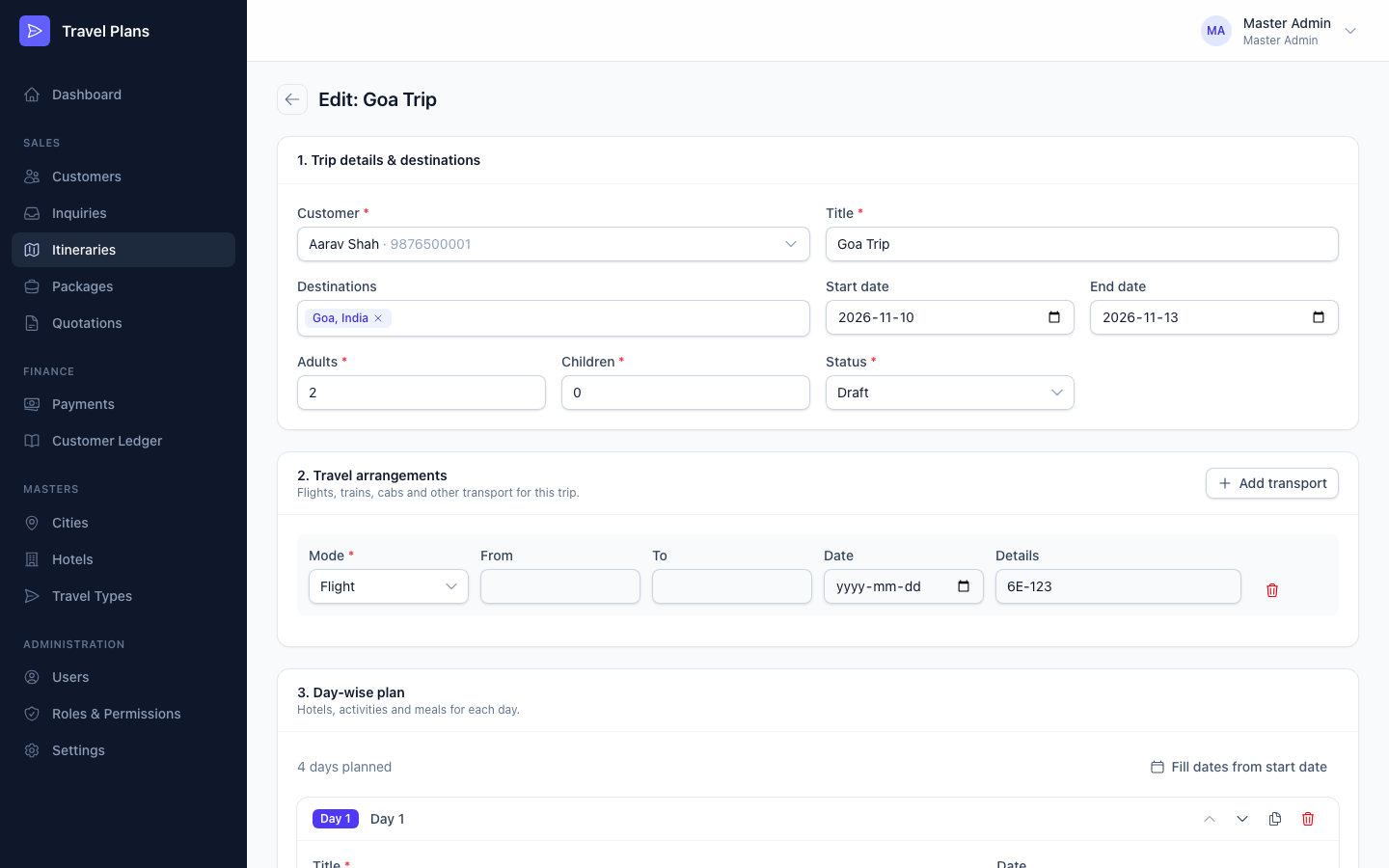
1. Trip details & destinations
| Field | Required | Notes |
|---|---|---|
| Customer | Yes | Locked when converting from an inquiry. |
| Title | Yes | For example Kerala Backwaters 5N/6D. |
| Destinations | No | Pick cities in the order the customer visits them. |
| Start date / End date | No | |
| Adults / Children | Yes | |
| Status | Yes | Draft while you work on it, Final when it is ready. |
2. Travel arrangements
Click Add transport for each flight, train, cab or other journey. Choose the Mode (from Travel Types), then add From, To, Date and Details such as flight number, PNR or timings.
3. Day-wise plan
Add as many days as the trip needs, up to 90. For each day, fill in:
- Title, for example Arrival in Kochi & transfer to Munnar
- Date and Description
- Activities: click Add activity for each one
- Hotel: if you chose destinations, only hotels in those cities are listed
- Meals: Breakfast, Lunch and/or Dinner
- Notes
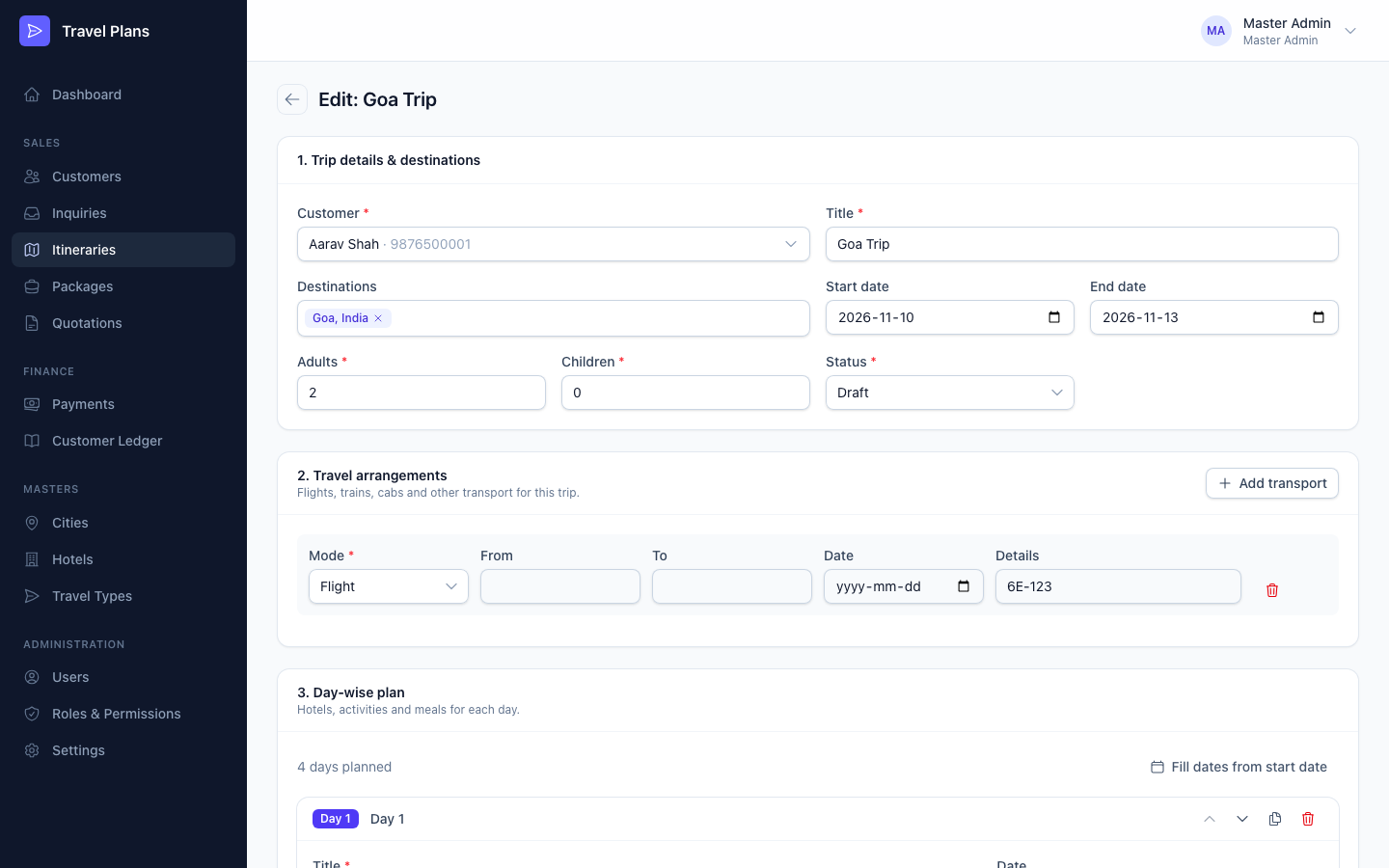
Tips for the day-wise plan
- Add day adds a new day after the last one, with the same hotel as the day before.
- Fill dates from start date dates every day in order, starting from the trip's start date.
- Use the arrows on a day to move it up or down.
- The copy icon duplicates a day just below itself.
- The trash icon removes a day. An itinerary always needs at least one.
View, print and share
Open an itinerary to see the trip overview, the full day-wise plan and the travel arrangements.
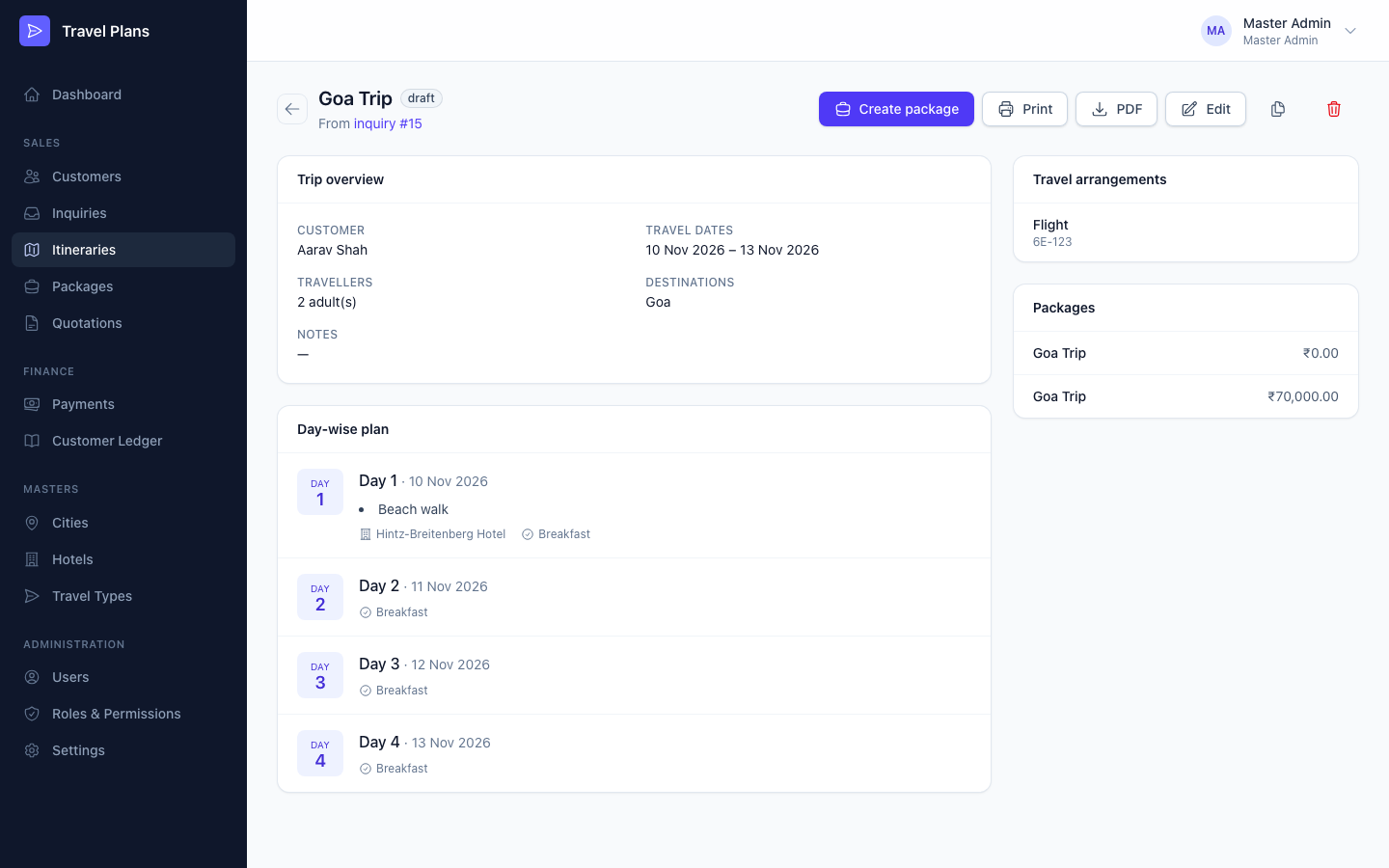
- Print opens a print-ready page in a new tab.
- PDF downloads the itinerary as a PDF to send to the customer. Your company details from Settings appear at the top.
Duplicate an itinerary
Click the copy icon on the list or the itinerary page. You get a full copy titled "… (Copy)" in Draft, and its edit page opens. Use this to offer a customer a second option or to reuse a popular trip.
Next step: create a package
When the plan is ready, click Create package to add costing and pricing. See Packages.
Edit or delete
- Click Edit to change any part of the itinerary.
- You can't delete an itinerary that has packages.