Quotations
A quotation is the price you send to the customer. It is generated from a package, so you never type the trip details twice. Add a discount and GST, share it, and click Accept when the customer agrees.
Open Sales → Quotations in the sidebar.
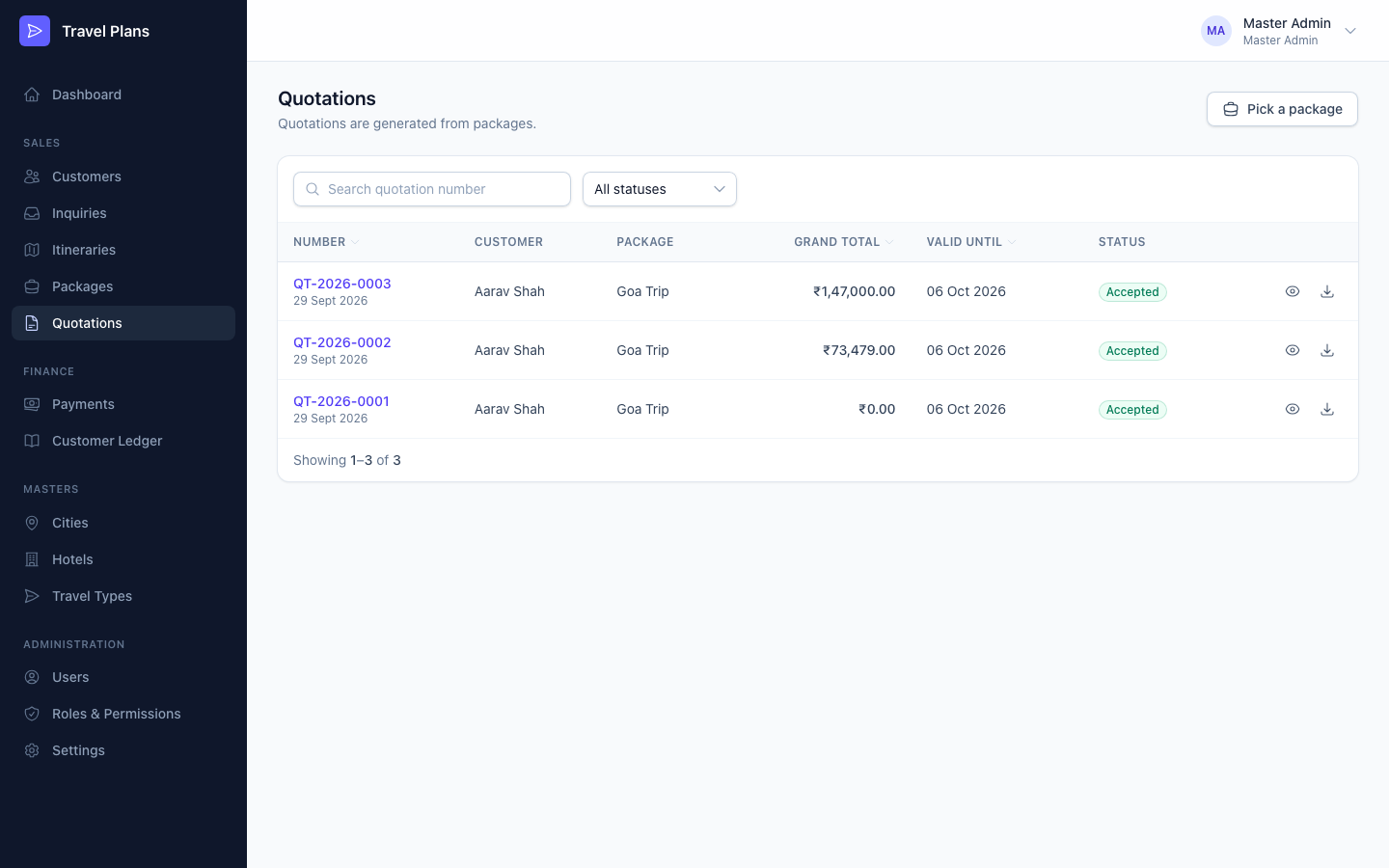
Generate a quotation
Open the package
The package must be Draft or Quotation Sent and have a selling price.
Click Generate quotation
The customer, package, destination, duration, dates and travellers are pulled from the package. To change them, edit the package.
Set the pricing
Choose a discount, check the GST and set the Valid until date. The Summary shows the grand total as you type.
Save
Click Create quotation. It is numbered automatically, for example QT-2026-0007, and starts as Draft.
Pricing fields
| Field | Notes |
|---|---|
| Discount type | Flat (₹) or Percent (%) |
| Discount | 0 by default. A percentage can't be over 100, and a flat discount can't be more than the package price. |
| Tax (GST) % | Filled in from Settings (5% by default) |
| Valid until | Today plus the validity days in Settings (7 by default) |
| Notes for customer | Shown on the quotation |
How the total is worked out
| Line | Calculation |
|---|---|
| Subtotal | The package's selling price |
| Discount | Flat amount, or Subtotal × Discount % |
| Taxable amount | Subtotal − Discount |
| Tax | Taxable amount × GST % |
| Grand total | Taxable amount + Tax |
Example: Subtotal ₹1,50,000 − Discount ₹10,000 = ₹1,40,000. GST at 5% is ₹7,000, so the Grand total is ₹1,47,000.
Share with the customer
Click Share to get a secure link. The customer can open it and download the PDF without logging in.
- Copy puts the link on your clipboard.
- WhatsApp opens a chat with the customer's phone number and a ready-made message.
- Email opens your email app with the subject and message filled in.
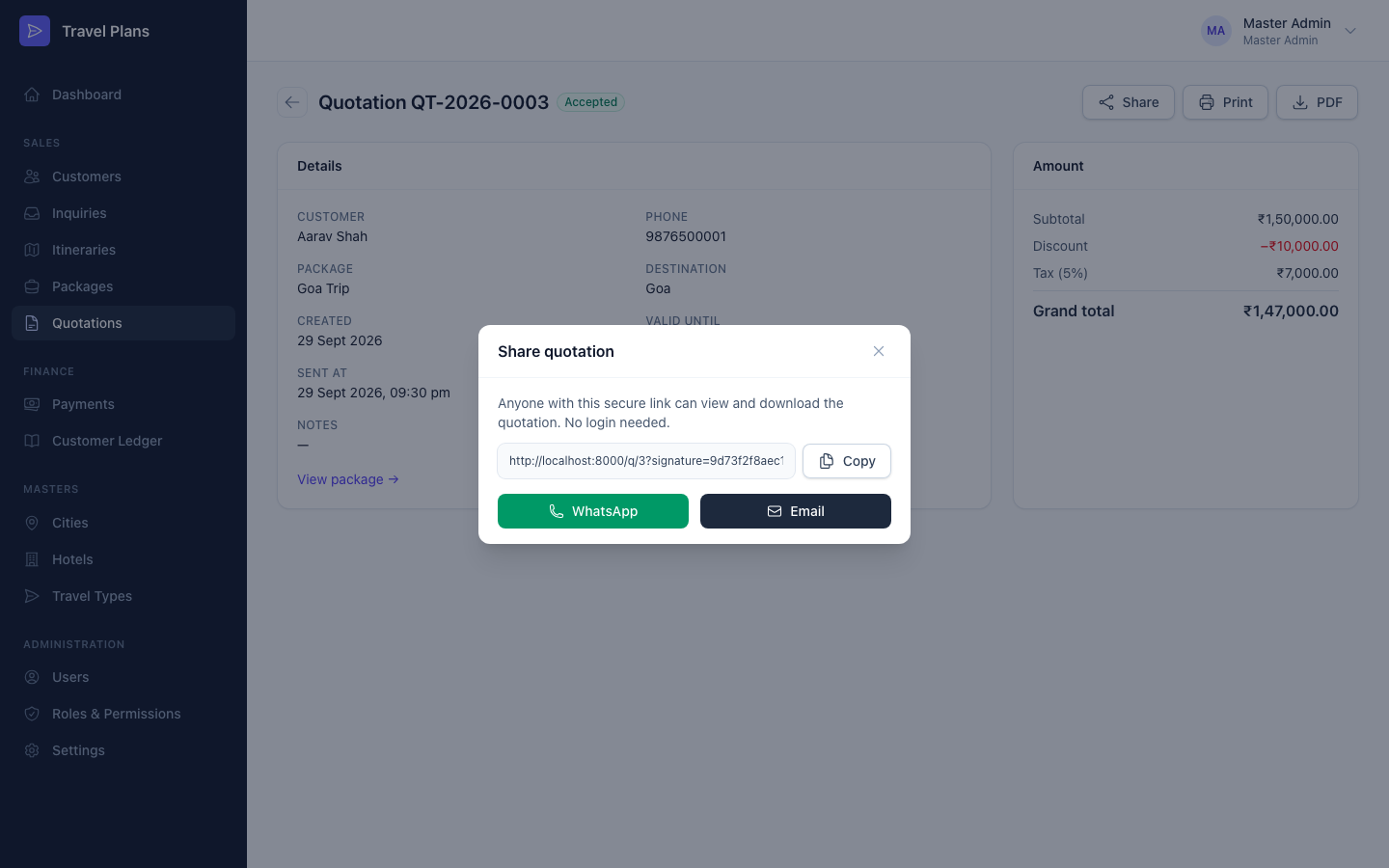
You can also click Print, or PDF to download the quotation. Your company name, address and GSTIN from Settings appear at the top.
Sharing doesn't change the status. After you send it, click Mark as sent.
Statuses and actions
| Status | Meaning |
|---|---|
| Draft | Created, not yet sent |
| Sent | Sent to the customer |
| Accepted | The customer agreed. The booking is confirmed. |
| Rejected | The customer declined, or another quotation was accepted |
| Button | What it does |
|---|---|
| Mark as sent | Status becomes Sent. The package moves to Quotation Sent, and so does the inquiry. |
| Accept | Confirms the booking. See below. |
| Reject | Status becomes Rejected. The package and inquiry don't change. |
| Edit | Change the pricing. Draft and Sent quotations only. |
Accepting a quotation
When the customer agrees, open the quotation and click Accept. In one step:
- The quotation becomes Accepted.
- Any other Draft or Sent quotations for the same package are rejected automatically.
- The package becomes Confirmed and can no longer be edited.
- The grand total is billed to the customer's ledger, and their outstanding balance goes up.
- The original inquiry moves to Confirmed.
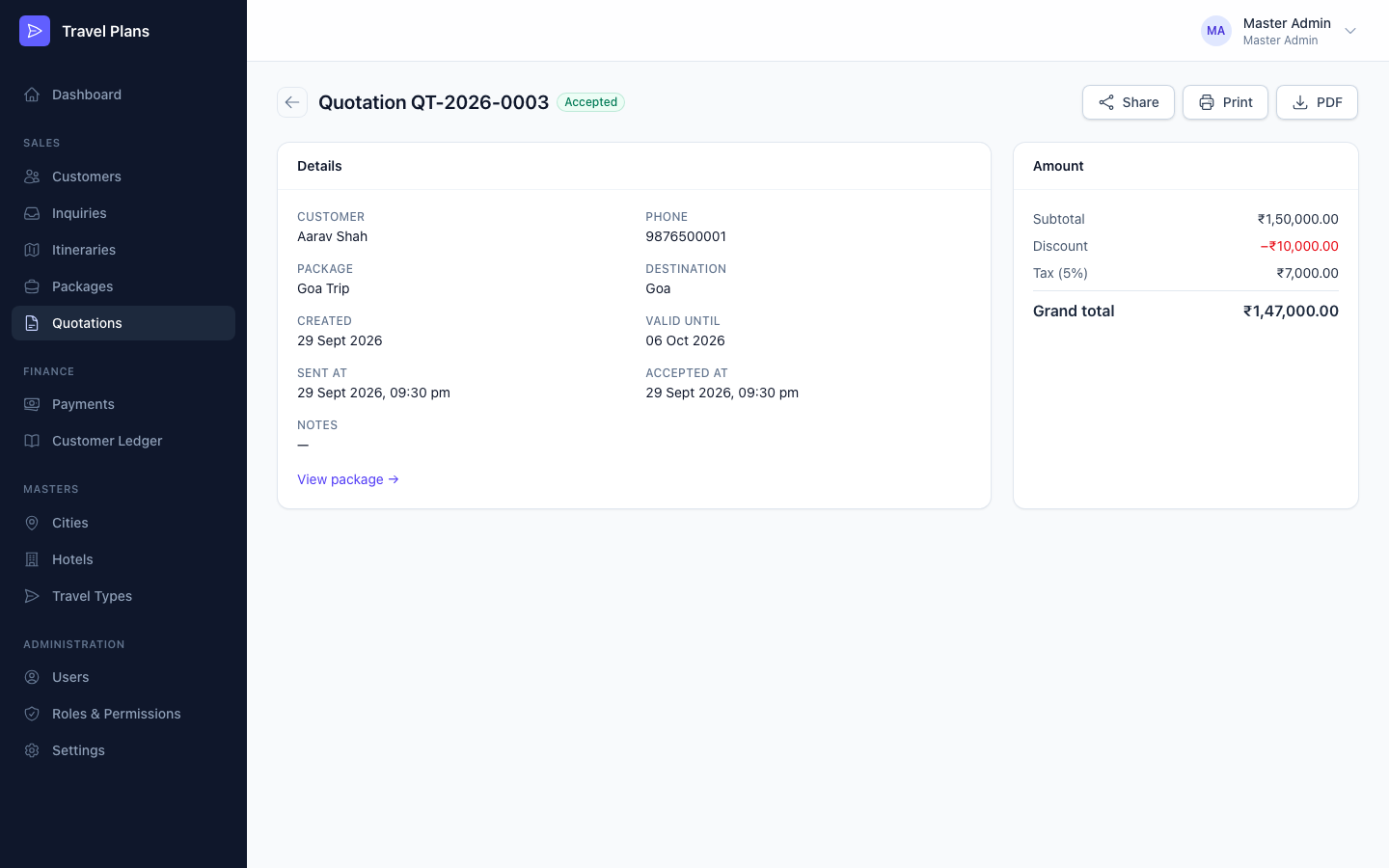
Accepting can't be undone
An accepted quotation can't be edited, rejected or deleted, and its ledger entry stays. Check the amount with the customer before you accept.
Now you can collect payments. See Payments.
Tips
- A package can have several quotations, for example with different discounts. Only one can be accepted.
- The system doesn't stop you accepting a quotation after its Valid until date. Check the date yourself.
- If you change the package's selling price, the quotation's subtotal updates the next time you edit and save the quotation.