Getting Started
SmartWorkForce is a comprehensive platform designed to manage and streamline workplace operations for both administrators and employees. Admins have the ability to assign projects to employees, who can access all relevant information and track their progress until completion. The system includes a dynamic salary generation feature, where the admin calculates employee salaries based on check-in and check-out times, along with an integrated attendance system. Admins can also send employment letters to employees dynamically and make important announcements, including file attachments. The project management system tracks tasks, sprints, task types, and project statuses, providing a clear board view for employees and admins. Additionally, employees can manage sticky notes, check out, and review their attendance history with detailed timestamps.
Requirements
PHP Version
SmartWorkForce System minimum required PHP version: >= 8.0.
MySQL Version
SmartWorkForce System MySQL version : >= 5.7
Recommended MySQL version >= 8.3
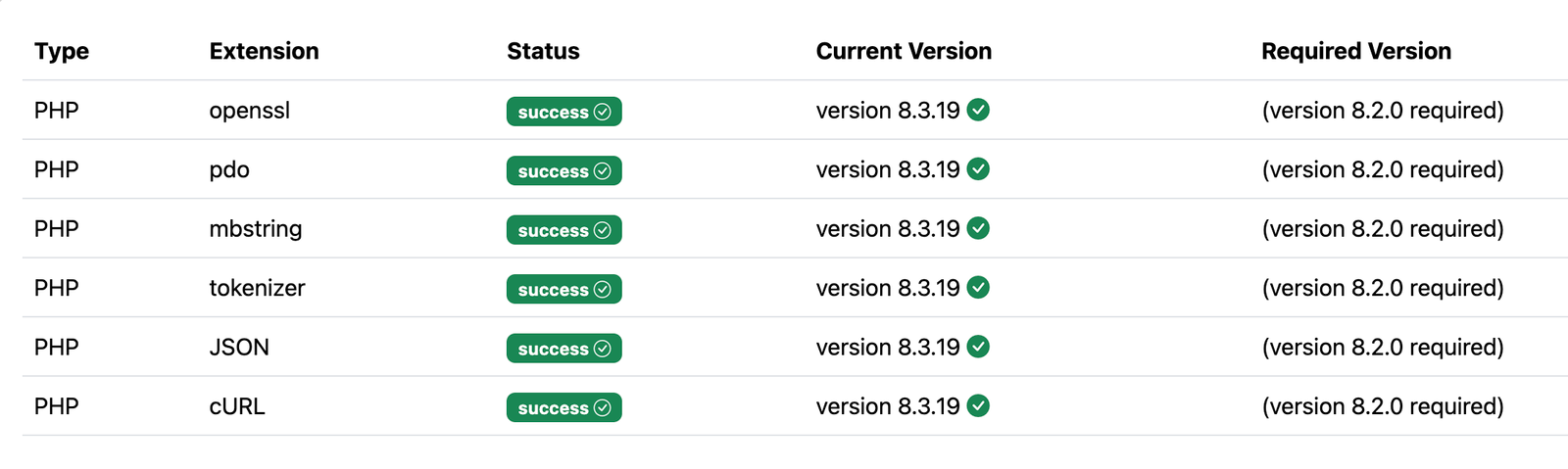
Required Extension
Memory Limit
SmartWorkForce System requires at least 128 MB PHP memory limit.
Browser Support
- Google Chrome
- Safari
- Microsoft Edge
- Mozilla Firefox
Domain Name
To install the SmartWorkForce System, your server must have a domain name. You won’t be able to access the system using just the server's IP address – it must be accessed through the domain name.
SmartWorkForce Installation Guide
SmartWorkForce comes with a user-friendly web installer that helps you set up the system in just a few steps without needing to modify any code or files.
Important:
-
Since the SmartWorkForce is built using Laravel, it requires the root of SmartWorkForce to be placed in the root directory for proper installation.
Note: Before you begin the installation, please ensure you’ve checked the requirements page to confirm your system meets the necessary prerequisites.
Installation Video Tutorials
To make the process easier, we’ve created an installation video specifically for Hostinger hosting. Watch the video tutorials to become familiar with the steps and see just how easy it is to install the SmartWorkForce.
Note: While the steps shown in the video are tailored for Hostinger, other shared hosting servers may have slight differences in configuration. However, the general process and steps will remain the same across most hosting environments.
Installation Step 1 : Create Sub Domain
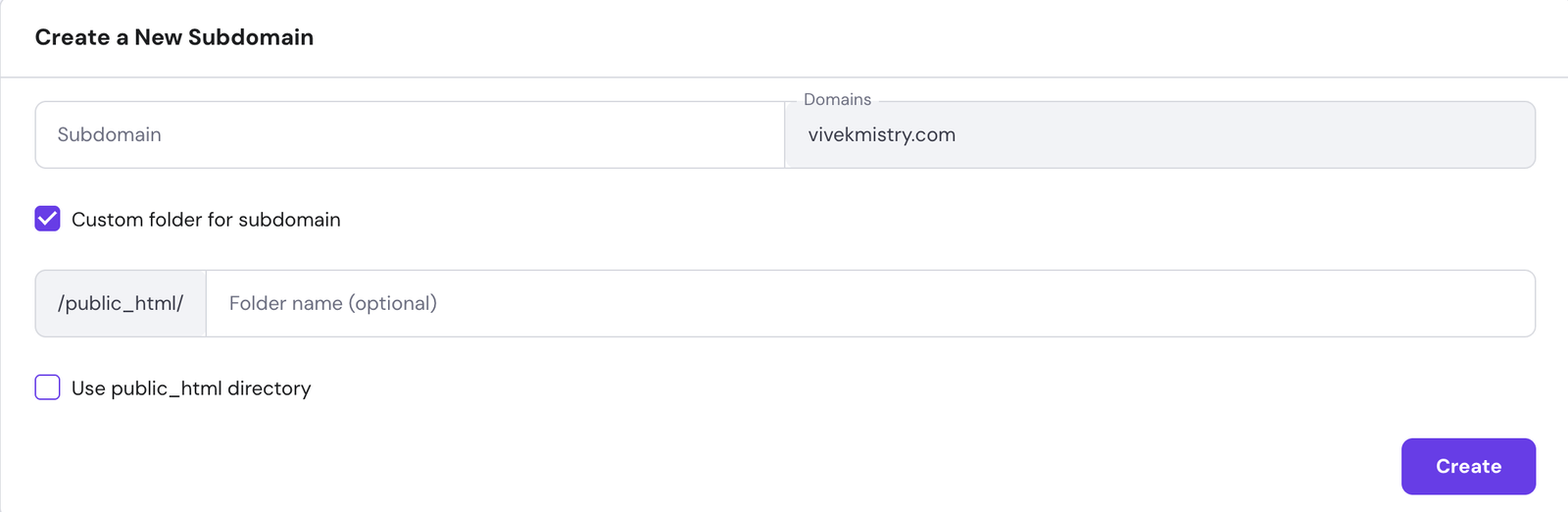
You will need to create a subdomain for your installation, for example,
You have two options for hosting your SmartWorkForce installation:
-
Hosting on the Main Domain: If you choose to host the system on the main domain, ensure that you upload the files into the public_html directory (or equivalent, depending on your hosting provider).
-
Hosting on a Subdomain: If you opt for a subdomain, first make sure to verify the subdomain's directory path. Afterward, upload the files into the corresponding subdomain directory.
NOTE : Always double-check the directory path to ensure the system is installed correctly.
Installation Step 2 : Upload Zip
In the above video, we have provided a demo for uploading the SmartWorkForce zip file.
If you are hosting on the main domain, you need to upload the zip file into the public_html directory (or the root directory for your hosting).
If you are hosting on a subdomain, upload the zip file into the subdomain's directory.
In the demo, we have uploaded the files to the public_html/demo-smartworkforce directory. This serves as an example, but you should upload the zip file according to your specific domain or subdomain directory structure.
Installation Step 3 : Create A Database
The next step is to create a new database for your SmartWorkForce installation.
- Log in to your Hostinger Panel.
- Navigate to the "Manage Database" section.
-
Create a New Database:
- Click on "Create New Database" and fill in the required fields.
-
Important: Remember the following details for
later use:
- Database Name
- Username
- Password
These details will be necessary for the installation process.
Installation Step 4 : Perform Install
After completing the previous steps, go ahead and hit your domain:
- Main Domain: www.yourdomain.com
- Subdomain: subdomain.yourdomain.com
1. Requirements Form:
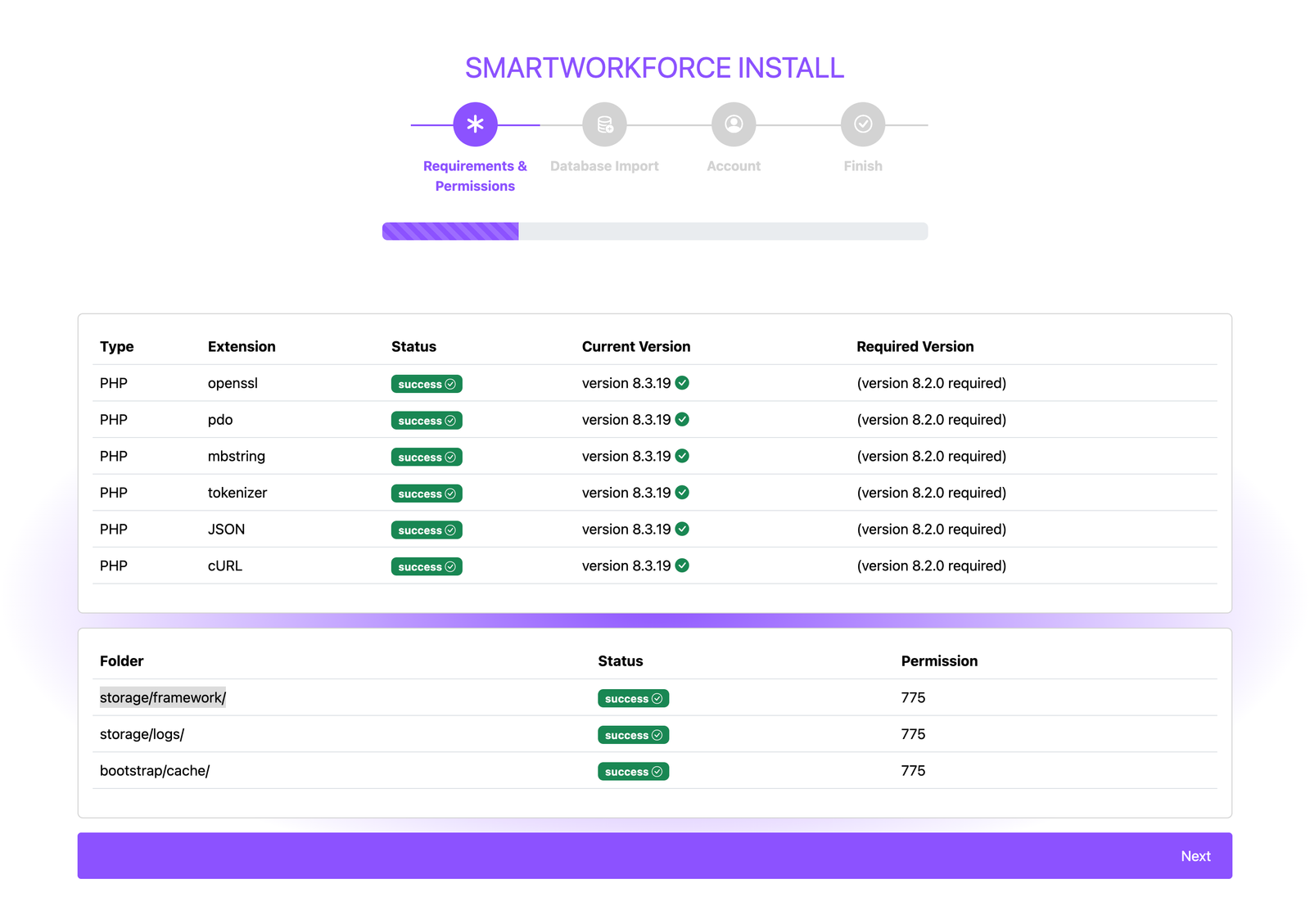
Upon visiting the URL, the installer will check your server for necessary requirements. If any required extensions are missing on your server, the installer will notify you. In that case, you can enable the necessary PHP extensions from your hosting panel to proceed.
File Permissions:
As shown in the video, some directories may not have the proper permissions by default. If directories like the following don't have 775 permissions, the installation won't proceed correctly:
- storage/logs/
- storage/framework/
- bootstrap/cache/
You will need to manually set these permissions, as shown in the video, to allow the system to function properly.
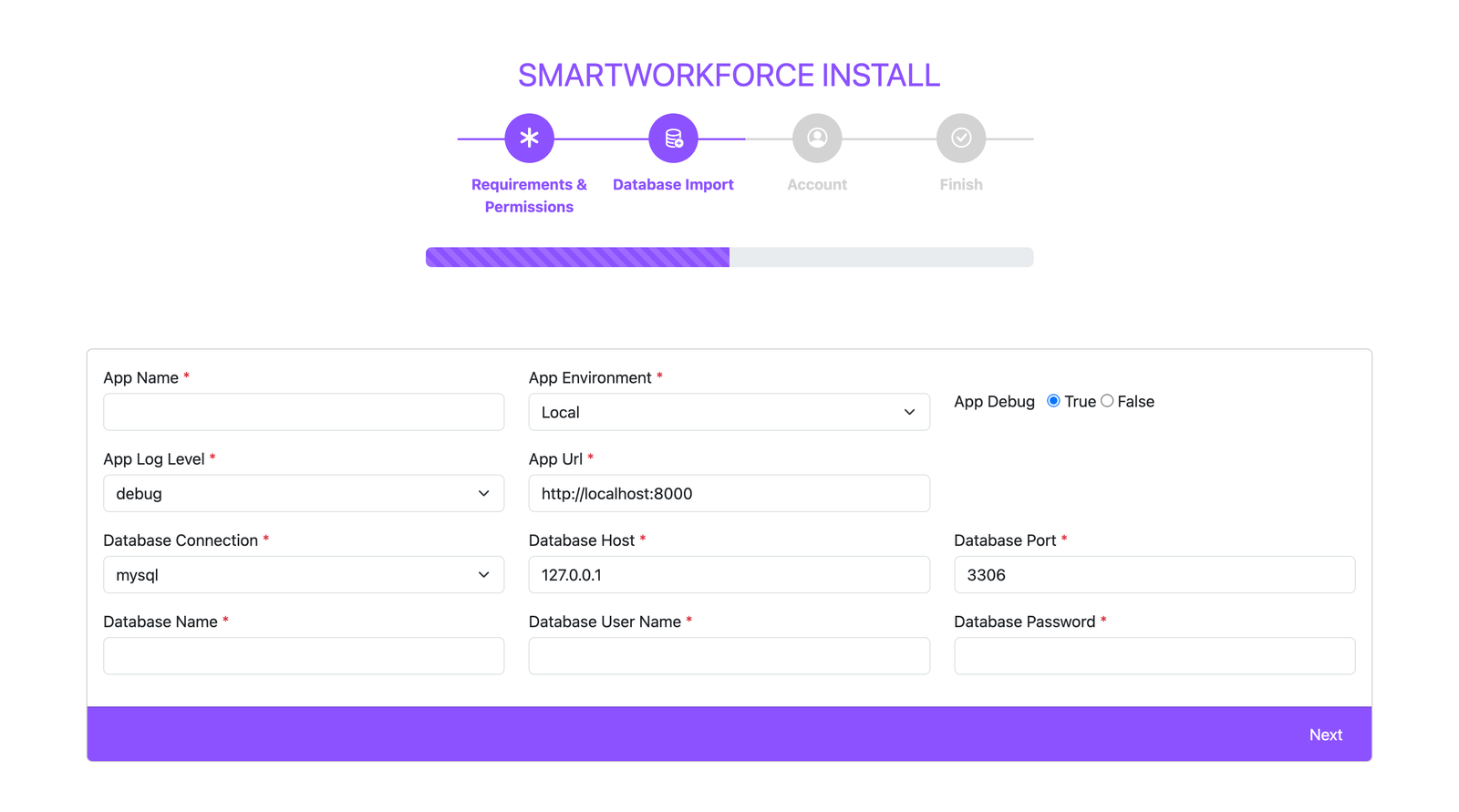
2. Database Import
In this step, you'll configure the application settings:
- App Name: Enter the name of your application.
-
App Environment: Choose the appropriate environment (e.g., "Production"
or "Local").
Suggestion: If you are in production, select No for "Debug Mode."
- App URL: The system will default to the URL where you installed it, but if it's incorrect, you can manually set it here.
- Set the Connection Type to MySQL.
- The Database Host will generally be 127.0.0.1 (default on most servers), but if your host differs, make sure to adjust it.
- The Database Port is typically 3306, but again, adjust if your server uses a different port.
-
Enter the following information you configured earlier:
- Database Username
- Database Password
- Database Name
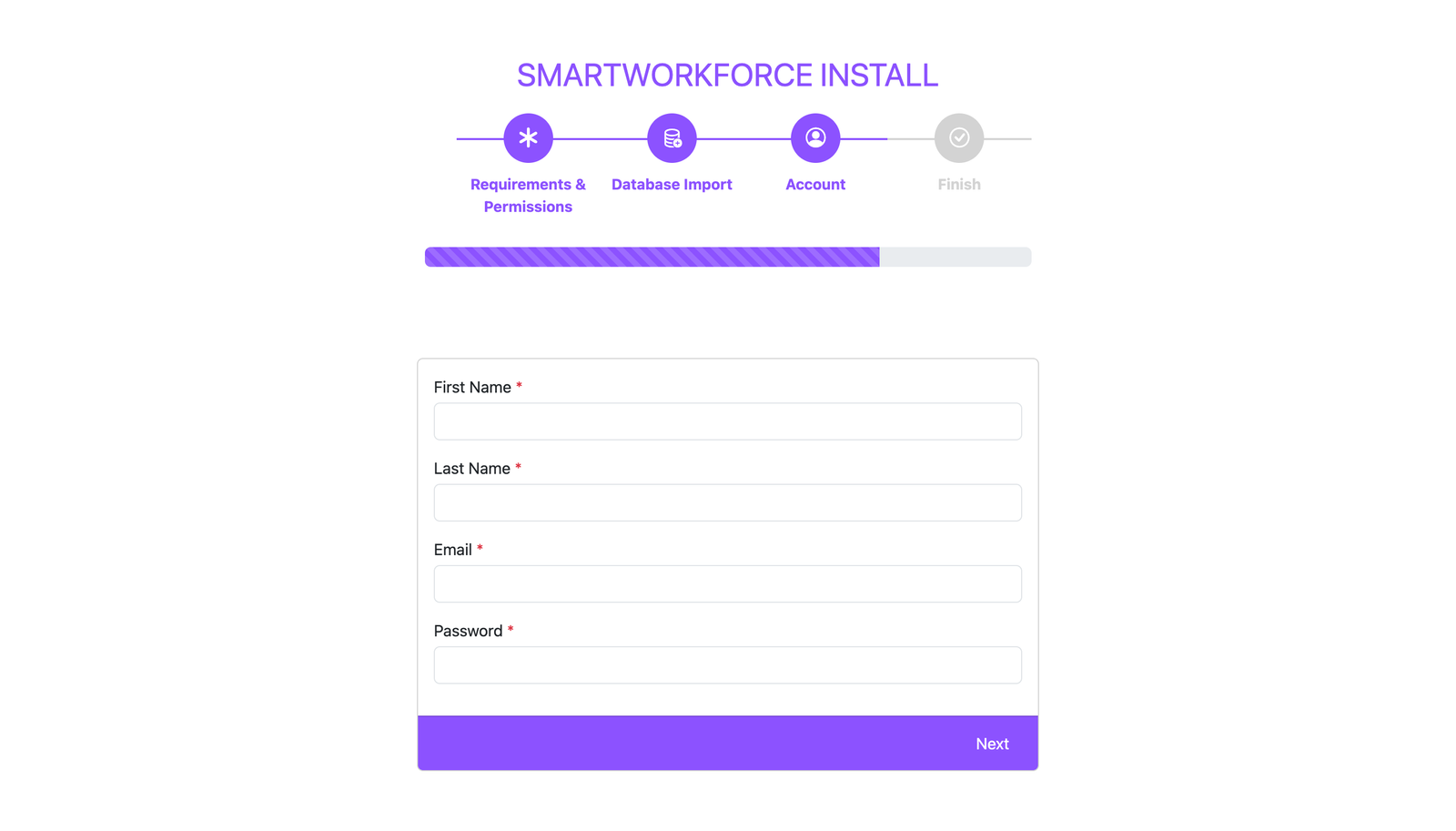
3. Create Admin Account
Next, you will need to create a super admin account to manage the system.
- First Name
- Last Name
- Password
Installation Step Finish
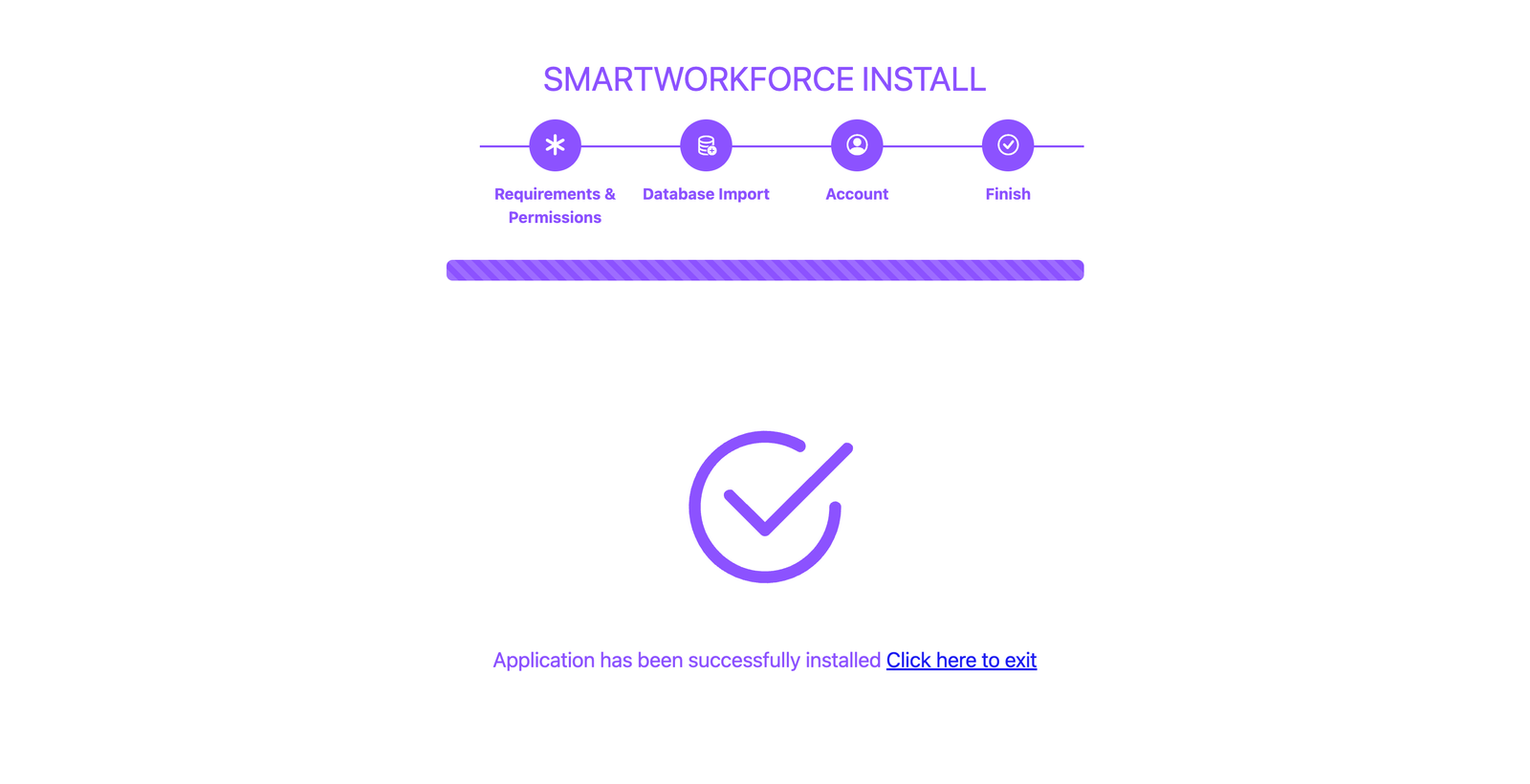
Once all steps are completed, you’ll see a “Finish” screen confirming that your configuration is set up. Now, you can access the SmartWorkForce System and begin managing your projects, attendance, and employee data.
Updating to New Version
- Download the latest version from your CodeCanyon Account.
- Double click the downloaded file to extract it.
- Copy smart-work-force.zip file to the root of your server (same place where files were uploaded during installation).
- Delete "vendor" directory from your server (So there are no old unused files left from previous versions).
- Extract the smart-work-force.zip file into the root directory to "new" folder.
-
Select All File and folder except .env and move to run directory
Important : Do not move .env file
- "Login" with your admin credentials and it will hardly redirect you to change logs. Verify your logs and click on Install Your Release.
If you've still doubt follow this steps in given the video.
Admin Features
Admin have all the rights throughtout the whole system information to access
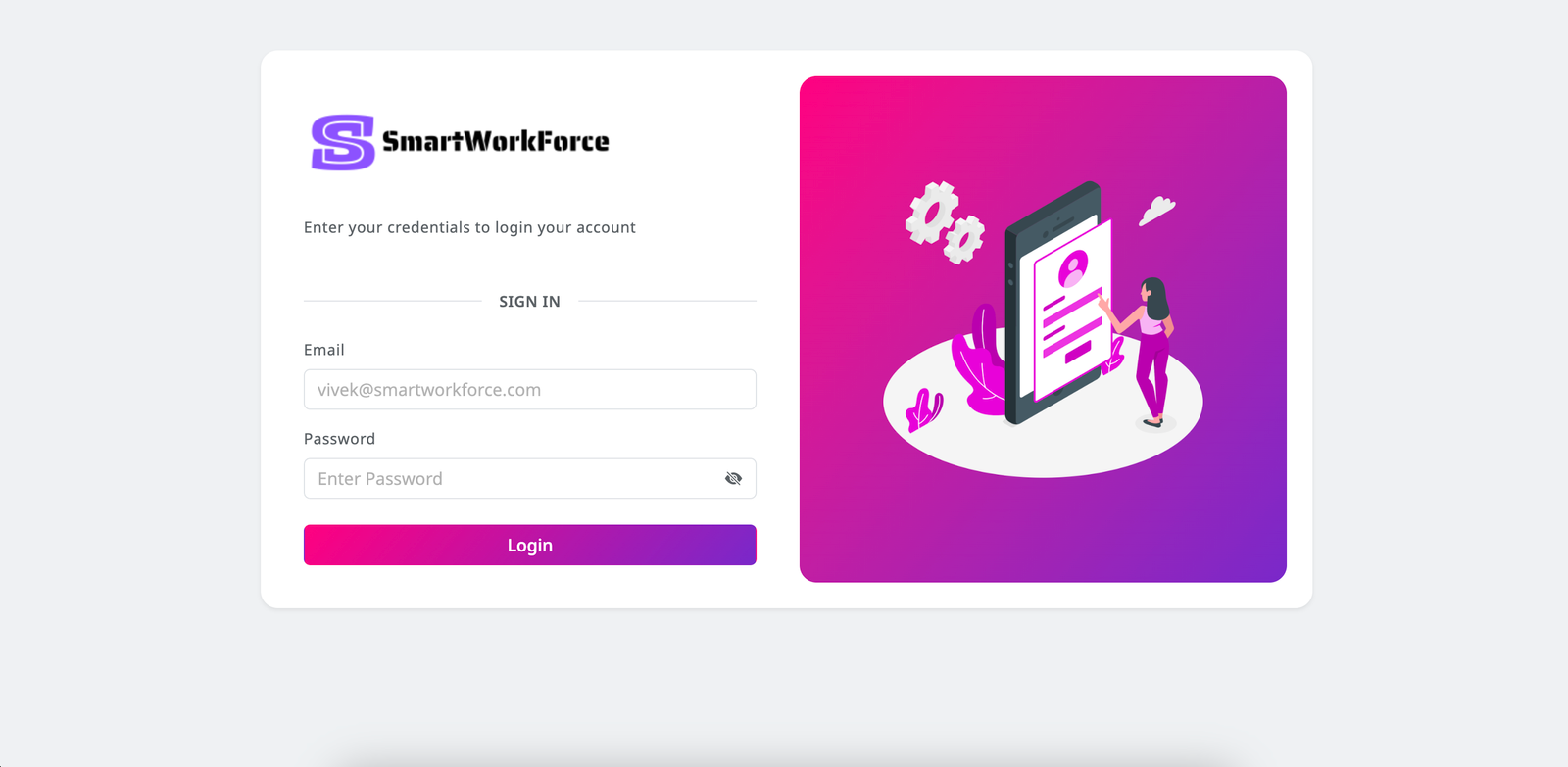
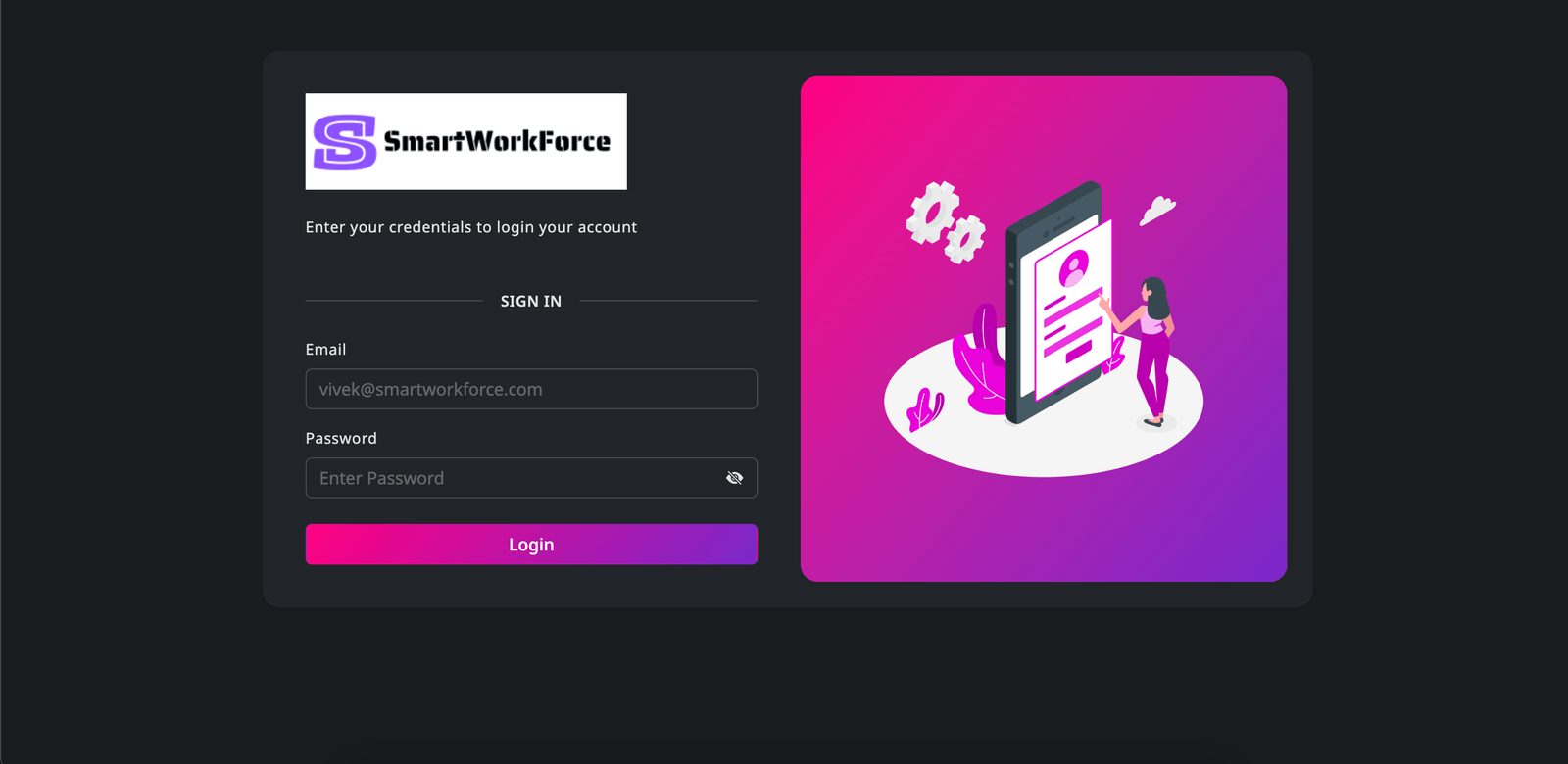
Authentication
This is a basic authentication page where the admin can log in. It includes a login form for secure access. Validation is also implemented to ensure correct credentials are entered.
Dashboard
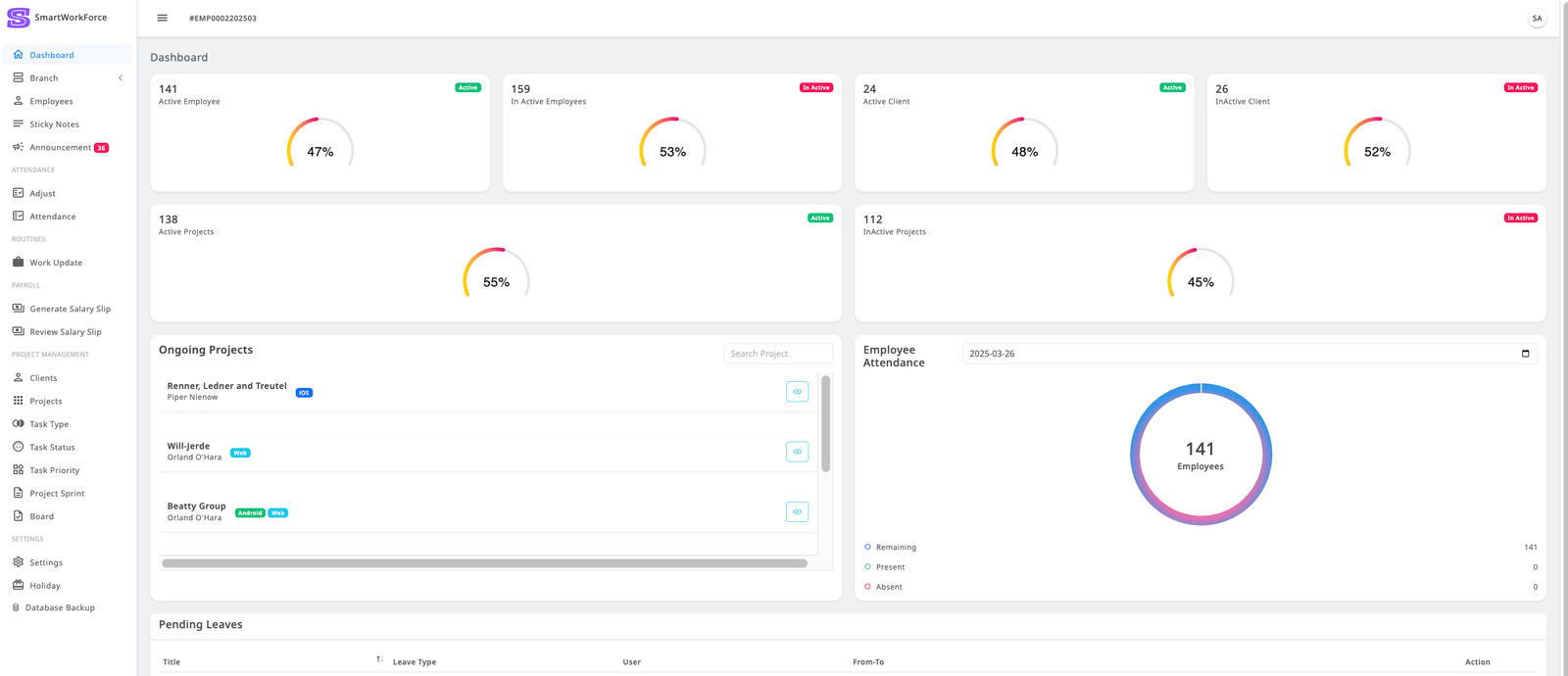
The SmartWorkForce dashboard provides admins with a comprehensive overview of key system metrics and employee activities. Key features include:
-
Project and Client Overview : Admins can view the number of active and inactive projects, clients, and employees.
-
Ongoing Projects : A detailed list of ongoing projects, including their status and other relevant details.
-
Attendance Tracking : A visual attendance diagram displays the number of present and absent employees, as well as whether attendance has been taken for the day.
-
Leave Management: Admins can view a list of employees who have applied for leave and have the ability to accept or reject those requests.
Branch : Department
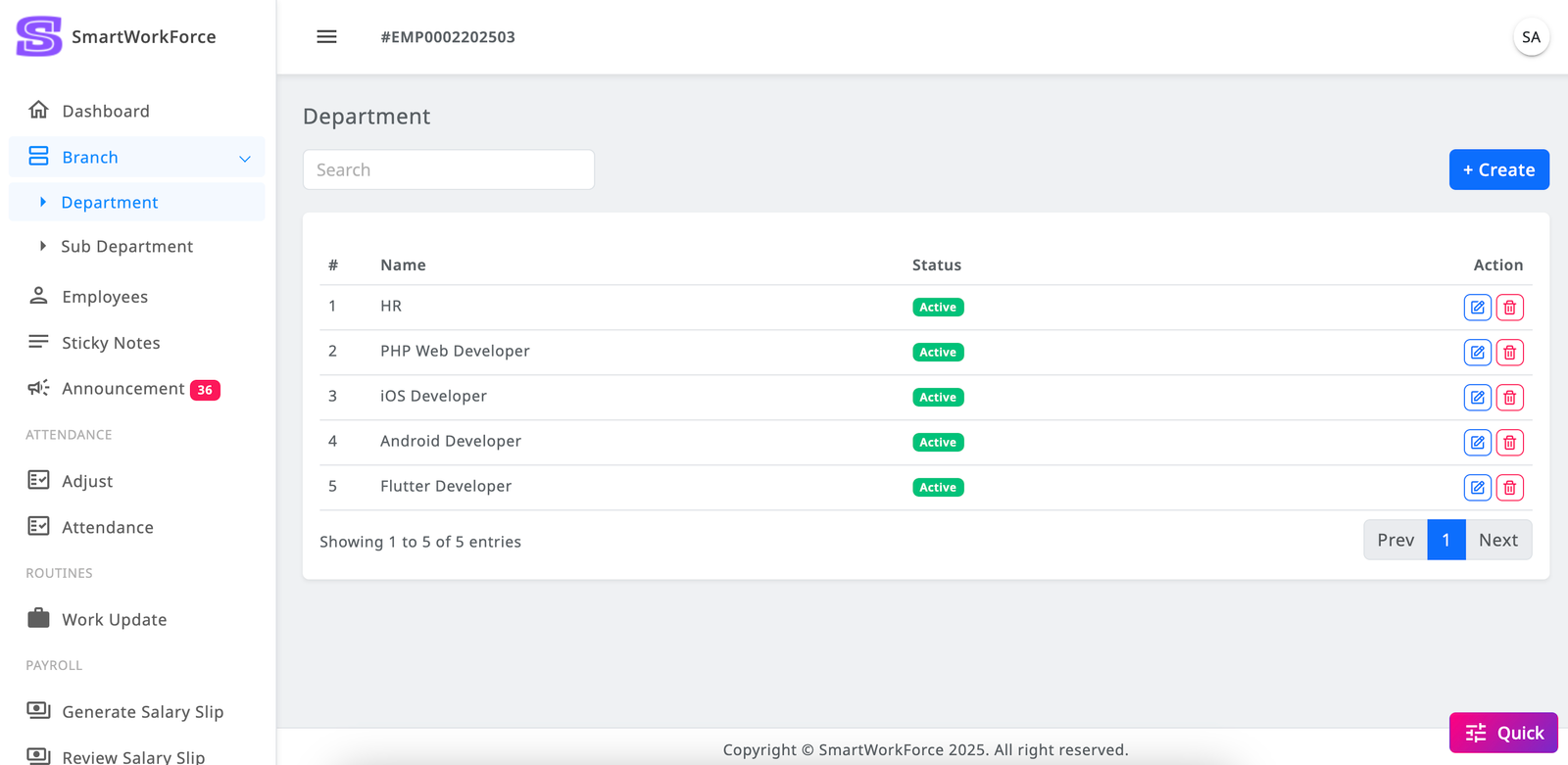
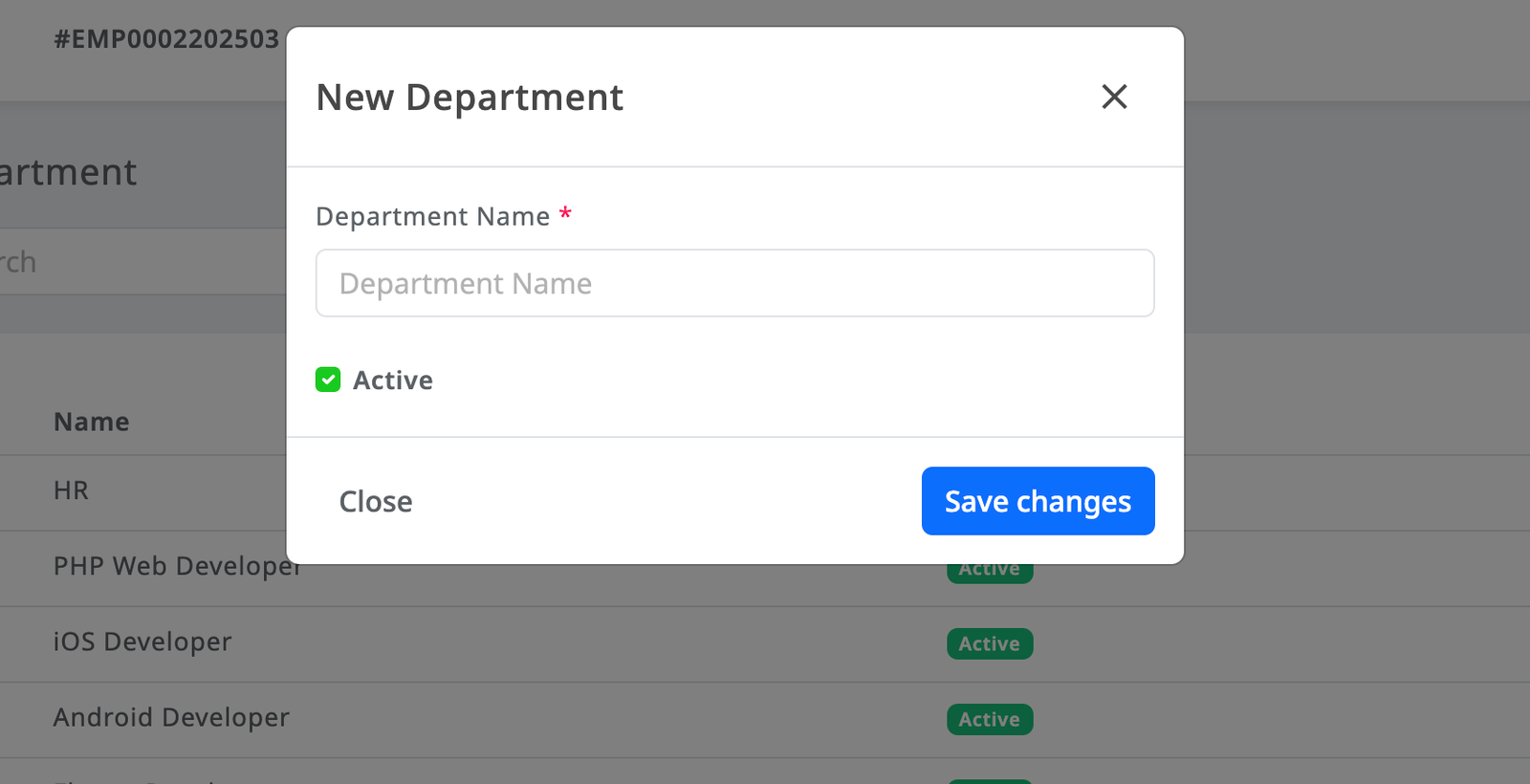
SmartWorkForce admin has the ability to create new department within the system.
They can also view a list of existing department and manage them by editing or updating department details. Additionally, the admin can mark department as active or inactive, providing full control over department management within the platform.
Branch : Sub Department
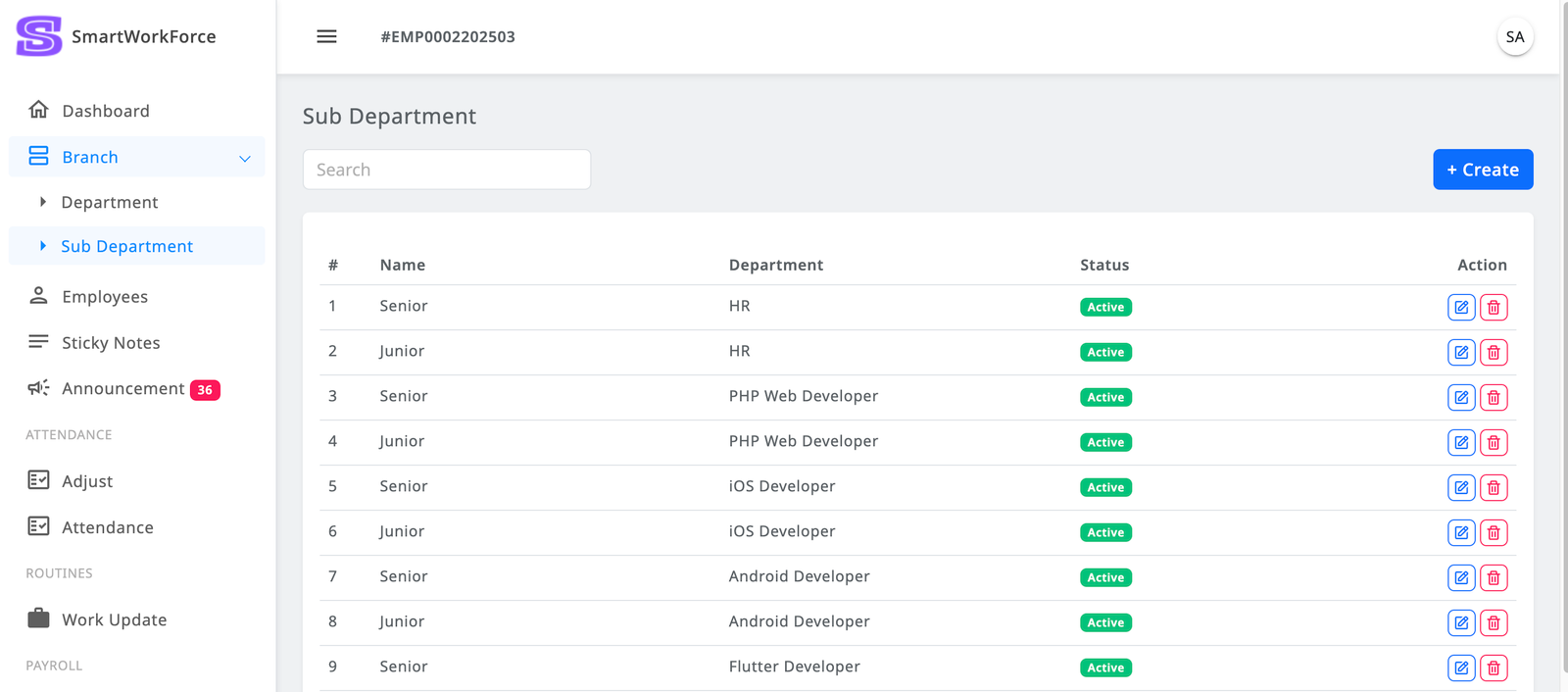
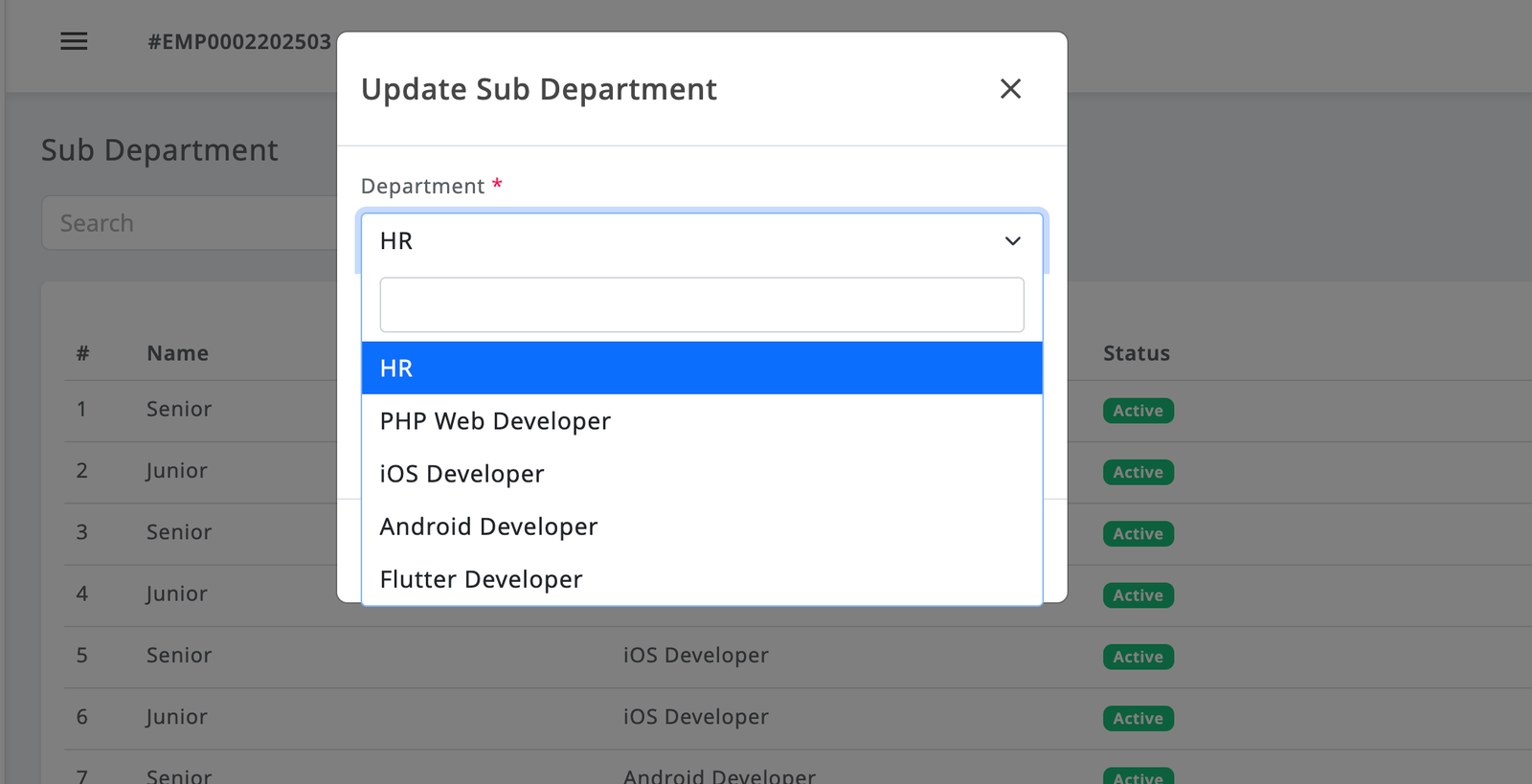
SmartWorkForce admin has the ability to create new sub department within the system.
They can also view a list of existing sub department and manage them by editing or updating sub department details. Additionally, the admin can mark sub department as active or inactive, providing full control over sub department management within the platform.
Employees
The Employee Module in SmartWorkForce provides admins with a comprehensive set of features to manage employee information effectively. Key functionalities include:
Employee List Management: Admins can view a complete list of employees, with the ability to mark them as active or inactive as needed.
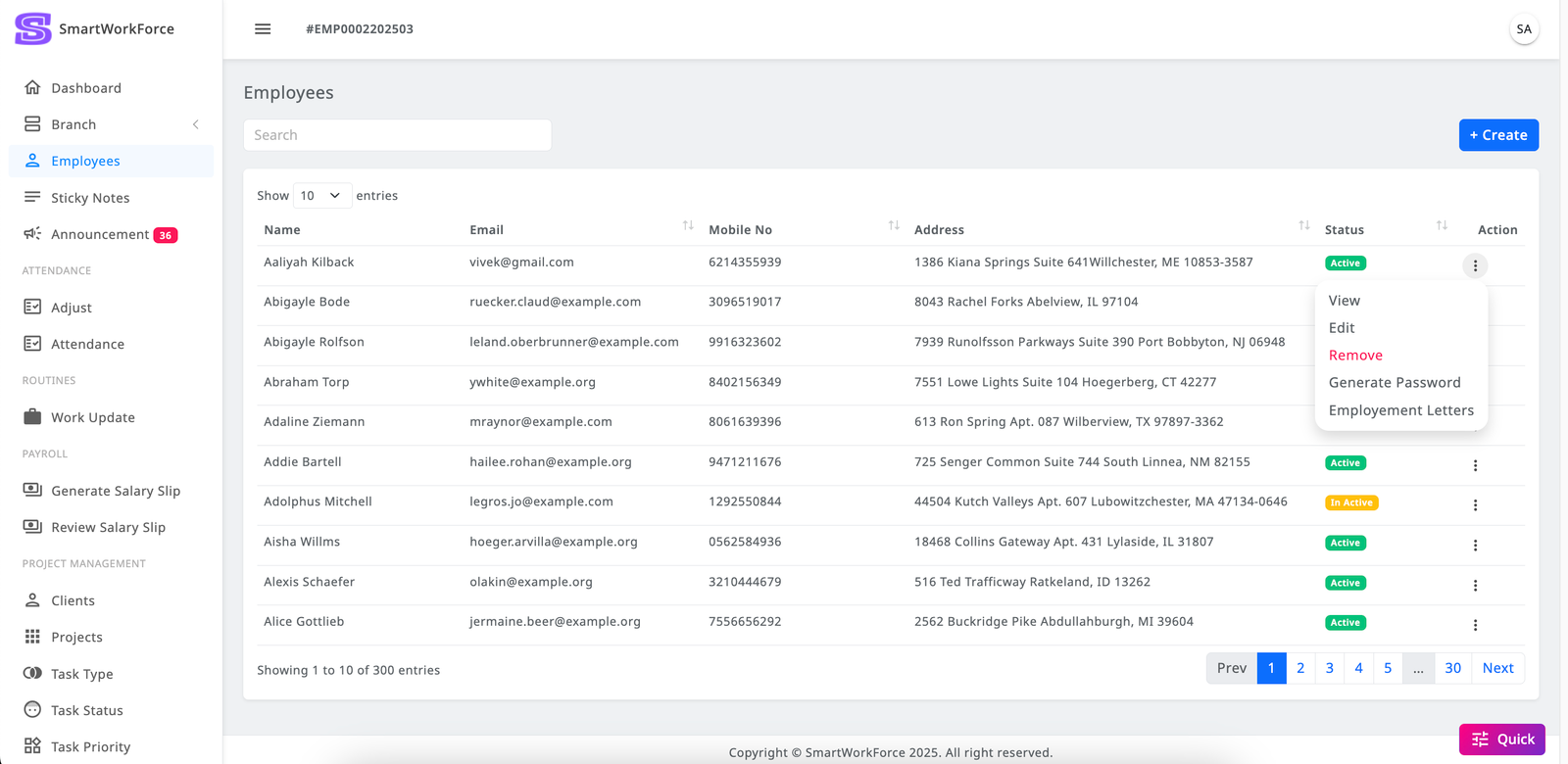
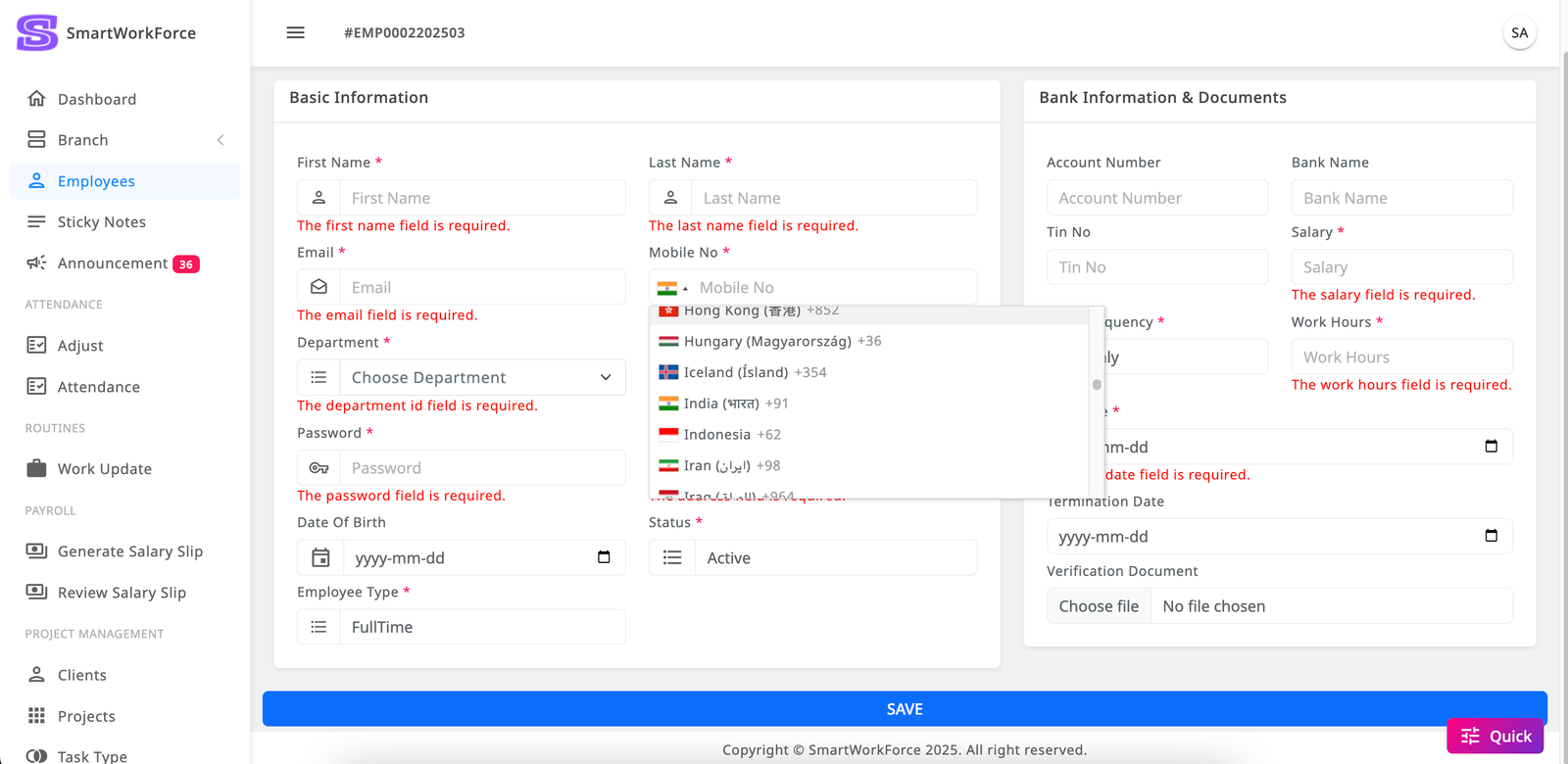
Add and Edit Employees: Admins can create new employee profiles and update existing ones with the necessary information.
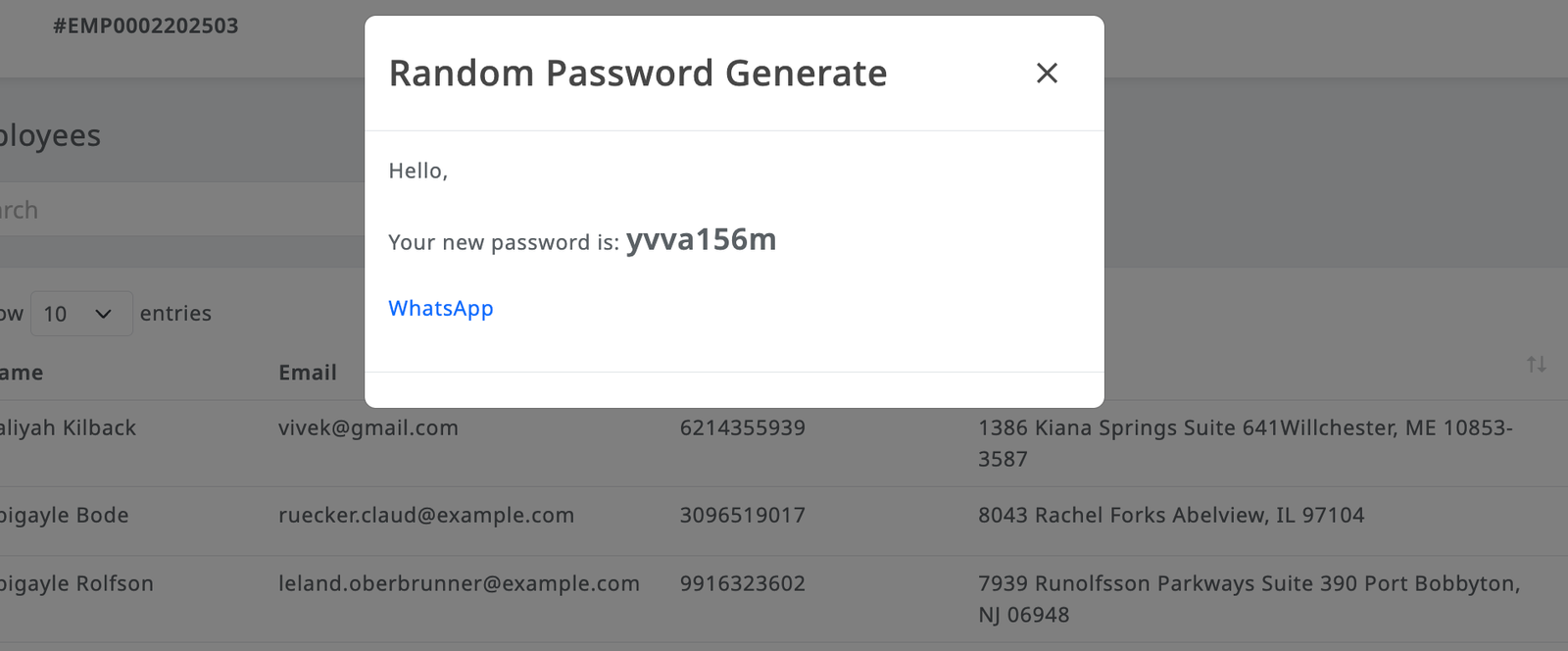
Random Password Management: Admins have the ability to regenerate an employee's password and send the new credentials directly to the employee via WhatsApp.
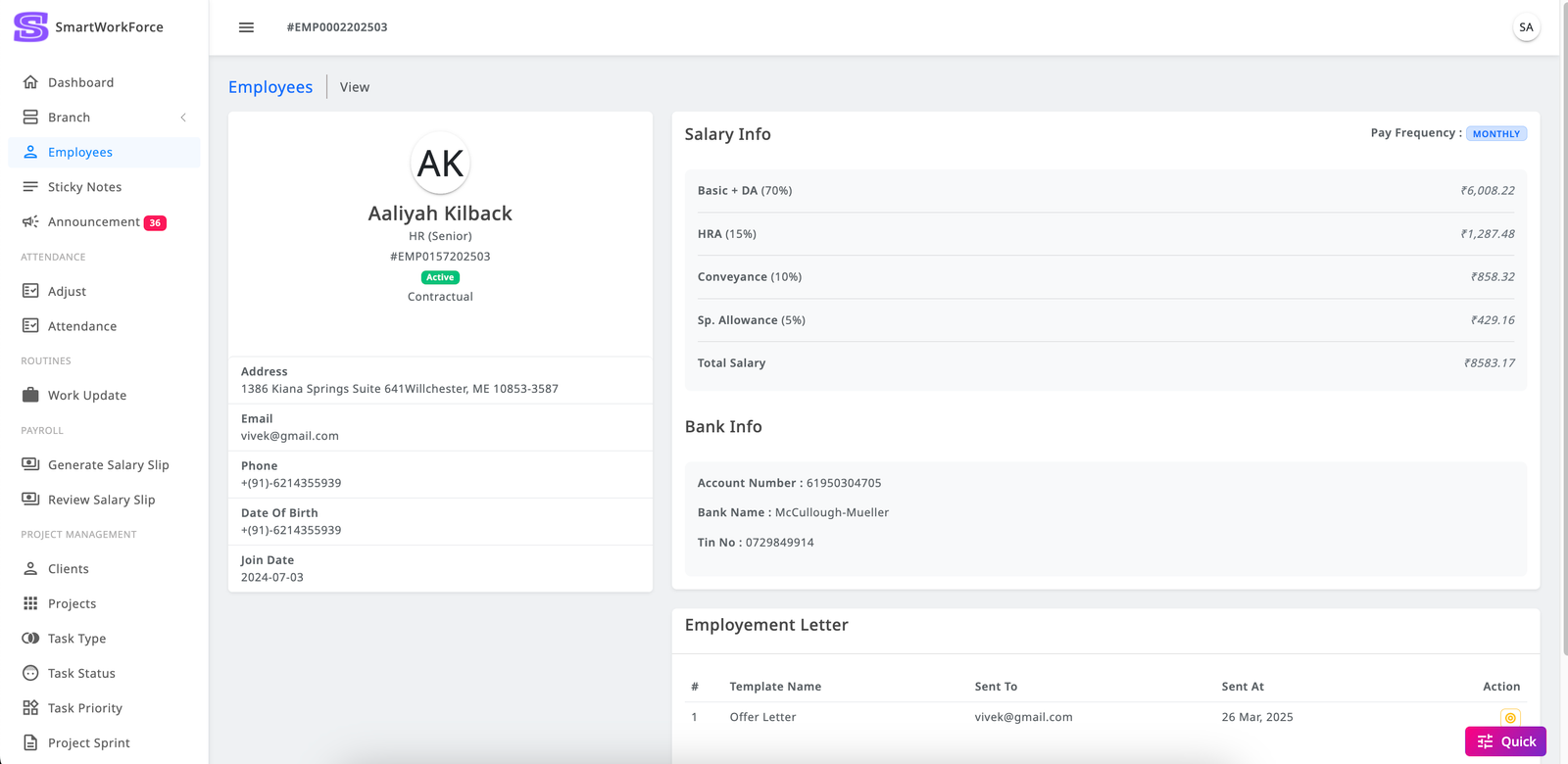
Employee Details: Admins can access detailed information about each employee, including personal, job-related, and contact details.
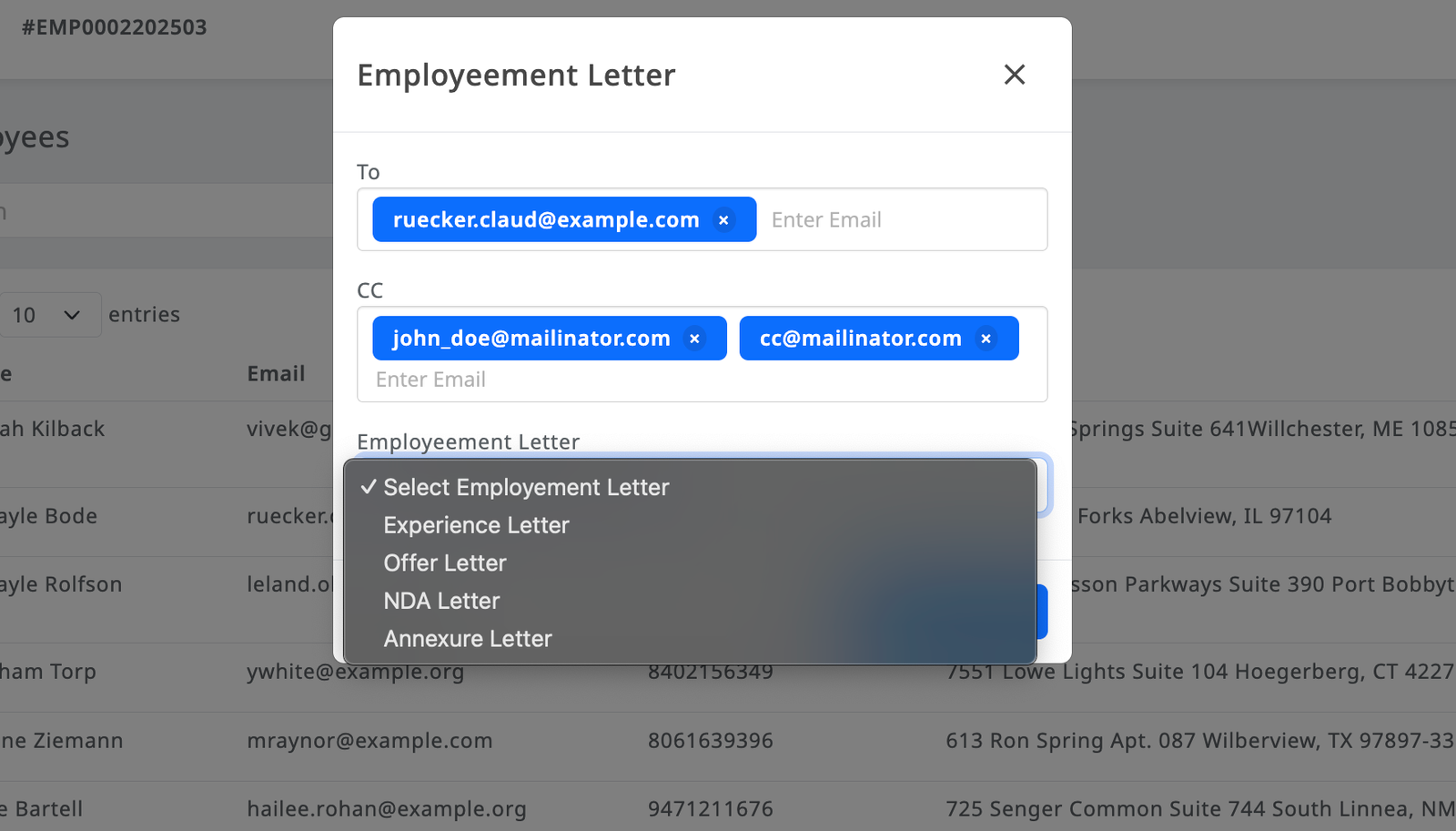
Employment Letter: The system allows admins to send employment letters to employees directly from the platform.
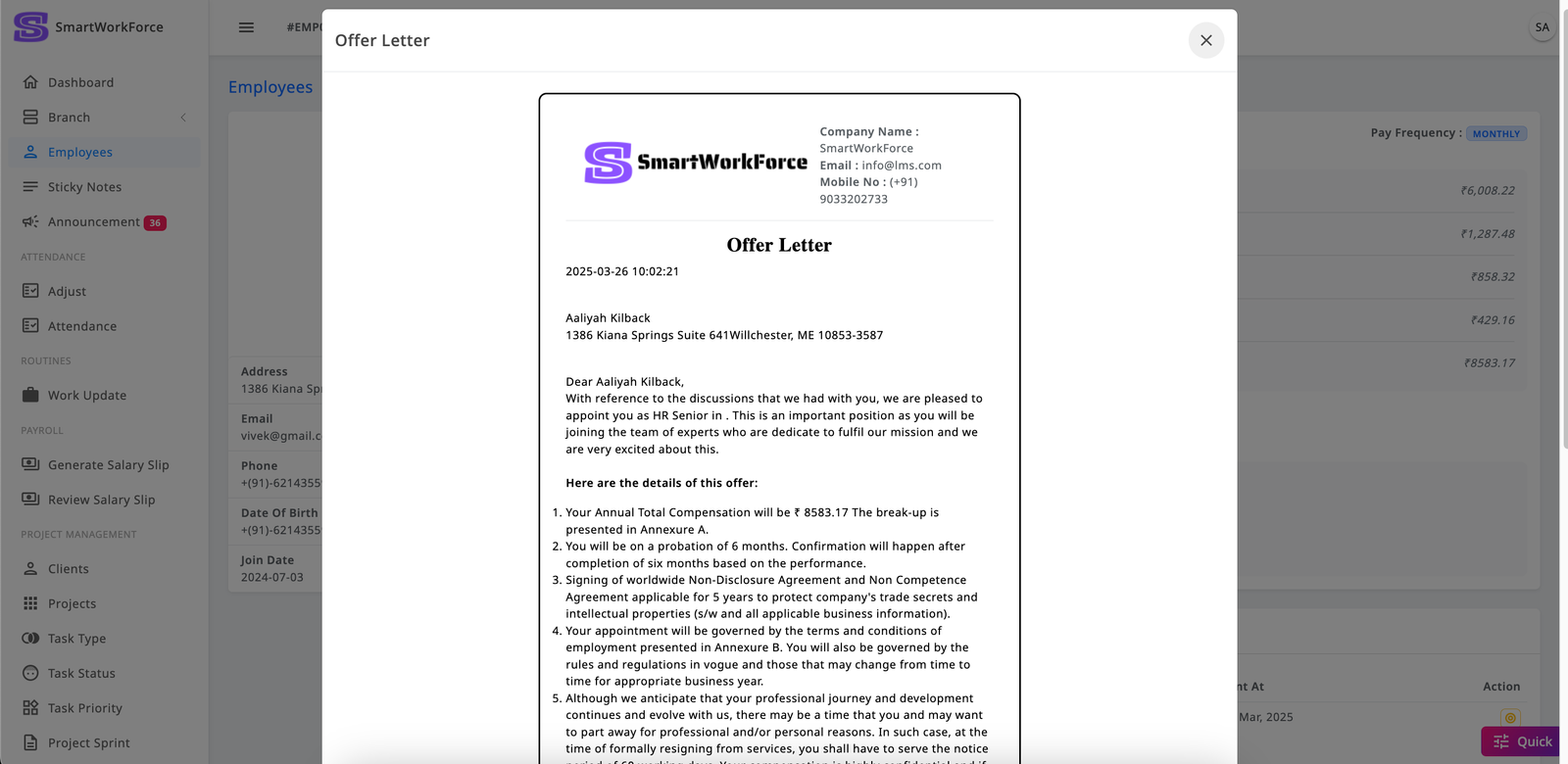
View Sent Employment Letters: In the employee's details section, admins can view a history of employment letters that have been sent, along with the details of each letter.
Sticky Notes
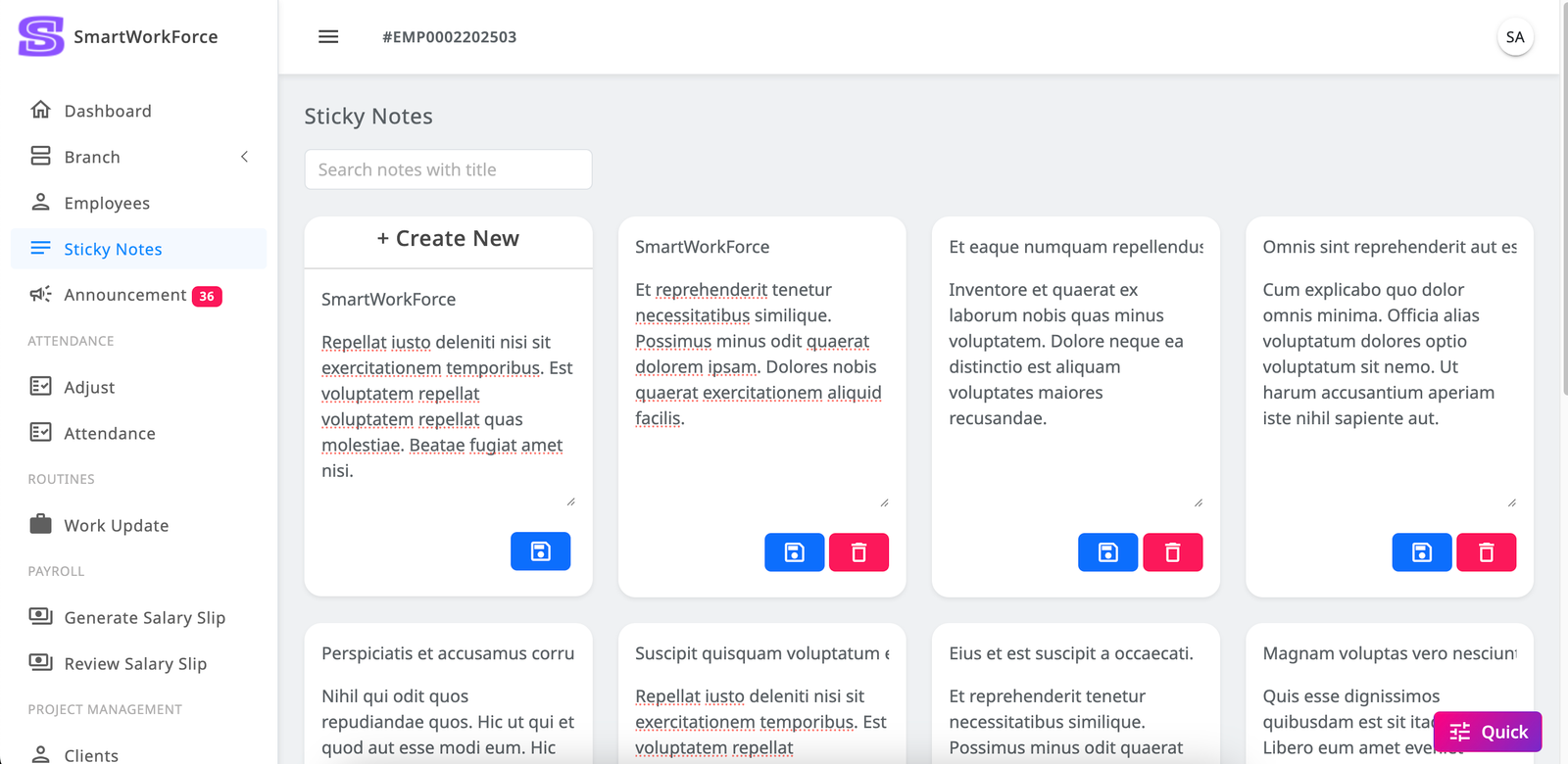
The SmartWorkForce admin has a personal sticky notes feature that allows them to easily create, edit, and update notes. Admins can also delete notes whenever necessary, making it simple to keep track of important reminders or information.
Announcement
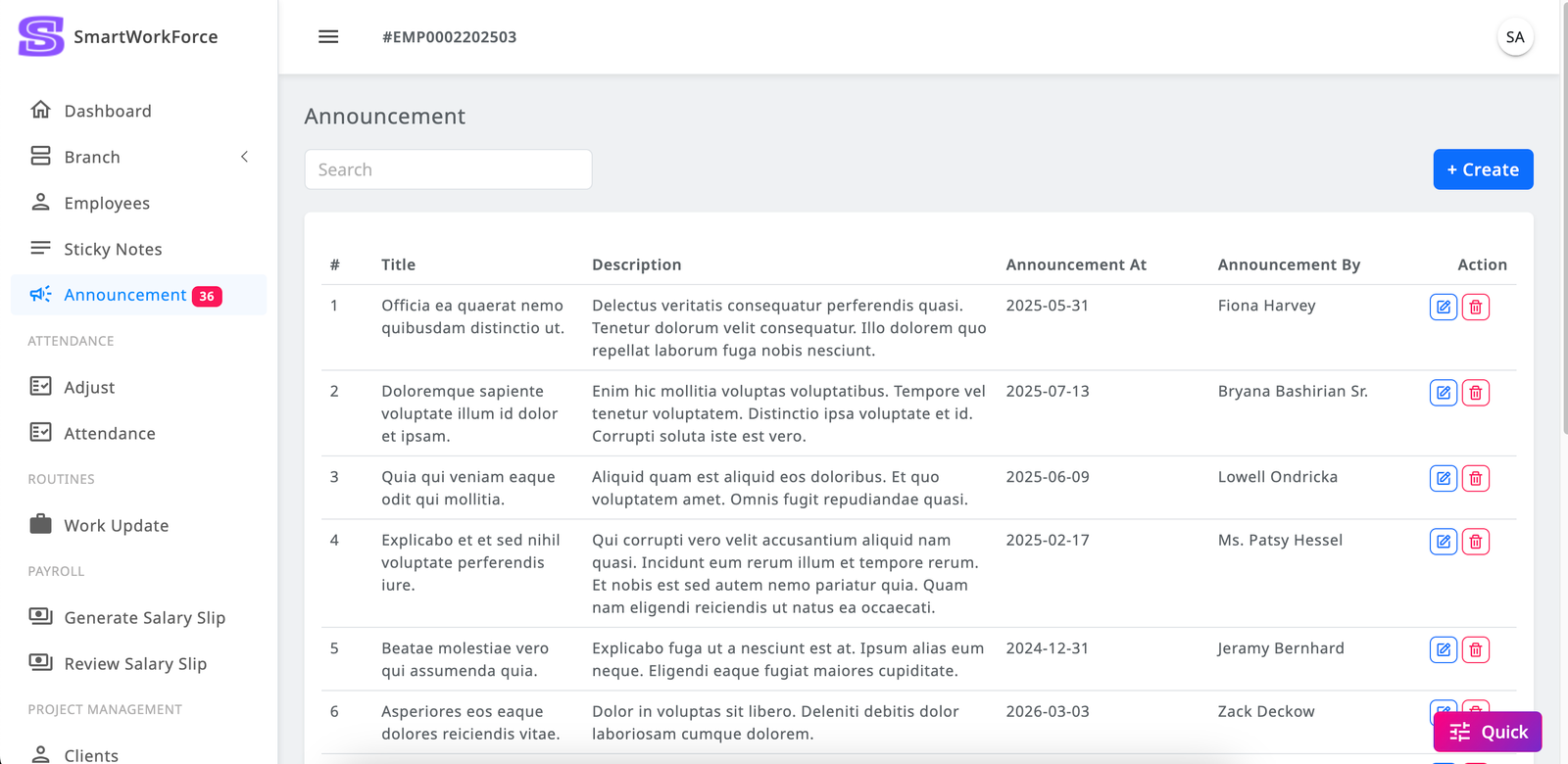
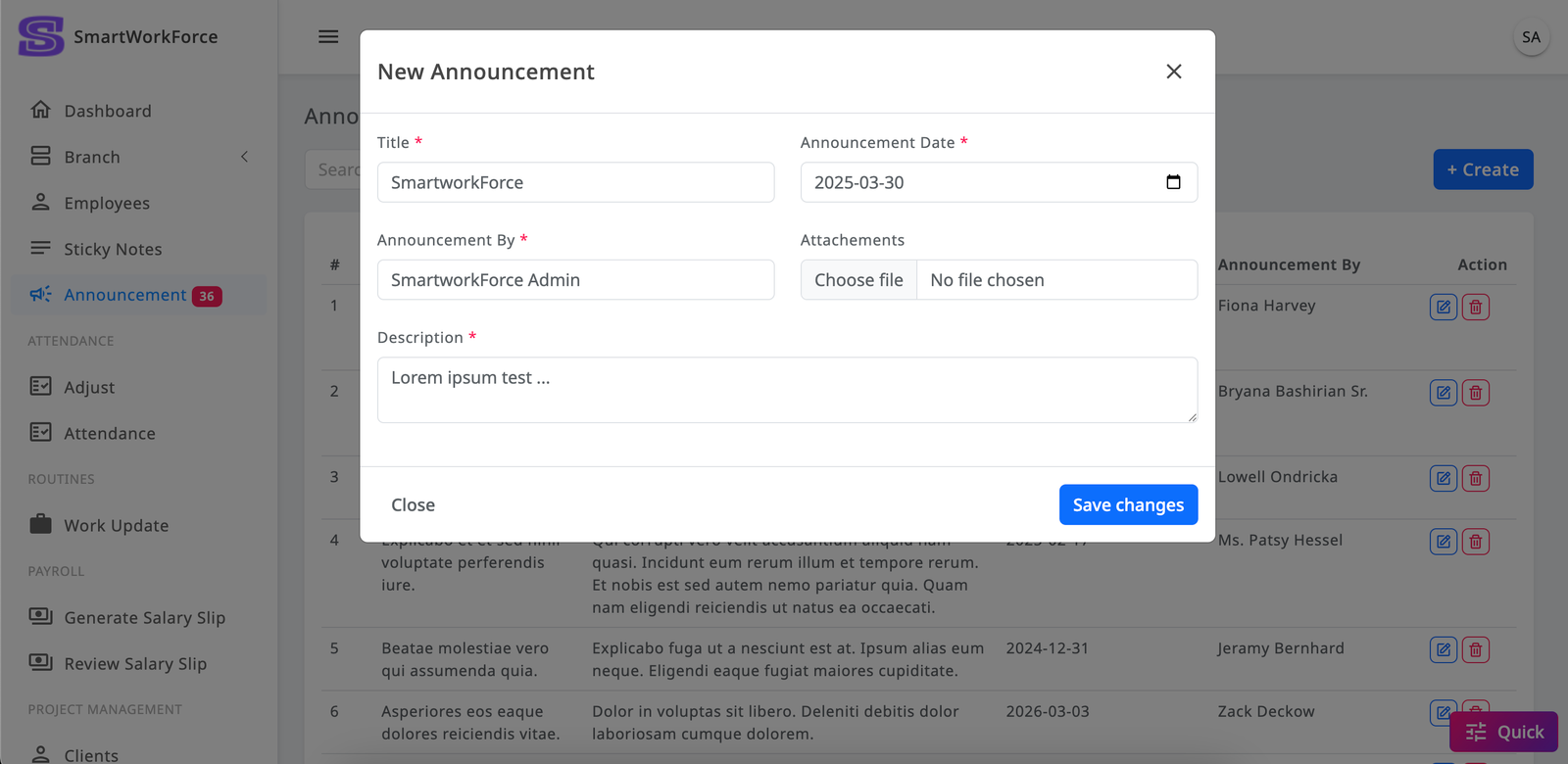
The SmartWorkForce admin has the ability to make announcements across the organization, ensuring that all employees are informed about future updates. The announcement sidebar displays a count of upcoming announcements, making it easy to stay aware of what's coming next. Admins can create, update, and remove announcements as needed, giving them full control over communication within the organization.
Quick Access
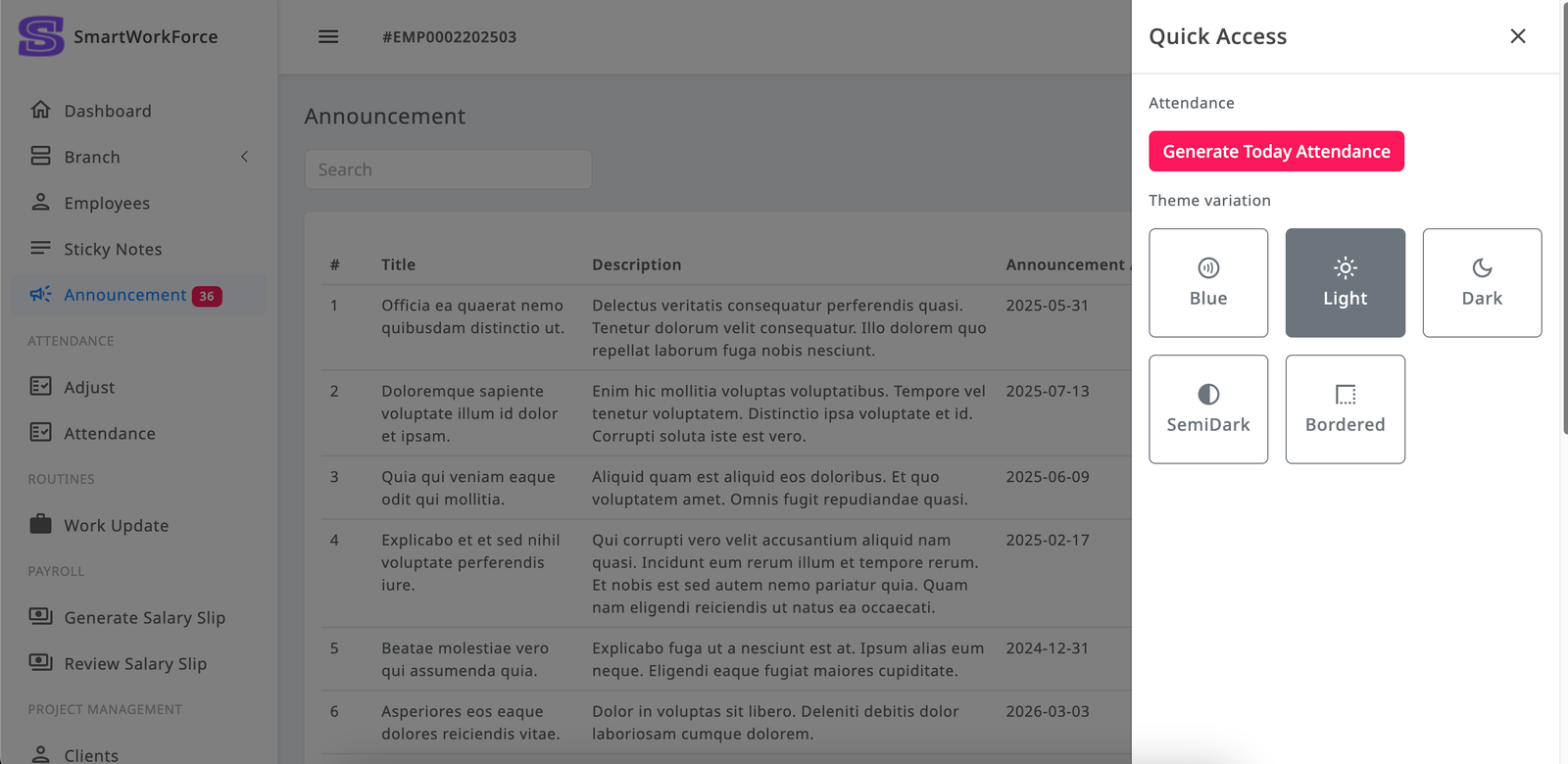
The Quick Access Sidebar in SmartWorkForce provides admins with easy navigation and functionality. Admins can quickly change the theme of the system, choosing between light, dark, bordered, or blue themes to suit their preferences. Additionally, the sidebar includes a "Generate Attendance" button, allowing admins to instantly generate the day's attendance. Once the attendance is generated, employees can then check in and check out of the system, ensuring accurate tracking of attendance for the day.
While Generating the attendance all employees will be "Absent". Once they checkin it will automatically turn to "Present" so admin don't have to done it manually.
Attendance : Adjust
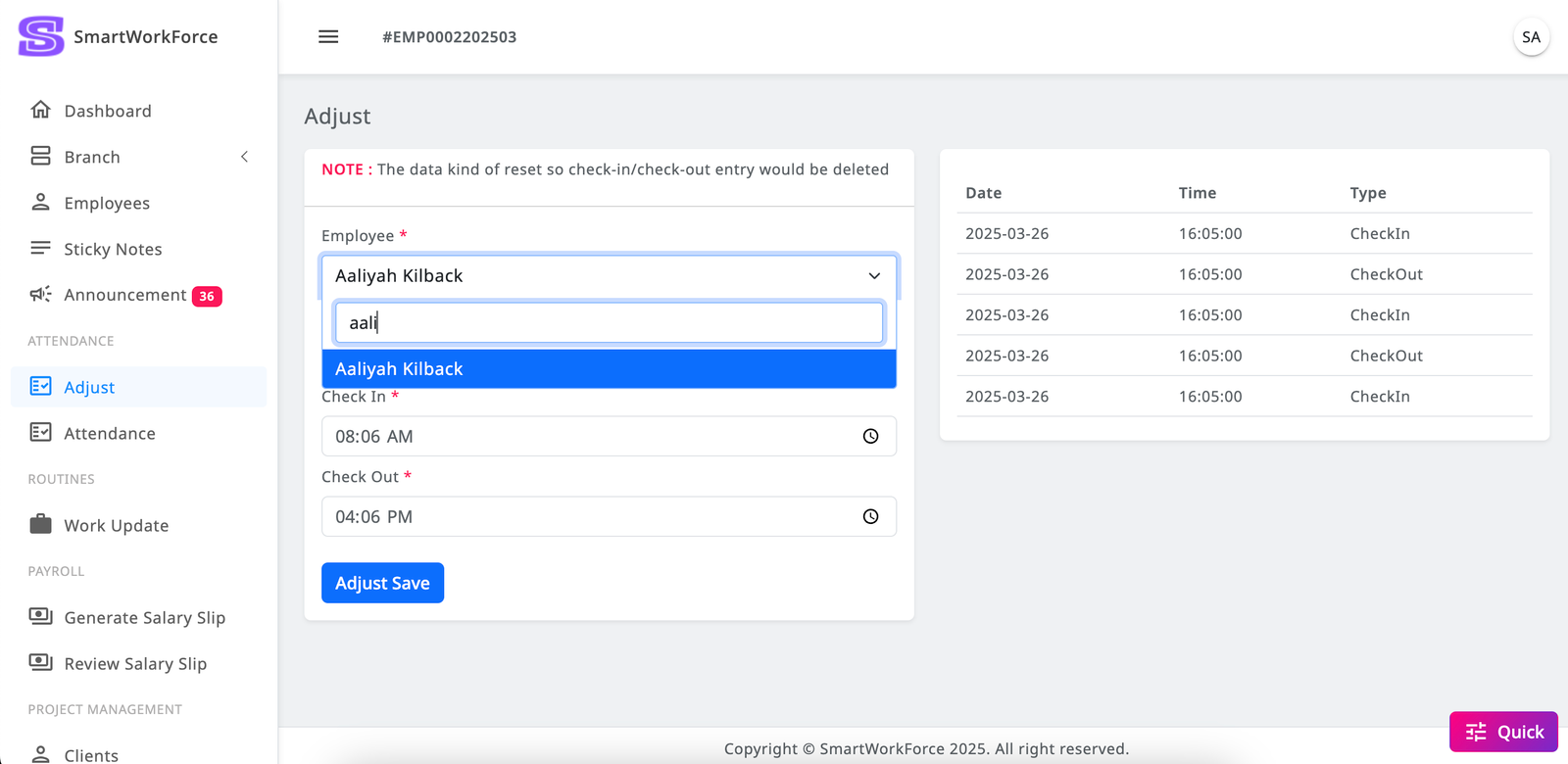
The SmartWorkForce admin has the authority to adjust employee leave records as needed. They can also view the history of employee check-ins and check-outs. Once the admin adjusts an employee's leave, the original check-in and check-out history is removed and replaced with the updated leave records, reflecting the changes made by the admin.
Attendance : Attendance
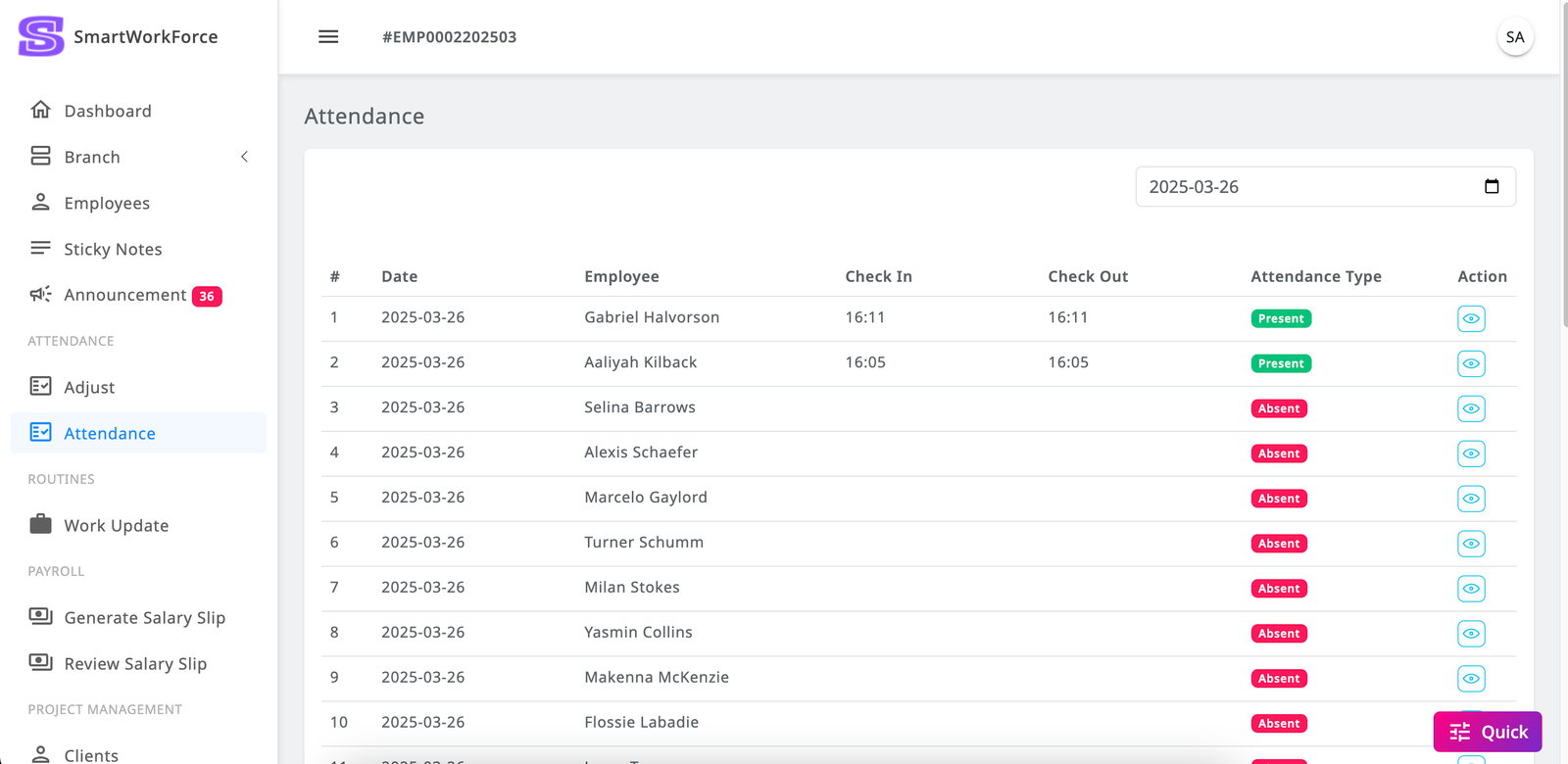
The SmartWorkForce Attendance module provides a detailed list of employees along with their attendance history. Admins can filter attendance records by date, allowing them to easily check the attendance of employees on specific days. This feature helps in quickly reviewing attendance patterns and ensuring accurate tracking of employee presence.
Attendance : Leaves
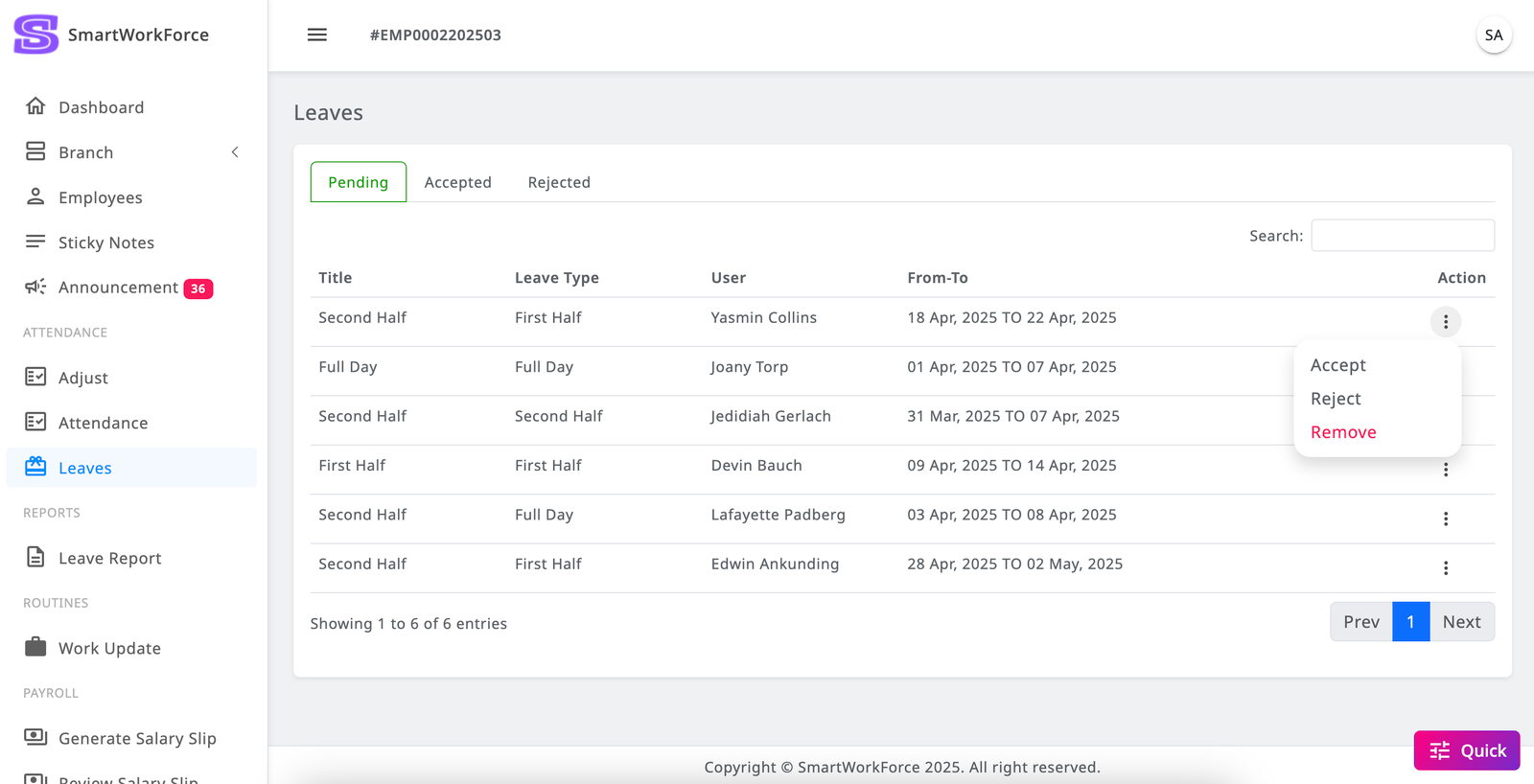
In SmartWorkForce, the admin can view the leave requests of employees and has the ability to accept, reject, or delete these leave requests.
The "Pending" tab shows the leave requests that employees have applied for. If the admin takes action to accept a request, it will move to the "Accepted" tab. If the request is rejected, it will appear in the "Rejected" tab.
Report : Leaves Report
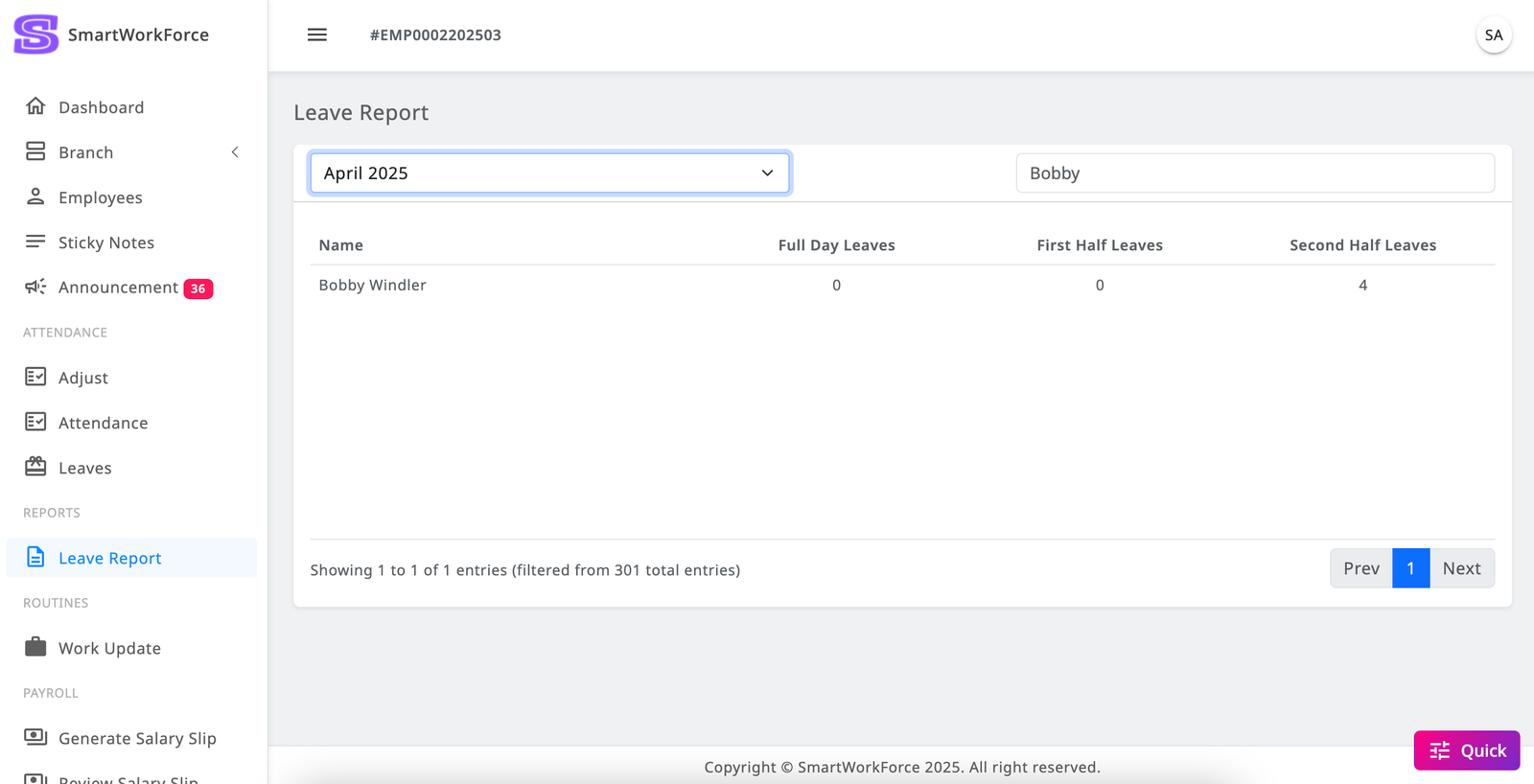
SmartWorkForce provides monthly leave reports, allowing admins to track leaves taken by employees. Using the month and year filter or search function, admins can easily find specific leave records. This feature ensures efficient leave management and quick access to employee leave history.
Routines : Work Update
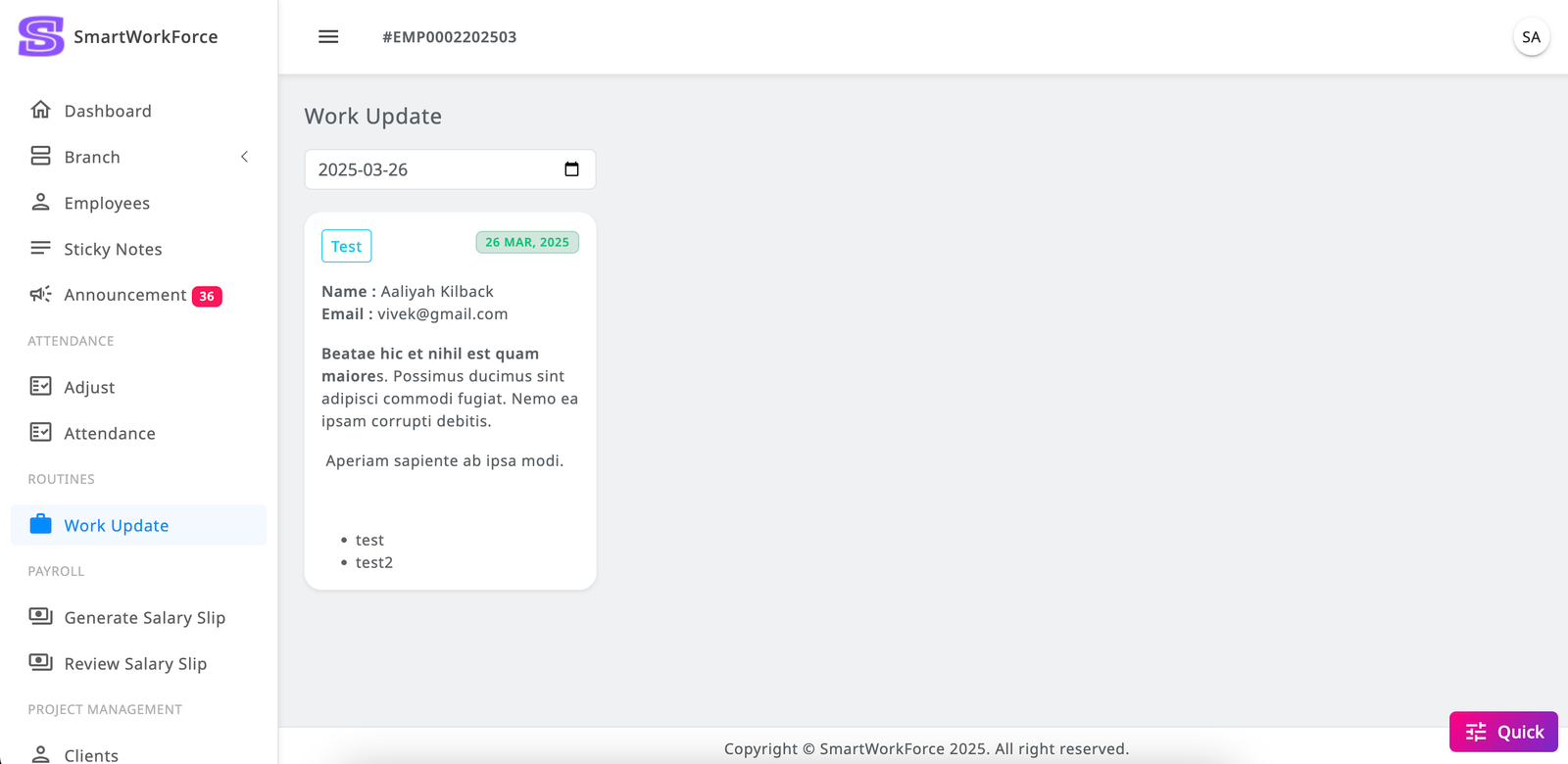
The SmartWorkForce admin can track daily work updates submitted by employees. Admins have the ability to filter and view these work updates on a date-by-date basis. This feature allows admins to see who has provided their work updates and the details of what has been completed each day. There is a daily restriction in place, ensuring that employees can submit only one collective work update per day. This helps maintain organized and concise records of employee activities.
Payroll : Generate Salary Slip
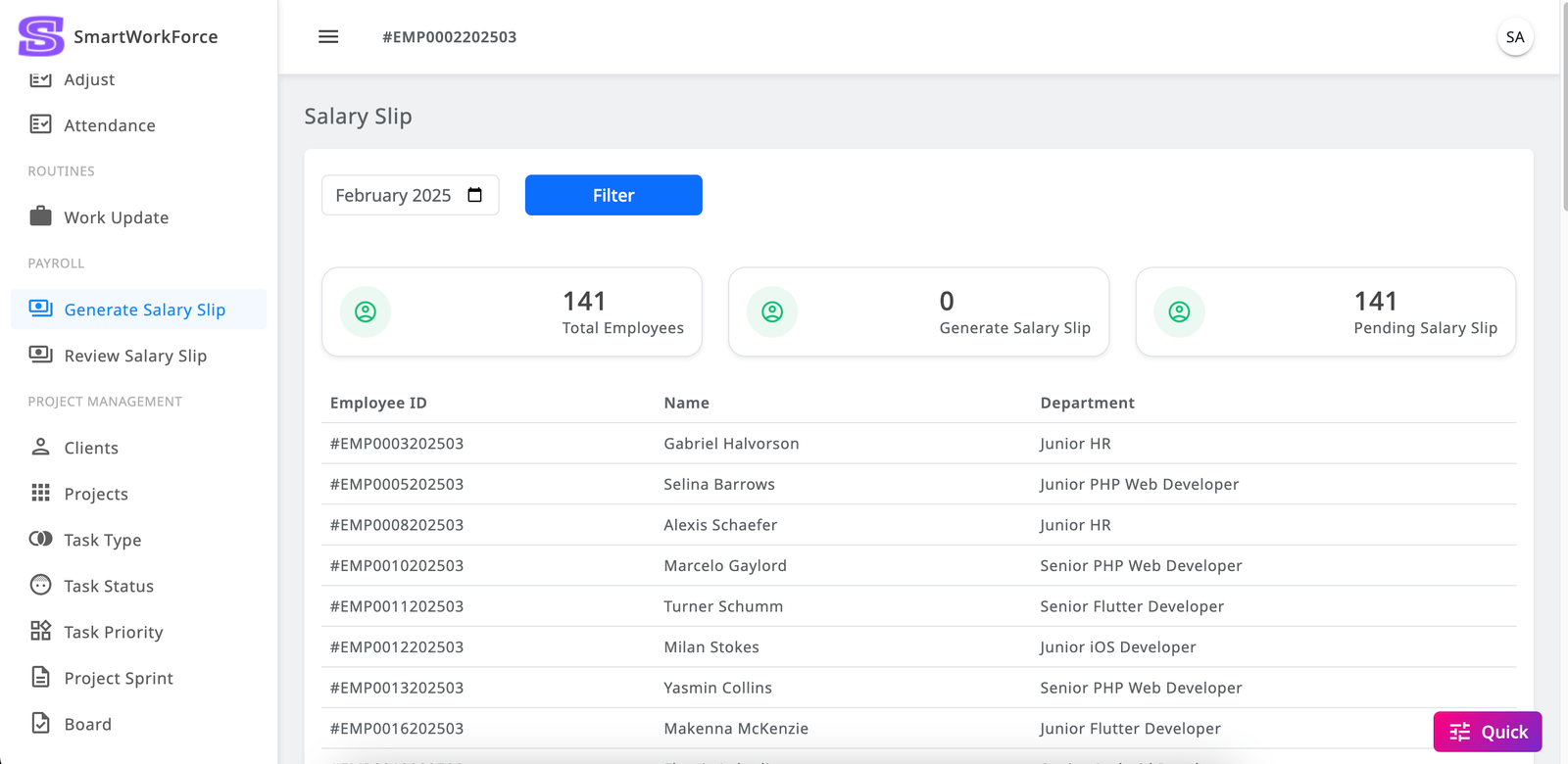
The SmartWorkForce admin can generate monthly salaries for all employees with the following features and process:
- Monthly Salary Generation: Each month, the admin must generate the salary for all active employees. This can be done in a single action, eliminating the need to generate salaries for each employee individually.
- Automatic Data Integration: Once the salary is generated, all relevant attendance data, including check-ins, check-outs, and absences, will be automatically added to the salary records.
- Review Process: After generating the salary, the admin must review each employee's salary slip individually to verify the details.
- Approval: Once the review is complete, the admin can accept the salary slip, finalizing the process. Next Step
Payroll : Review Salary Slip
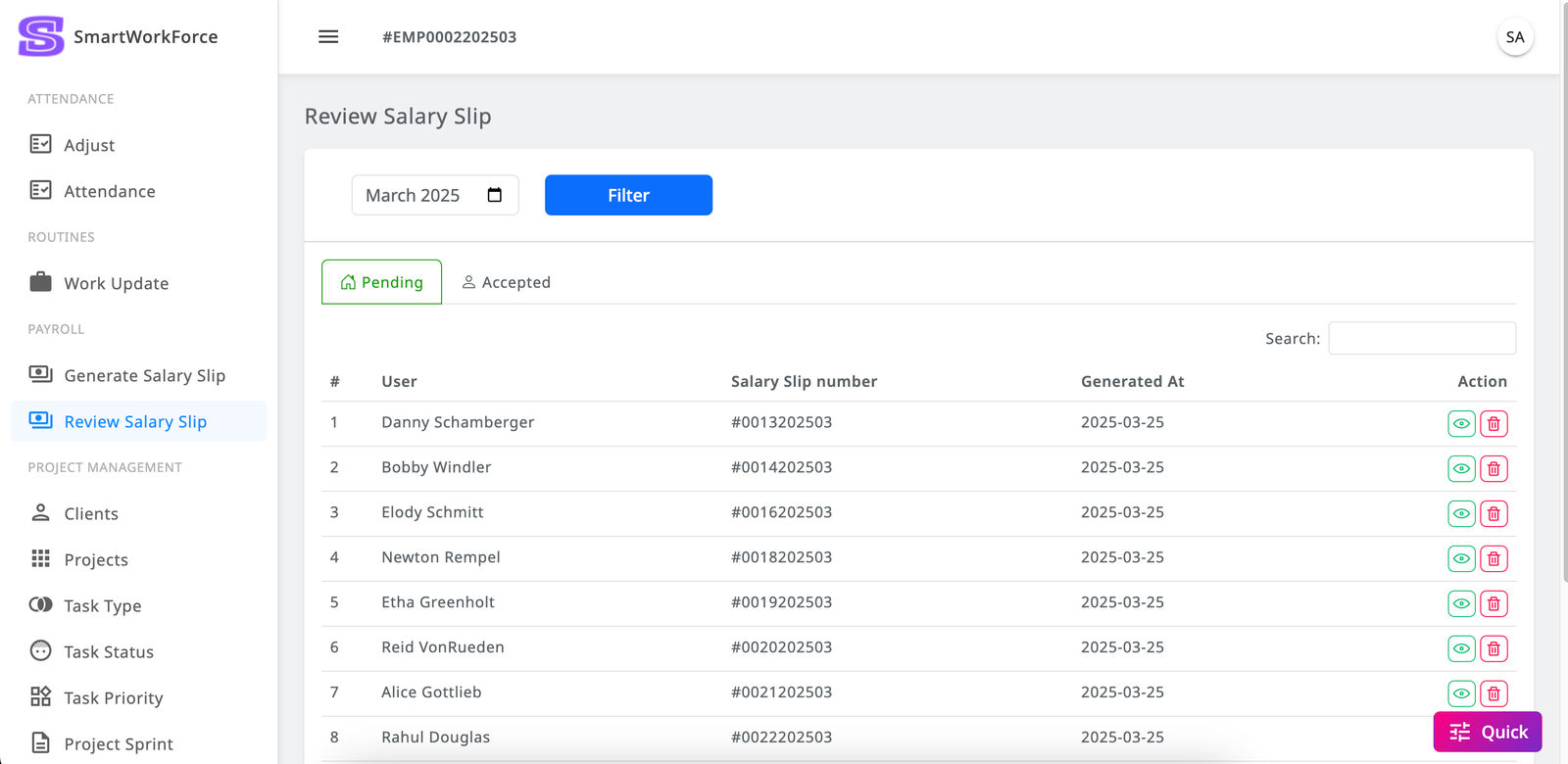
The Payroll Review Salary Slip feature in SmartWorkForce provides admins with an organized way to review and manage employee salary slips. Key functionalities include:
-
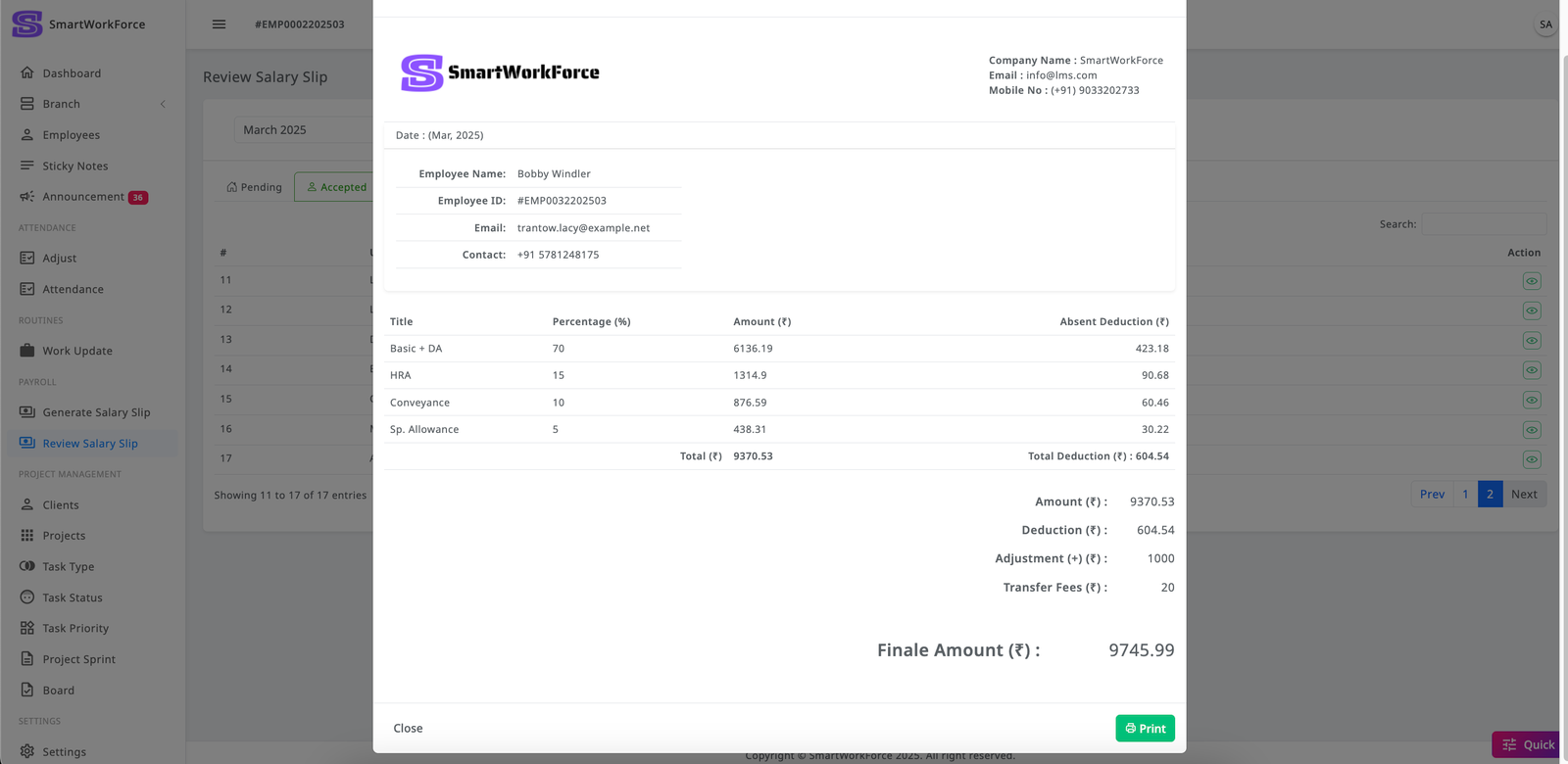
Tabs for Pending and Accepted Slips: There are two tabs — Pending and Accepted — where admins can easily distinguish between salary slips that are still awaiting review and those that have been reviewed and accepted for payment.
-
Month and Year Filter: Admins can filter salary slips by month and year, allowing for quick navigation and review of the correct period.
-
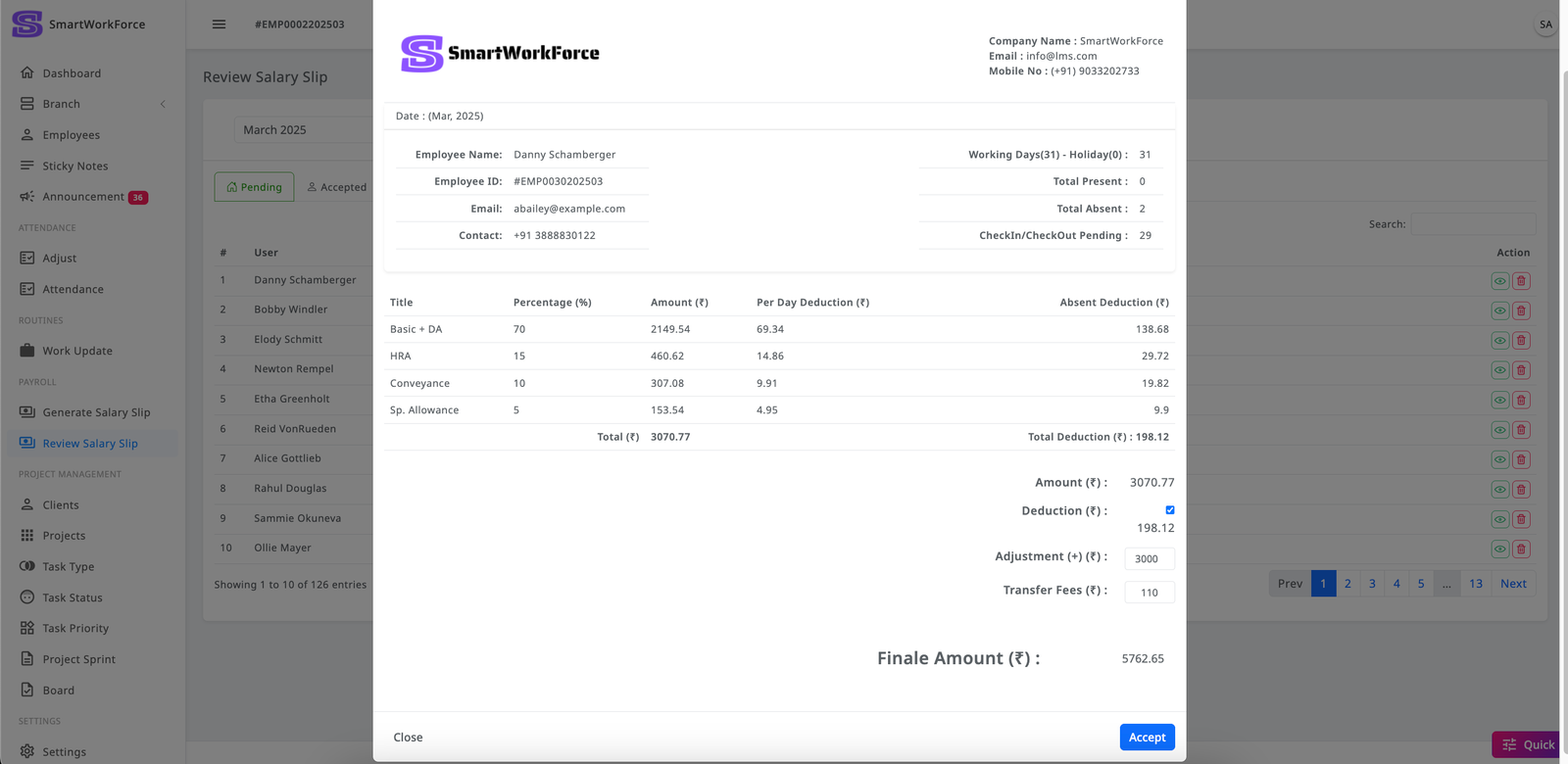
Pending Salary Slip Details: The Pending tab lists all salary slips that require review. Admins can click the View button to access the detailed attendance information for each employee, including their present and absent days, as well as other necessary data.
-
Leave Deductions: If an employee was absent, the admin can deduct leave days from their salary. If the employee was present, the salary remains unchanged.
-
Regenerating Incorrect Salary Slips: If an error is found in a salary slip, the admin has the option to remove the incorrect slip and regenerate it.
- Adjusting Amounts: Admins can add or subtract amounts, such as adjusting for transfer fees or other deductions, before finalizing the salary slip.
- Finalizing and Accepting Salary Slips: Once the review and adjustments are complete, the admin can accept the salary slip, finalizing it and making it available for the employee to view.
Project Management : Clients
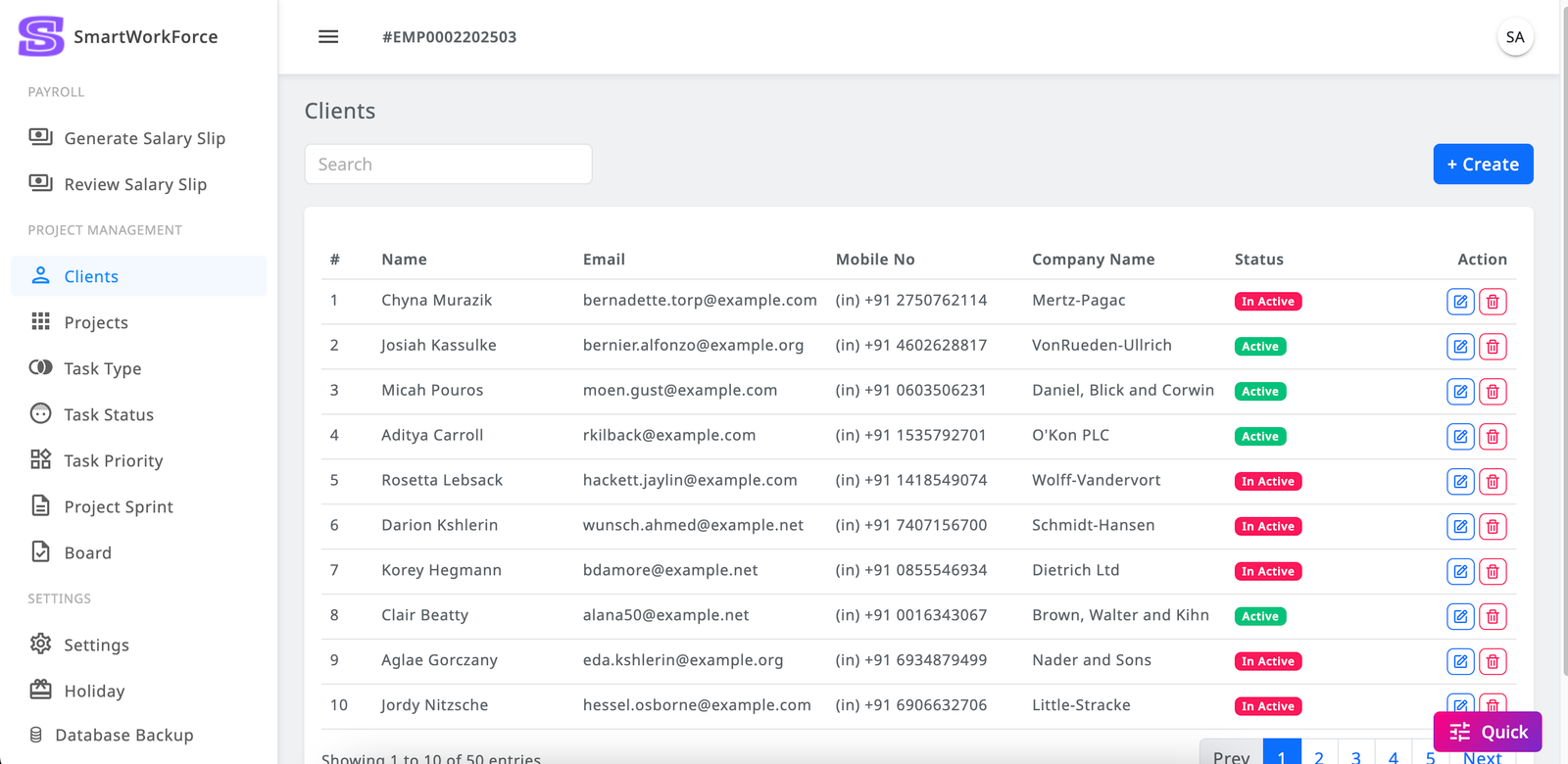
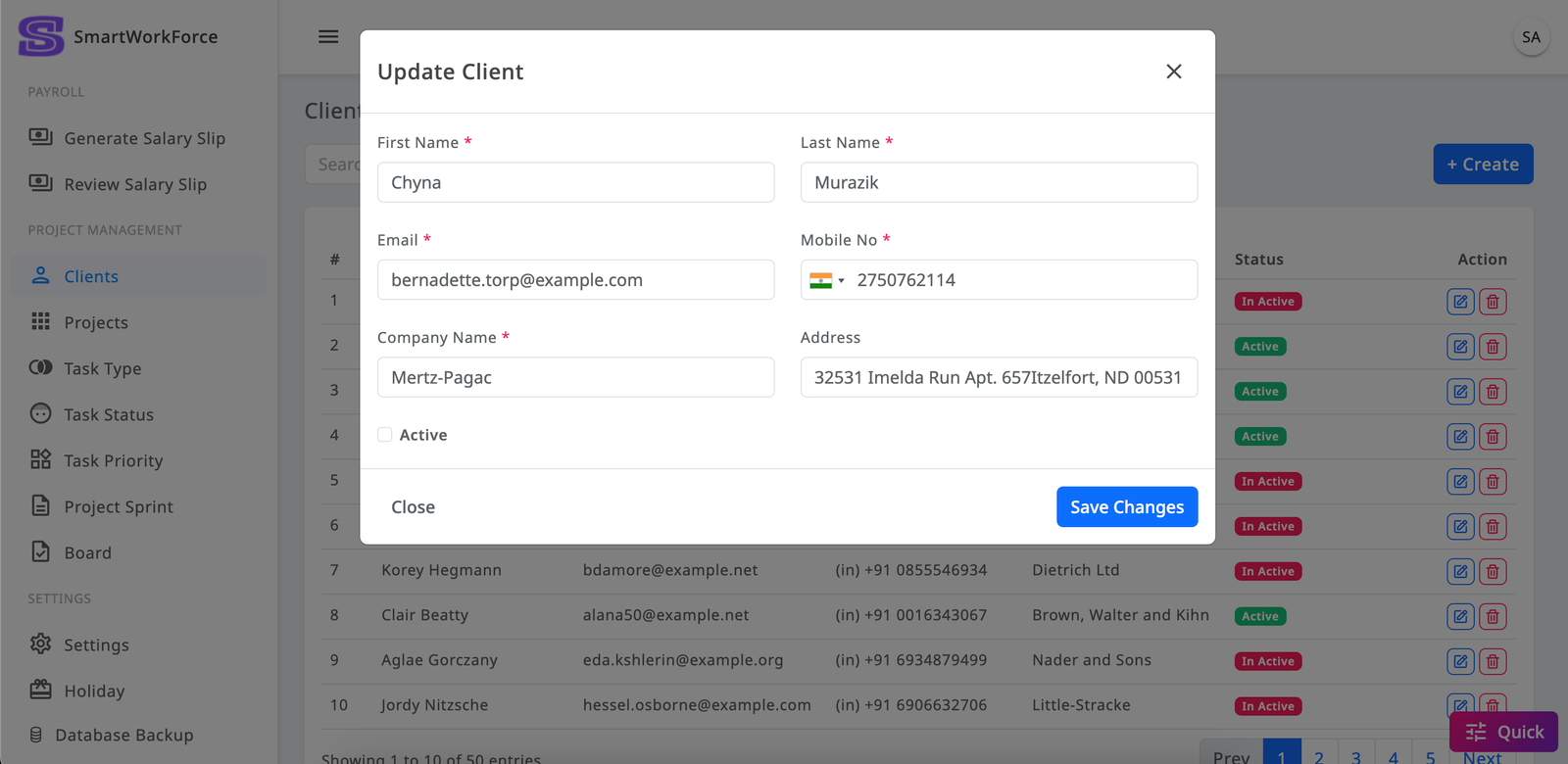
The Project Management Client Module in SmartWorkForce allows admins to manage clients efficiently. Admins can add new clients, view a list of existing clients, and edit or update client information as needed. They can also activate or deactivate clients based on the project's requirements, providing easy control over client management within the system.
Project Management : Projects
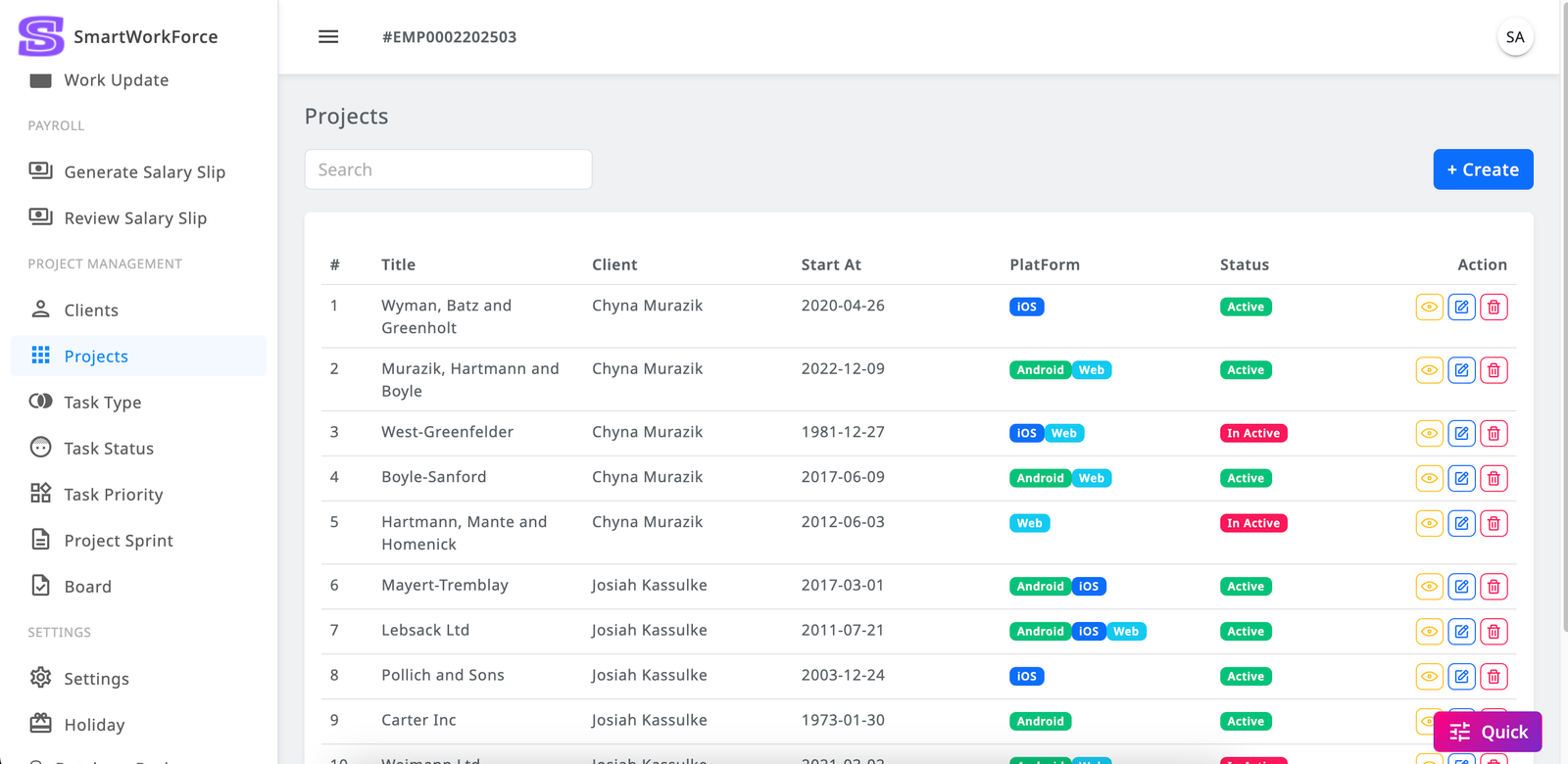
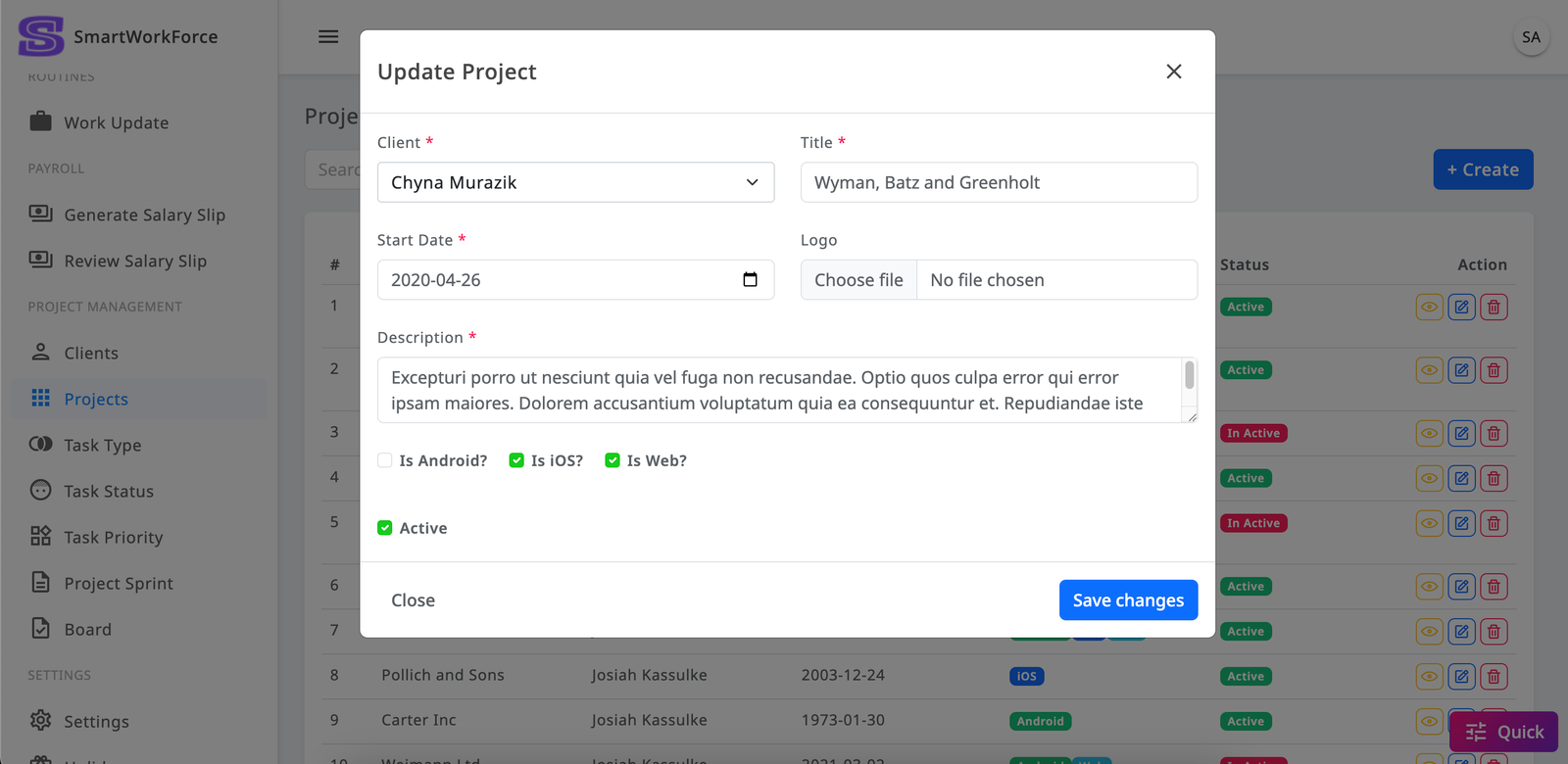
In the Client's Project Management module of SmartWorkForce, each client can have multiple projects associated with them. Admins can create, edit, update, and remove projects as needed.
When a project is created for a client, three default entries are automatically generated:
-
Task Types: By default, three task types are created — New Task and Bug.
-
Task Status: The project automatically includes three task statuses — TODO, DOING, and DONE.
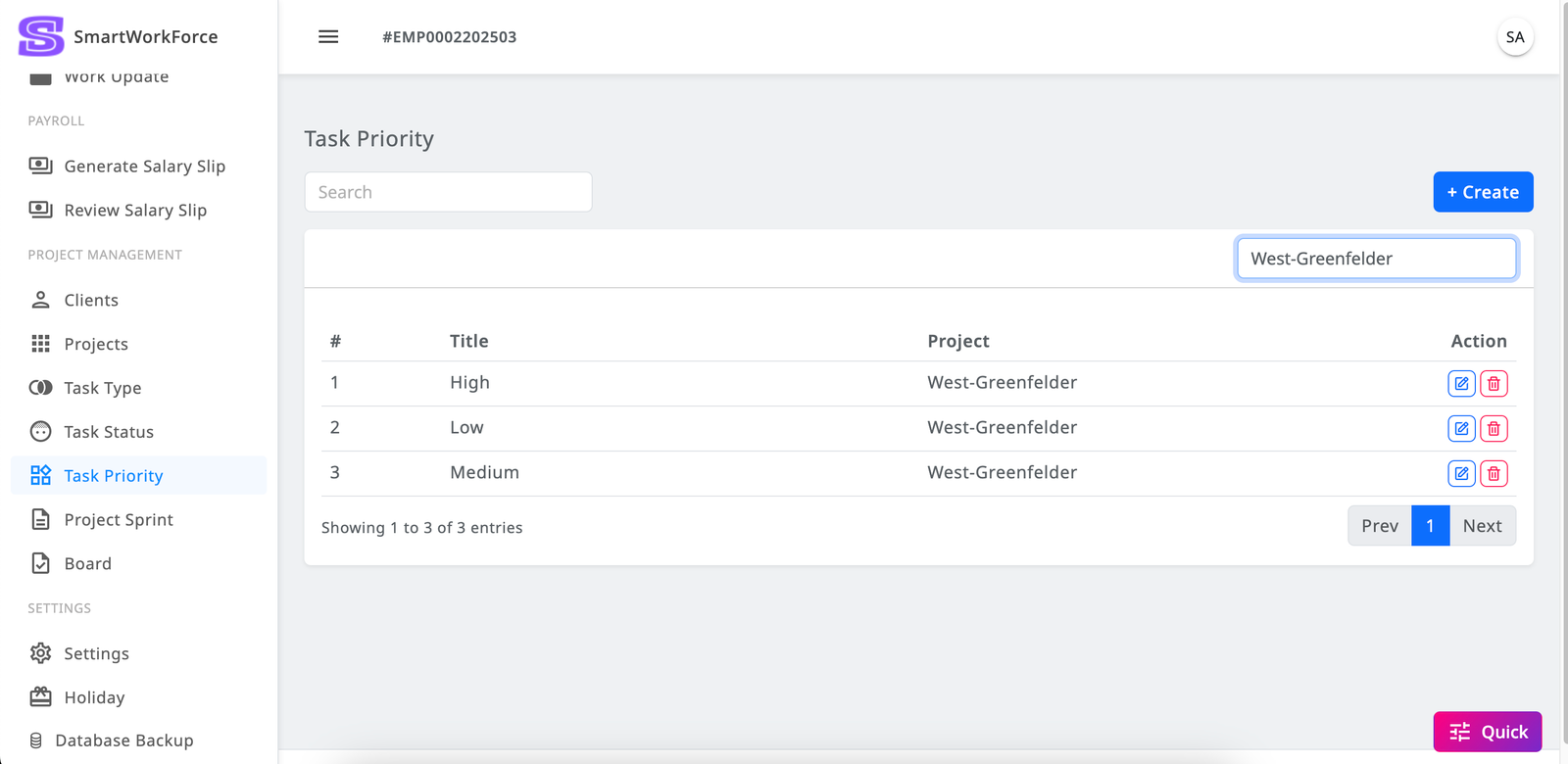
- Task Priority: Three priority levels are set by default — High, Low, and Medium.
Project Management : Task Type
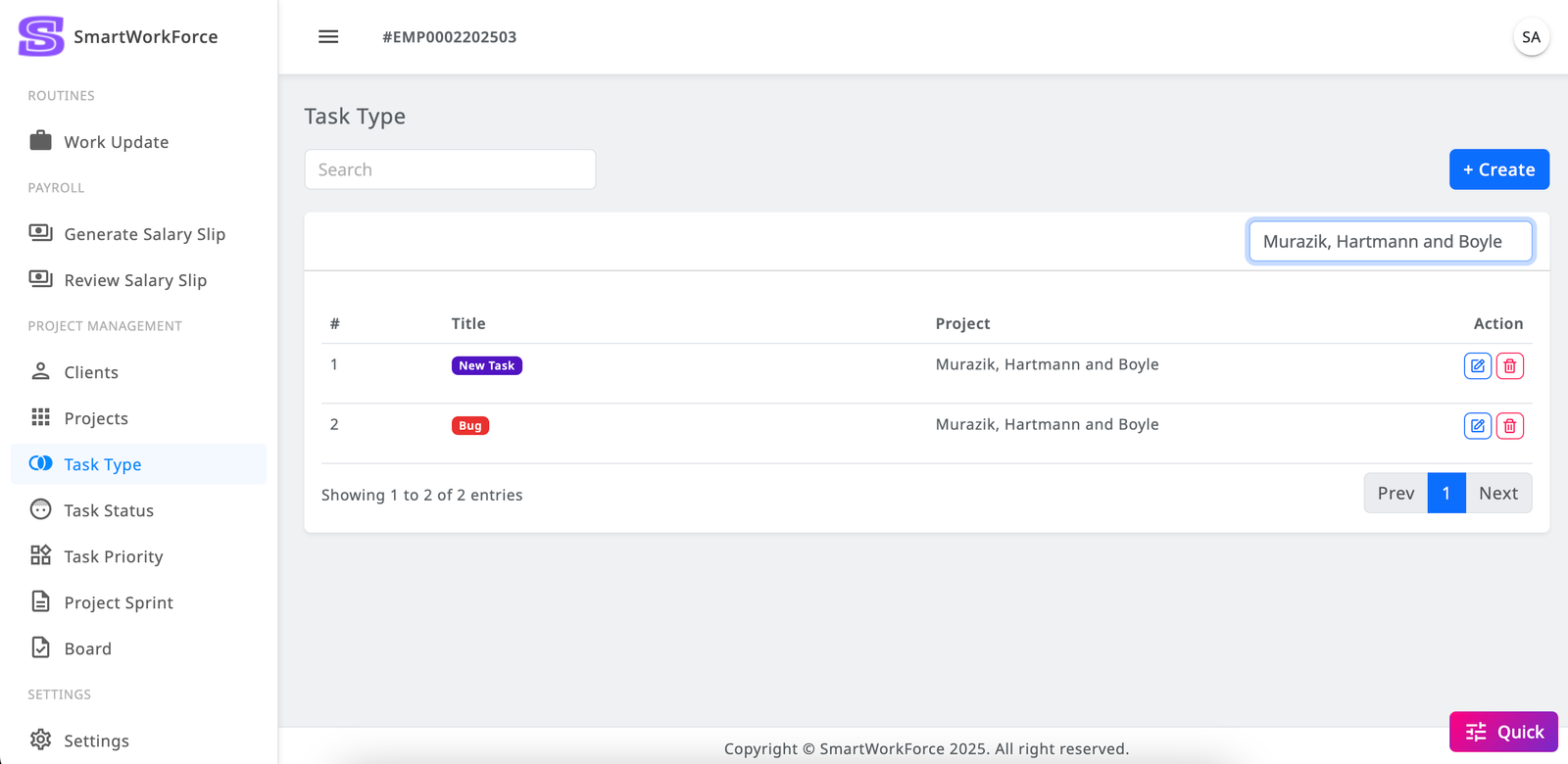
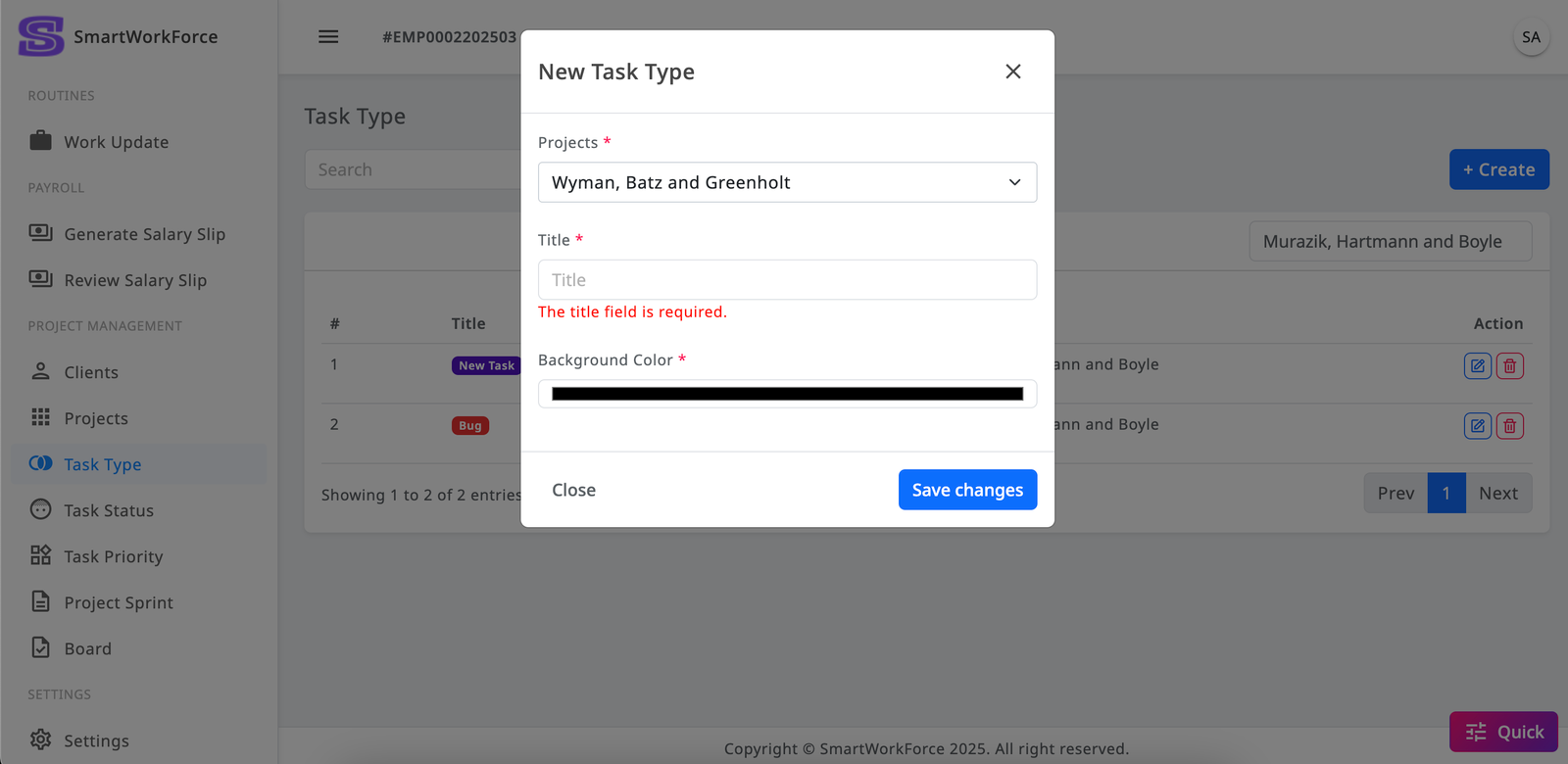
The Task Types List in SmartWorkForce allows admins to view and manage project task types. Admins can create new task types, edit or update existing ones, and delete them when necessary. However, once a task type is removed, there is a chance that the associated tasks may be deleted as well, so it should be done with caution to avoid unintended loss of data.
Project Management : Task Status
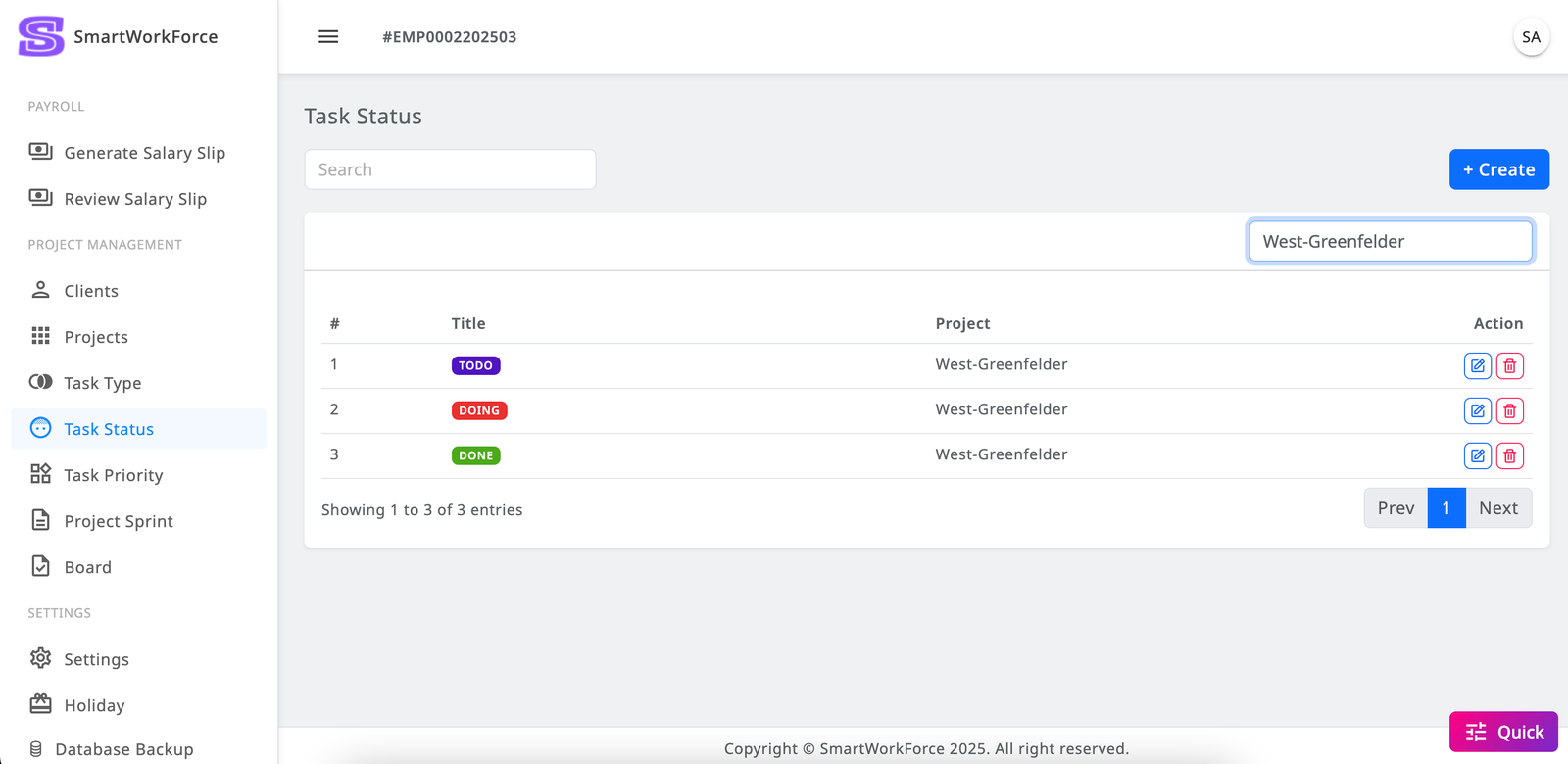
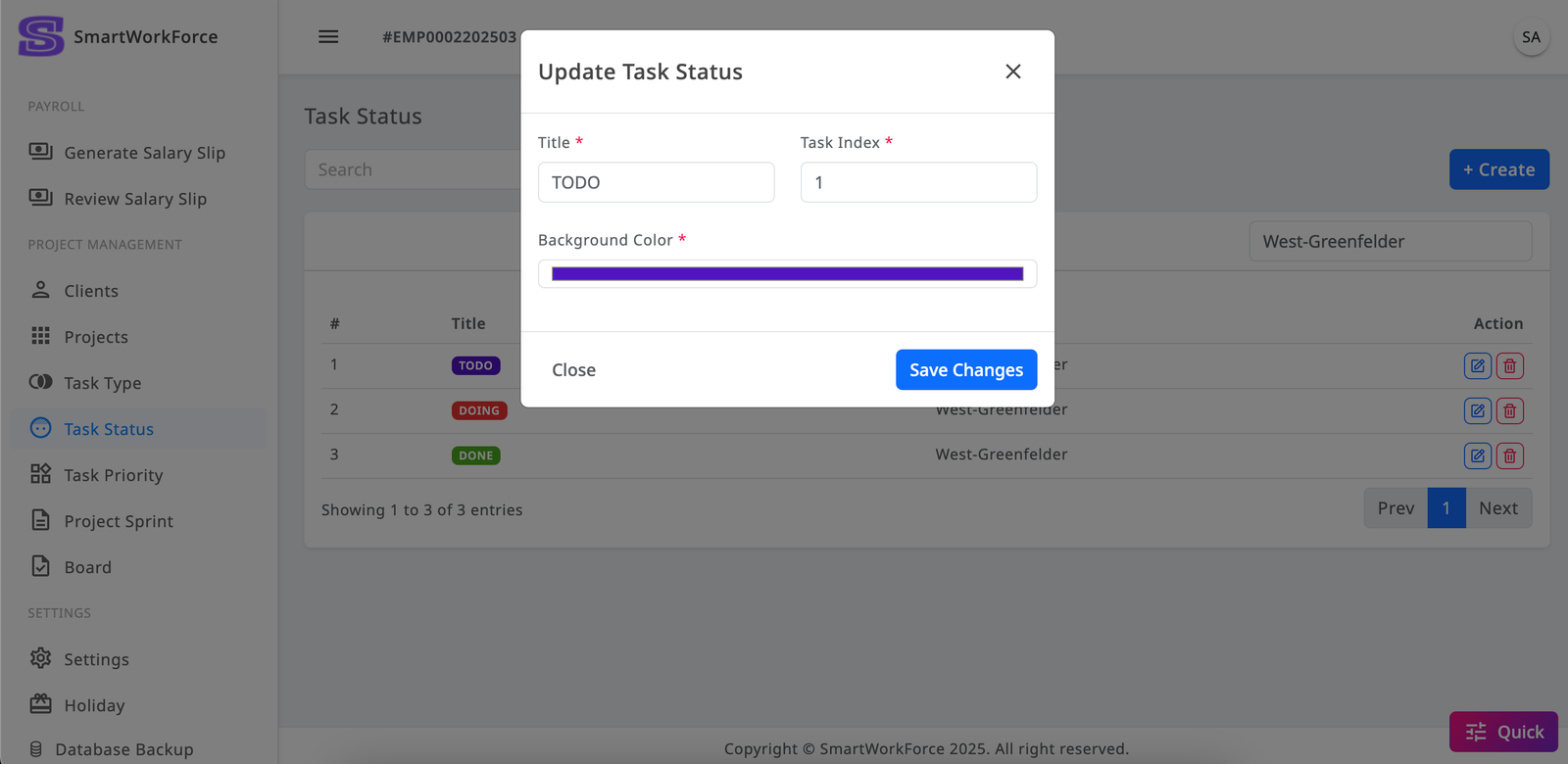
The Task Status List in SmartWorkForce allows admins to manage project task statuses. Admins can view the list, create new statuses, edit or update existing ones, and delete them when necessary. However, once a task status is removed, there is a risk of deleting associated tasks, so it should be done with caution to avoid any unintended loss of task data.
Project Management : Task Priority
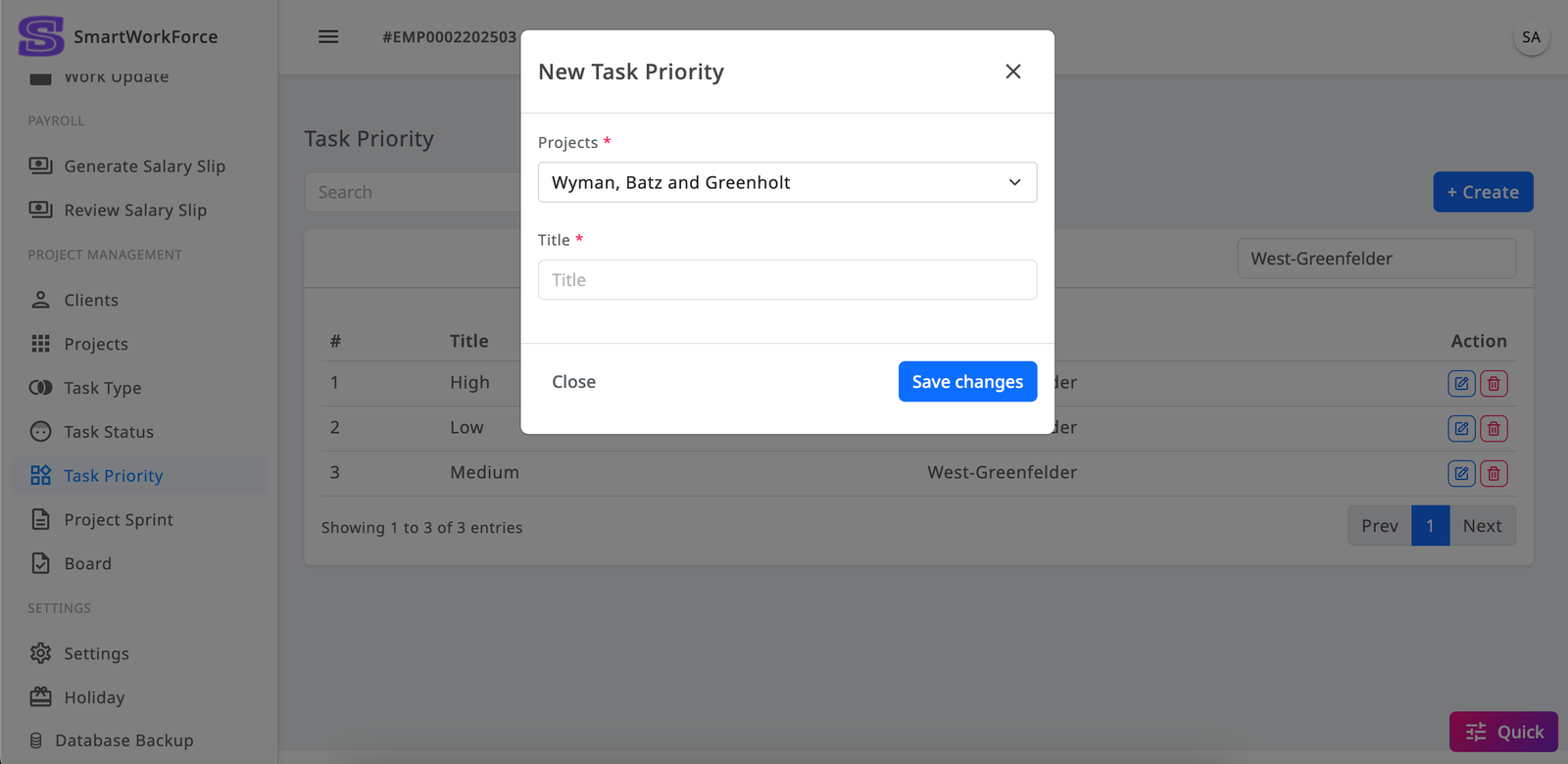
The Task Priority List in SmartWorkForce allows admins to manage project task priorities. Admins can view the list, create new priorities, edit or update existing ones, and delete them as needed. However, removing a task priority may also remove associated tasks, so it should be done with caution to prevent unintended data loss.
Project Management : Project Sprint
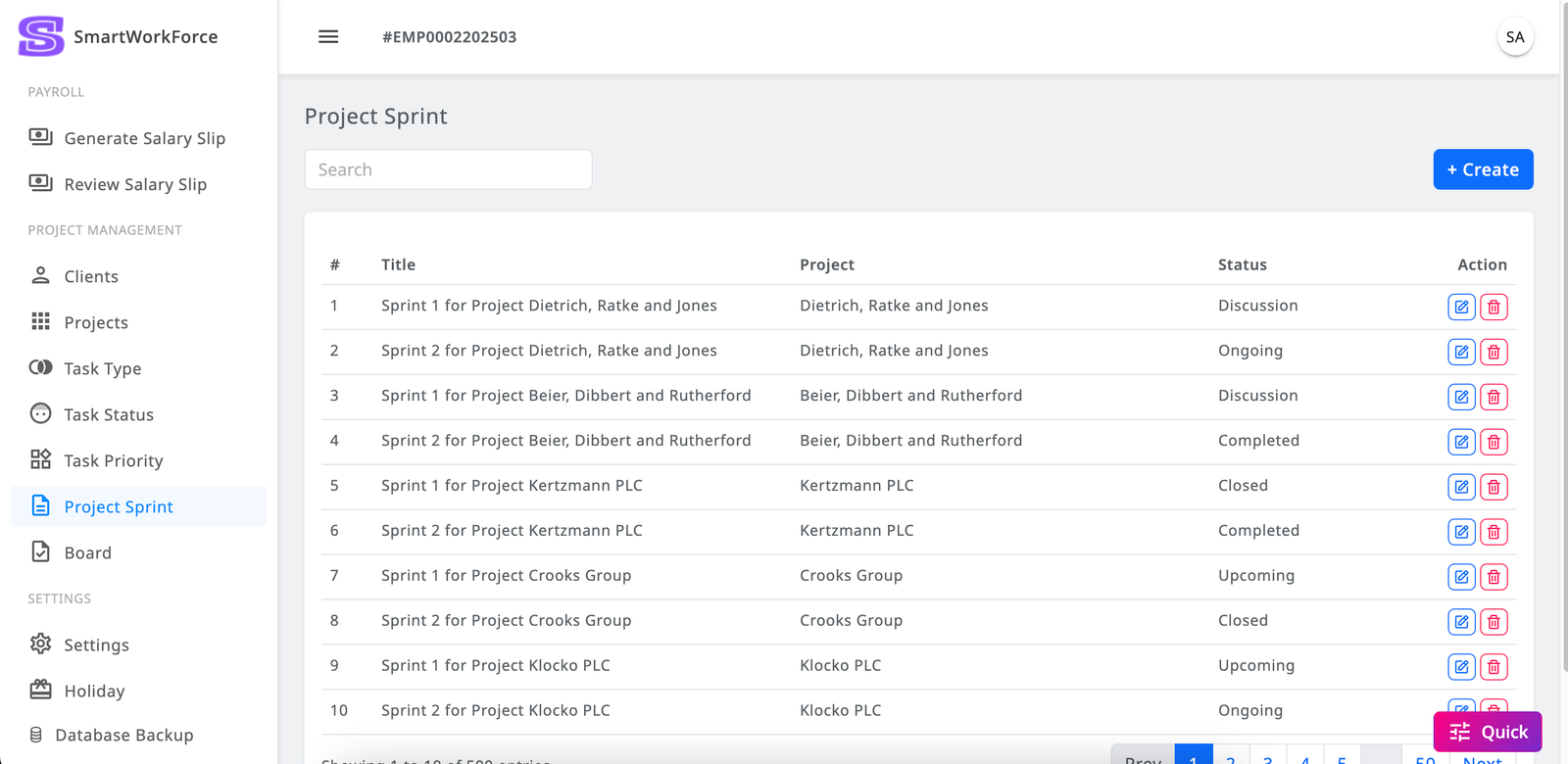
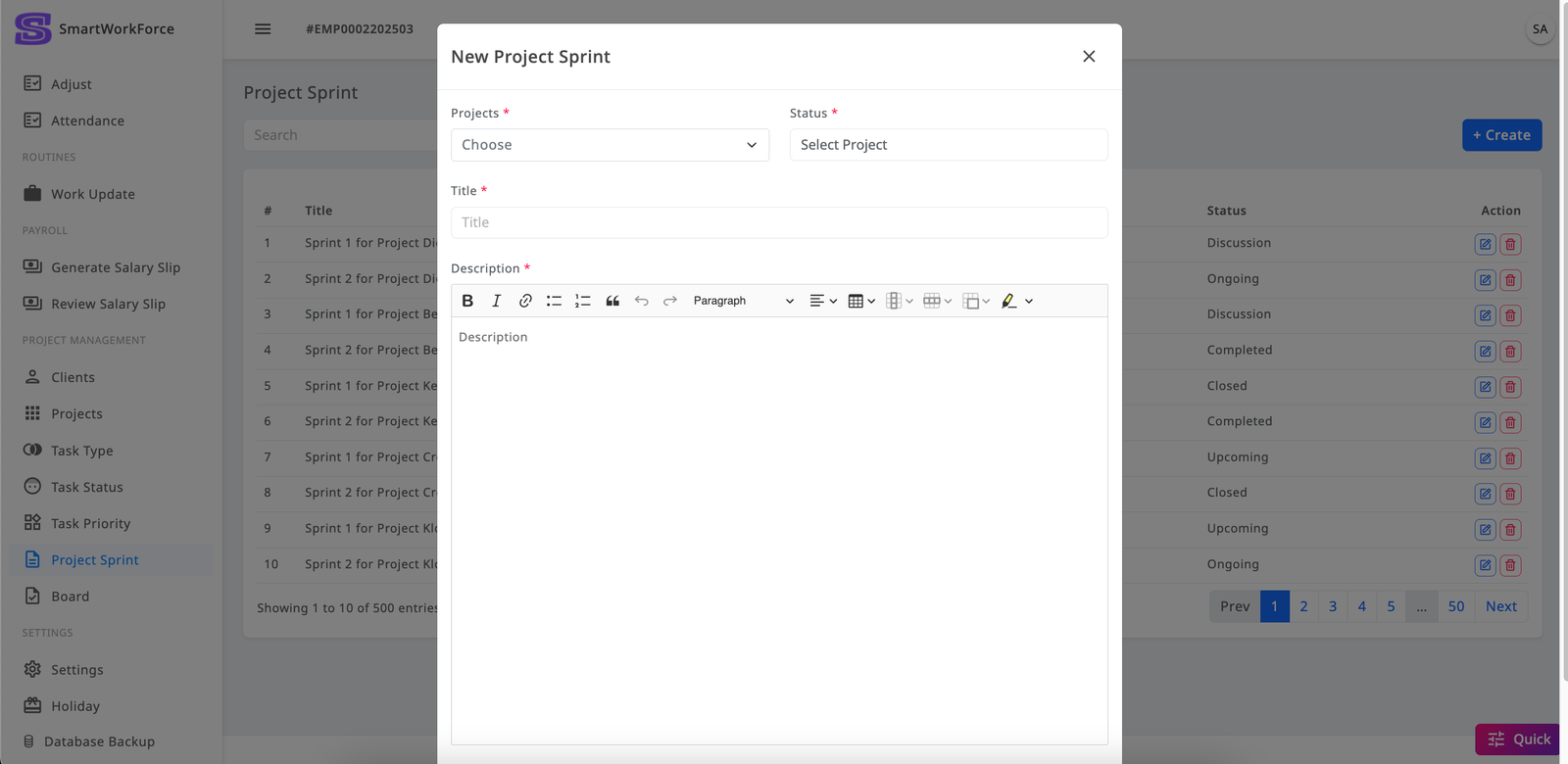
In SmartWorkForce, each project can have its own sprint for the first release. Admins can add sprint stories to outline the tasks and objectives for the initial phase, helping employees understand what needs to be done. Admins can create, edit, update, and delete multiple sprints for a project as needed. However, if a sprint is removed, it may also result in the loss of associated tasks, so it should be done with caution to avoid any unintended data loss.
Project Management : Board
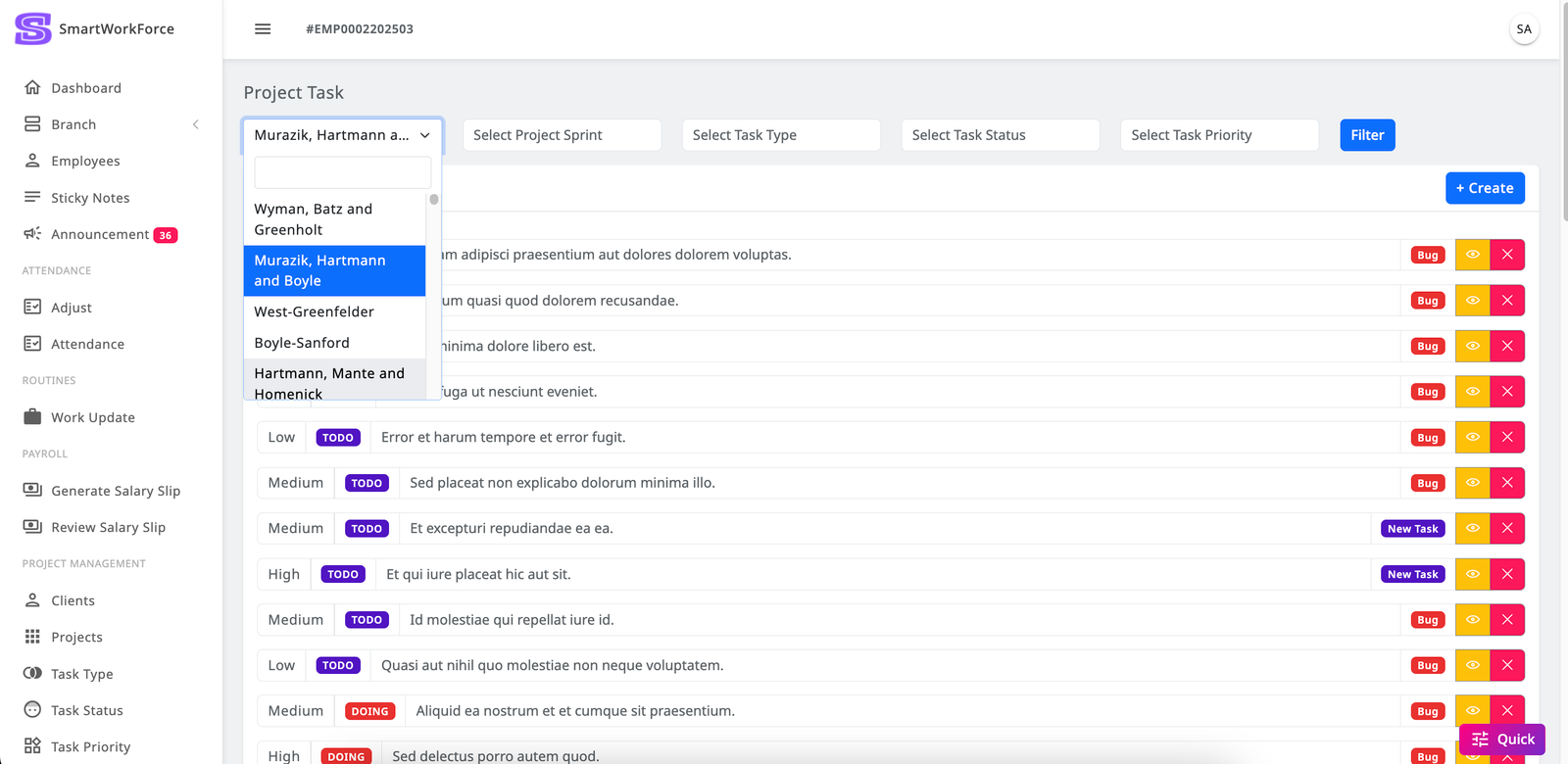
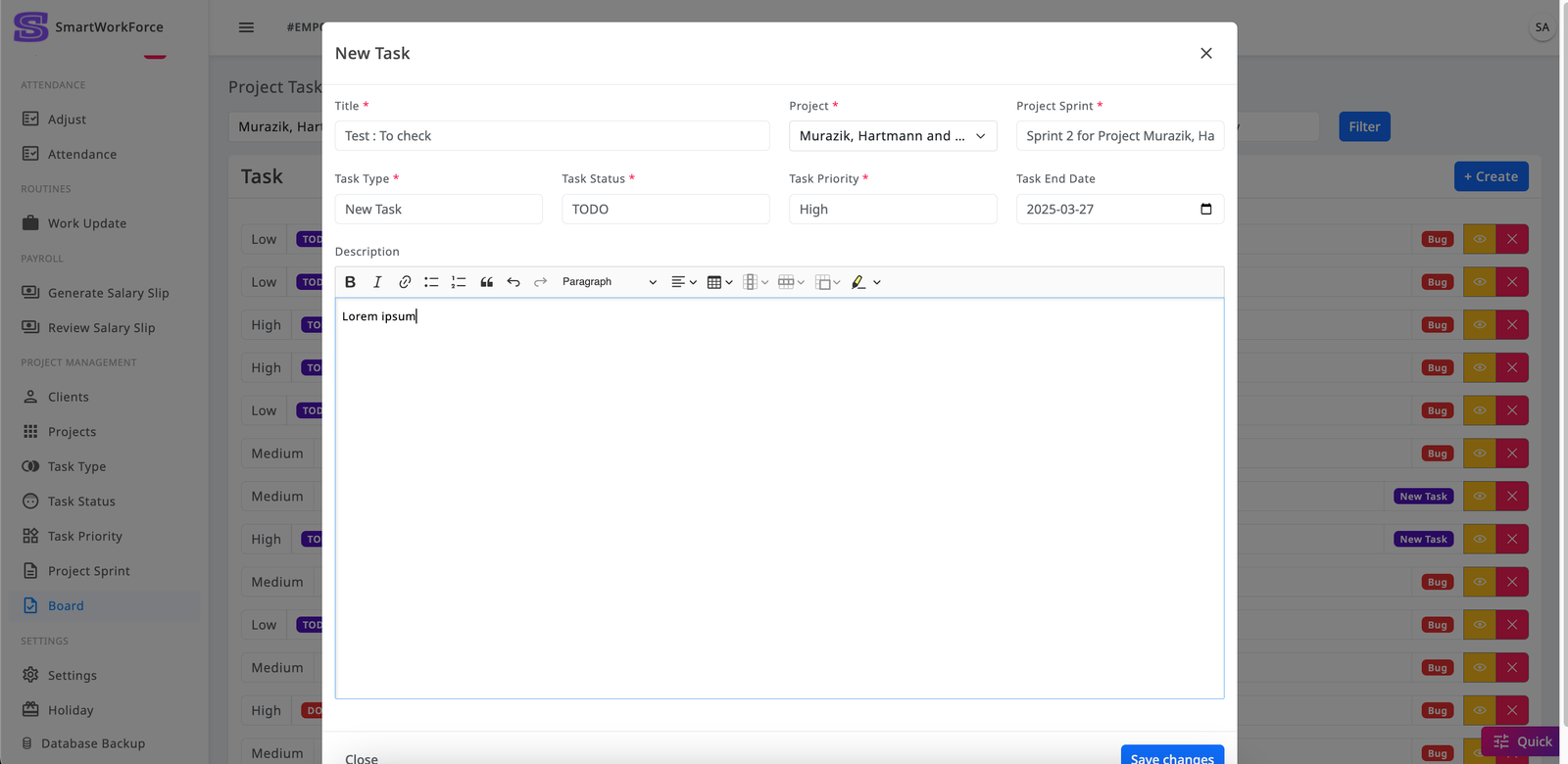
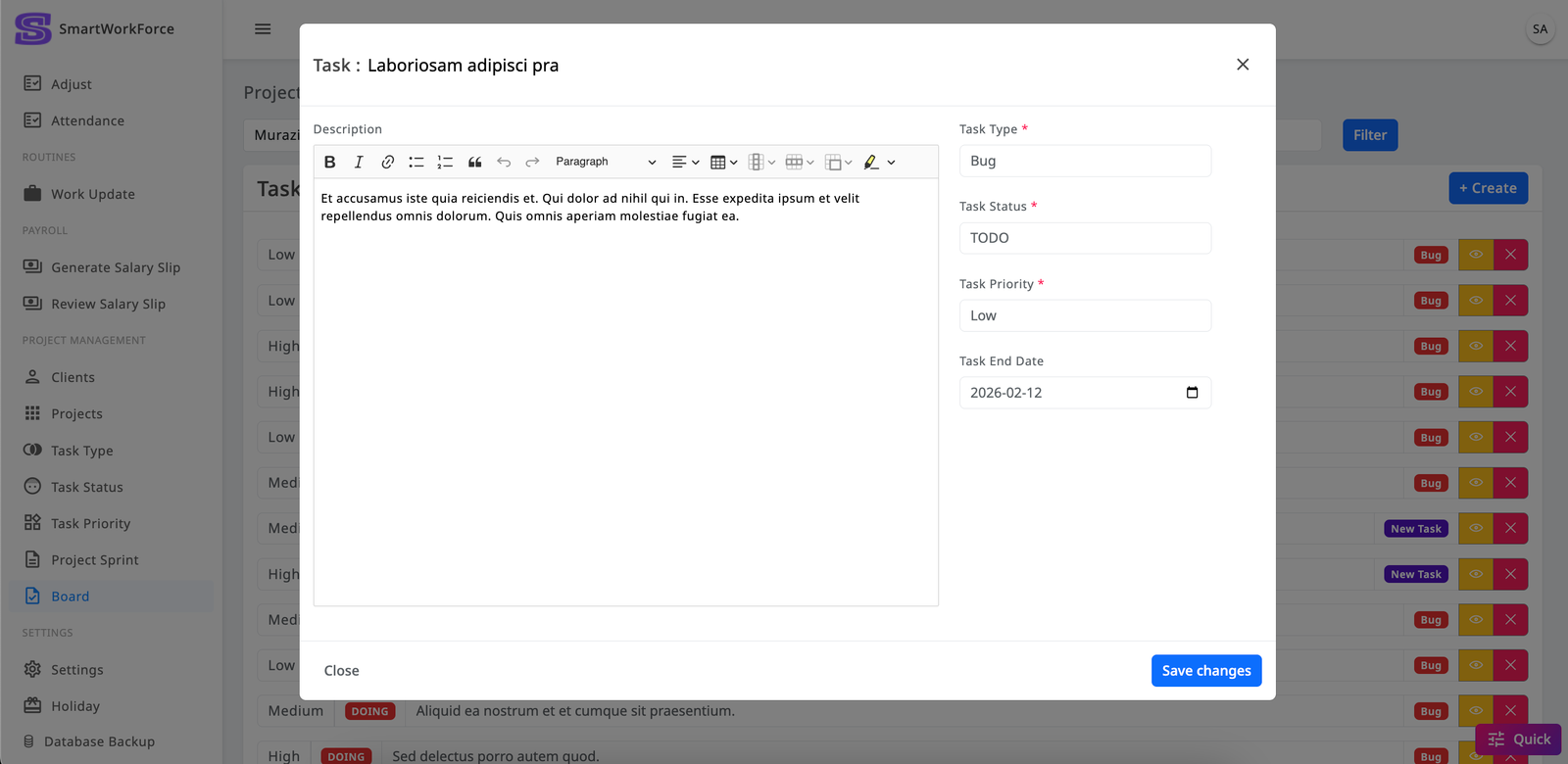
SmartWorkForce includes a task board where tasks can be listed within a project. Admins can create tasks, assign task statuses, types, and priorities to ensure employees know what needs to be done. The task board also features a filter functionality, allowing users to easily search for tasks based on different criteria, making task management and tracking more efficient.
Project Management : Board
SmartWorkForce includes a Kanban board feature that allows admins to manage tasks visually. Admins can create tasks and assign them to different columns based on their status, such as TODO, DOING, and DONE. The Kanban board also includes a filter functionality, enabling users to easily search for tasks based on various criteria. This visual approach to task management helps improve organization and efficiency in tracking project progress.
Settings : Software Setup
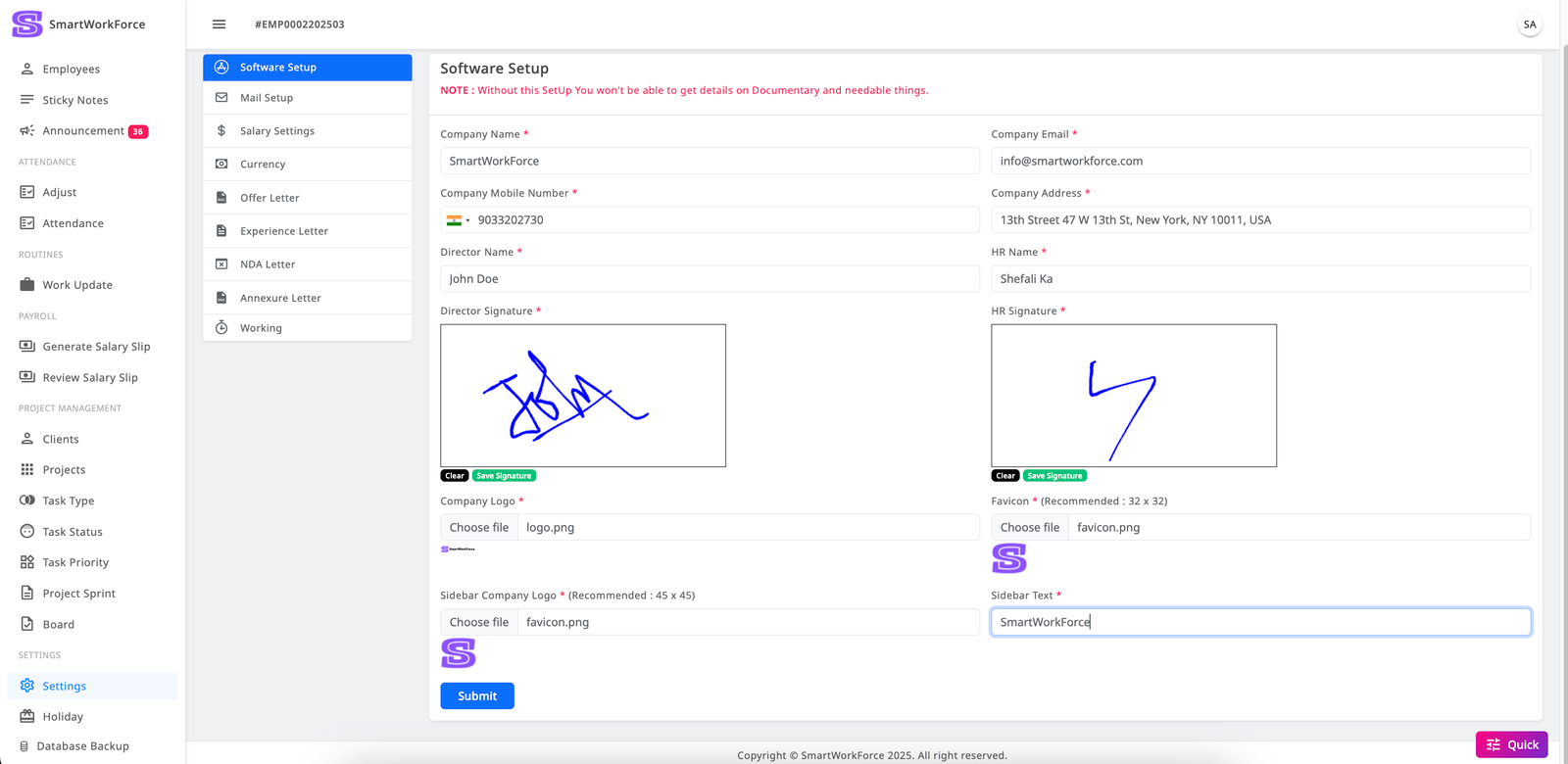
In SmartWorkForce, under Settings > Software Setup, admins can configure key company details such as the company name, logo, email, director's signature, HR's signature, and sidebar text. These settings are used to personalize documents like employment letters and salary slips, as well as to display relevant information throughout the website where needed.
Settings : Mail Setup
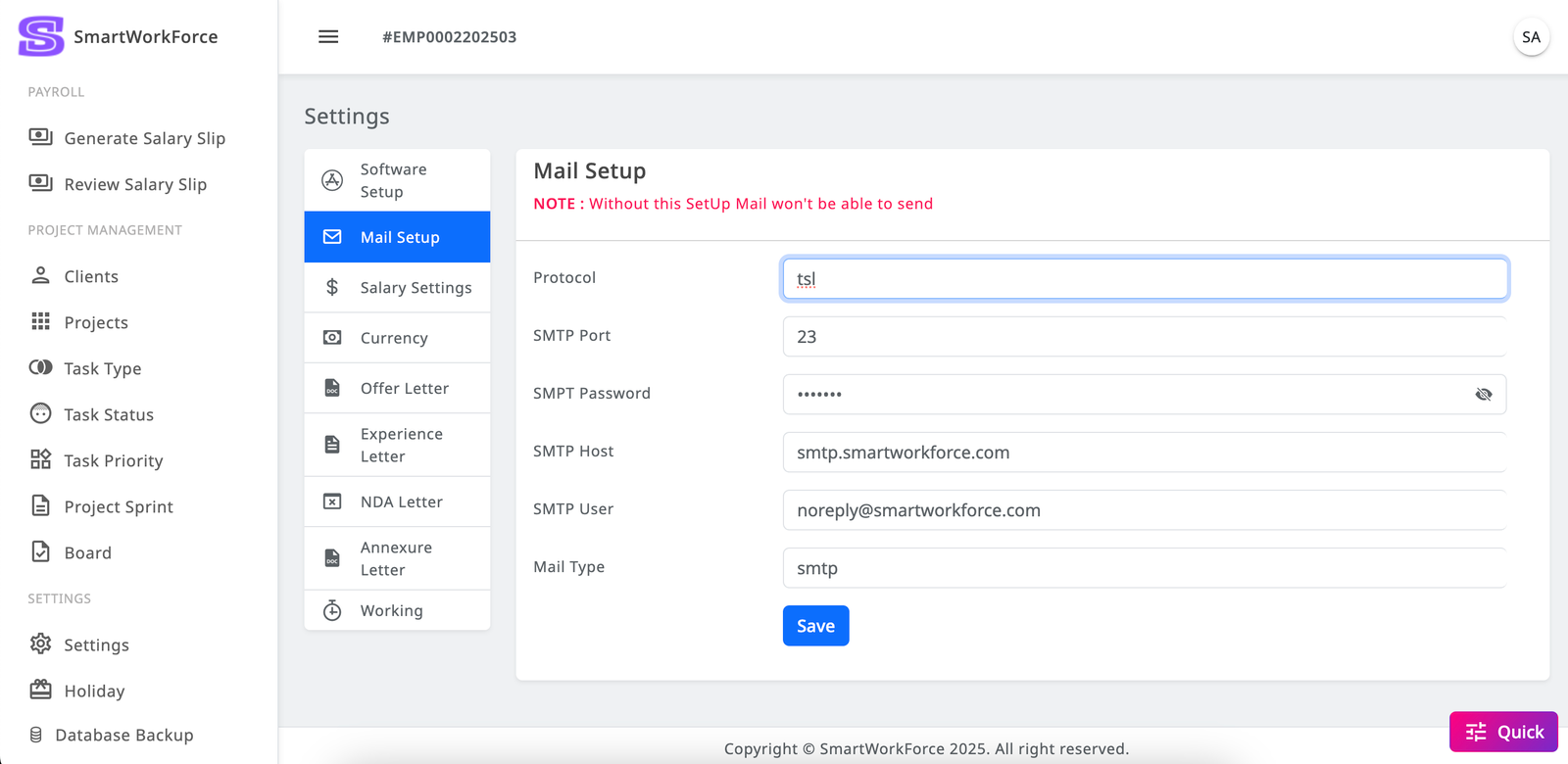
SmartWorkForce includes a Mail Configuration feature, which must be properly set up to enable the system to send emails. Without this setup, emails, such as those for employment letters or other notifications to employees, will not be triggered or delivered successfully.
Settings : Salary Setting
SmartWorkForce features a Salary Setting Module where admins can define various salary components, including:
- Basic + DA (Dearness Allowance)
- HRA (House Rent Allowance)
- Conveyance
- Special Allowance
The total of these components must add up to 100% of the salary. Admins can adjust the percentages as per the requirements, ensuring that the overall total always equals 100% for accurate salary calculations based on the base month.

Settings : Currency
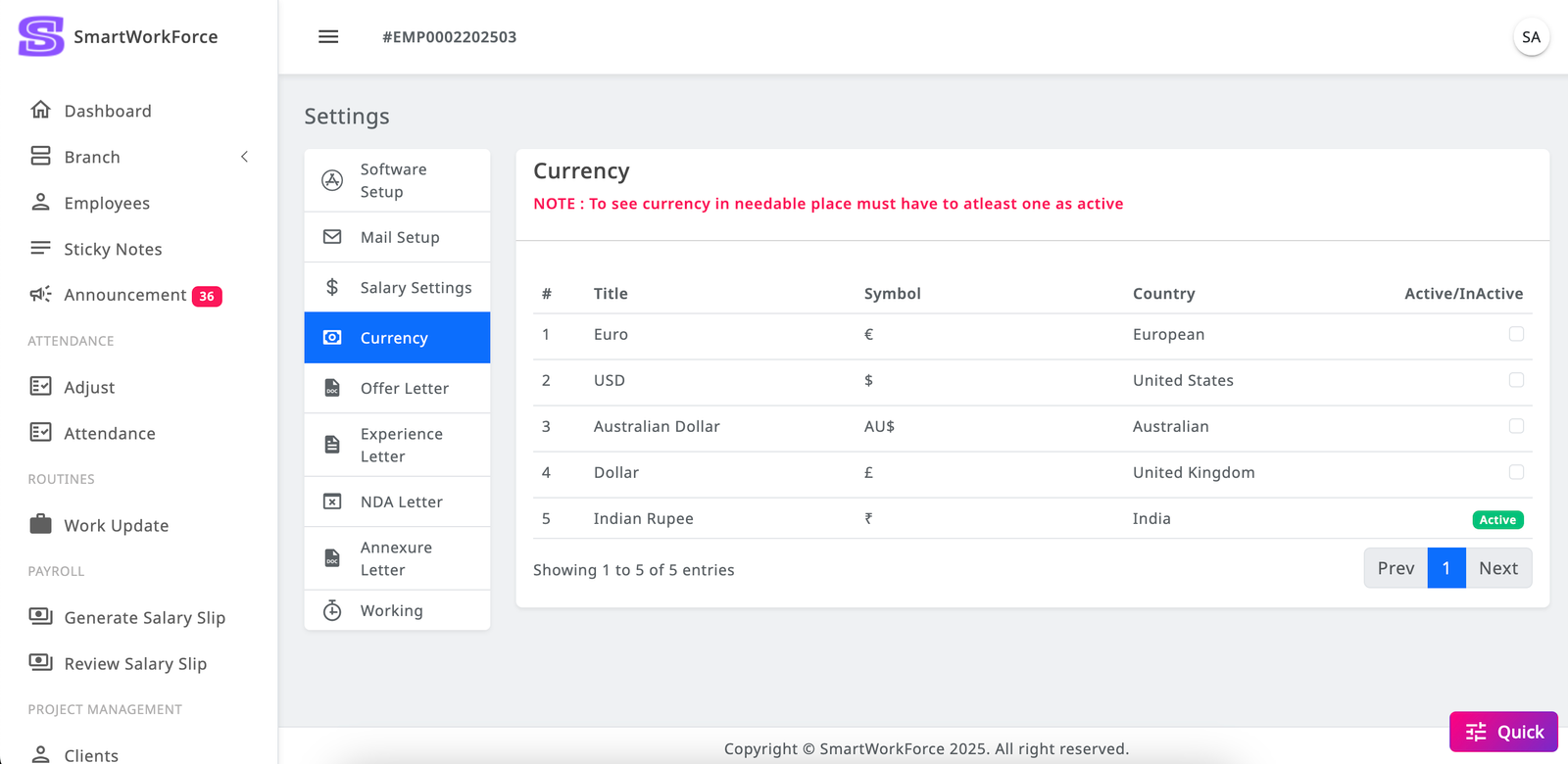
SmartWorkForce includes a Standard Currency Setting feature, where one currency must be marked as active. This active currency will then be displayed in relevant sections, such as on salary slips, ensuring that the correct currency is shown wherever necessary across the system.
Settings : Offer Letter
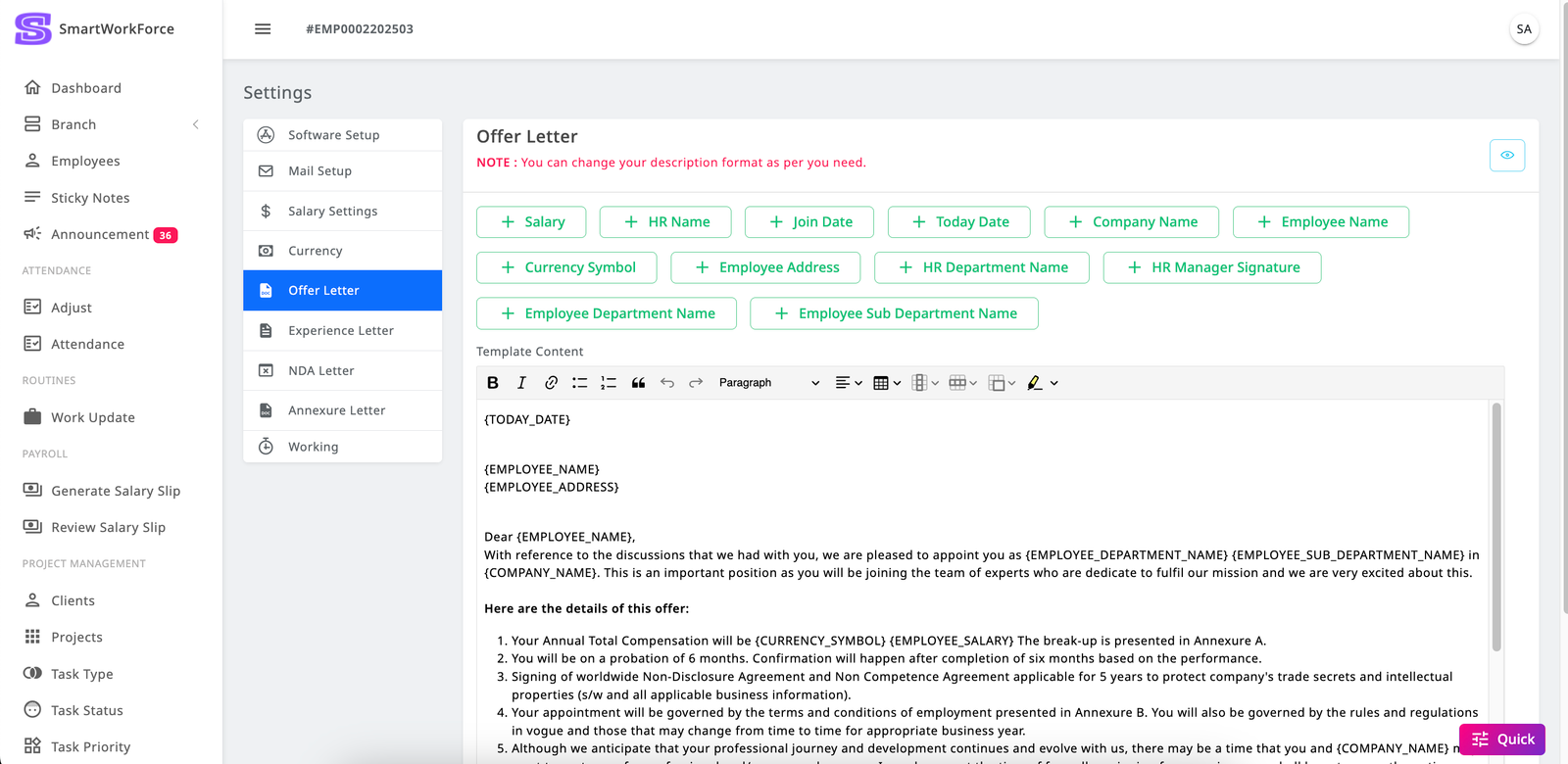
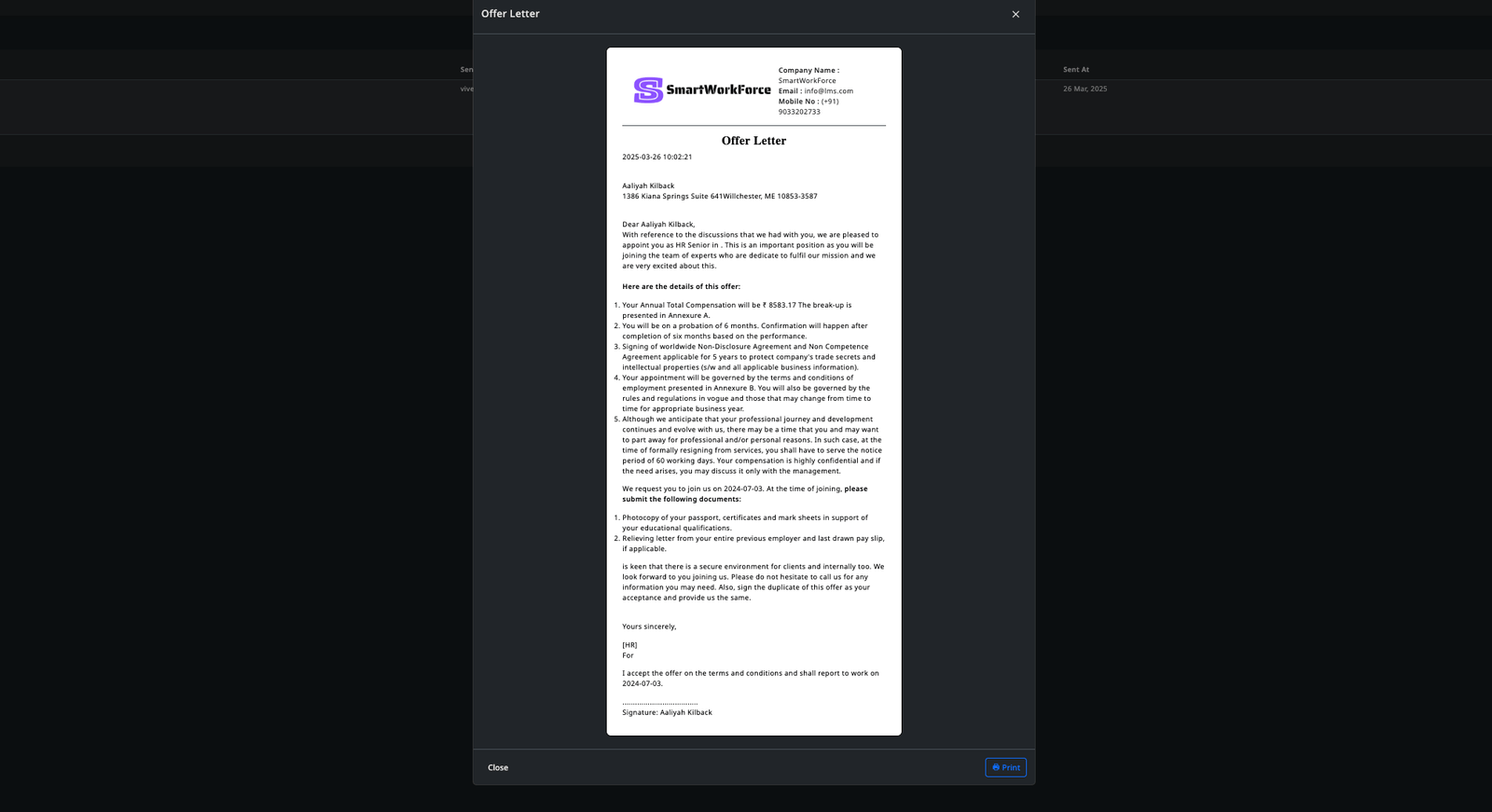
SmartWorkForce includes an Offer Letter Setting feature, allowing admins to customize the content of the offer letter that is sent to employees. The offer letter can be tailored to include the company’s specific requirements. Once created, the offer letter is accessible in the employee panel, where employees can view the letters sent to them. This ensures that the necessary company details are displayed in the letter format as needed.
Settings : Experience Letter
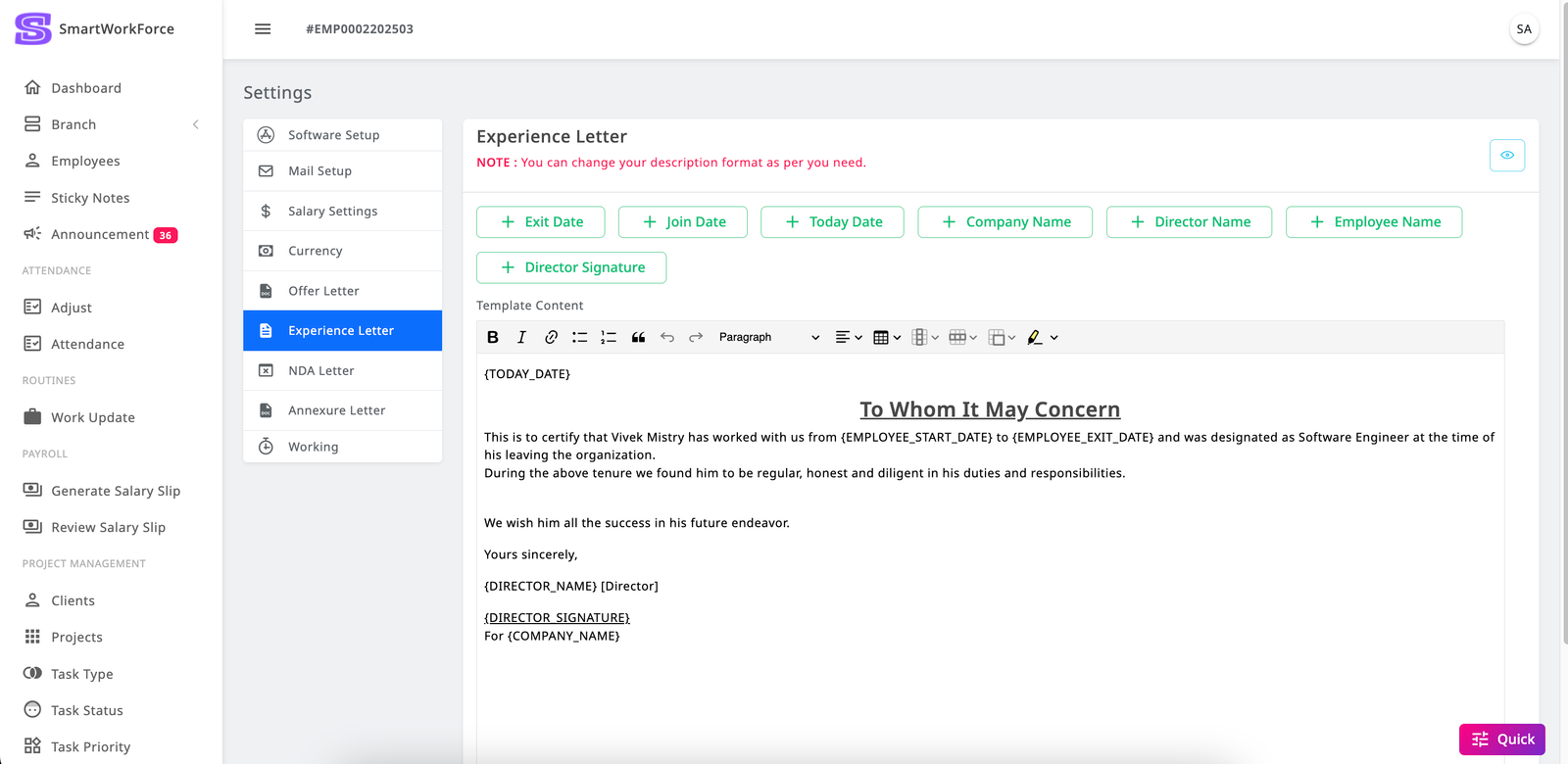
SmartWorkForce includes an Experience Letter Setting feature, allowing admins to customize the content of the Experience Letter that is sent to employees. The Experience Letter can be tailored to include the company’s specific requirements. Once created, the Experience Letter is accessible in the employee panel, where employees can view the letters sent to them. This ensures that the necessary company details are displayed in the letter format as needed.
Settings : NDA Letter
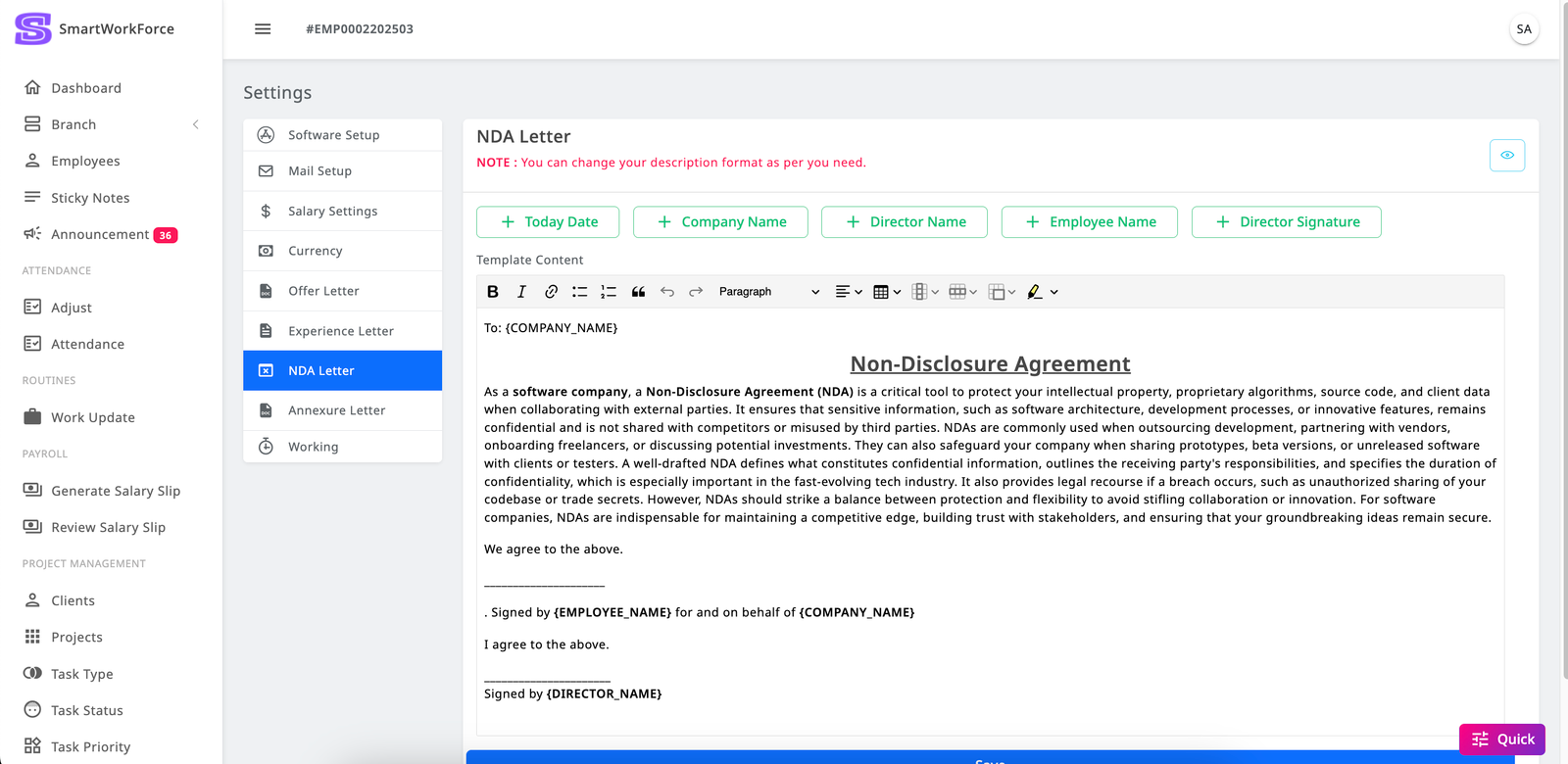
SmartWorkForce includes an NDA Letter Setting feature, allowing admins to customize the content of the NDA Letter that is sent to employees. The NDA Letter can be tailored to include the company’s specific requirements. Once created, the NDA Letter is accessible in the employee panel, where employees can view the letters sent to them. This ensures that the necessary company details are displayed in the letter format as needed.
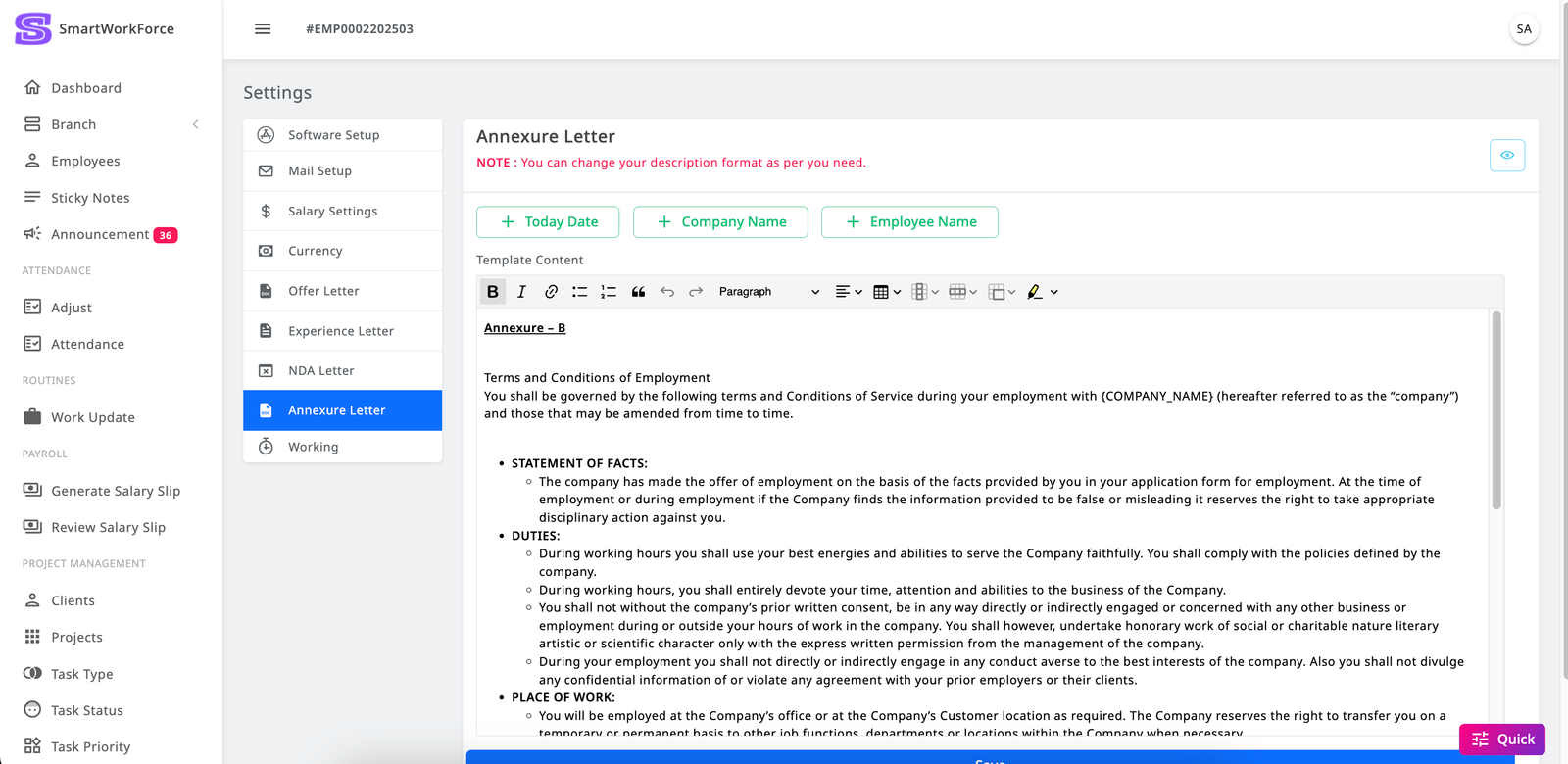
Settings : Annexure Letter
SmartWorkForce includes an Annexure Letter Setting feature, allowing admins to customize the content of the Annexure Letter that is sent to employees. The Annexure Letter can be tailored to include the company’s specific requirements. Once created, the Annexure Letter is accessible in the employee panel, where employees can view the letters sent to them. This ensures that the necessary company details are displayed in the letter format as needed.
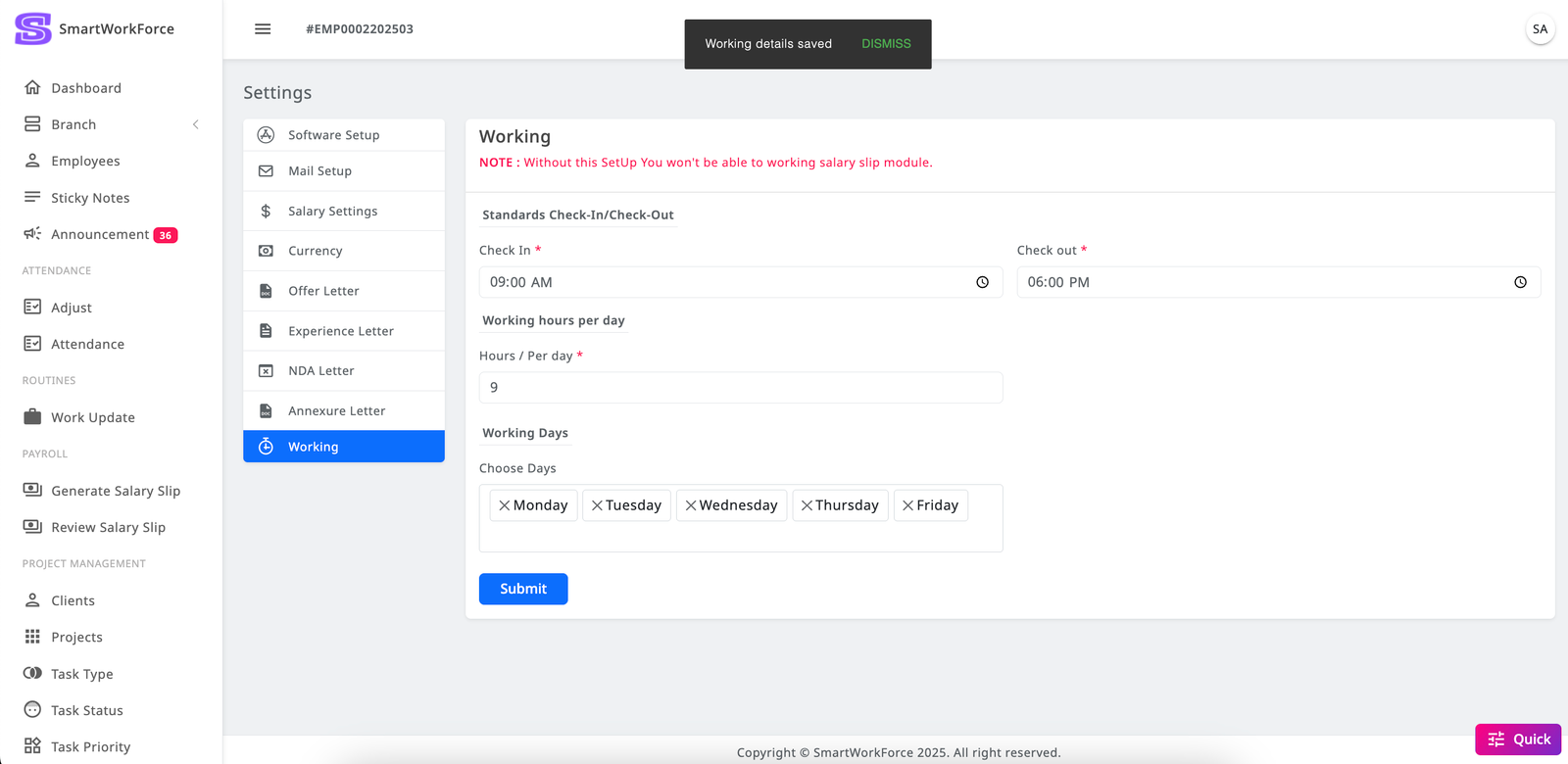
Settings : Working
SmartWorkForce includes a Working Hours Setup feature, allowing admins to define the organization's working days and hours. Admins can set the expected working hours per day for employees, and this information will be used to calculate attendance and work hours. Additionally, there is flexibility for employees, as they can choose to work at any time during the day, ensuring a more adaptable work schedule.
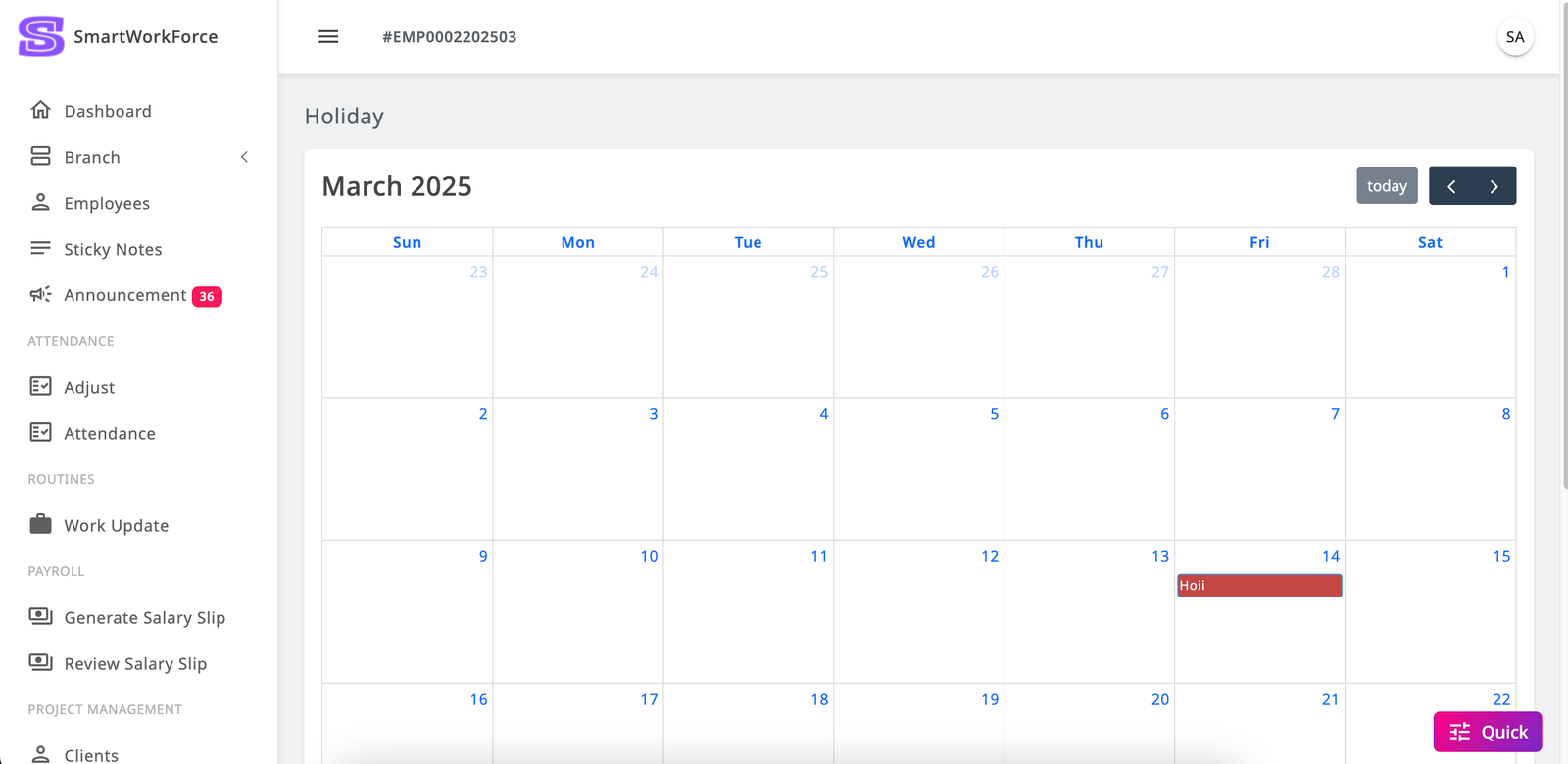
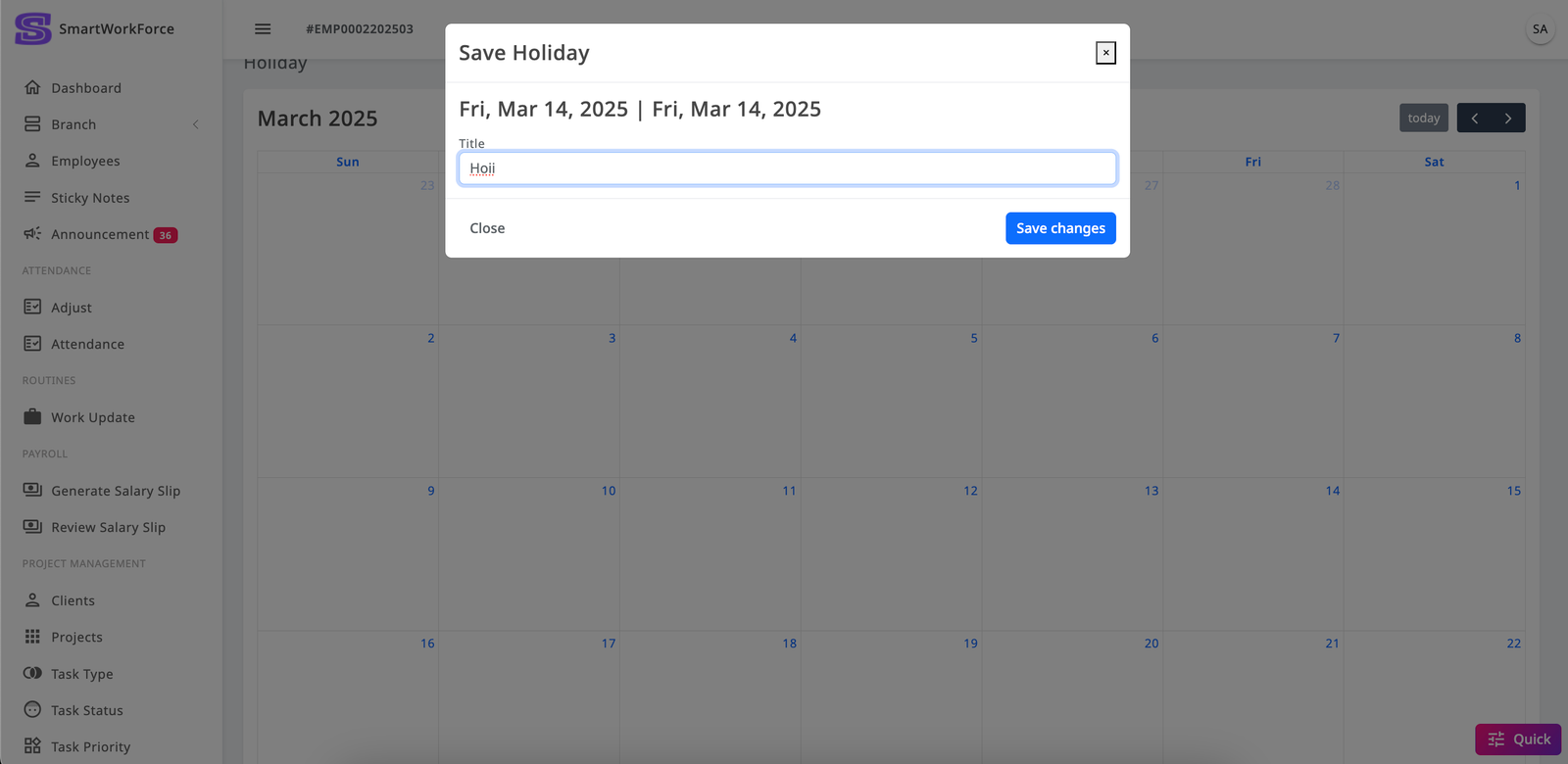
Settings : Holidays
In SmartWorkForce, admins have the ability to add holidays to the system, ensuring that these days are not considered in the salary slip calculations. Employees can view the holidays on their personal calendar, keeping them informed of the non-working days. Admins can add multiple holidays as needed, providing flexibility in managing company-wide holidays.
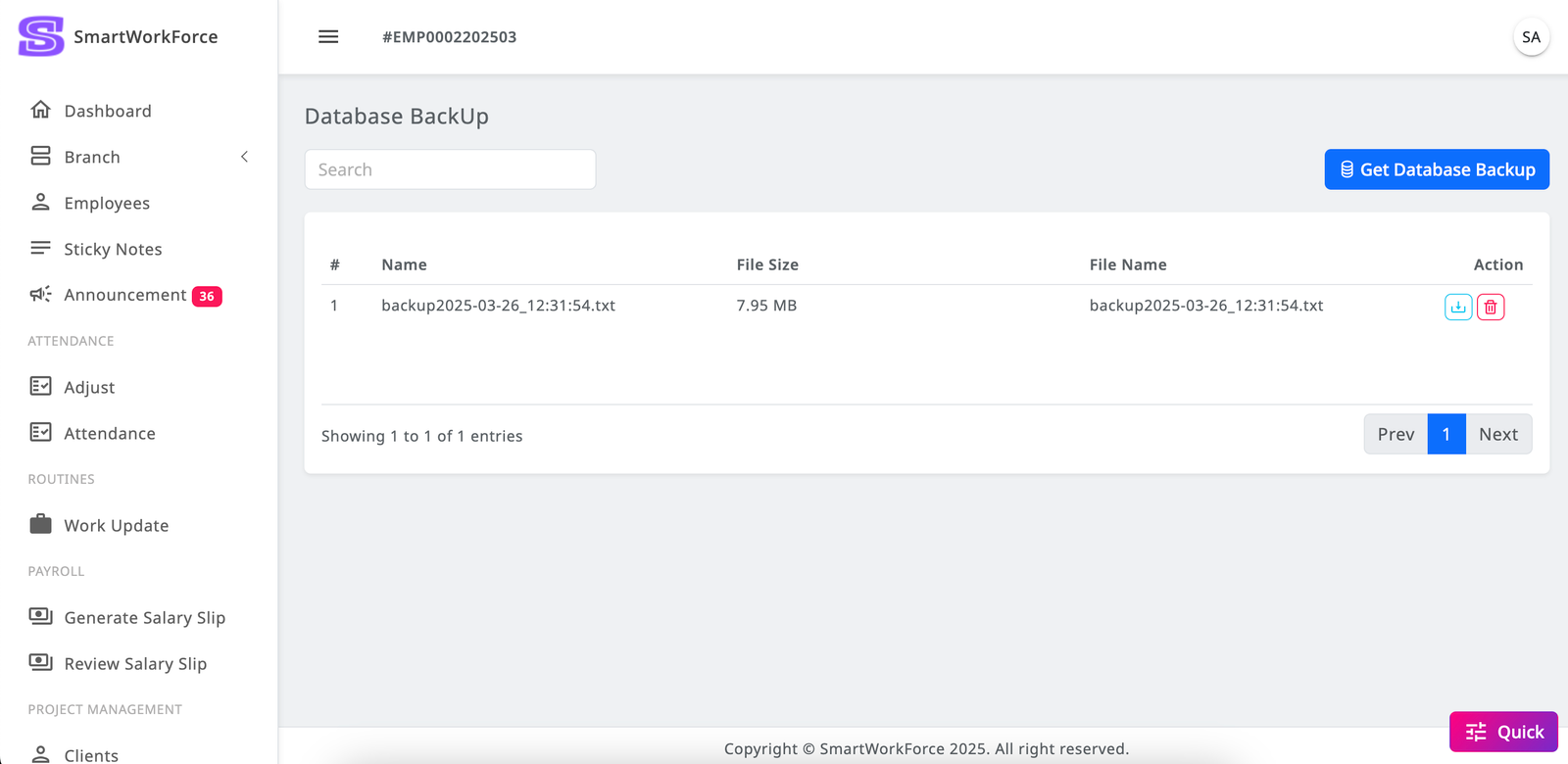
Settings : Database BackUp
In SmartWorkForce, admins have the ability to generate database backups as needed, ensuring that important data is securely saved. They can also download the database for external storage or future use, providing a simple and effective way to manage and protect system data.
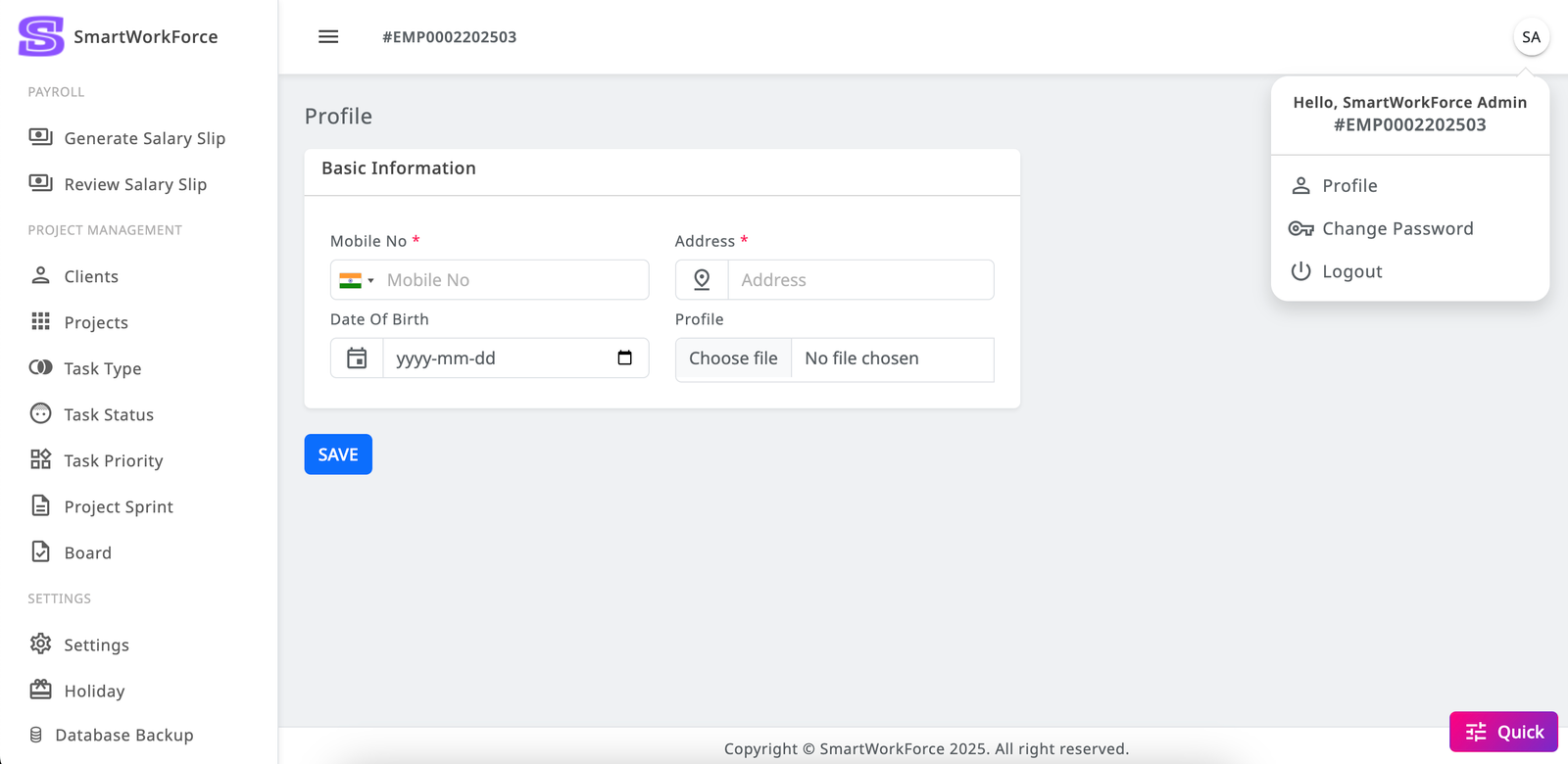
Profile
In SmartWorkForce, admins have the ability to change their basic profile information, such as name, email, contact details, and other personal settings. This allows admins to keep their profile up-to-date and manage their account details as needed.
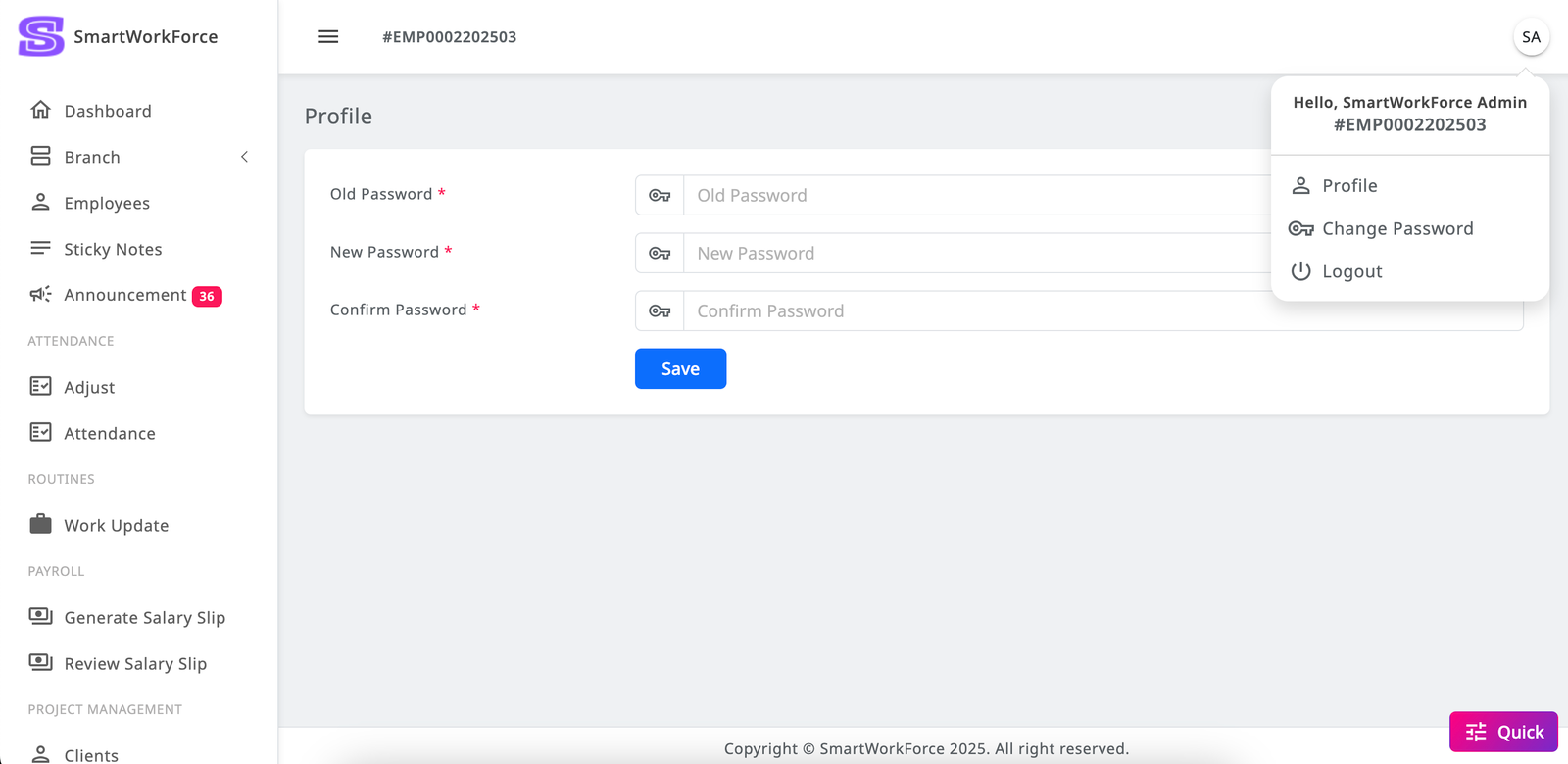
Change Password
In SmartWorkForce, admins have the ability to change their password for enhanced security. This allows them to update their login credentials whenever necessary to maintain account protection and privacy.
Employee Features
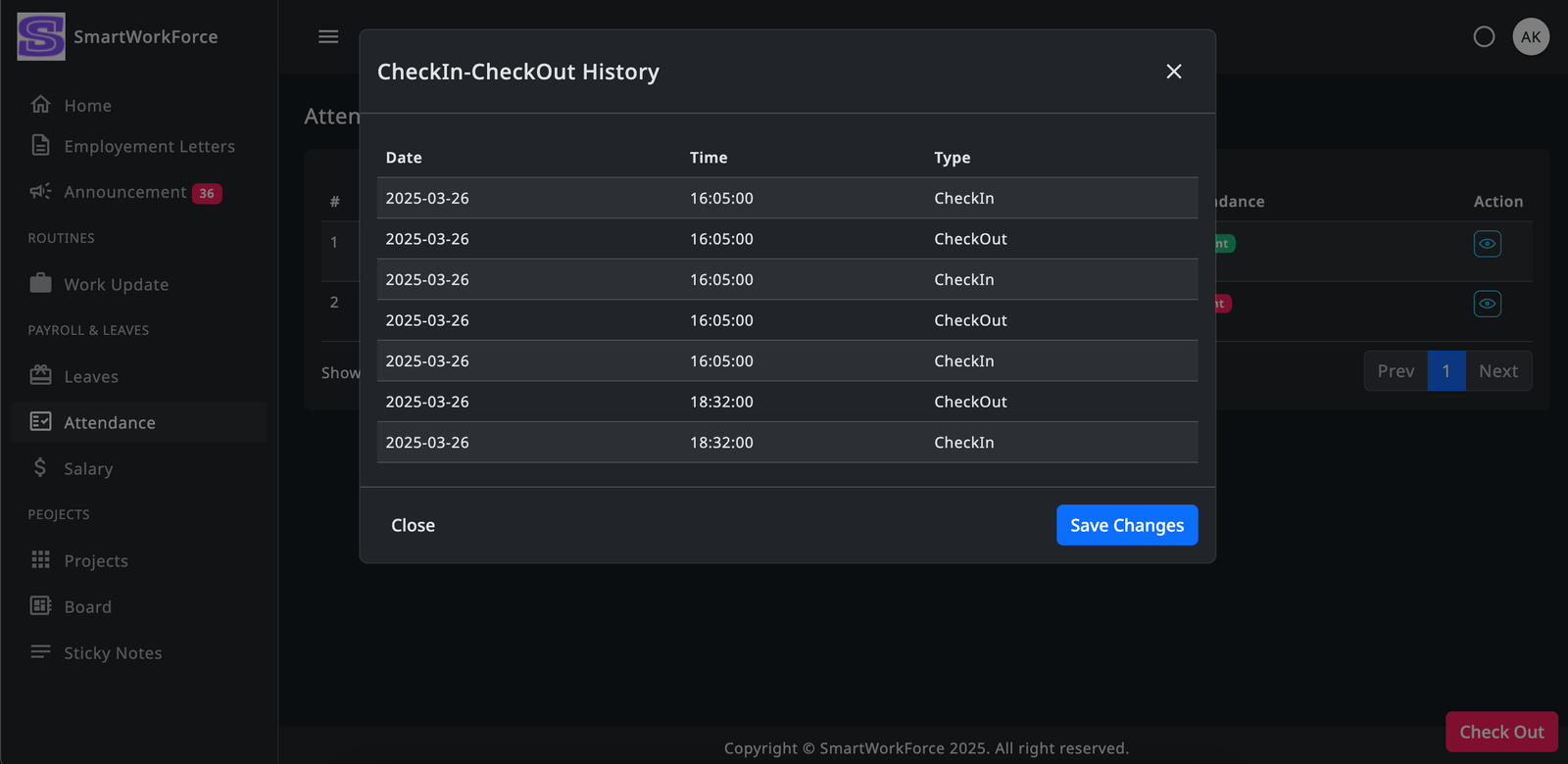
The Employee Features in SmartWorkForce allow employees to log in using credentials generated by the admin. Once logged in, employees can mark their attendance by checking in and checking out, and they can view their own check-in and check-out history. Employees also have access to a list of their attendance records. They can apply for leave, provide daily work updates, and add sticky notes for personal reminders. Additionally, employees can add and update project tasks, view the projects they are assigned to, and see detailed information about project sprints.
Authentication
Employees can log in through a dedicated login page using the credentials provided by the admin. However, inactive employees will not be able to log in. Once logged in, active employees can access their personal dashboard to manage attendance, apply for leave, update work progress, and view assigned projects and tasks.
Home
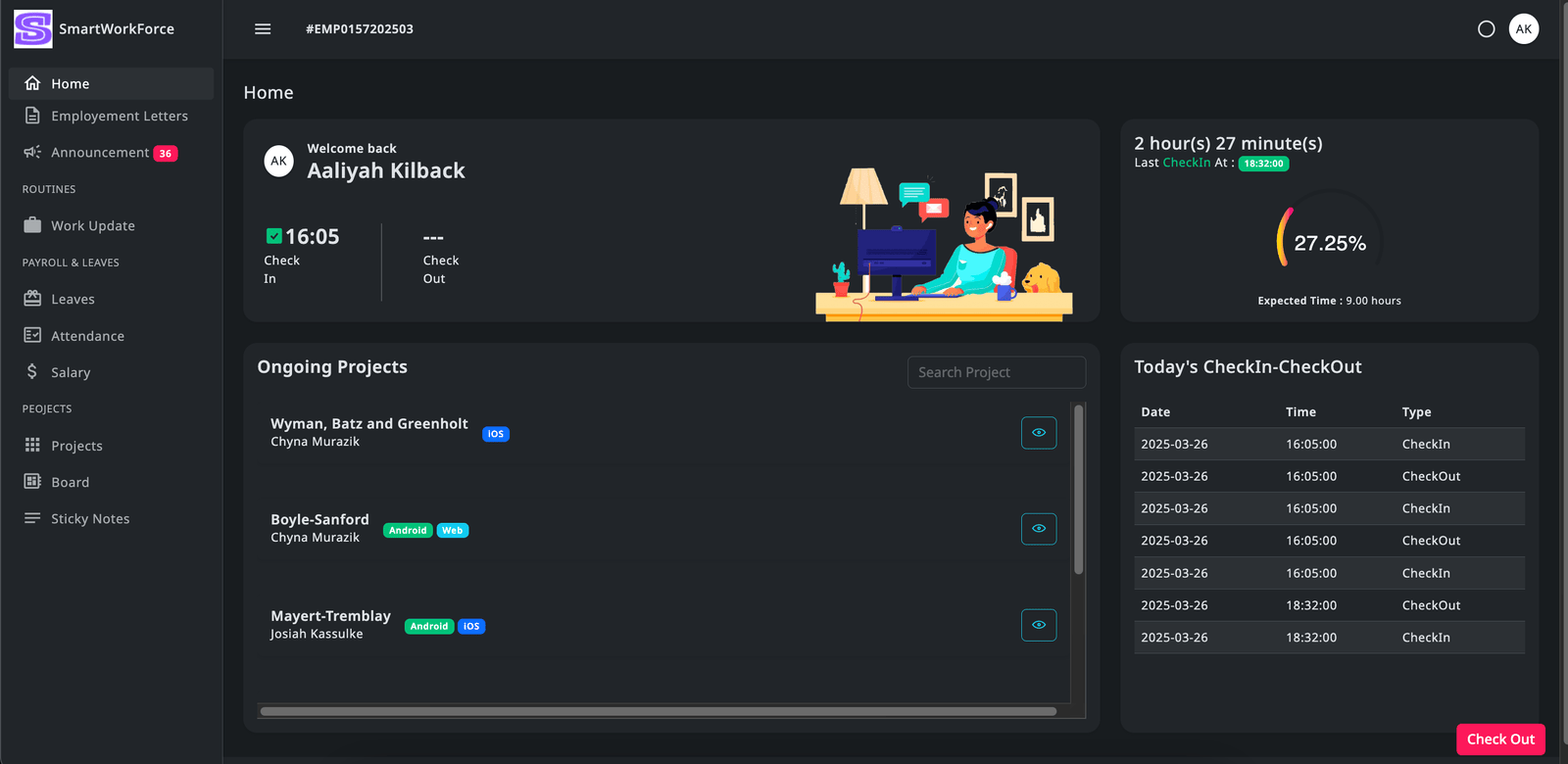
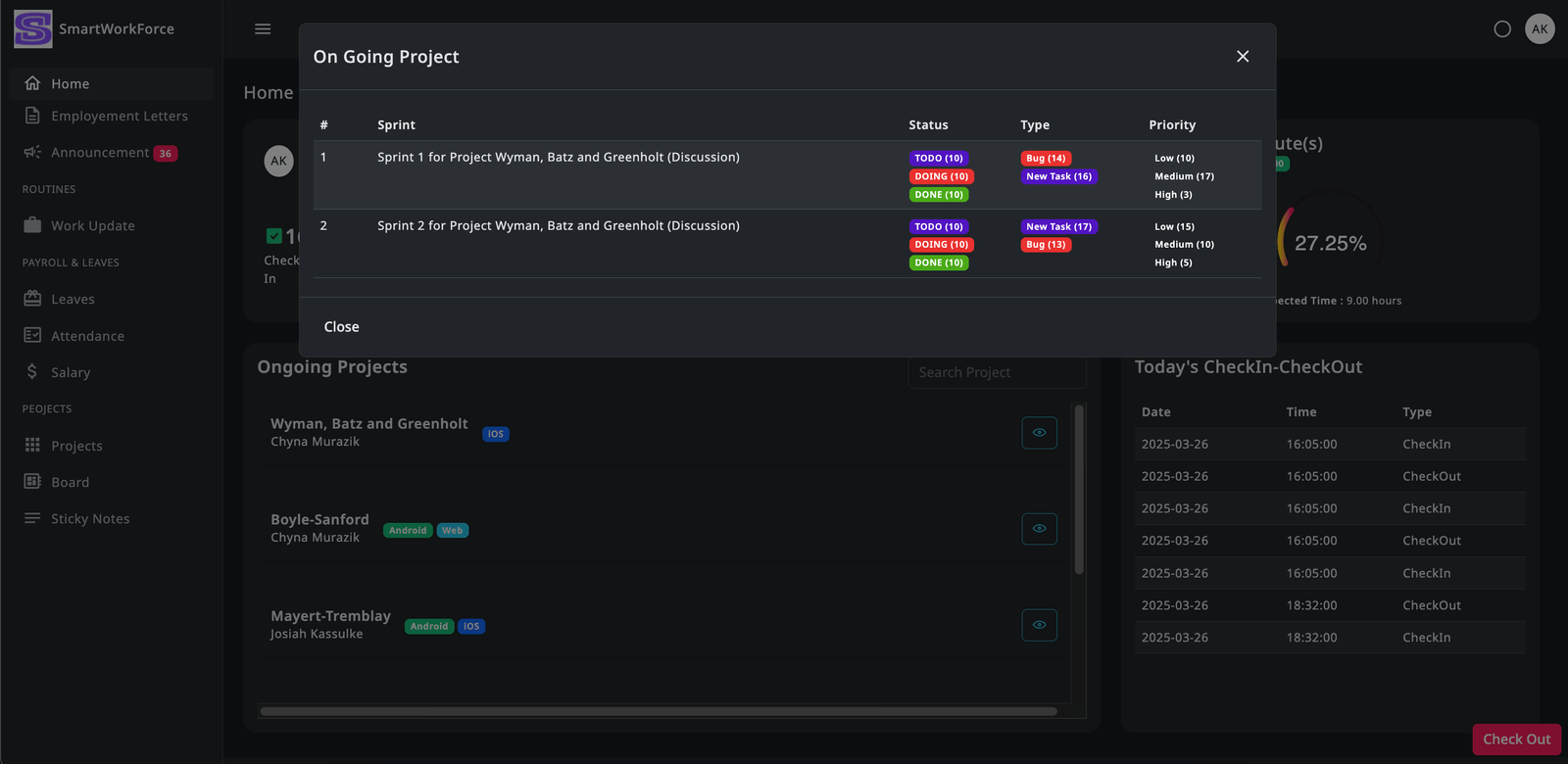
On the homepage, employees can view their total working hours for the day compared to the expected hours. They can also see their check-in and check-out history for the day, along with the latest work updates on the dashboard. Additionally, employees can view a list of assigned projects and access details about the ongoing projects they are involved in.
Check In / Check Out
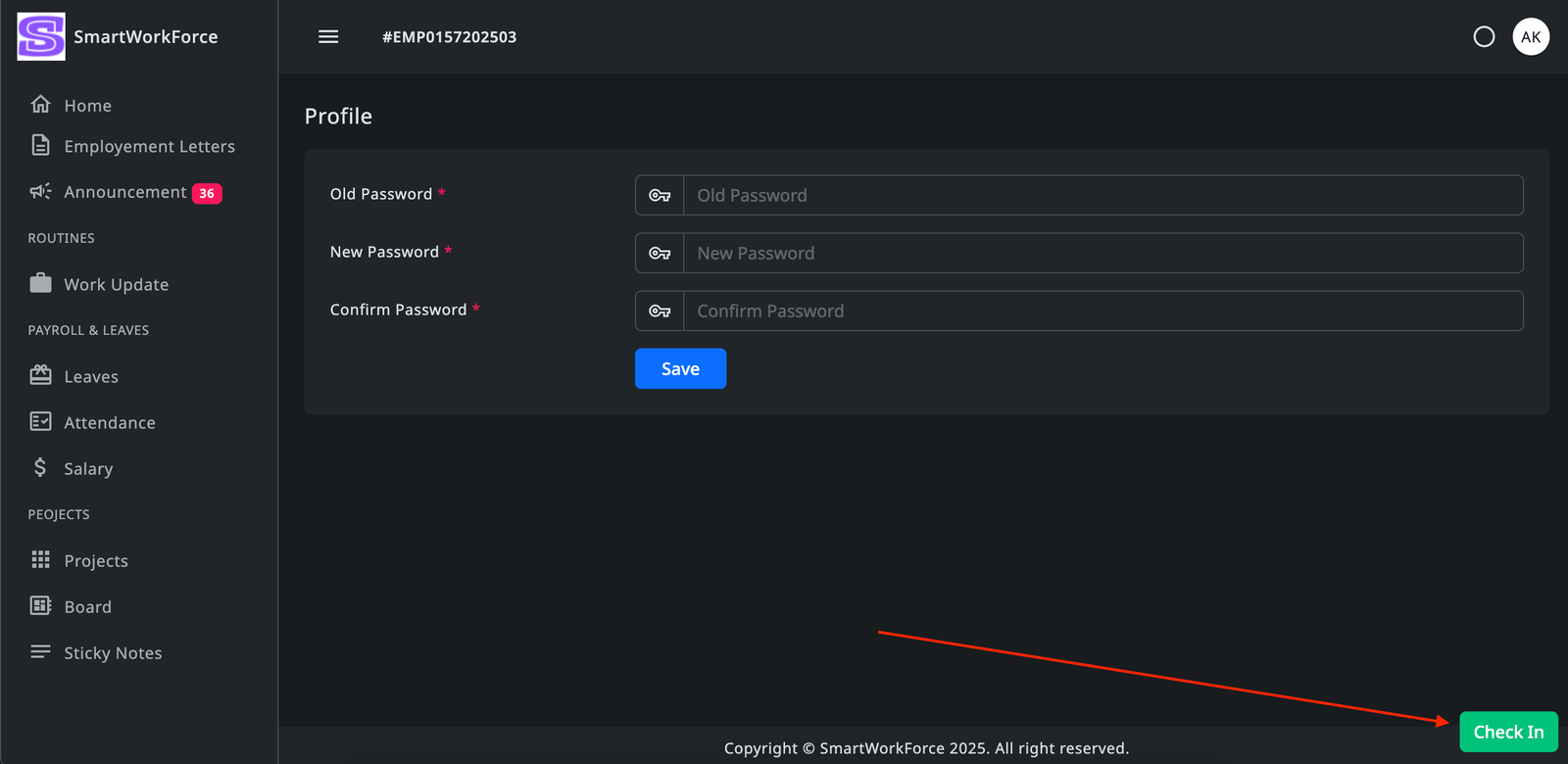
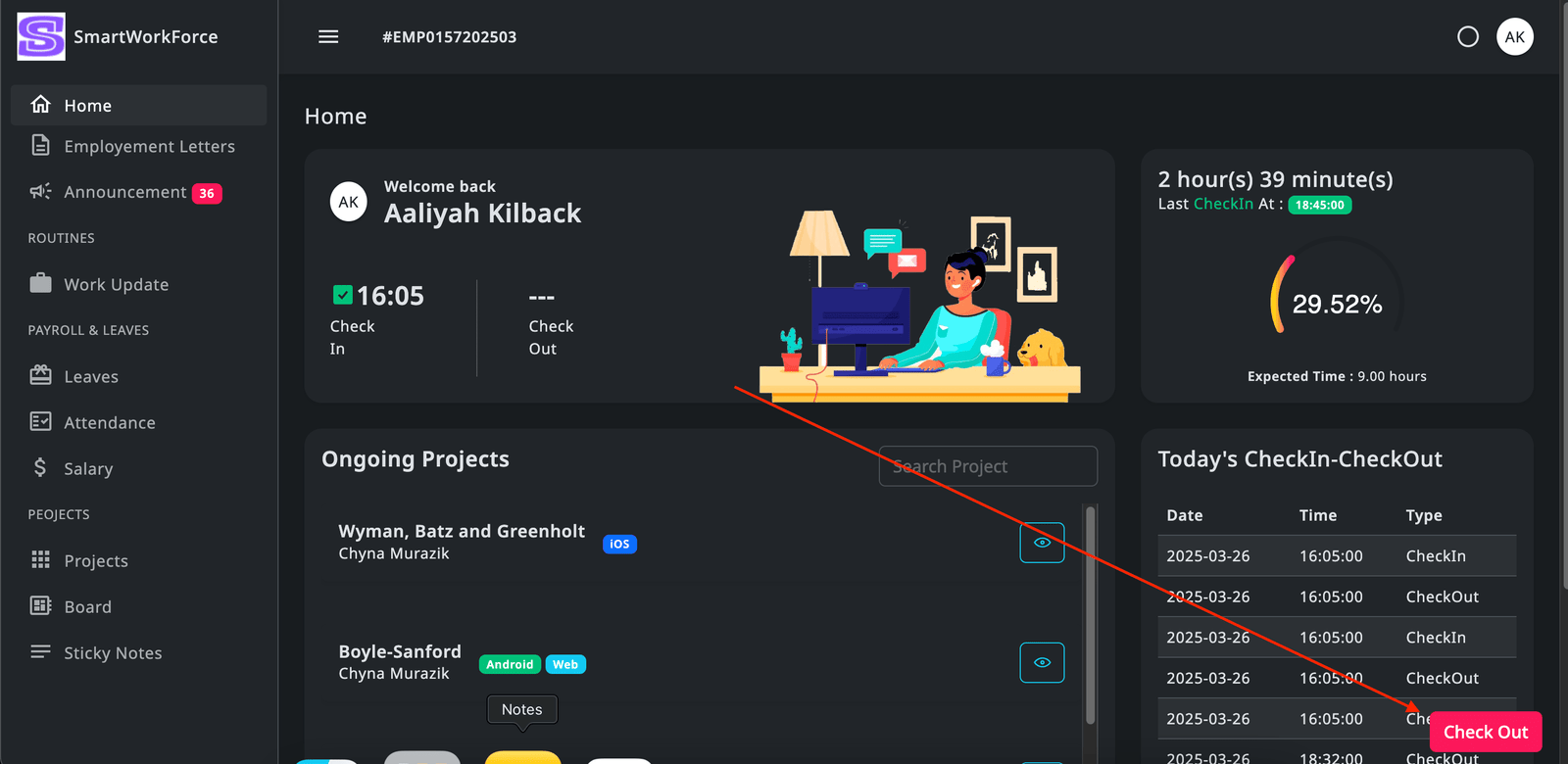
Employees can check in and check out using the Check-in button. However, before they can do so, the admin must first generate the Today's Attendance via the Quick Access > Generate Today Attendance option. Once the attendance is generated, employees will be able to check in and check out for the day.
Employement Letters
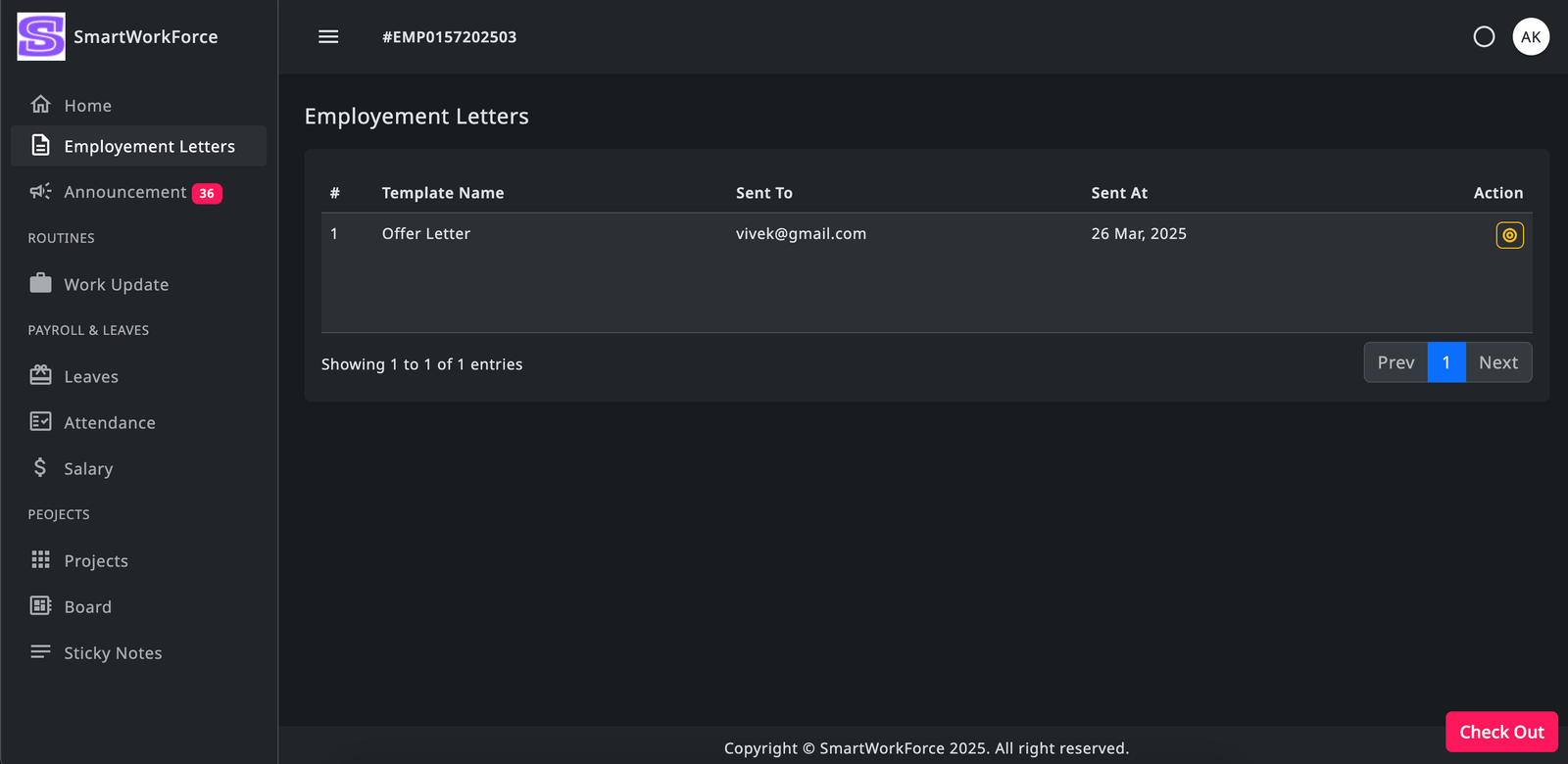
Employees can view a list of employment letters that have been generated by the admin. They can print the details of these letters whenever needed, ensuring easy access to important employment-related documents.
Announcement
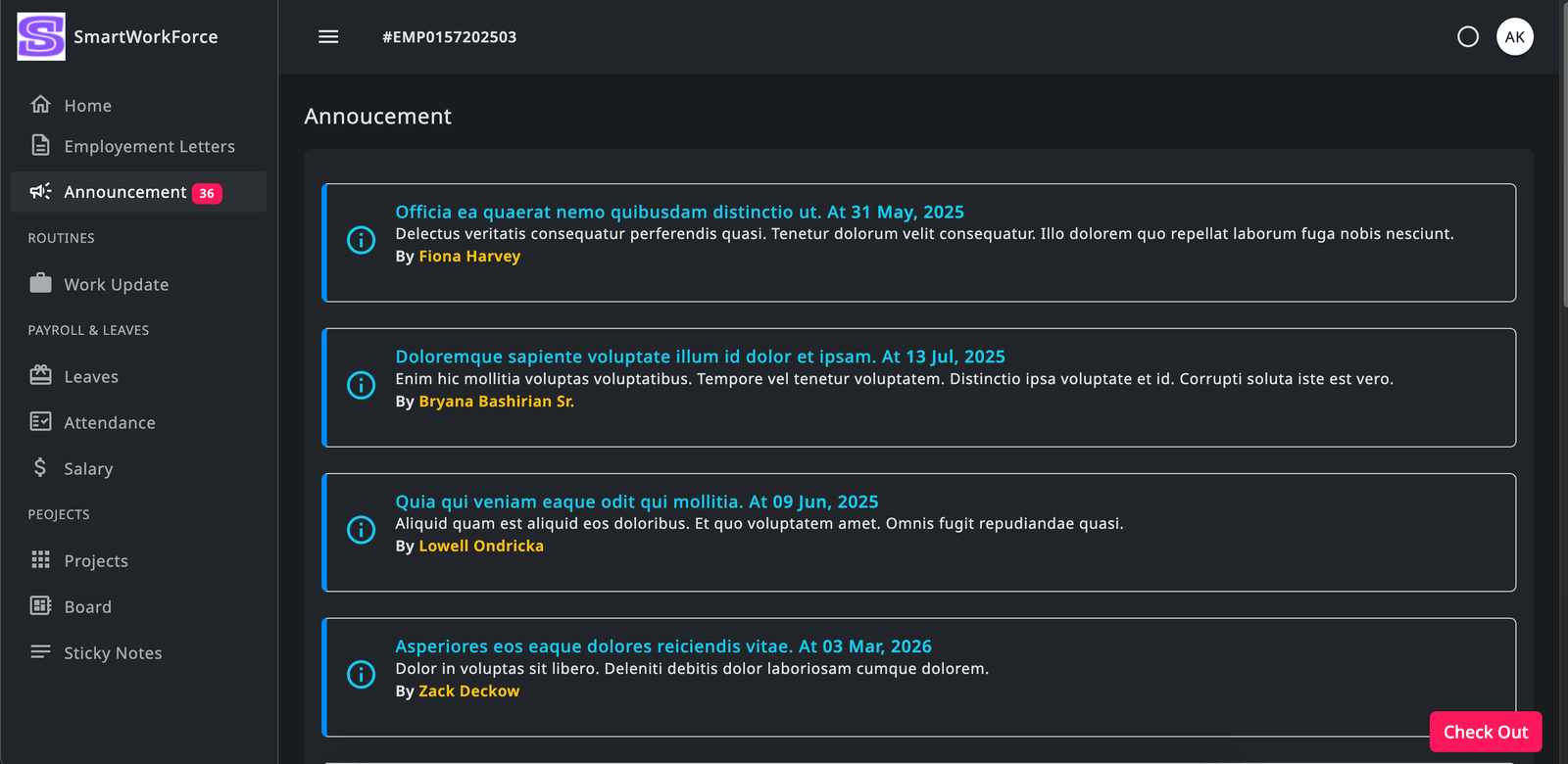
Employees can view announcements made by the admin regarding the organization. They can also see a sidebar counter displaying the number of upcoming announcements, keeping them informed about future updates.
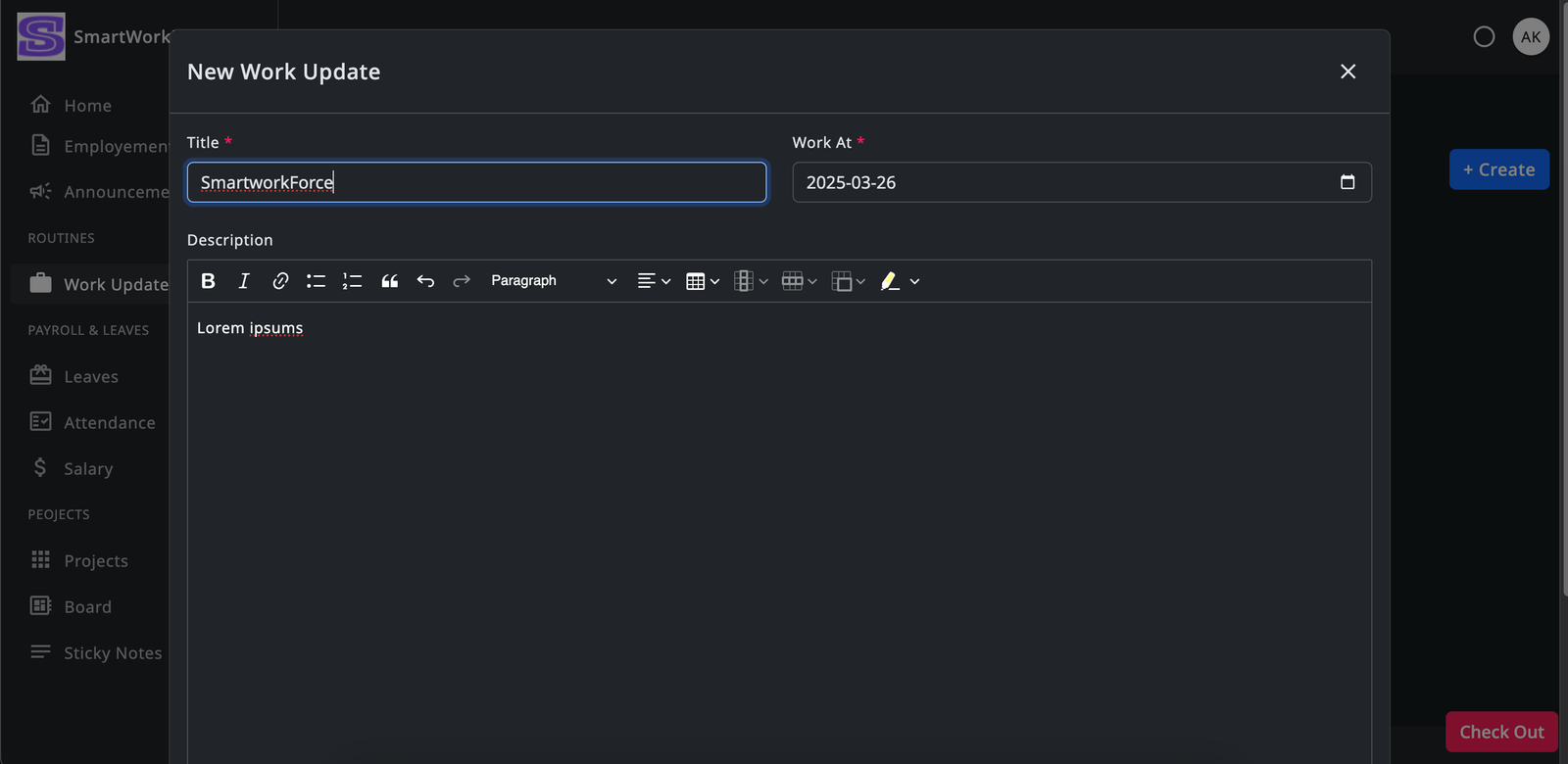
Routines : Work Update
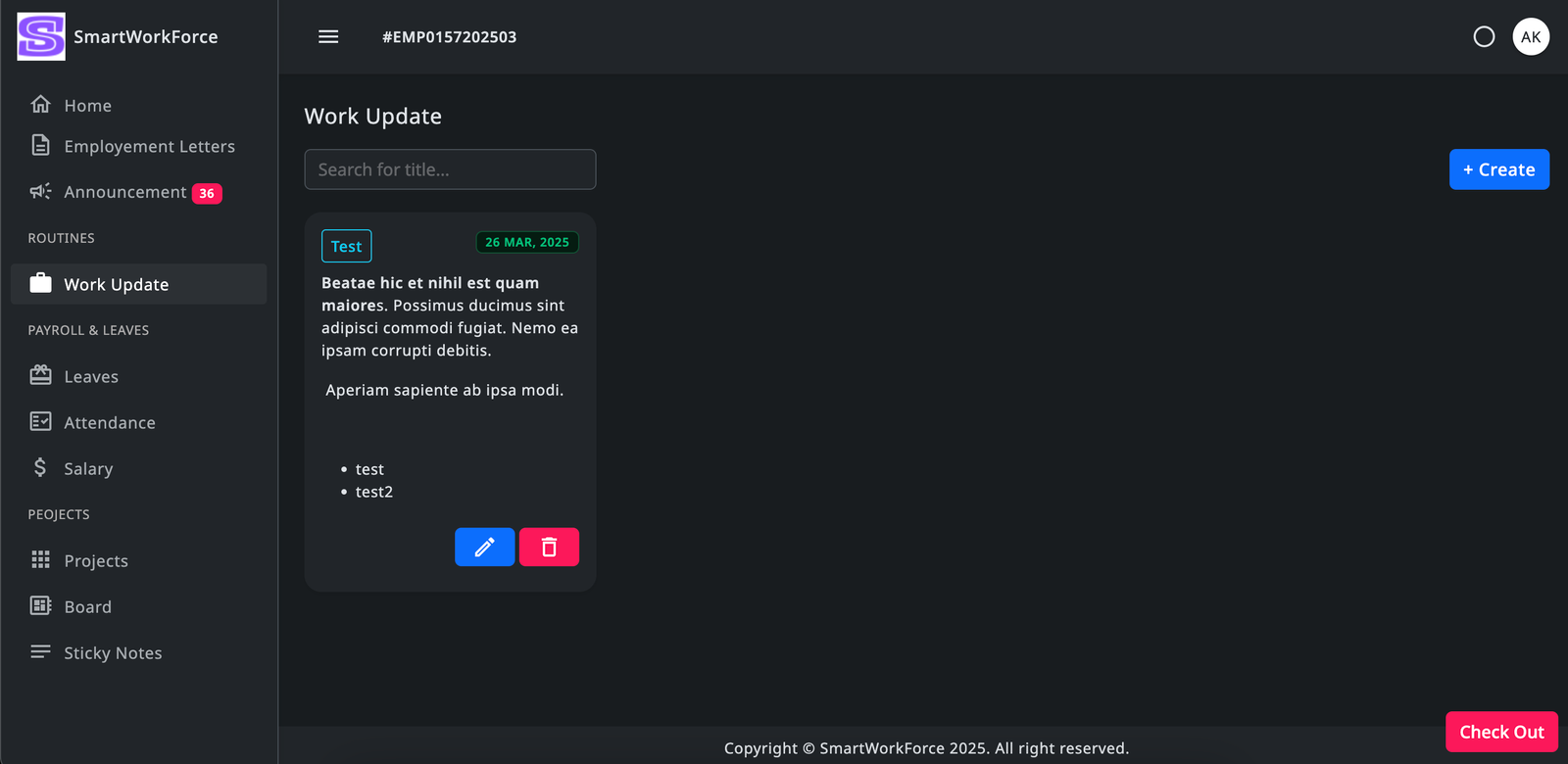
Employees can write and submit their daily work updates to keep track of their progress. These updates allow them to share what tasks they've completed and any relevant details with the admin or team.
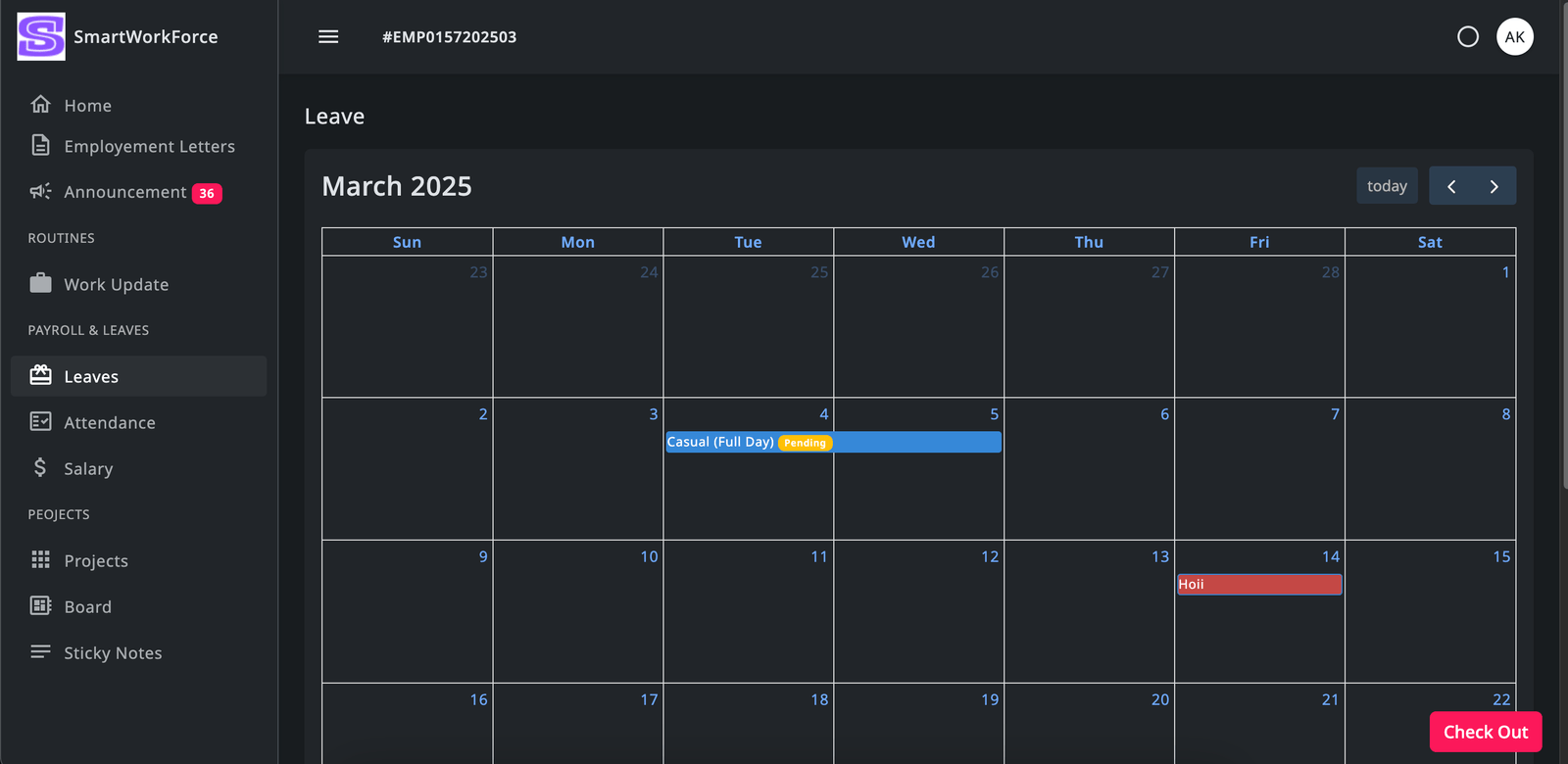
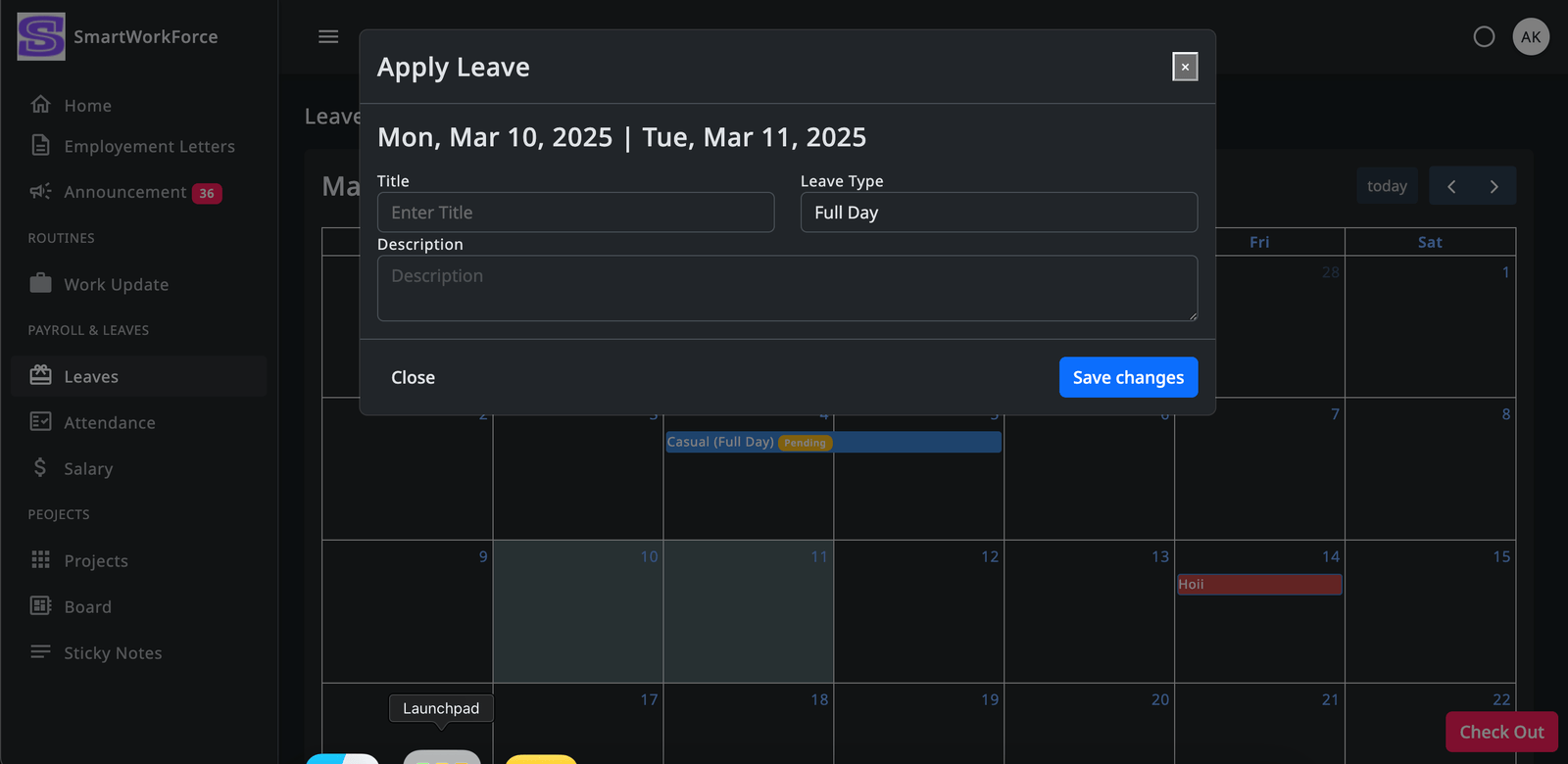
Payroll & Leaves : Leaves
In the SmartWorkForce employee panel, employees have the ability to apply for leave. They can submit leave requests for approval, making it easy to manage time off within the system.
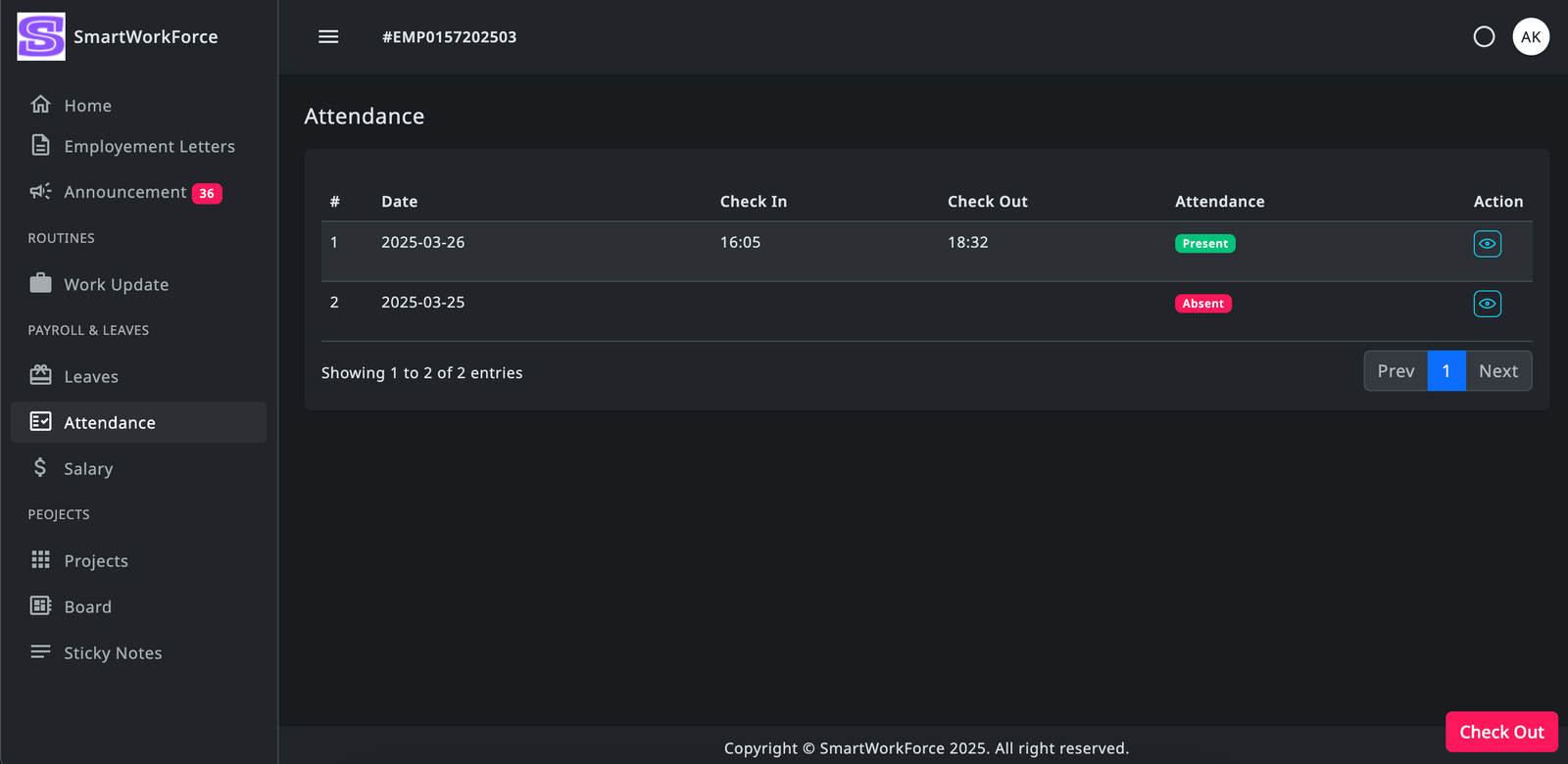
Payroll & Leaves : Attendance
Employees can track their own attendance and view their attendance history in the SmartWorkForce employee panel. This allows them to keep track of their check-ins, check-outs, and overall attendance records for easy reference.
Payroll & Leaves : Salary
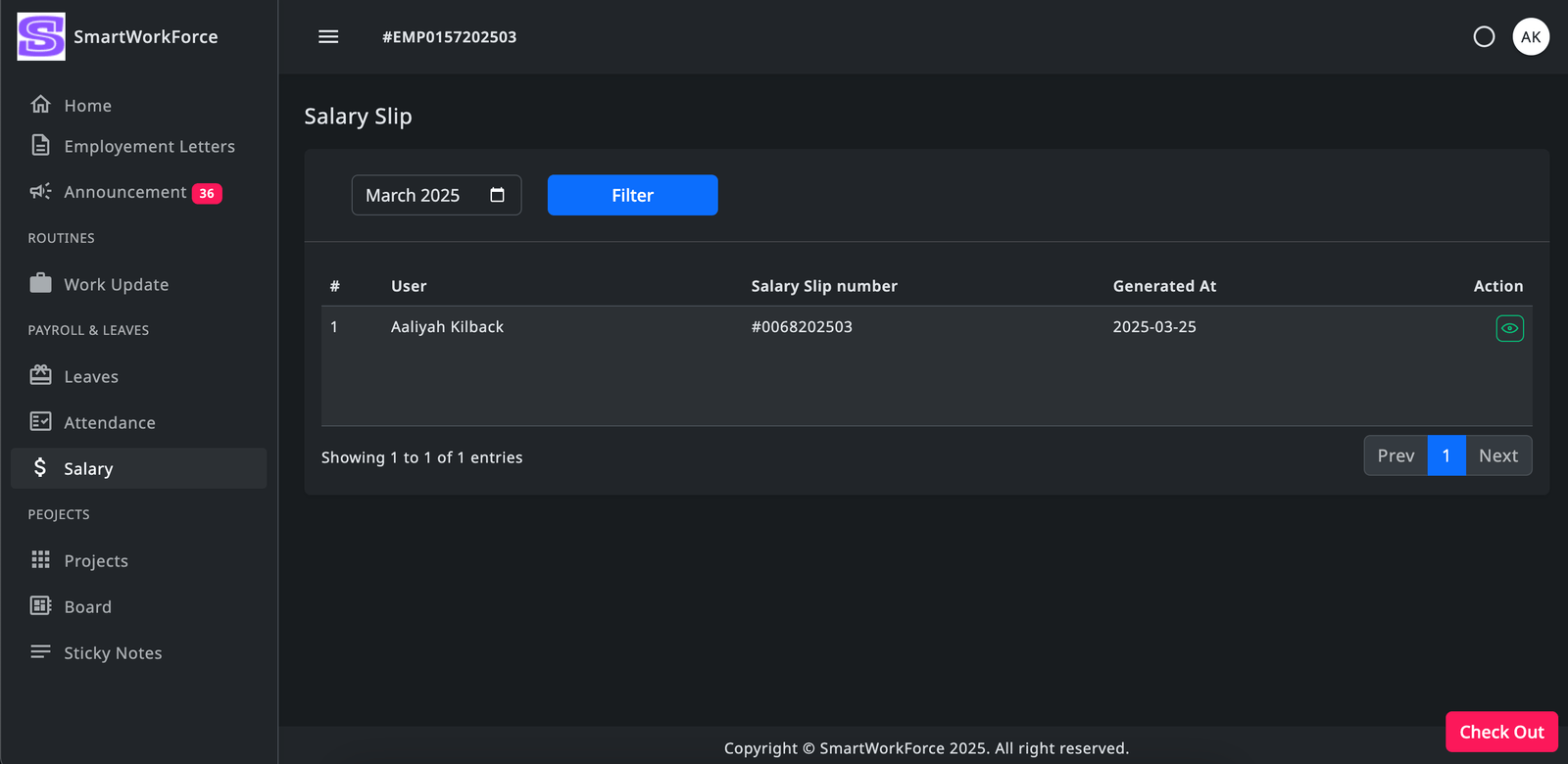
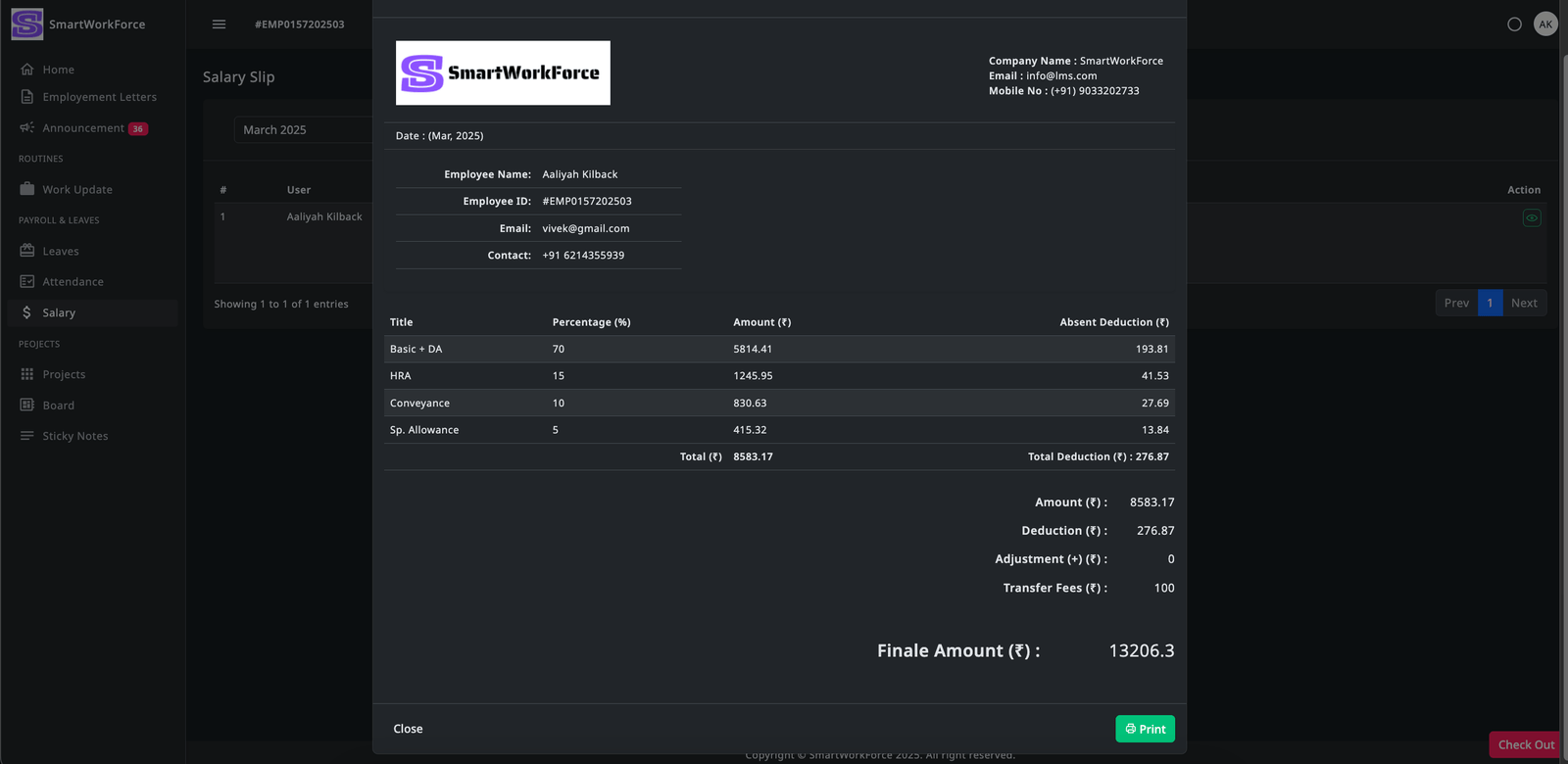
Employees can view and download their salary slips generated by the admin for each month. This allows them to easily access their payment details and track their earnings over time.
Projects Management : Projects
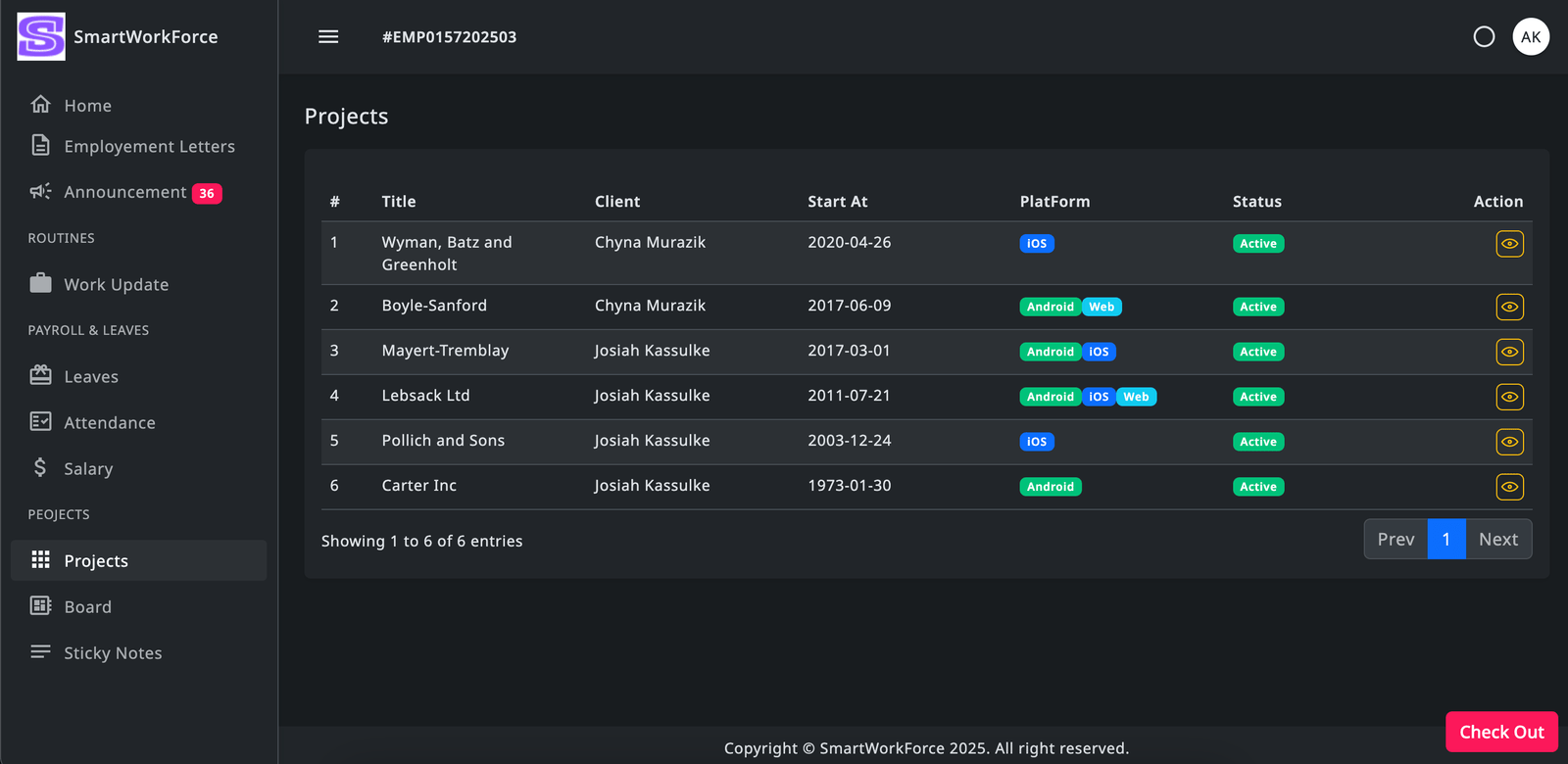
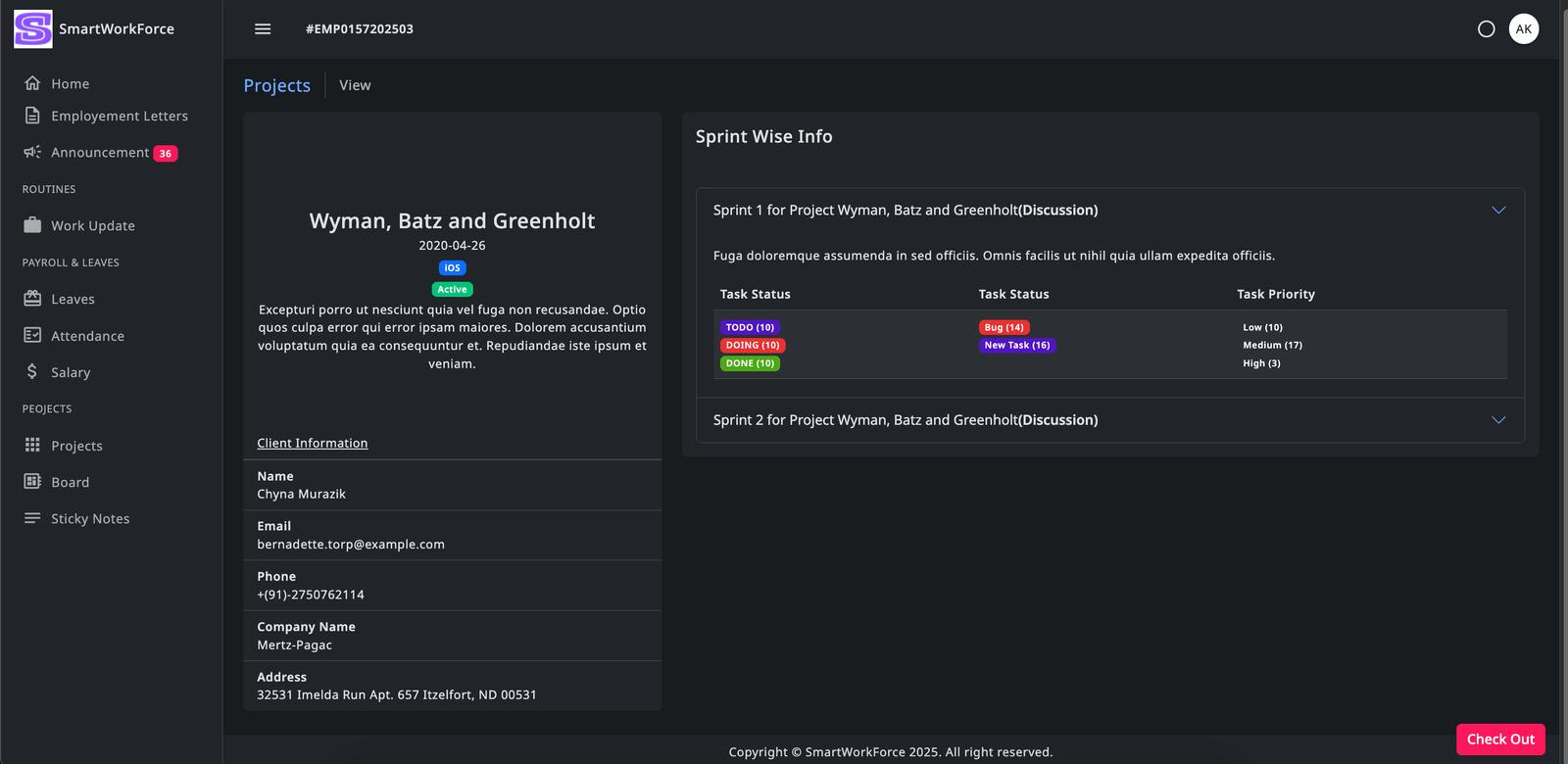
Employees can view the project list assigned by the admin, along with detailed information about each project, including the sprint details. This helps them stay informed about their tasks and the progress of the projects they are working on.
Projects Management : Board
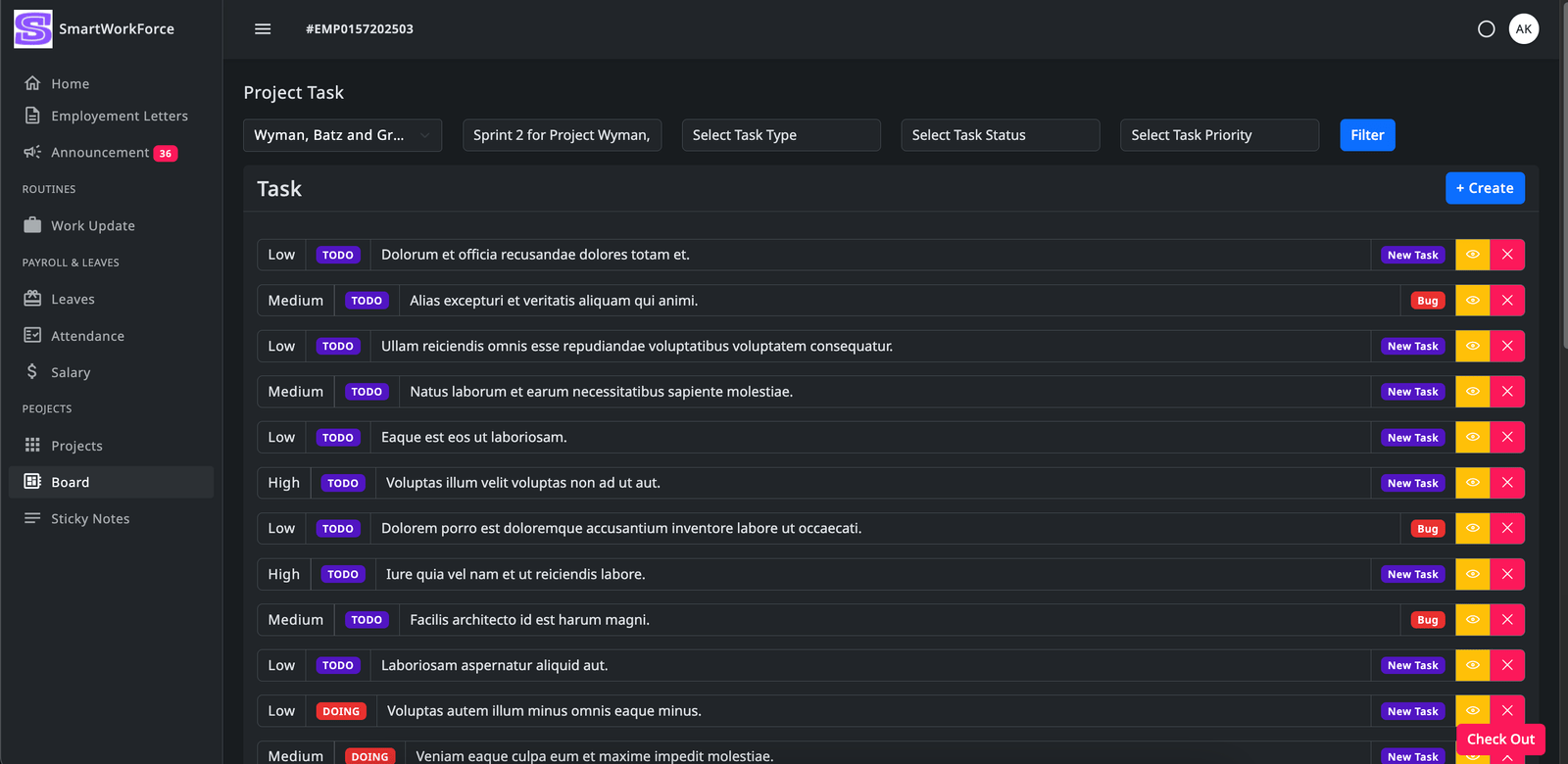
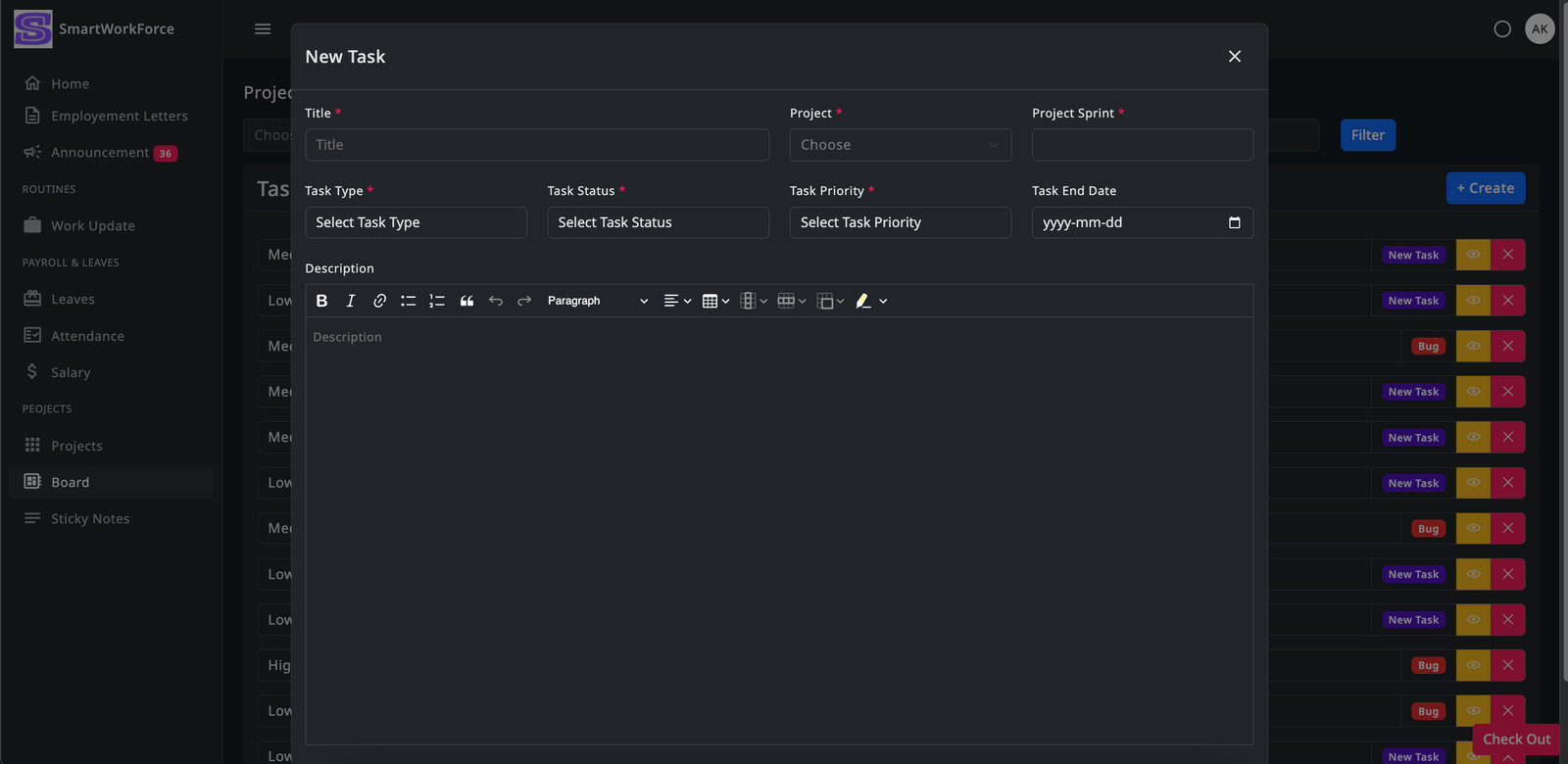
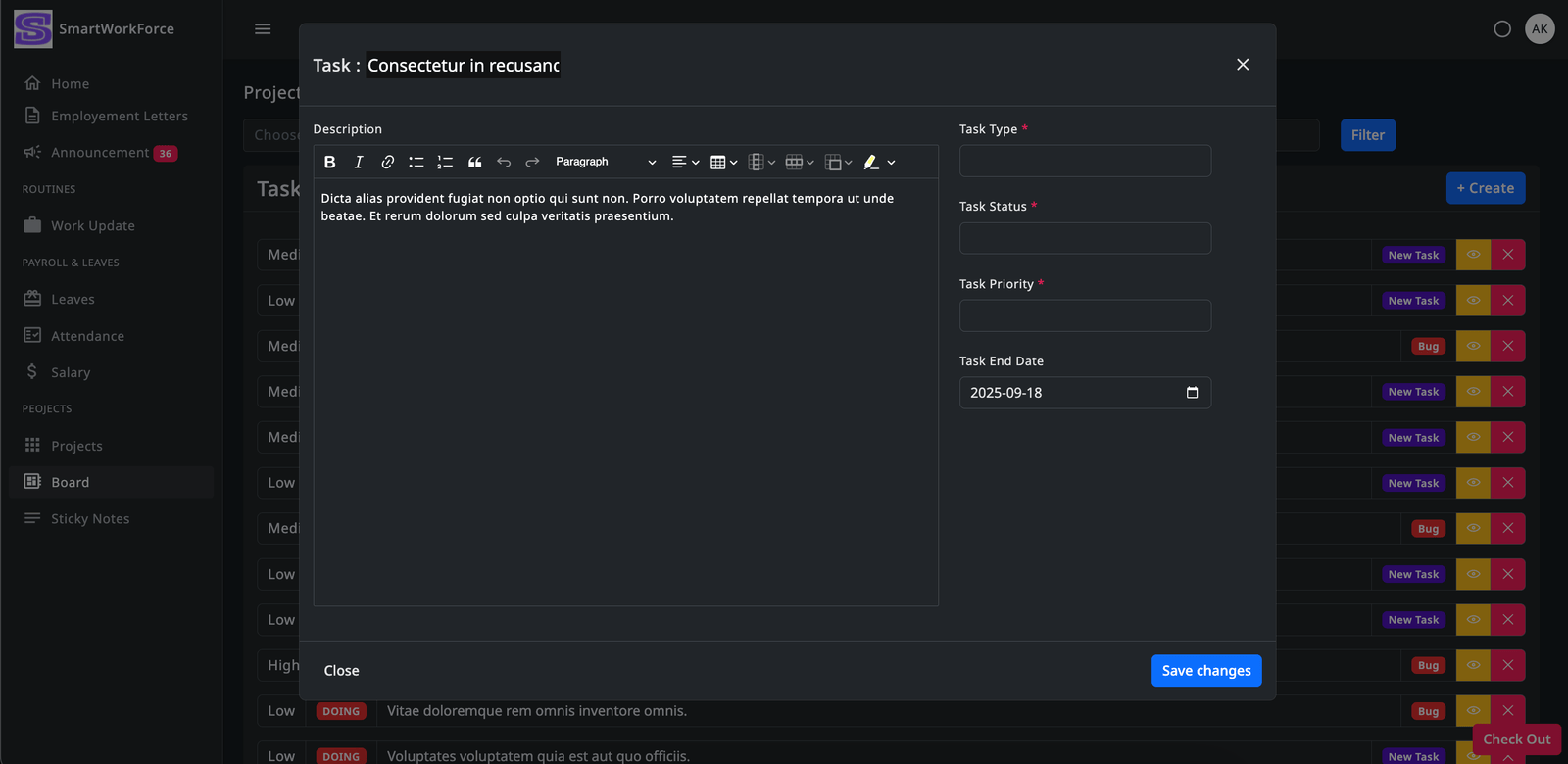
Employees can generate new tasks, as well as edit, update, or delete existing tasks assigned to them. Additionally, they have access to filter options, allowing them to easily sort and view tasks in a more organized and readable manner.
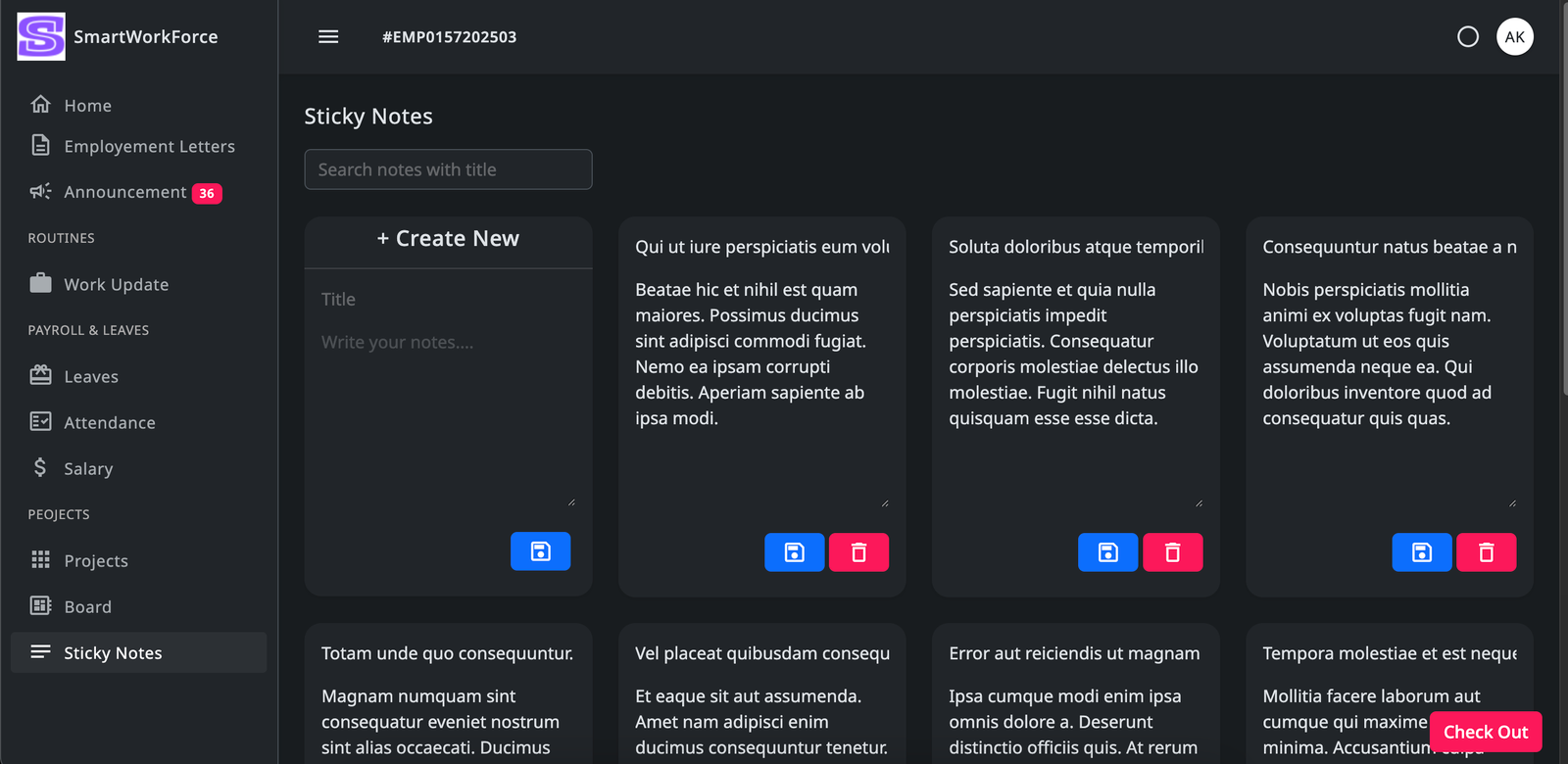
Projects Management : Sticky Notes
Employees can add personal notes for their own use within the system. These notes help them keep track of important reminders, tasks, or thoughts, ensuring they stay organized and focused.
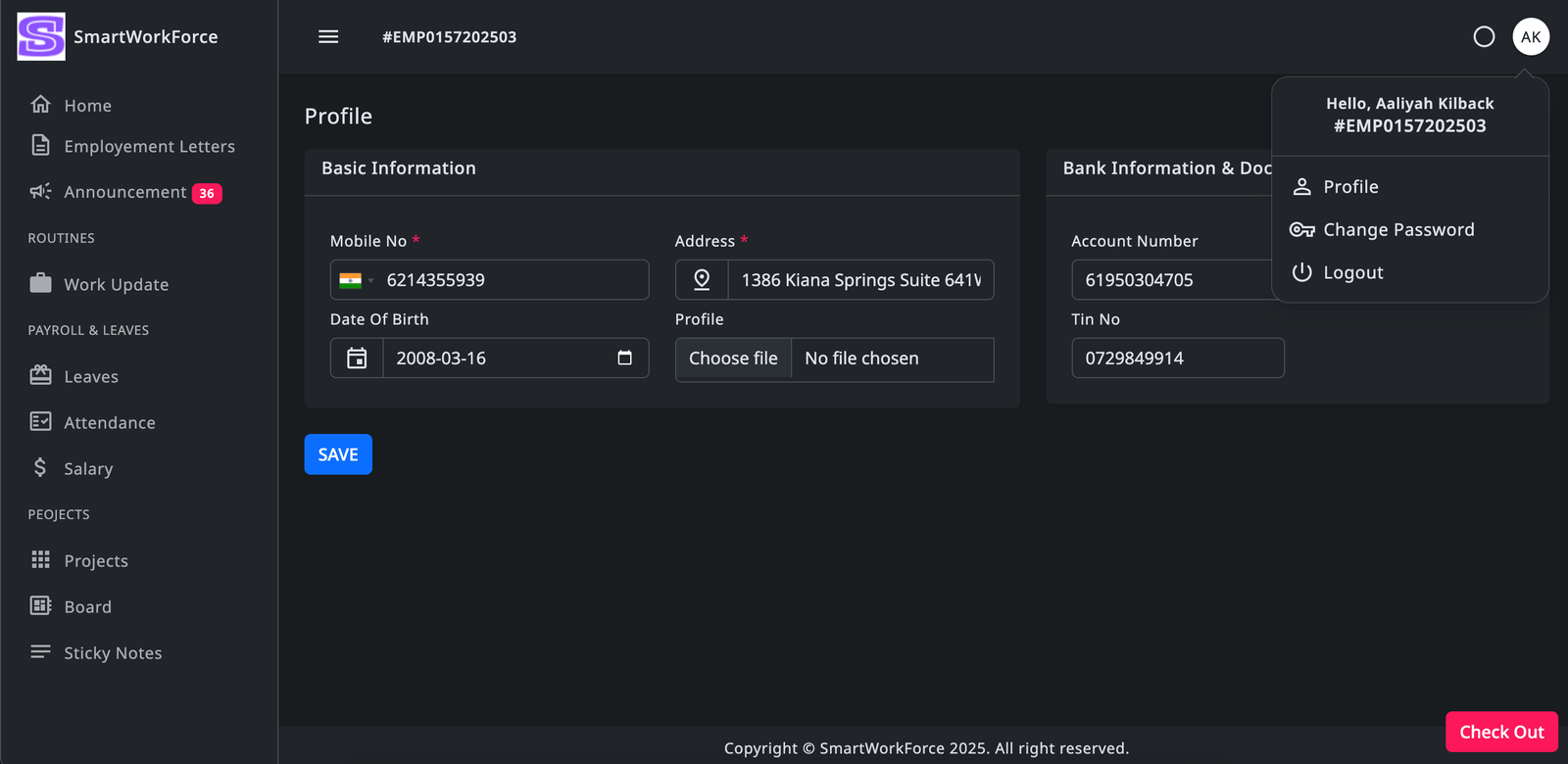
Profile
Employees can update their basic information through the profile update feature. This allows them to modify details such as their name, contact information, and other personal settings to keep their profile current.
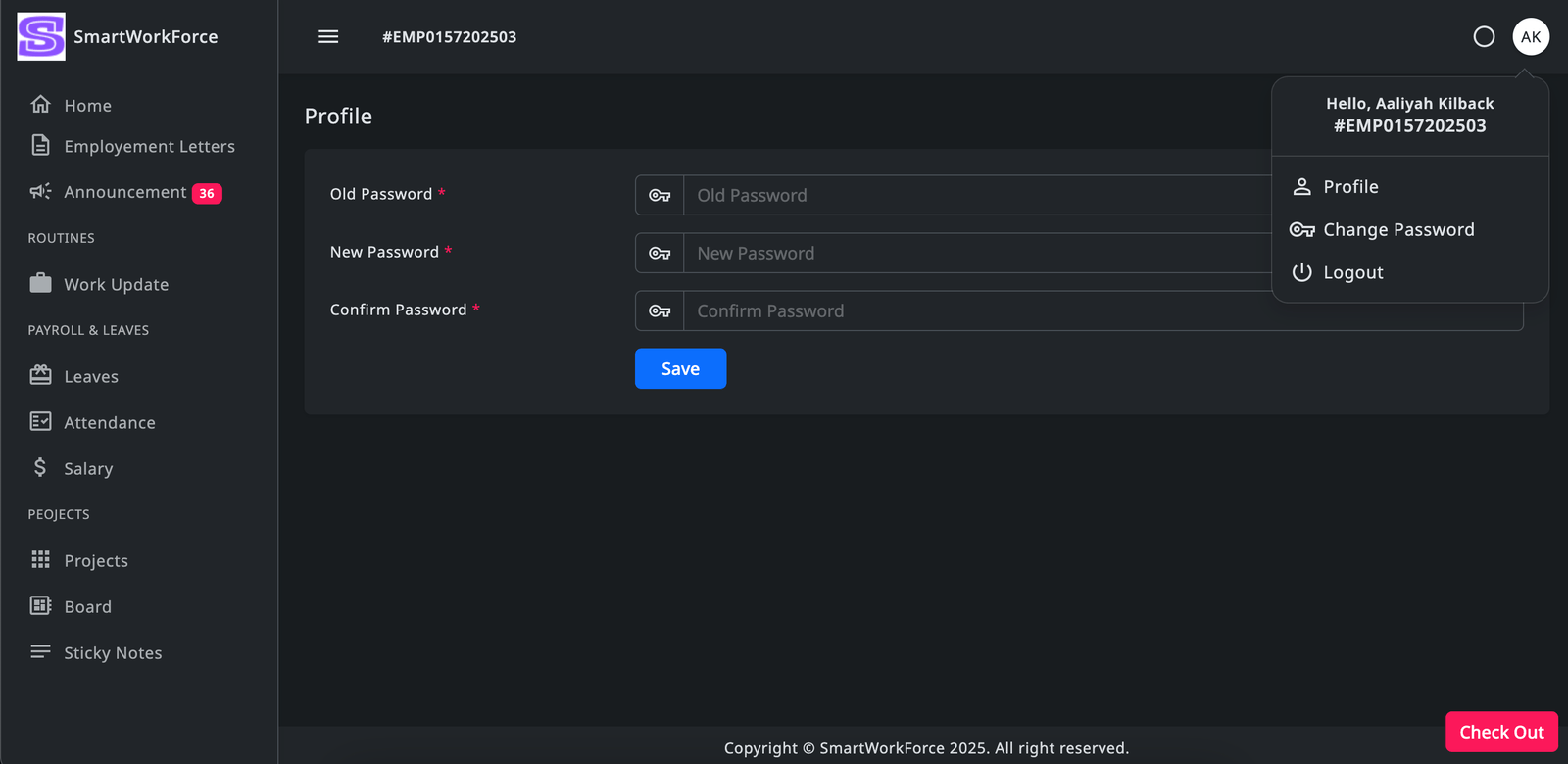
Change Password
Employees can change their password through the system, allowing them to update their login credentials for enhanced security and privacy.
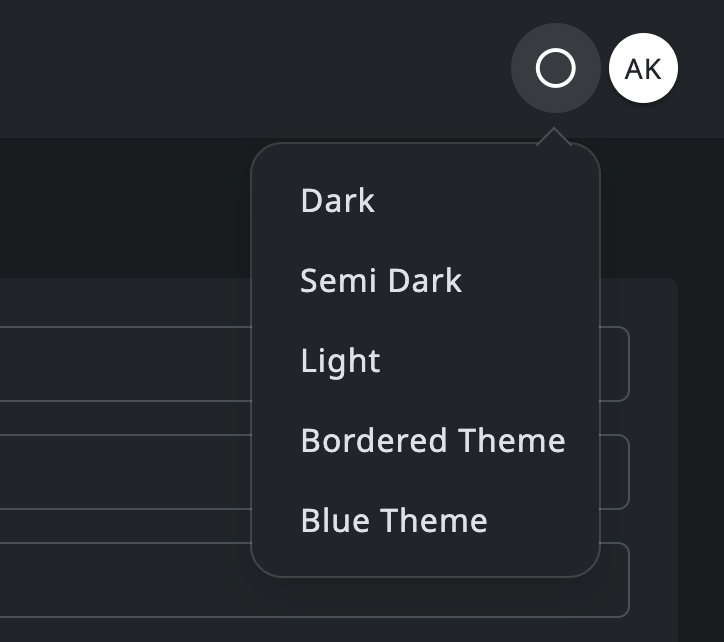
Theme Change
Employees can change the theme mode of the interface, choosing between different options such as light, dark, or other available themes, to customize their viewing experience according to personal preference.
Change Logs
15 April, 2026
- Added New Kanban Board
- Add Commenting features on task
- Make Run Queue Worker for Generate Auto attendance
- Major Fixes
29 May, 2025
- Major Fixes
-
Added New at (Admin) :
-
Leave
-
Leave Report
25 May, 2025 Initial Release
- Dashboard
- Project Management
- Attendance
- Salary
- Routines
- Sticky Notes
- Holidays
- Leave Apply
- Basic Settings
Support
For SmartWorkForce clients, support is available through the Author - Vivek Mistry. Clients can reach out for assistance, and they will receive real-time support during working hours, from Monday to Friday. The support is available for up to 3 hours each day, ensuring that clients receive prompt responses and solutions to any issues or questions they may have. Whether it's technical help, guidance on using the platform, or troubleshooting, clients can rely on this dedicated support to keep things running smoothly.
Thank you on behalf of SmartWorkForce for choosing our services. We are committed to providing you with the best support and ensuring a smooth experience with our platform. If you have any questions or need assistance, feel free to reach out to us anytime. We appreciate your trust and look forward to helping you succeed.