Brands, Colours & Models
Your bike catalogue is built in layers: Brand › Model › Variant, with Colours linked to variants. For example: Honda › Shine › Disc, available in Athletic Blue Metallic.
Set up brands, colours and models first. Then add variants with prices.
Who can use it
- View: anyone with View inventory or Manage inventory & bike master.
- Add, edit or delete: Manage inventory & bike master (Super Admin by default).
Brands
Open Inventory › Brands. These are the manufacturers you sell and service.
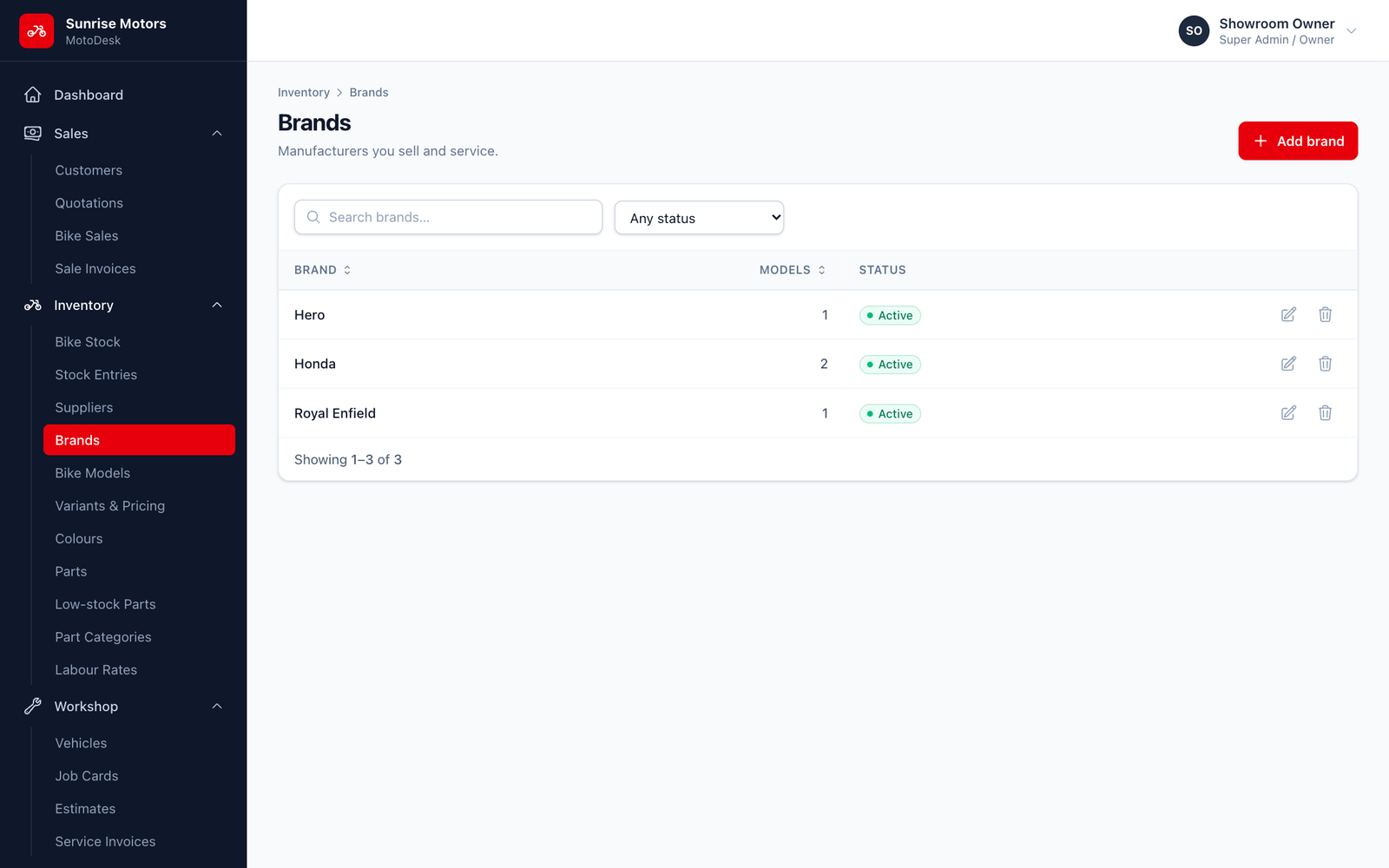
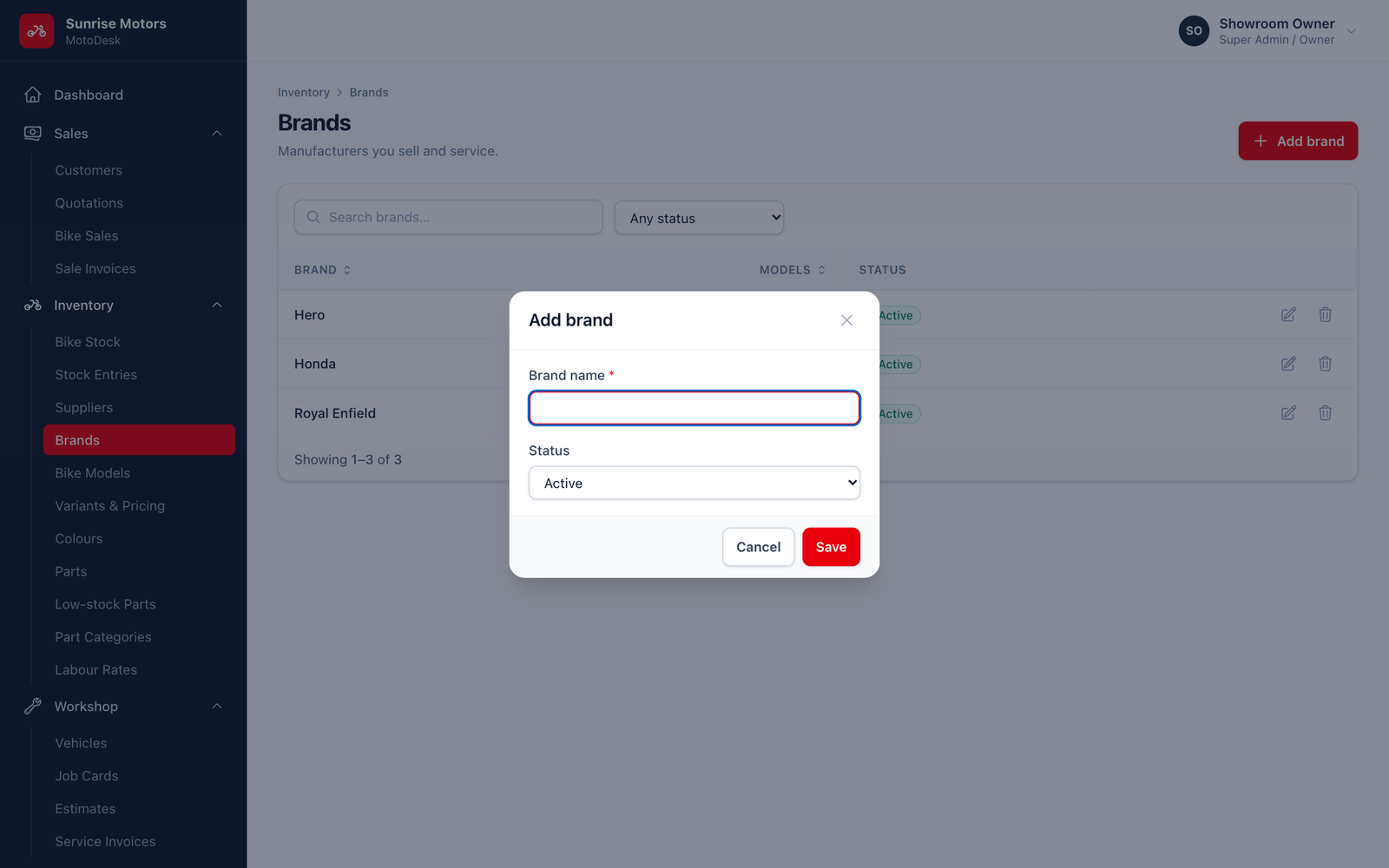
- Click Add brand.
- Enter the Brand name (for example Honda) and set Status to Active.
- Click Save.
Colours
Open Inventory › Colours. These are the paint options you link to variants and record on each bike.
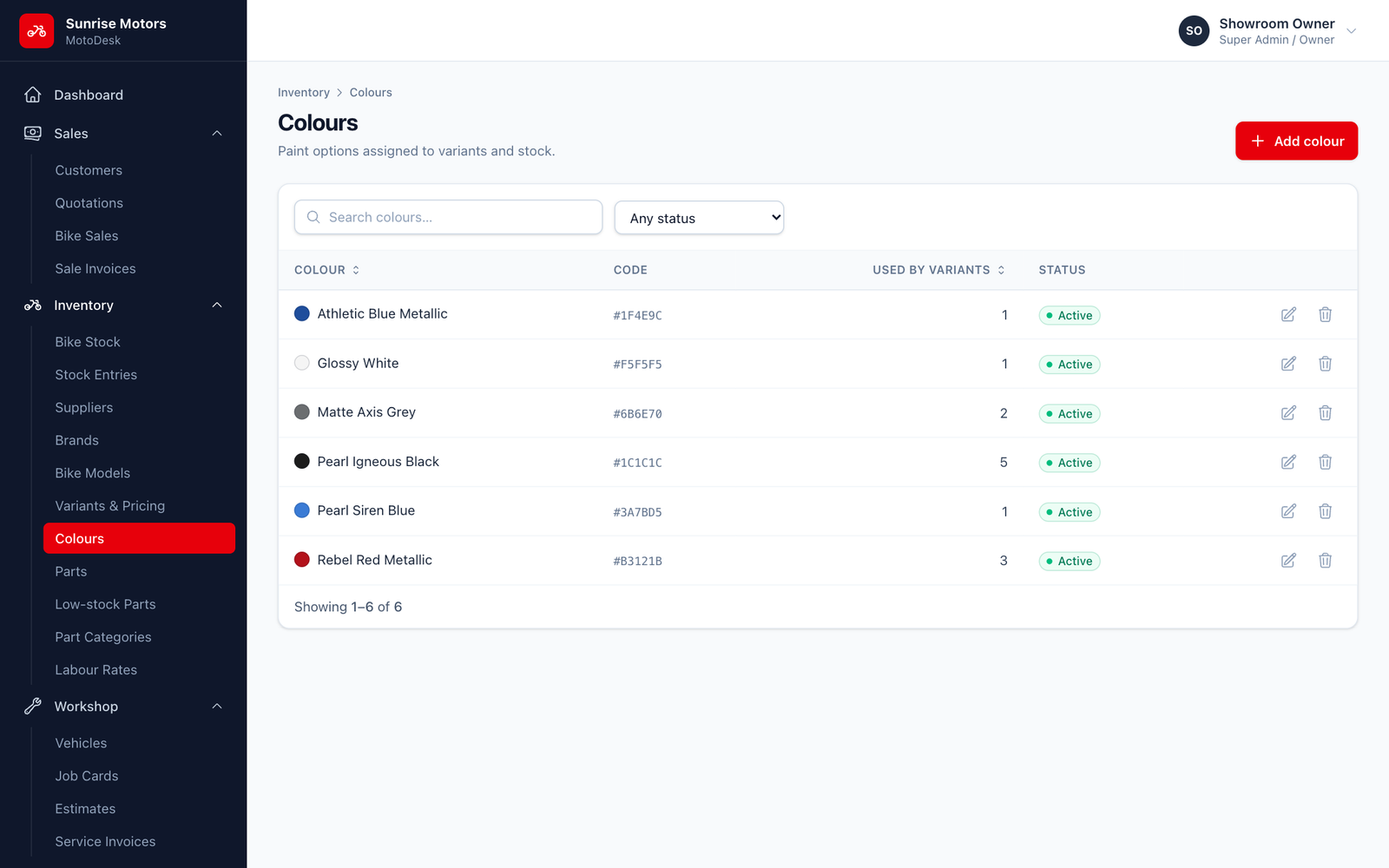
- Click Add colour.
- Enter the Colour name exactly as the manufacturer calls it (for example Pearl Igneous Black).
- Optionally enter a Hex code or use Pick colour so MotoDesk shows a colour swatch next to the name.
- Click Save.
Bike models
Open Inventory › Bike Models.
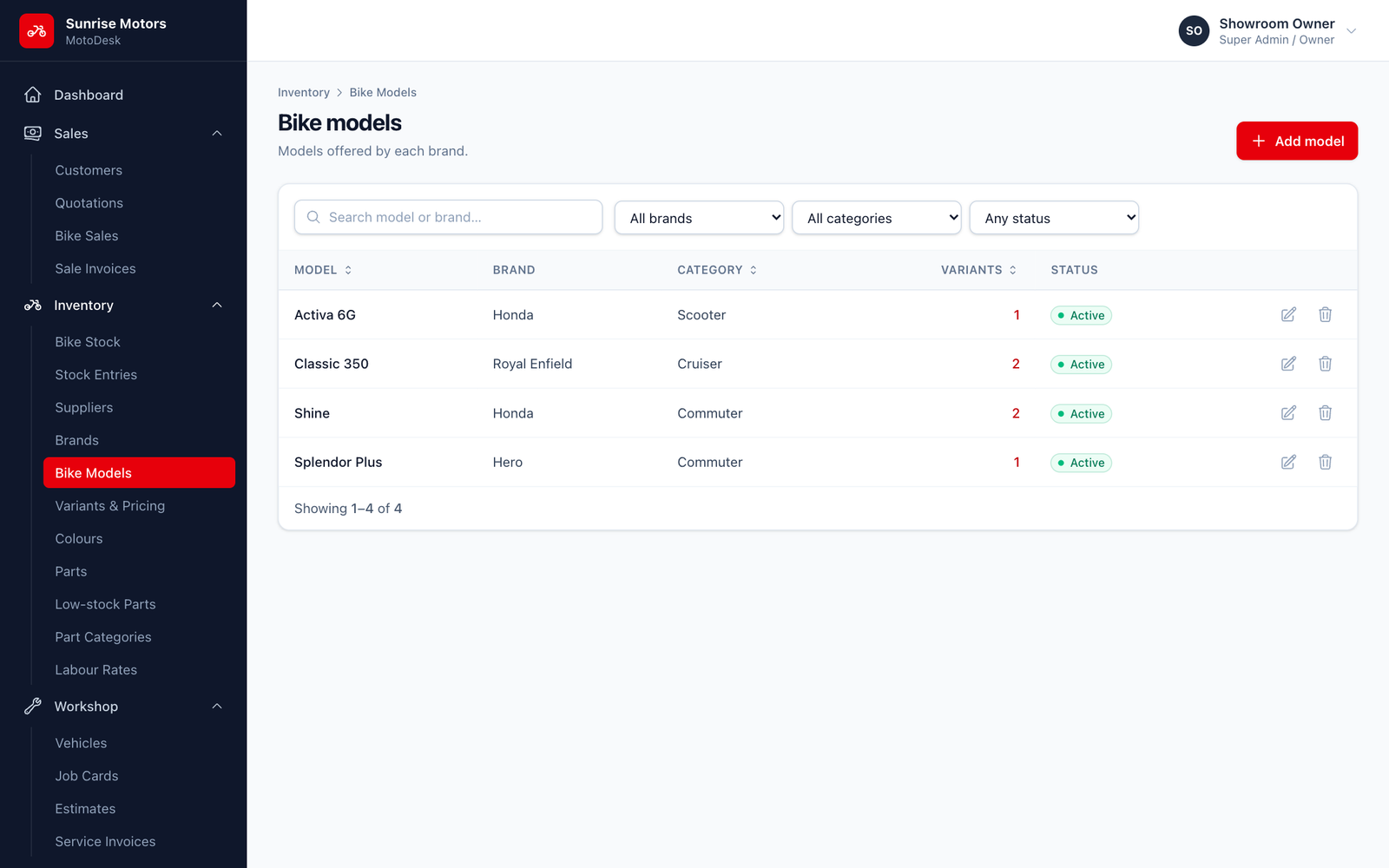
- Click Add model.
- Choose the Brand, then enter the Model name (for example Shine 125).
- Choose a Category: Commuter, Sports, Cruiser, Adventure / Touring, Scooter, Moped or Other.
- Add an optional Description and click Save.
Deleting vs. making inactive
To protect your history, MotoDesk will not delete records that are in use:
- A brand that has bike models cannot be deleted.
- A colour used by any variant cannot be deleted.
- A model that has variants cannot be deleted.
If you stop selling something, edit it and set Status to Inactive. It disappears from selection lists but stays on old records and reports.