Staff Users
- Who can use it
- The user list
- Adding a staff member
- Editing, resetting a password, deactivating
- Rules
Every person who uses MotoDesk should have their own account. Their role decides what they can see and do, and every change they make is recorded under their name.
Who can use it
Users with the Manage users permission. By default, only the Super Admin / Owner.
The user list
Open Settings › Users.
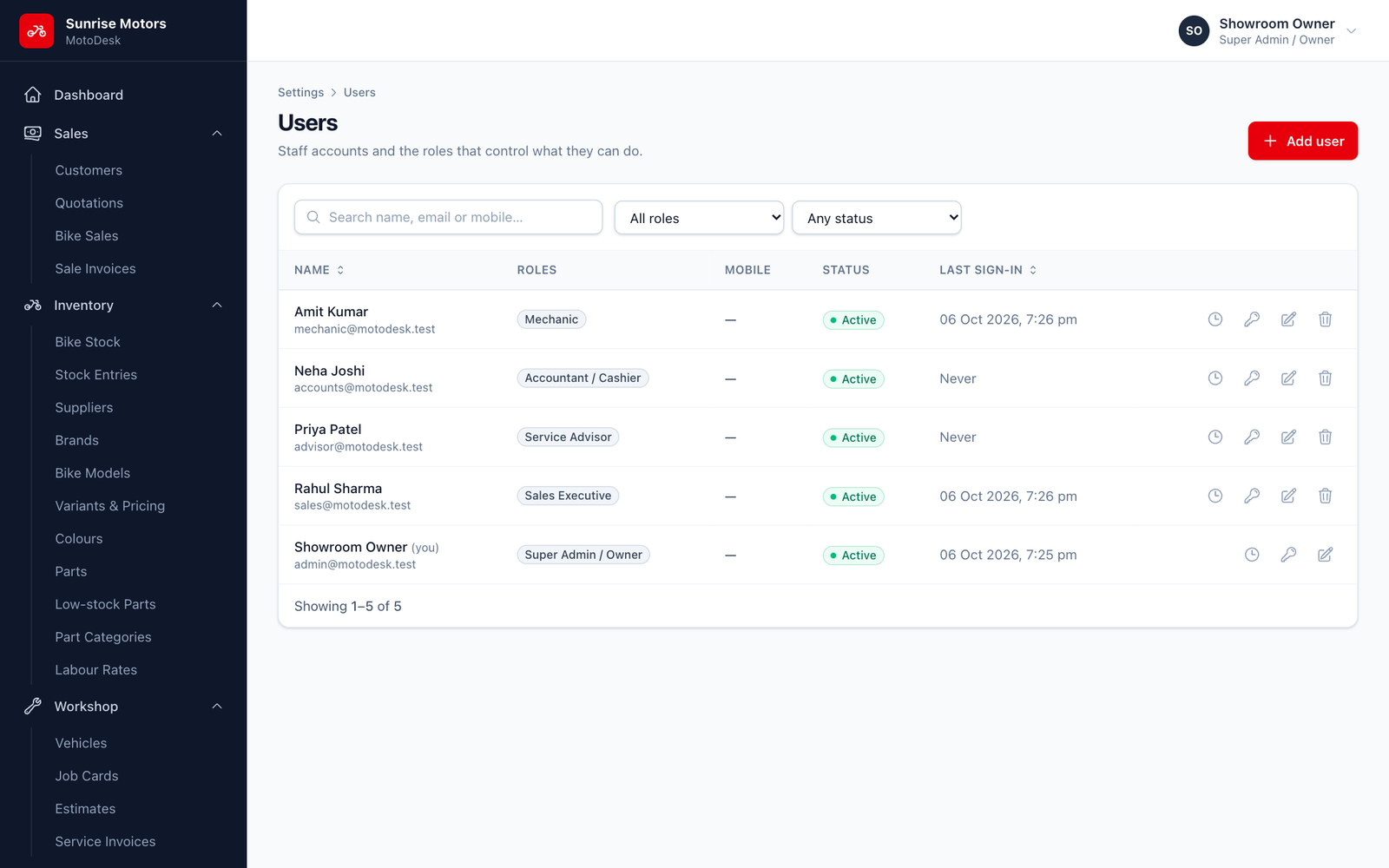
- Search by name, email or mobile. Filter by role or status.
- Activity. Shows what this user has changed (from the audit log).
- Login history. Shows when and from where this user signed in.
- Edit / Remove. Change or delete the account.
Adding a staff member
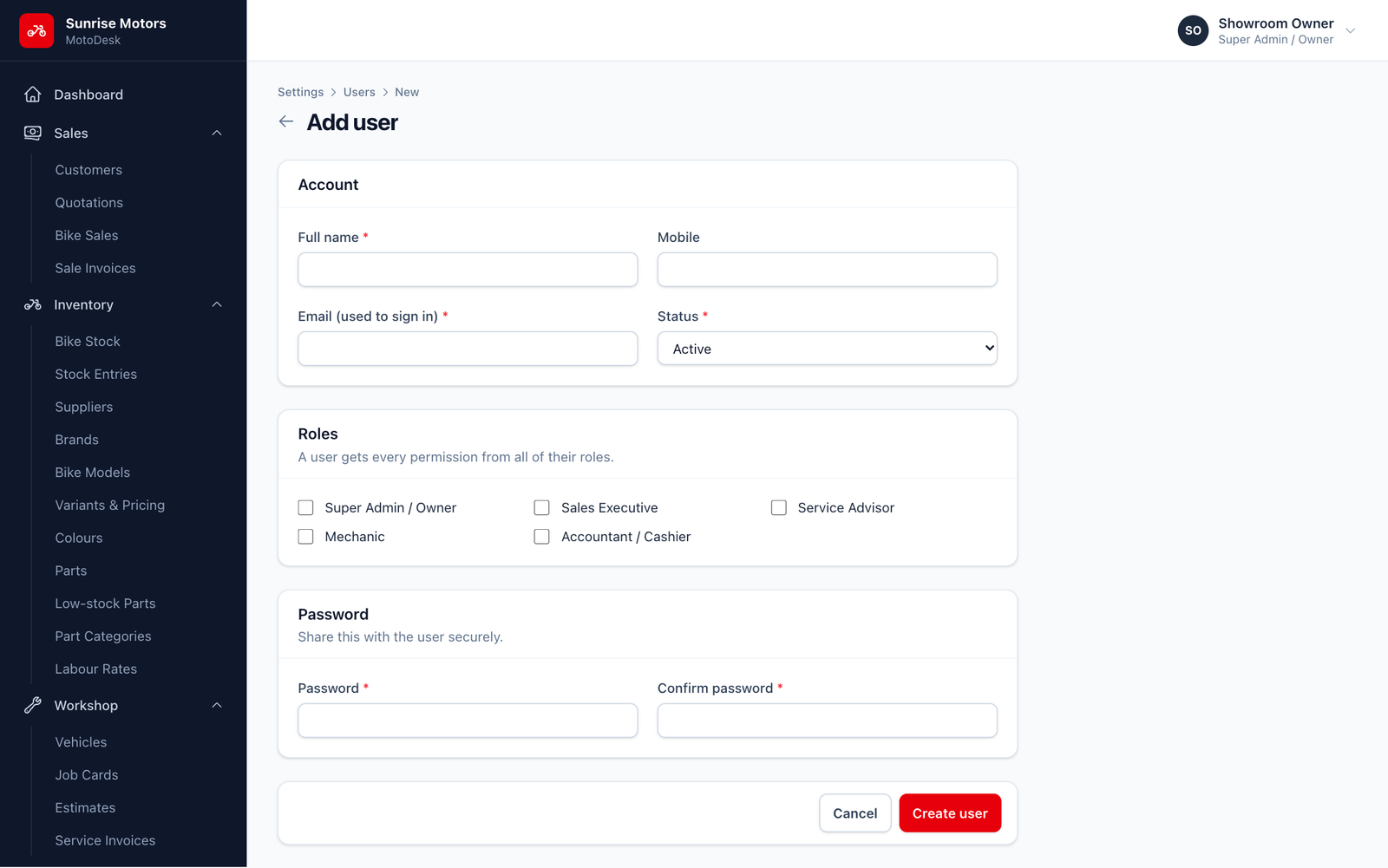
- Click Add user.
- Fill in the form:
| Field | What to enter |
|---|---|
| Full name | The person's name. It appears on sales, job cards and receipts they create. |
| Mobile | Their mobile number. |
| Email (used to sign in) | Each user needs a different email address. |
| Status | Active to allow sign-in, Inactive to block it. |
| Roles | Tick one or more roles. A user gets every permission from all of their roles. |
| Password / Confirm password | At least 8 characters. Give it to the person privately and ask them to change it from their profile. |
- Click Create user.
Editing, resetting a password, deactivating
- Reset a forgotten password. Edit the user, type a new password in Reset password and save. Leave the password fields blank to keep the current password.
- Someone leaves. Edit the user and set Status to Inactive. They can no longer sign in, but their history stays intact. This is better than deleting the account.
Rules
- You cannot deactivate or delete your own account.
- There must always be at least one active Super Admin.