Spare Parts
The parts catalogue holds every spare part your workshop uses, with its price, tax and live stock level. Stock goes down automatically when parts are billed on a service invoice.
Who can use it
- View: View parts & labour (Service Advisor, Mechanic, Super Admin).
- Add, edit, adjust stock: Manage parts, labour & part stock (Super Admin by default). Only these users see purchase prices.
The parts list
Open Inventory › Parts.
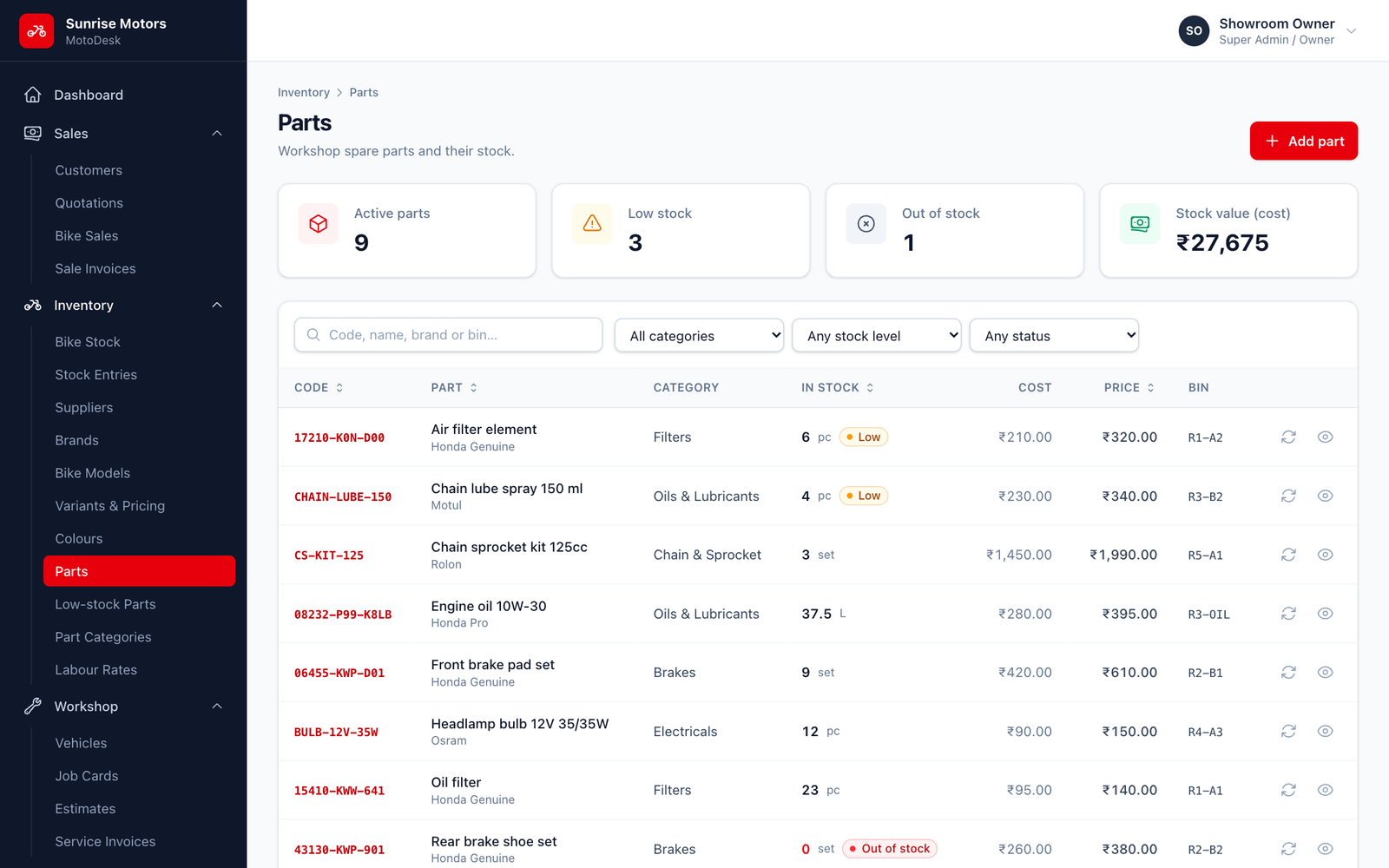
- The cards at the top show Active parts, Low stock, Out of stock and Stock value (cost).
- Search by code, name, brand or bin, and filter by Category, Stock level and Status.
- Use Adjust stock on a row to record stock coming in or going out (see Stock Adjustments).
Adding a part
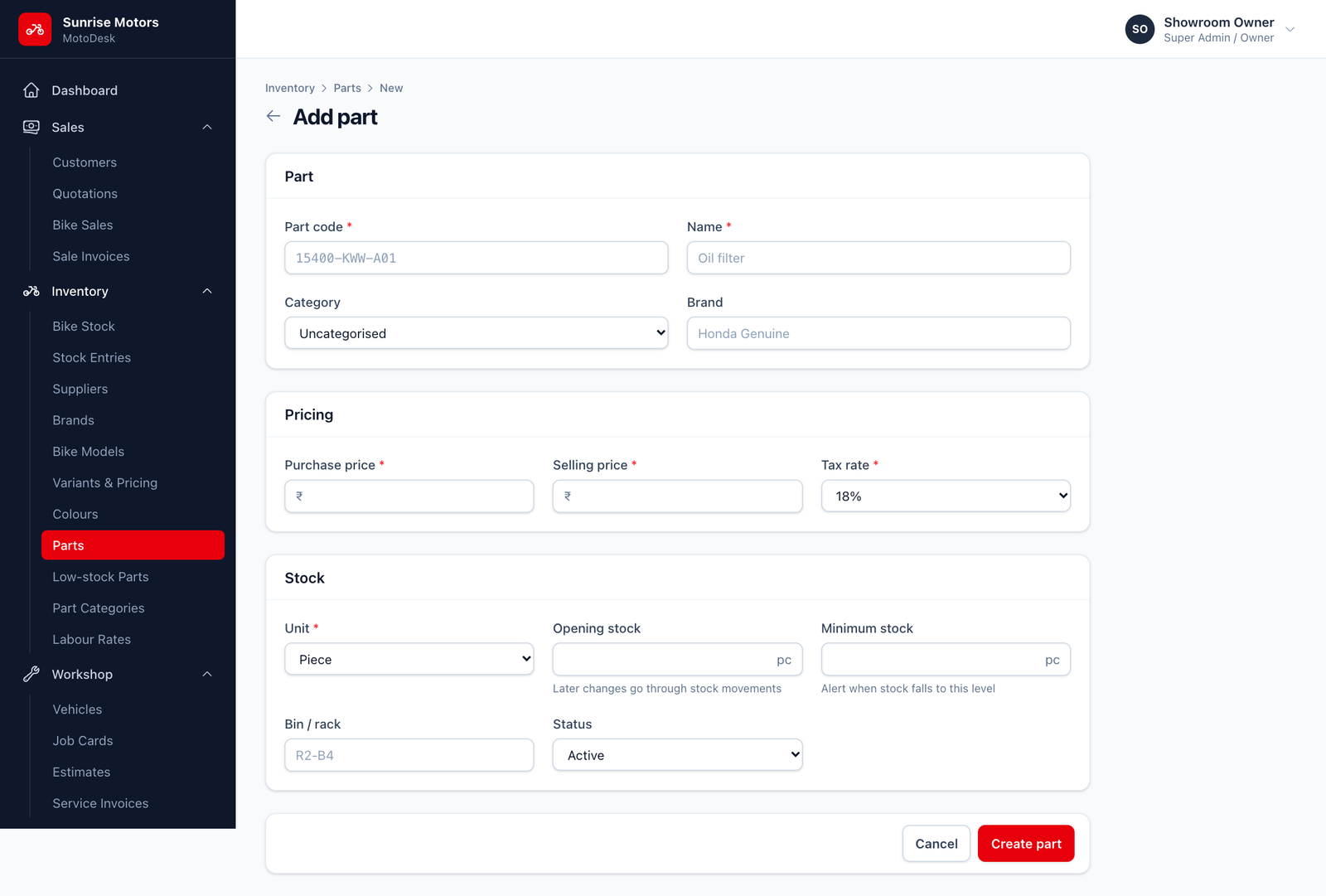
Click Add part:
| Section | Field | What to enter |
|---|---|---|
| Part | Part code | The manufacturer's part number, for example 15400-KWW-A01. |
| Name | For example Oil filter. | |
| Category | Choose from Part Categories, or leave it uncategorised. | |
| Brand | For example Honda Genuine. | |
| Pricing | Purchase price | Your cost. |
| Selling price | What you charge. MotoDesk shows your margin %. | |
| Tax rate | The GST slab (parts are usually 18% or 28%). | |
| Stock | Unit | Piece, Pair, Set, Litre, Millilitre, Kilogram, Metre or Box. Only Litre, Kilogram and Metre allow fractions (for example 0.8 litre of oil). |
| Opening stock | How many you have today. Later changes go through stock movements. | |
| Minimum stock | When stock falls to this level, the part shows as Low. | |
| Bin / rack | Where it is kept, for example R2-B4. |
|
| Status | Active or Inactive. |
Click Create part.
The part page
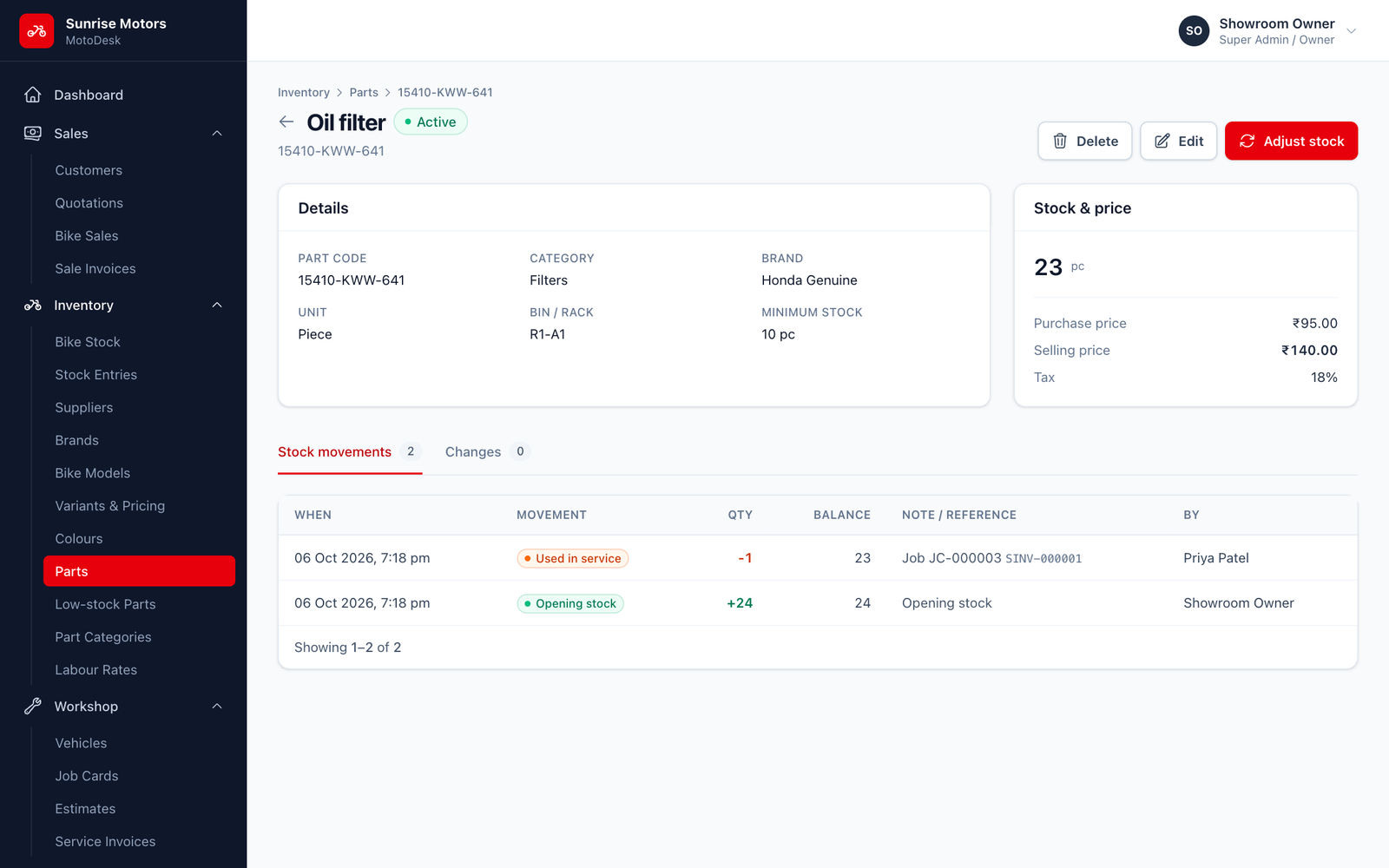
Click View on a part to see its Details, Stock & price, every Stock movement (with dates, quantities, who did it and why) and a history of Changes. Use Adjust stock or Edit from here.
Rules
- A part with stock history cannot be deleted. Set it to Inactive instead.