Receipts & Reversals
The receipts list
Open Payments › Receipts to see every payment received for bike sales and workshop bills.
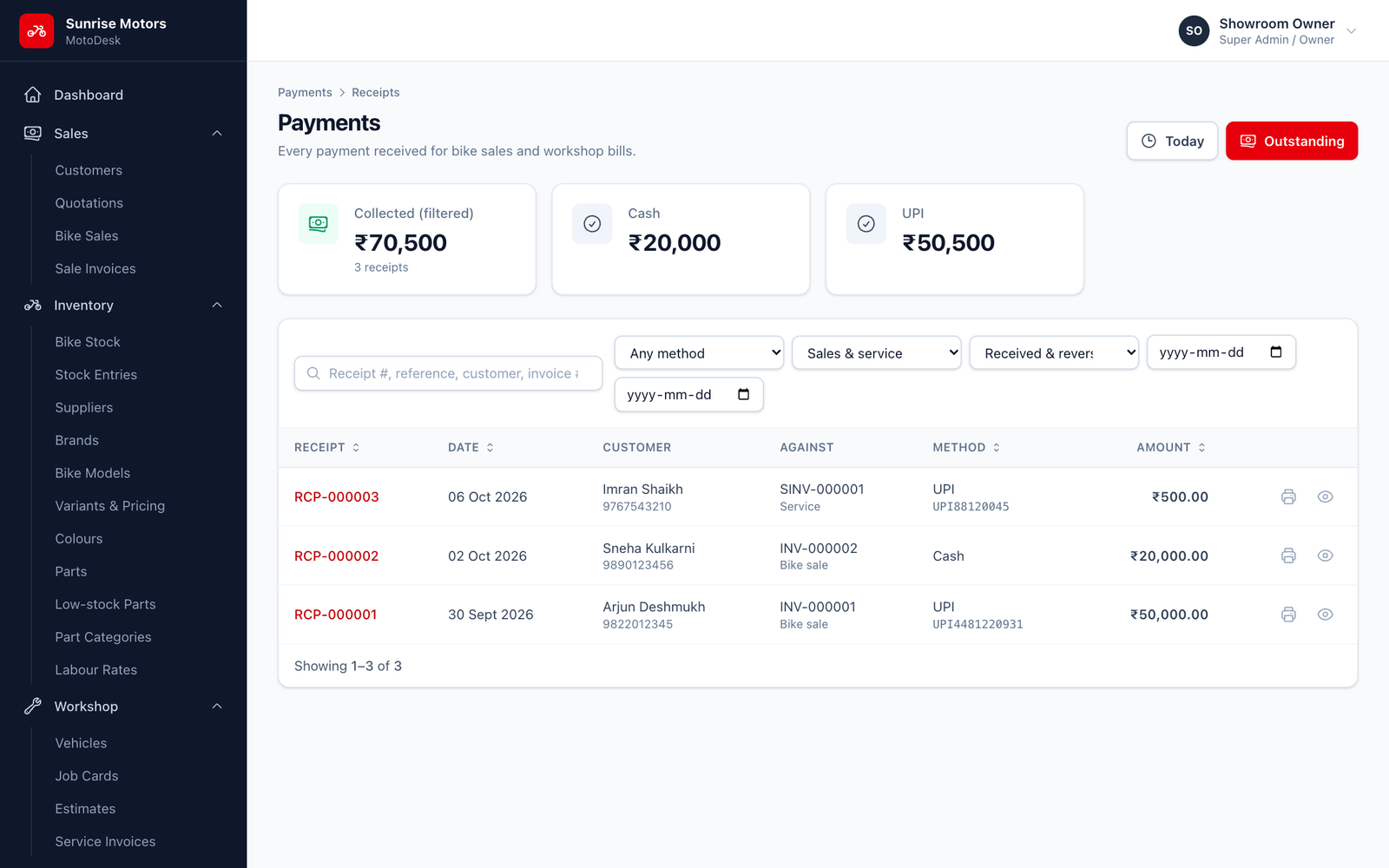
- Click Today to see today's collections at once.
- Filter by Method, Document type (sales or service), State (received or reversed) and dates.
- The Collected (filtered) card shows the total for your filters, with a breakdown by method. This is handy for cash counter closing at the end of the day.
Printing a receipt
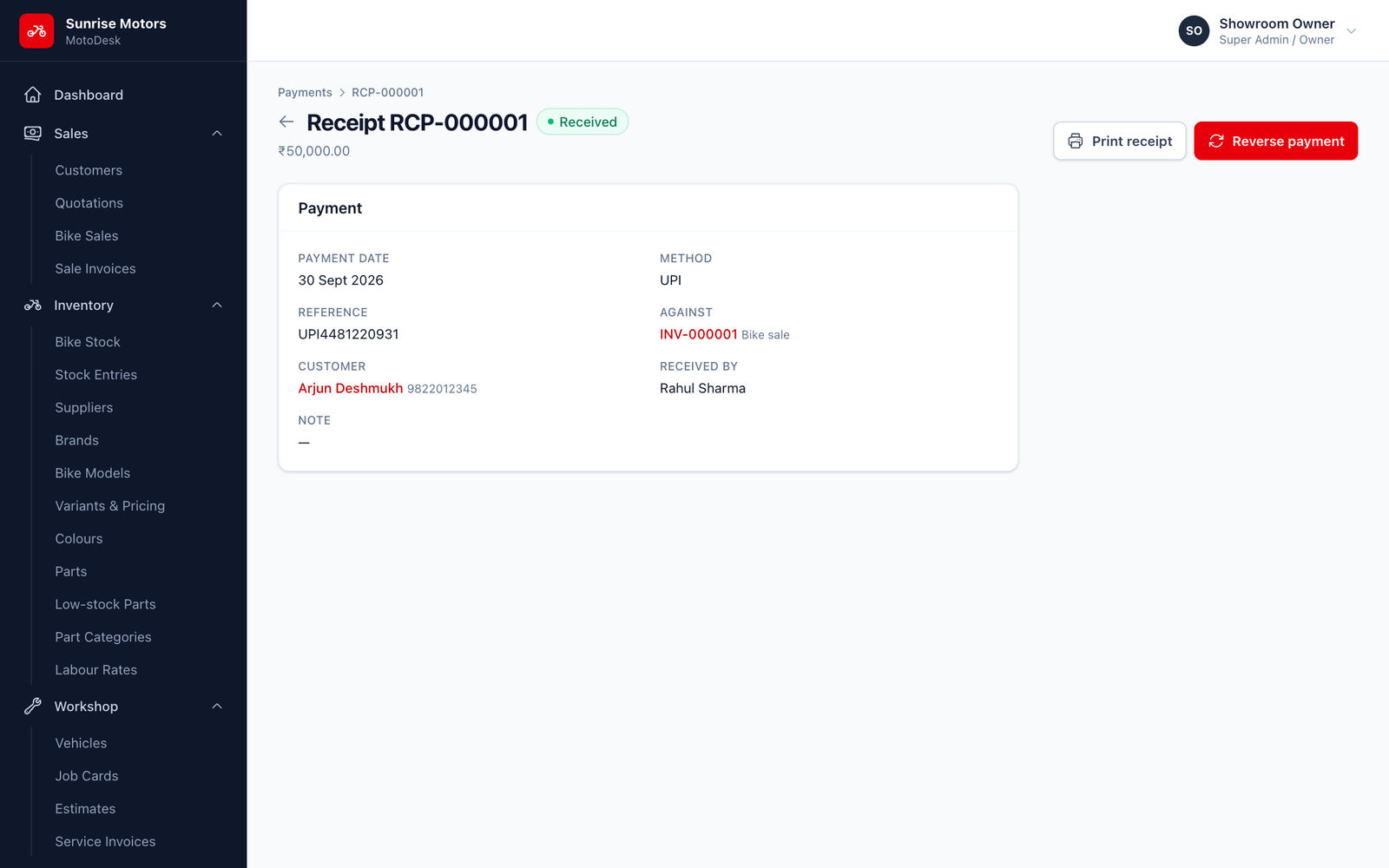
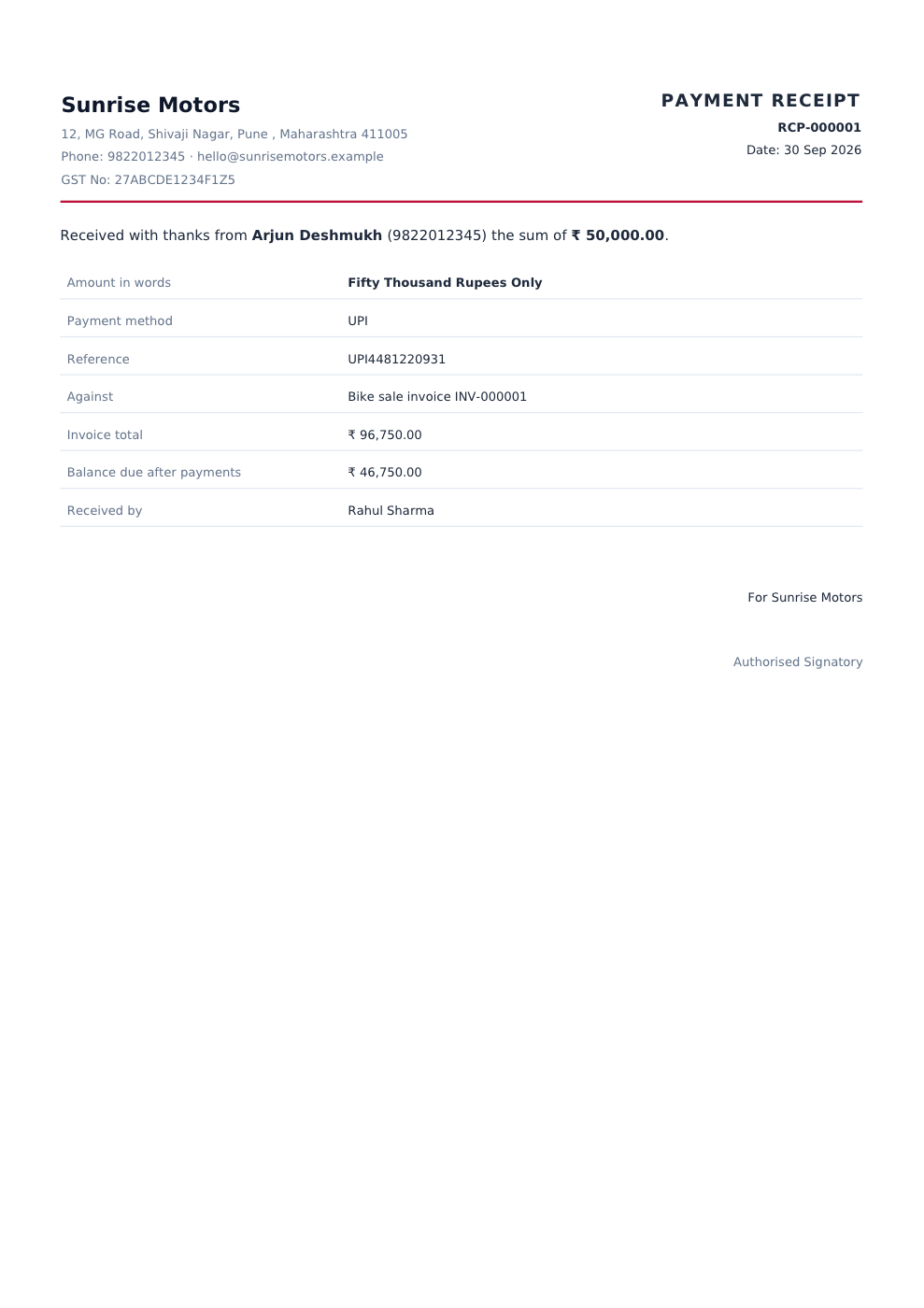
Open a receipt and click Print receipt. The PDF shows the amount in figures and in words, the method and reference, the invoice it was paid against and the balance due after this payment.
Reversing a payment
Payments are never deleted. If a payment was entered by mistake, a cheque bounced or money was refunded, you reverse it:
- Open the receipt and click Reverse payment.
- Enter a Reason (at least 5 characters), for example "Cheque bounced" or "Refunded in cash after sale cancellation".
- Click Reverse.
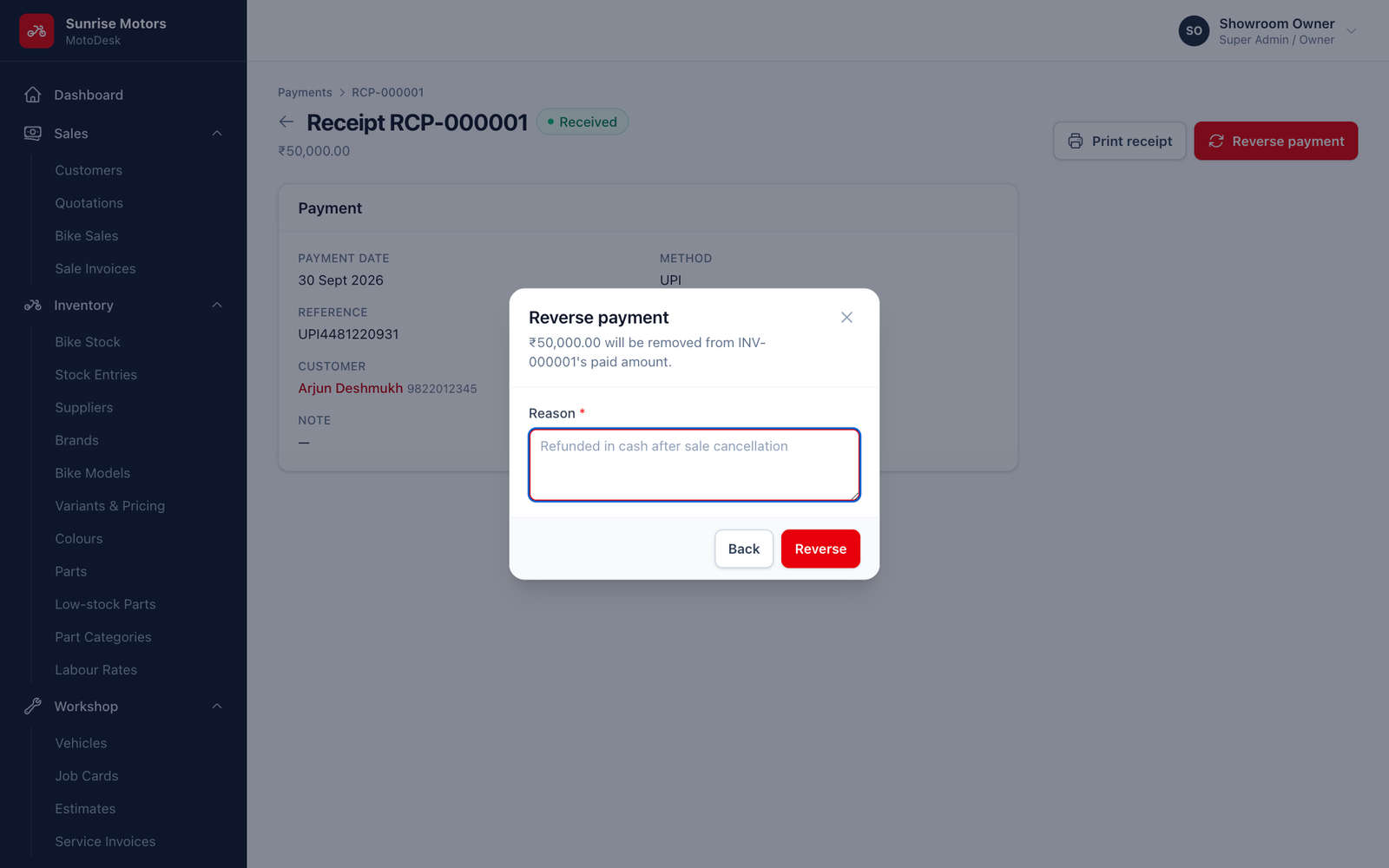
The amount is taken off the invoice's paid amount, and the balance due goes back up. The receipt stays in the list marked Reversed, so there is always a full trail.
- A payment can only be reversed once.
- Who can reverse: users with Reverse payments (refunds / corrections). By default this is only the Super Admin / Owner.