Stock Adjustments
Use Adjust stock to record parts received from a supplier, or to correct stock after a physical count.
Recording a movement
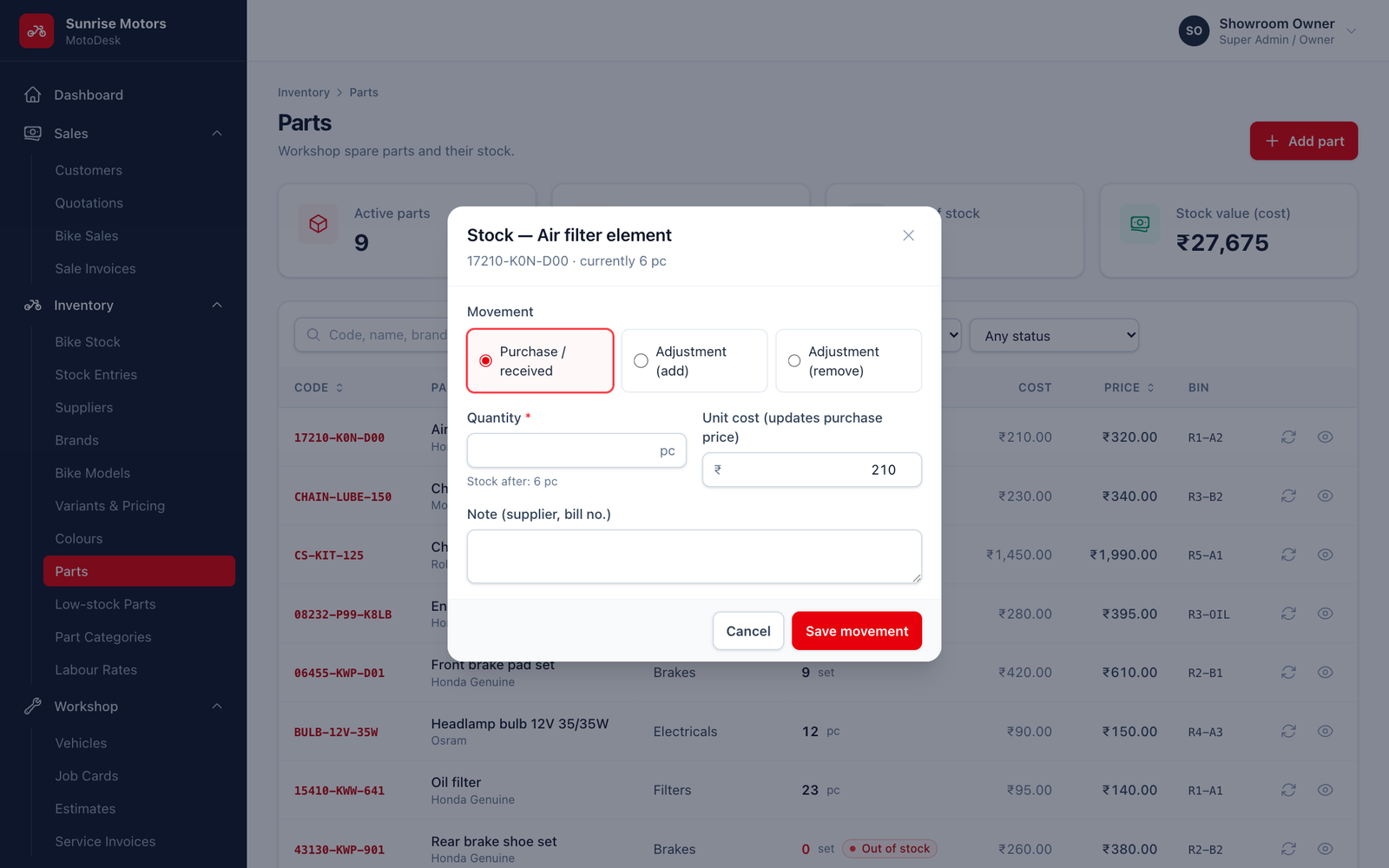
- In Inventory › Parts, click Adjust stock on the part's row (or on the part's page).
- Choose the Movement:
- Purchase / received: new stock from a supplier.
- Adjustment (add): found extra stock during a count.
- Adjustment (remove): damaged, lost or missing stock.
- Enter the Quantity. MotoDesk shows the Stock after the movement.
- For purchases, enter the Unit cost. This also updates the part's purchase price.
- Enter a Note (supplier, bill no.) for purchases, or a Reason for adjustments. A reason is required for adjustments.
- Click Save movement.
Movement types
| Type | How it is recorded |
|---|---|
| Opening stock | Automatically, when the part is created |
| Purchase / received | By you, with Adjust stock |
| Adjustment (add) / (remove) | By you, with Adjust stock |
| Used in service | Automatically, when a service invoice is generated |
| Returned from service | Automatically, when a service invoice is cancelled |
Rules
- The quantity must be more than zero.
- You cannot remove more than you have. MotoDesk shows "Not enough stock of …" unless Allow negative part stock is on in Showroom Settings.
Who can use it: Manage parts, labour & part stock.