Recording Payments
Every payment, whether for a bike sale or a service invoice, gets a receipt number such as RCP-000001. A sale or invoice can be paid in several parts, for example a booking amount, then finance disbursement, then the balance in cash.
Where to record a payment
- When confirming a sale: in the Payment step, or in the Confirm sale window.
- On a confirmed sale: click Record payment.
- When generating a service invoice: in Payment now (optional).
- On a service invoice: click Record payment.
- From Payments › Outstanding: click Record payment on any unpaid invoice.
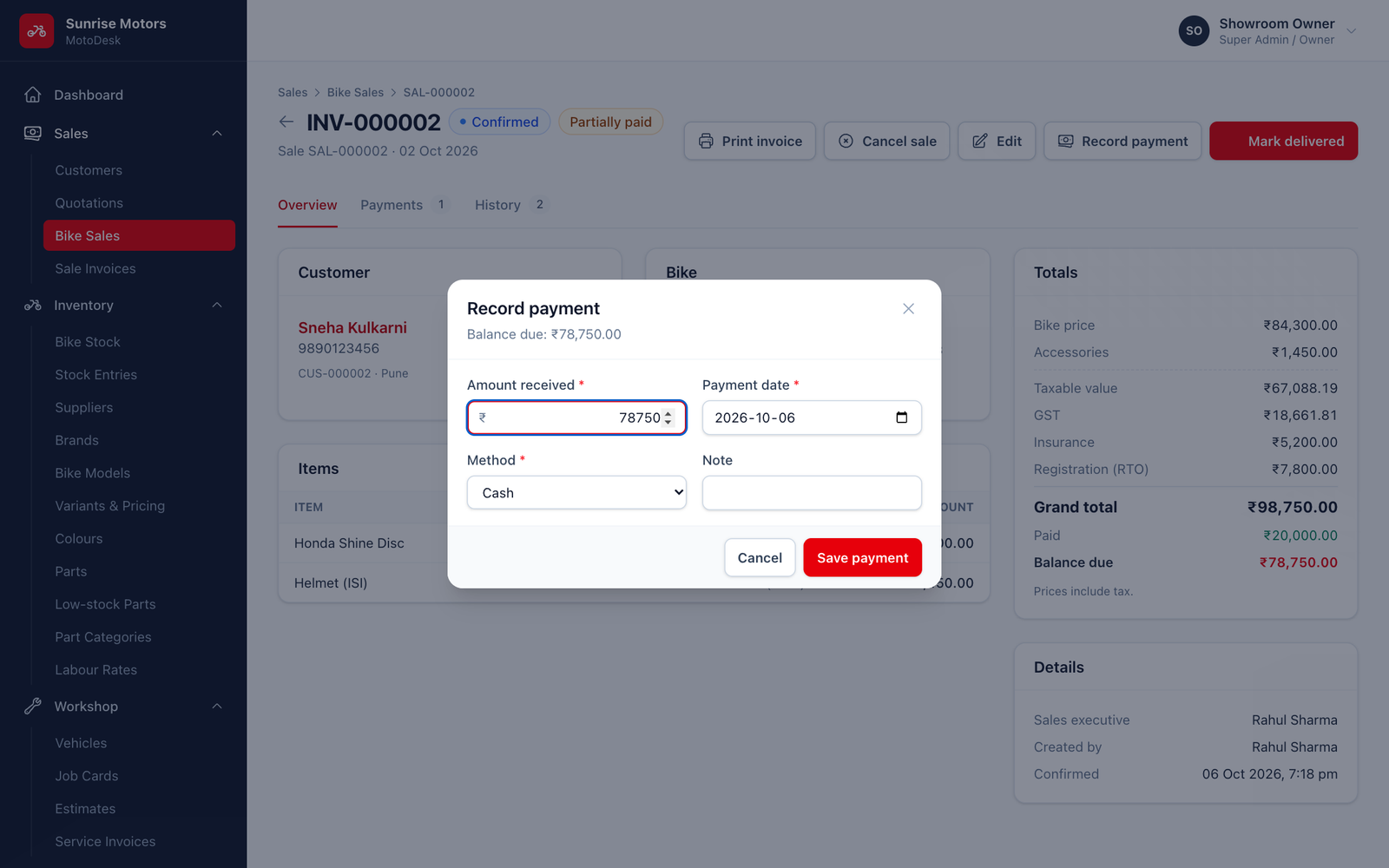
Payment fields
| Field | What to enter |
|---|---|
| Amount received | Filled in with the full balance; change it for a part payment. |
| Payment date | The day the money was received. It cannot be in the future. |
| Method | How the customer paid (see below). |
| Reference / UTR / cheque no. | The UPI/UTR number, card slip number, cheque number or loan reference. |
| Note | Anything else, for example "Booking amount". |
Click Save payment.
Payment methods
| Method | Reference required? |
|---|---|
| Cash | No |
| UPI | Yes |
| Card | Yes |
| Bank transfer | Yes |
| Cheque | Yes |
| Finance / loan disbursement | Yes |
| Other | No |
Rules
- A payment cannot be more than the balance due.
- A sale must be confirmed before it can take payments. Quotations cannot.
- Cancelled sales and invoices cannot receive payments.
- The document's payment status (Unpaid, Partially paid, Paid) updates automatically.
Who can use it: Record payments (Accountant / Cashier and Super Admin by default).