Signing In & Your Profile
Signing in
Your showroom owner or administrator creates your account and gives you your email address and a password.
- Open the MotoDesk web address your showroom uses.
- Enter your Email and Password.
- Tick Keep me signed in if you are on your own computer. Leave it unticked on a shared computer.
- Click Sign in.
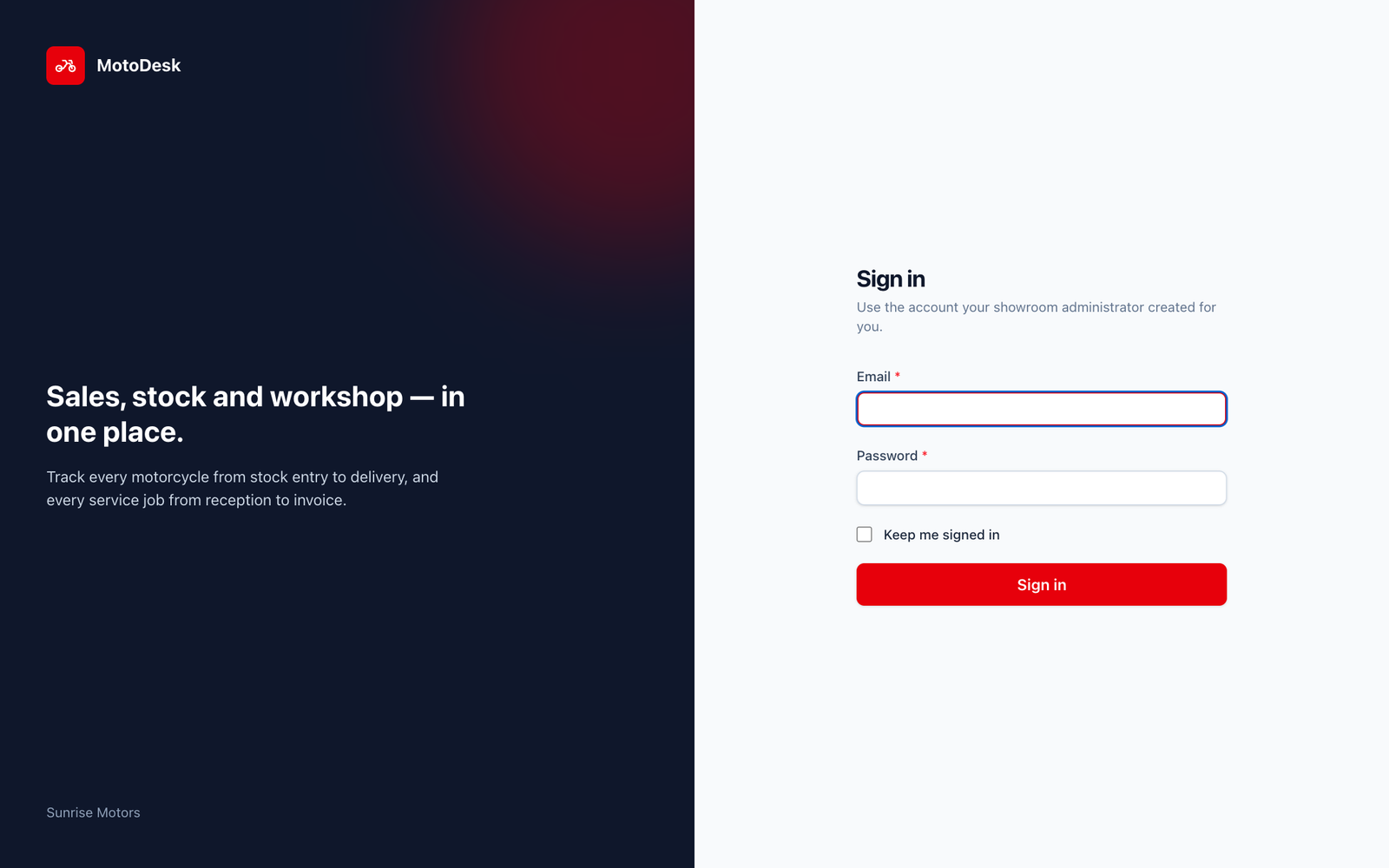
After signing in you land on the Dashboard.
If you cannot sign in
| What you see | What it means | What to do |
|---|---|---|
| These credentials do not match our records. | The email or password was typed incorrectly. | Check for typing mistakes and that Caps Lock is off. |
| Too many login attempts. Please try again in … seconds. | After 5 wrong passwords MotoDesk blocks sign-in for a short time to protect your account. | Wait for the time shown and try again, or ask your administrator to reset your password. |
| Your account is inactive. Please contact the administrator. | Your administrator has switched your account off. | Speak to your showroom owner. |
Every sign-in attempt, including wrong passwords, is recorded with the date, time and device. The Super Admin can see this under Login Activity.
Your profile
Click your name in the top-right corner and choose My profile.
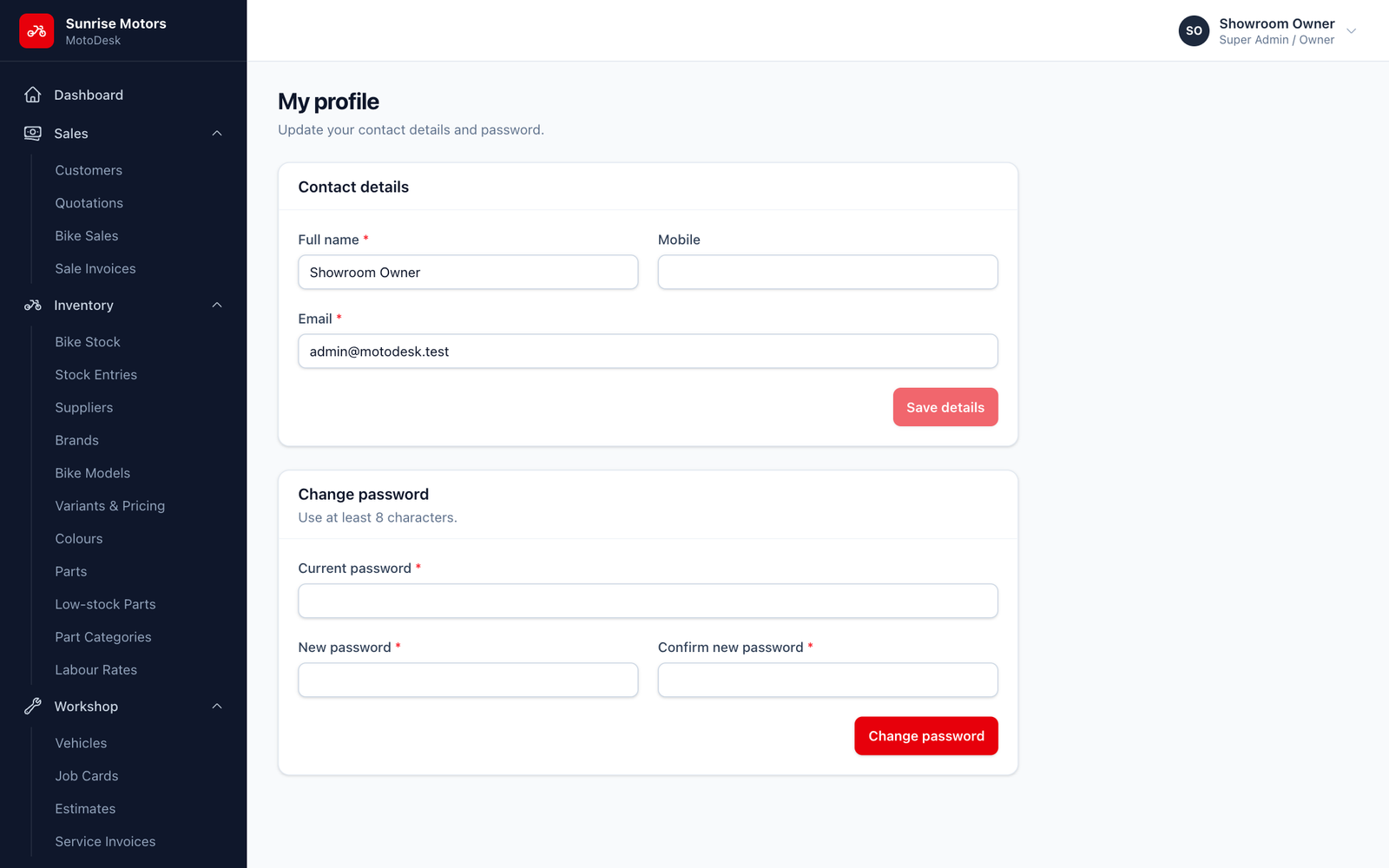
Under Contact details you can update your Full name, Email (the address you sign in with) and Mobile. Click Save details when done.
Changing your password
On the same Profile page, in Change password:
- Enter your Current password.
- Enter a New password of at least 8 characters.
- Type it again in Confirm new password.
- Click Change password.
If you forget your password, ask your administrator. They can set a new one for you under Settings › Users.
Signing out
Click your name in the top-right corner and choose Sign out. Always sign out on shared computers.