Showroom Settings
Showroom settings control your branding, document numbers and tax. They appear on every invoice, estimate, job card and receipt you print, so set them up before you start selling.
Open Settings › Showroom. The page has four tabs. When you have finished, click Save settings at the bottom.
Who can use it
Users with the Manage showroom settings permission. By default, only the Super Admin / Owner.
Showroom tab
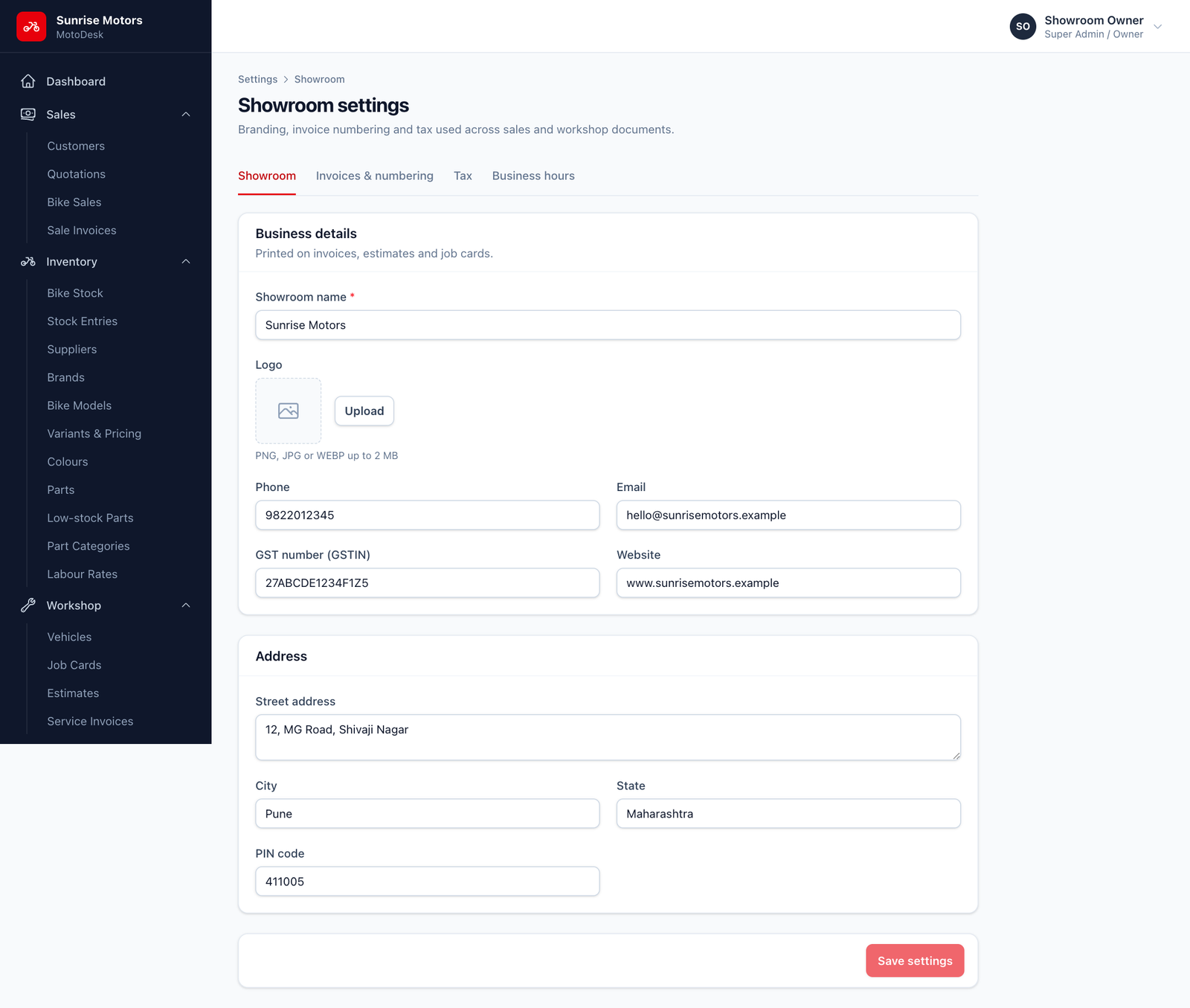
| Field | What to enter |
|---|---|
| Showroom name | Your trading name, as it should appear on invoices. |
| Logo | A JPG, PNG or WebP image, up to 2 MB and 2000 pixels wide. It is printed at the top of every document. |
| Phone, Email, Website | Your contact details for printed documents. |
| GST number (GSTIN) | Your 15-character GSTIN. |
| Street address, City, State, PIN code | Your showroom address. The PIN code must be 6 digits. |
| Currency code / Currency symbol | Normally INR and ₹. |
Invoices & numbering tab
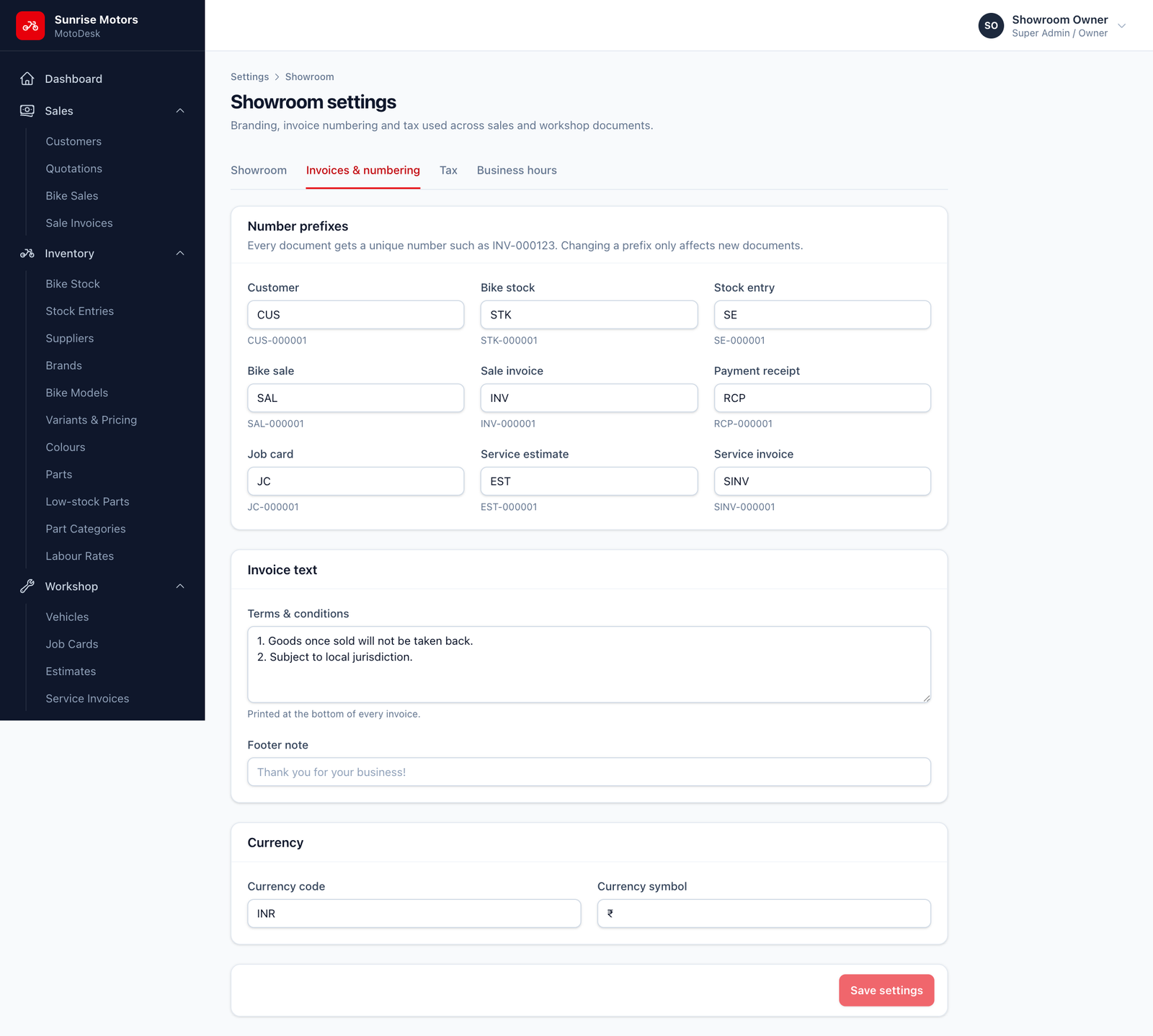
Number prefixes. Every document gets a unique number made of a prefix and six digits, for example INV-000123. You can change the prefix of each document type. Use capital letters and digits only.
| Document | Default prefix |
|---|---|
| Customer | CUS |
| Bike stock | STK |
| Stock entry | SE |
| Bike sale / quotation | SAL |
| Sale invoice | INV |
| Payment receipt | RCP |
| Job card | JC |
| Service estimate | EST |
| Service invoice | SINV |
Changing a prefix only affects new documents. Existing documents keep their numbers.
Invoice text
- Terms & conditions. Printed at the bottom of invoices, for example "Goods once sold will not be taken back."
- Footer note. A short line printed at the very bottom, such as "Thank you for your business".
Tax tab
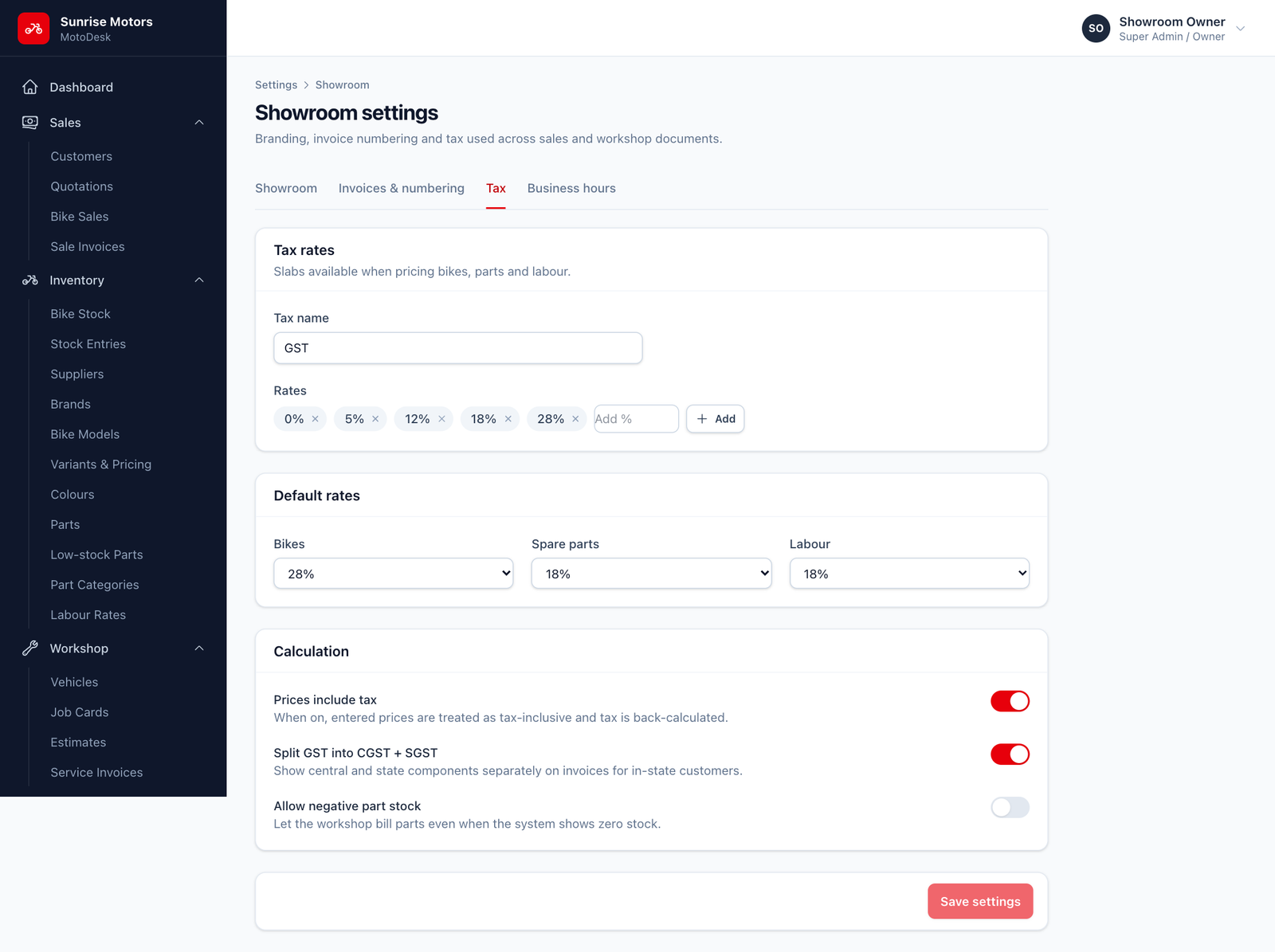
Tax rates
- Tax name. Normally
GST. - Rates. The tax slabs you use, for example 0%, 5%, 12%, 18% and 28%. Type a rate in Add % and click Add, or click the × on a rate to remove it. You can have between 1 and 12 rates.
Default rates. The rate filled in automatically for new Bikes, Spare parts and Labour. Each must be one of your slabs.
Calculation
| Setting | What it does |
|---|---|
| Prices include tax | When on, the prices you type (bike prices, part prices, labour rates) already include GST, and MotoDesk works the tax out from them. When off, GST is added on top of the prices you type. |
| Split GST into CGST + SGST | Shows central and state tax separately on invoices, as required for customers in your own state. |
| Allow negative part stock | Lets the workshop bill parts even when MotoDesk shows zero stock, for example when a part arrived but has not been entered yet. Leave it off for accurate stock. |
Most two-wheeler showrooms quote prices including GST. In that case, keep Prices include tax on.
Business hours tab
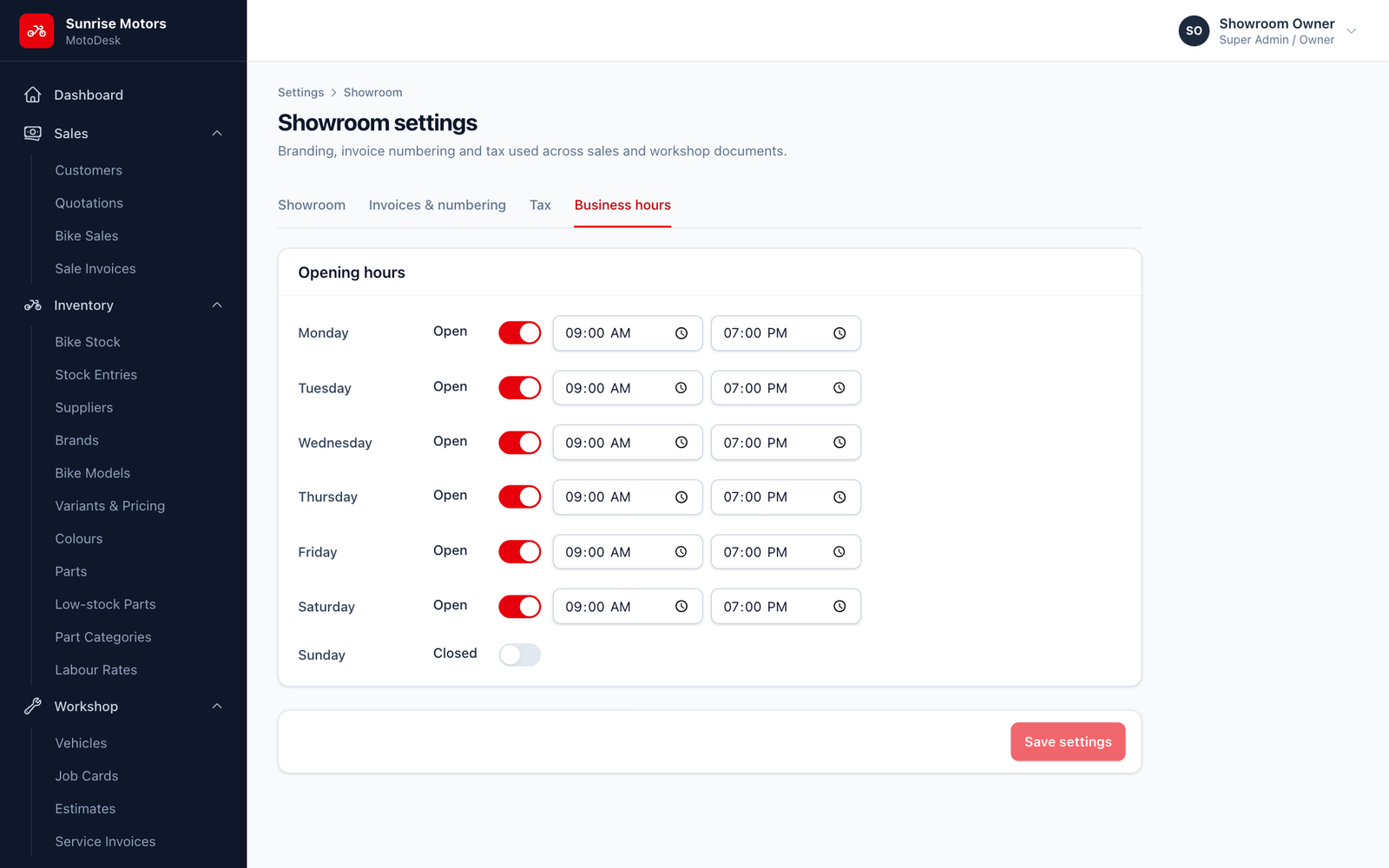
For each day of the week, switch the day Open or Closed, and set Opens at and Closes at.