Service Invoices
- Generating the invoice
- The service invoice
- Collecting payment
- The service invoices list
- Cancelling a service invoice
A service invoice bills the customer for the parts and labour on a job card. Each invoice gets a number such as SINV-000001.
Generating the invoice
When the work is done:
- Make sure the Parts & Labour tab is complete and saved.
- Open the job card's Invoice tab.
- Check the Invoice date and add a Note on invoice if needed.
- If the customer is paying now, fill in Payment now (optional): Amount received, Payment date, Method and Note.
- Click Generate invoice.
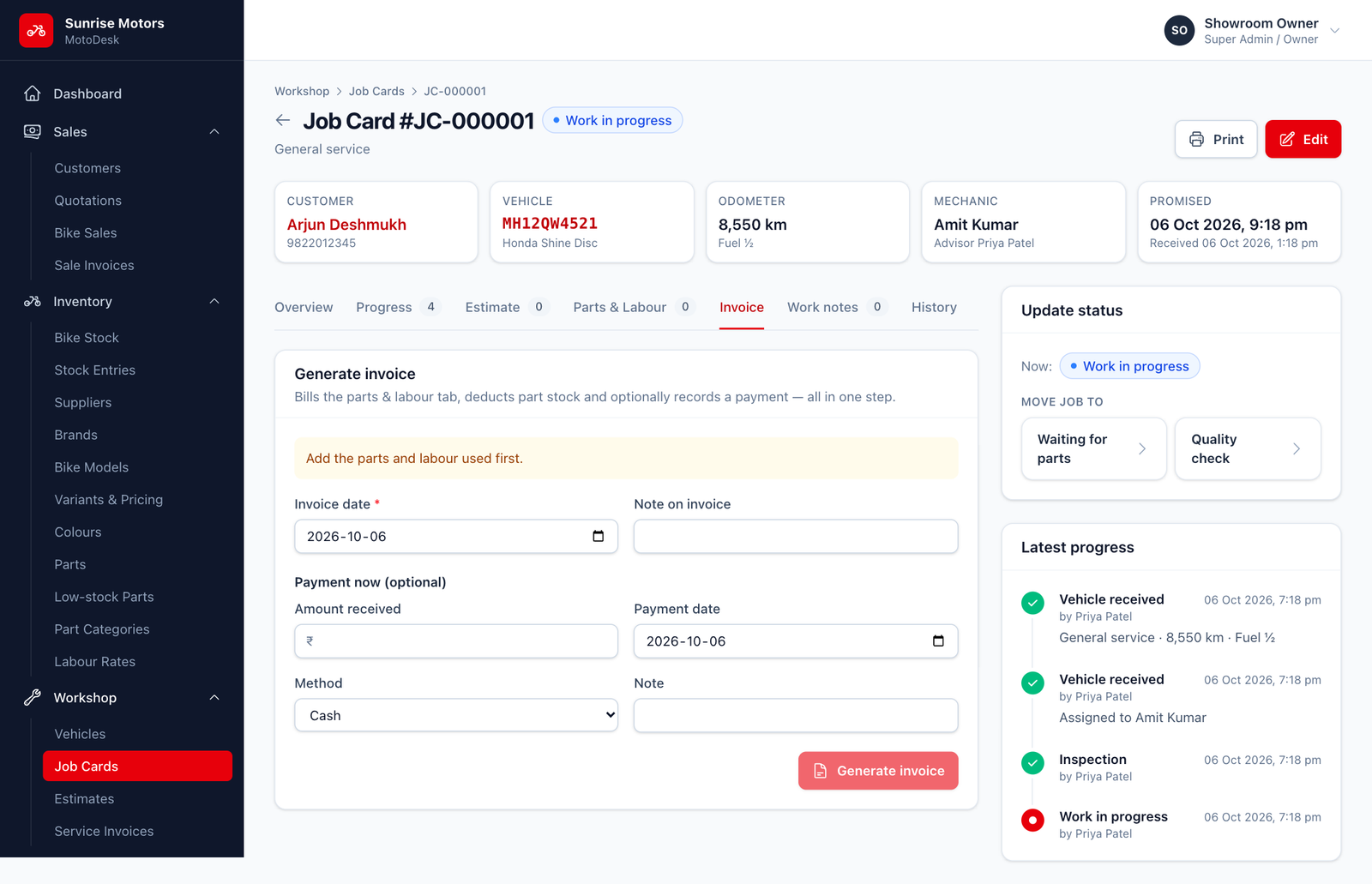
In one step, MotoDesk:
- creates the invoice,
- takes the parts used out of stock, and
- records the payment, if you entered one.
You can then move the job to Delivered.
Rules:
- Only open jobs can be invoiced, and a job can have only one invoice.
- Add the parts and labour used first.
The service invoice
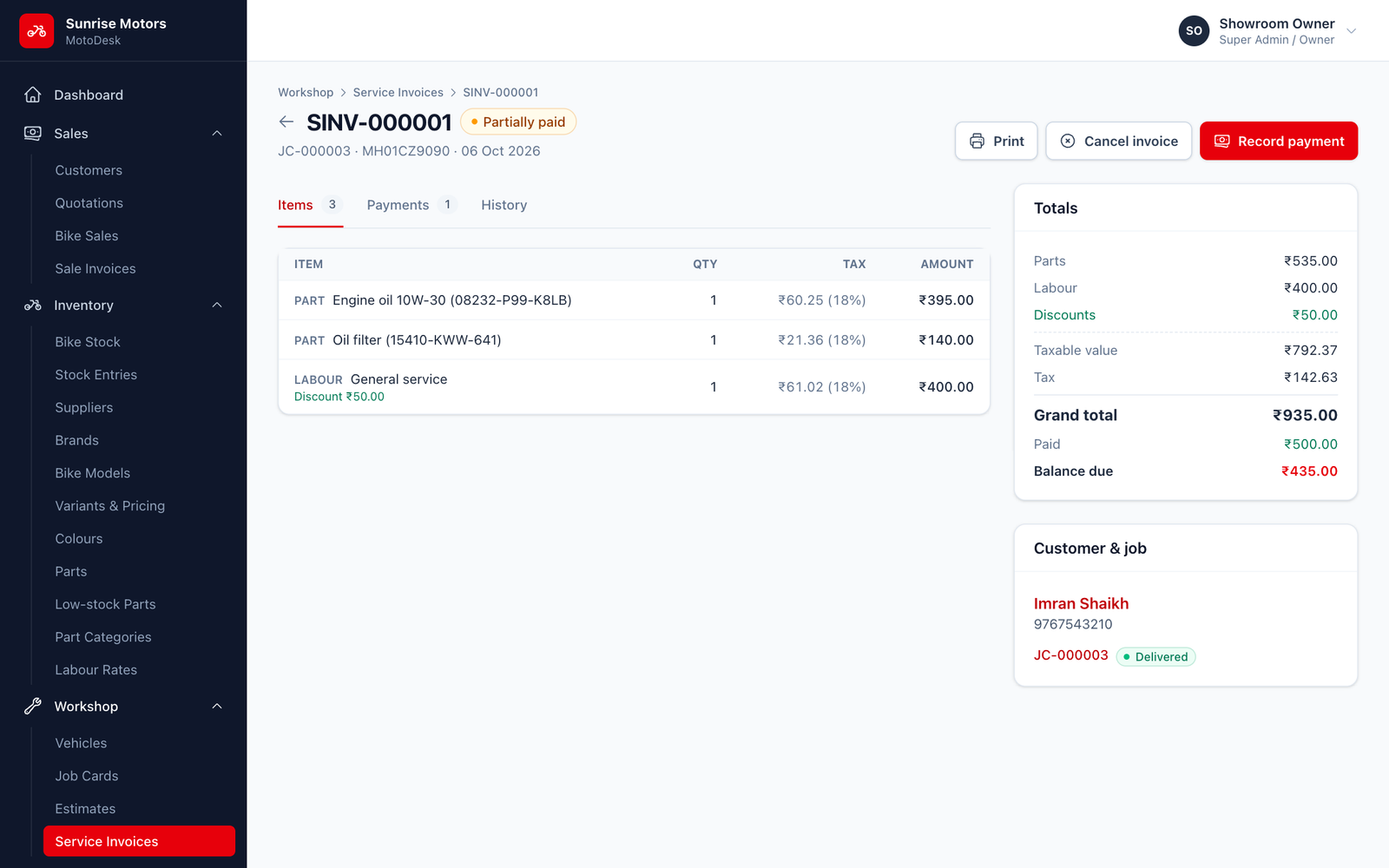
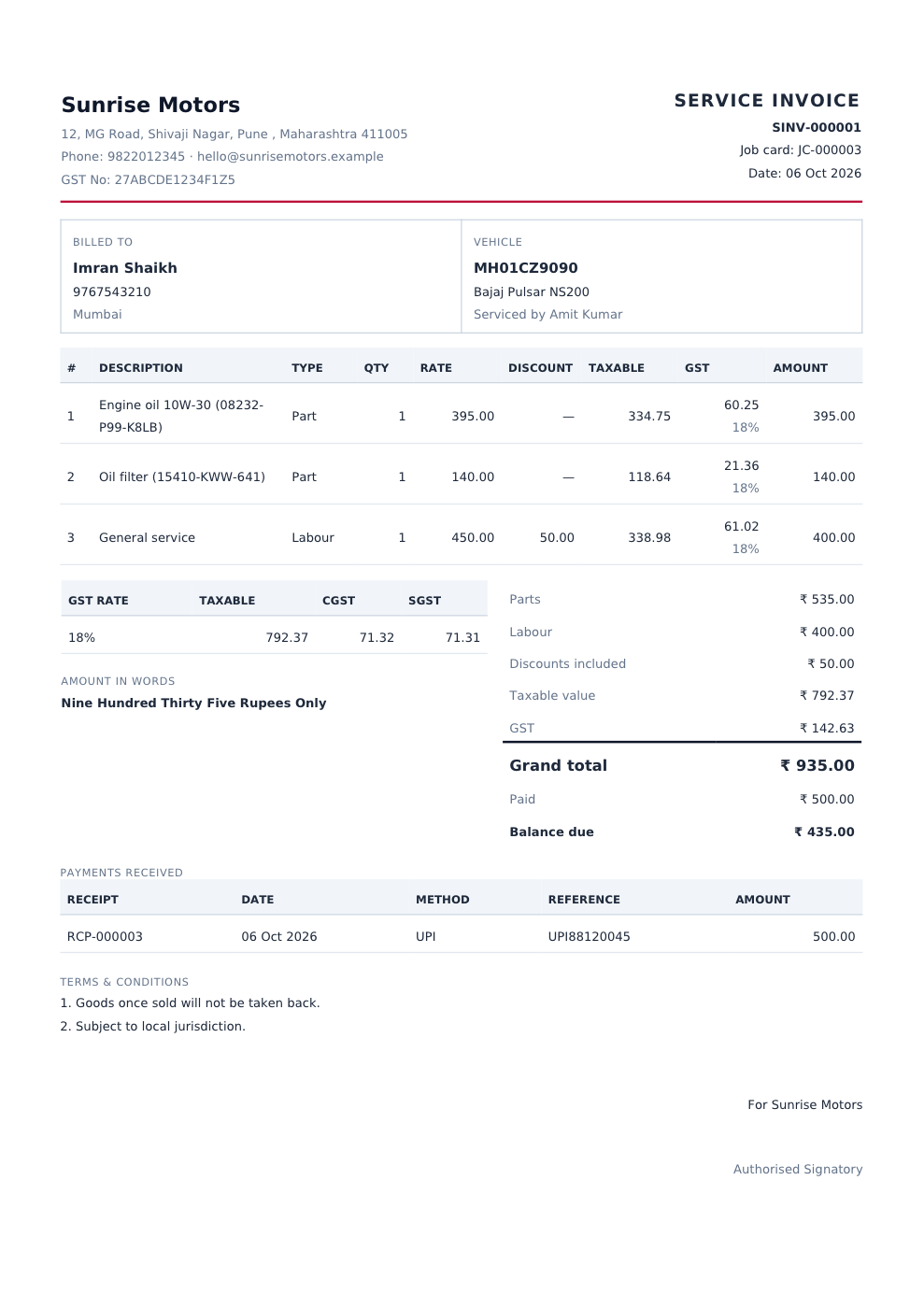
The invoice page shows the lines and Totals: Parts, Labour, Discounts, Taxable value, Tax, Grand total, Paid and Balance due. Click Print for the PDF:
Collecting payment
Click Record payment on the invoice to take a payment. You can also take payments from Outstanding Dues. See Recording Payments.
The service invoices list
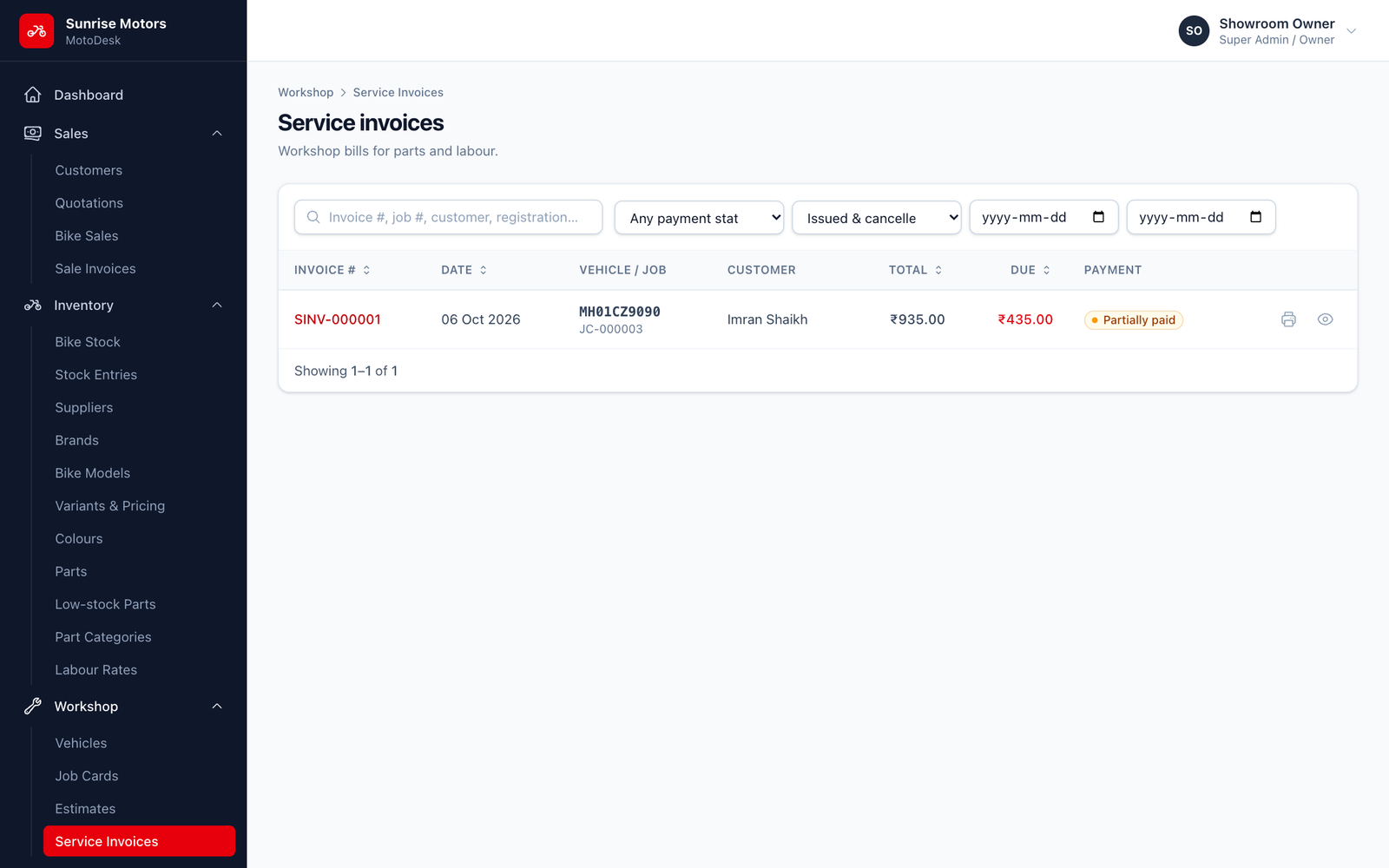
Workshop › Service Invoices lists every workshop bill. Filter by Payment status, by Status (Issued or Cancelled) and by date.
Cancelling a service invoice
If an invoice was wrong:
- Reverse any payments on it (see Receipts & Reversals).
- If the job was delivered, reopen it (move it back to Work in progress).
- Open the invoice, click Cancel invoice, enter a Reason (at least 5 characters) and confirm.
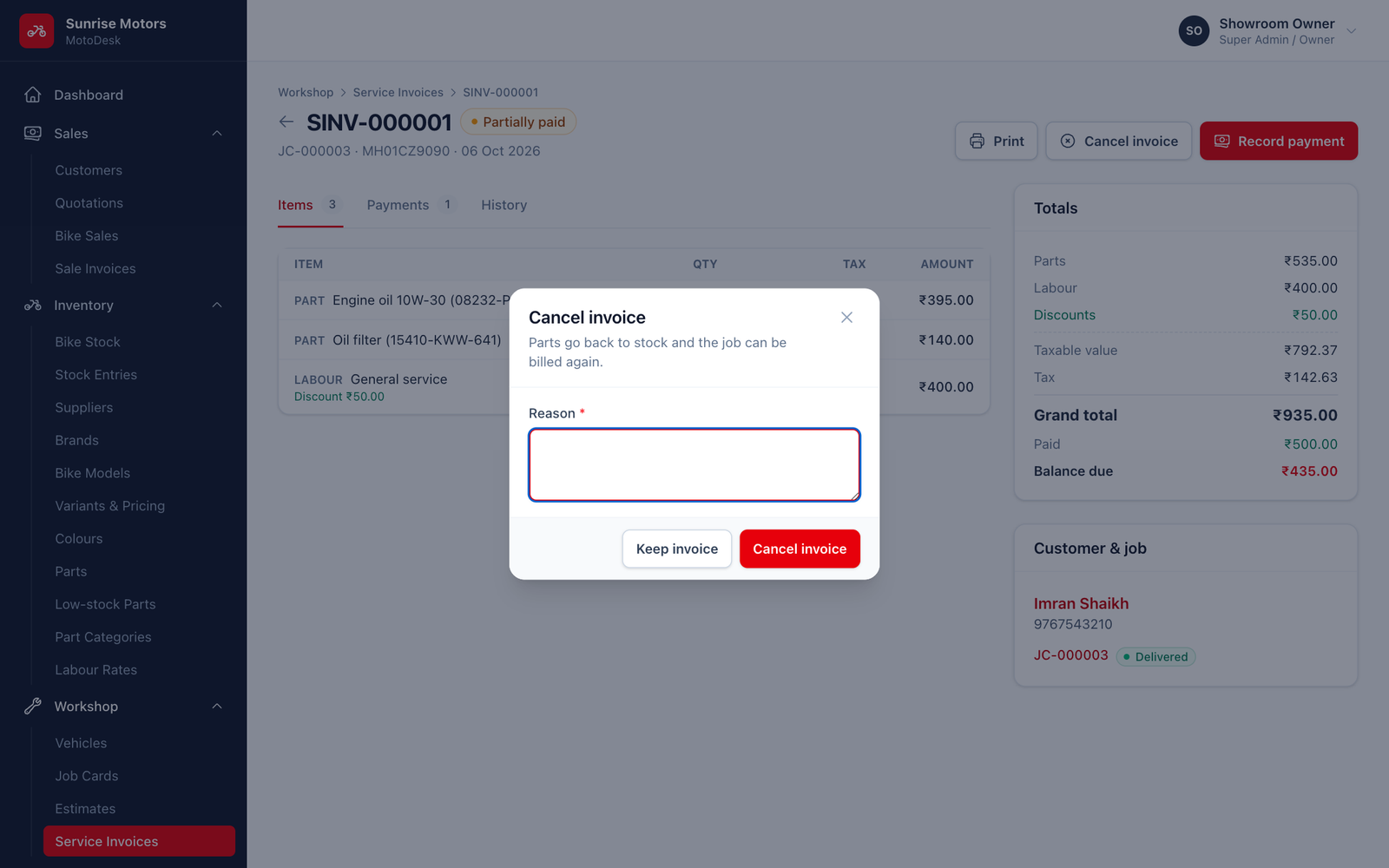
The parts go back into stock, and the job can be corrected and billed again.
Who can use it: Create invoices to generate or cancel (Service Advisor, Super Admin); Record payments to take payments (Accountant / Cashier, Super Admin).