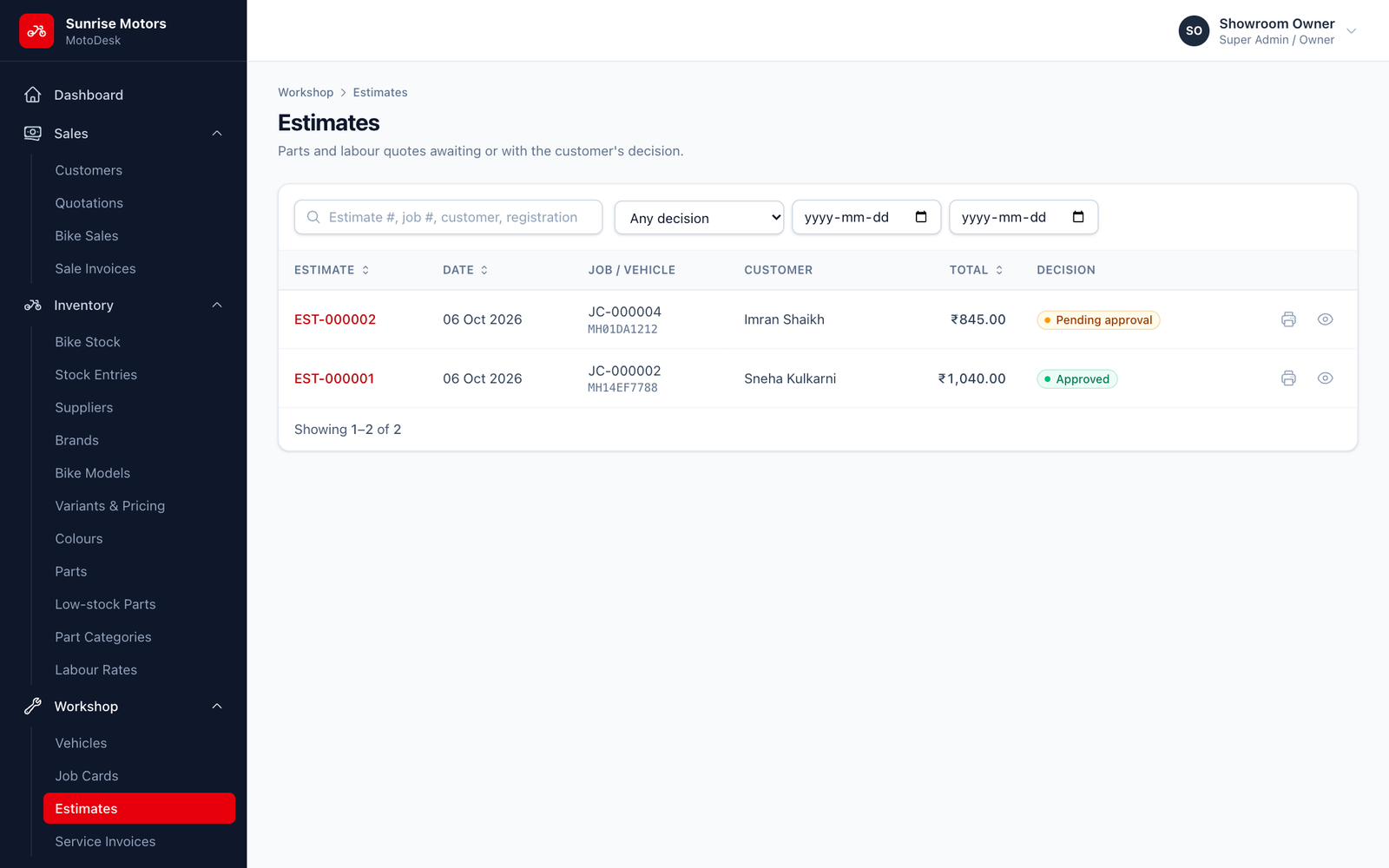
Estimates
- Who can use it
- Creating an estimate
- Printing and sharing
- Recording the customer's decision
- Revised estimates
- The estimates list
An estimate is a detailed parts-and-labour quote for a job, which you give to the customer before doing the work. Each estimate gets a number such as EST-000001.
Who can use it
Users with Manage estimates (Service Advisor and Super Admin by default).
Creating an estimate
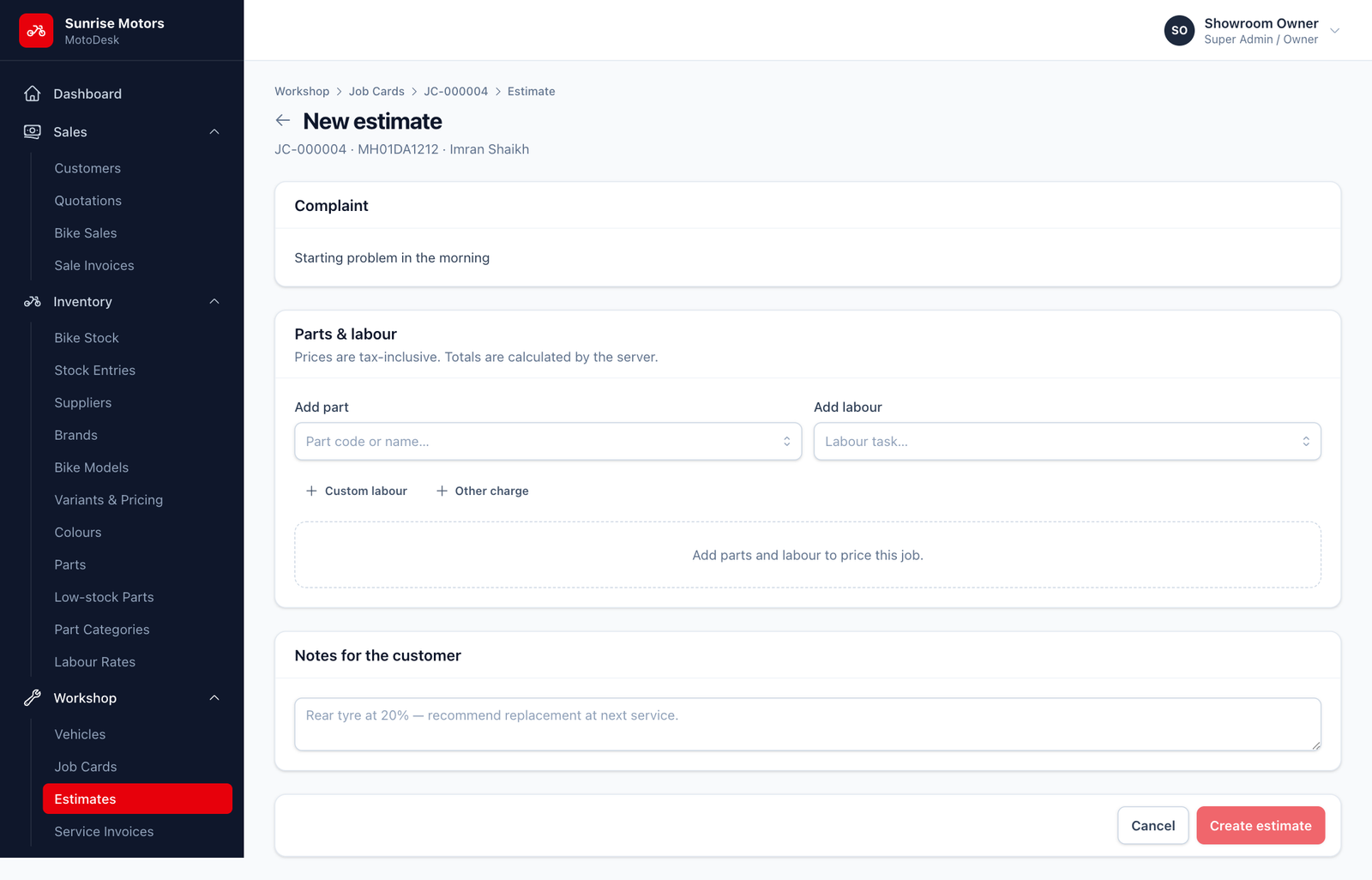
- Open the job card, go to the Estimate tab and click Create estimate.
- The customer's complaint is shown at the top for reference.
- Add lines under Parts & labour:
- Add part: search by part code or name. The price and tax are filled in from the parts list.
- Add labour: search for a labour task. The rate comes from Labour Rates.
- Custom labour: labour that is not in your rate list.
- Other charge: anything else, such as outside work.
- For each line, check the Description, Qty, Rate, Discount and Tax.
- Add Notes for the customer, for example "Rear tyre at 20%, recommend replacement at next service."
- Click Create estimate.
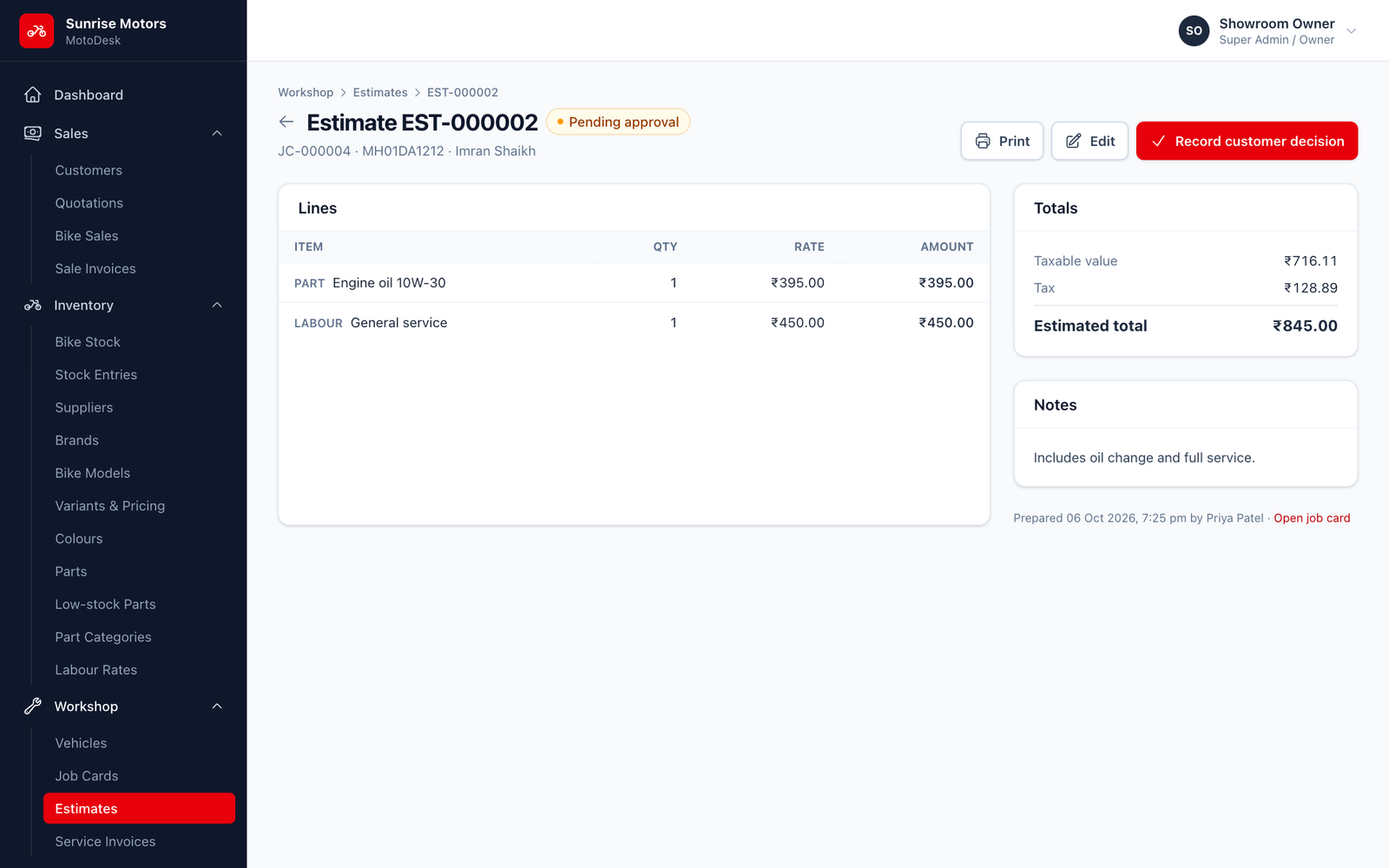
When an estimate is created, the job moves to Estimate prepared if that move is allowed from its current stage. The estimate starts as Pending approval.
Printing and sharing
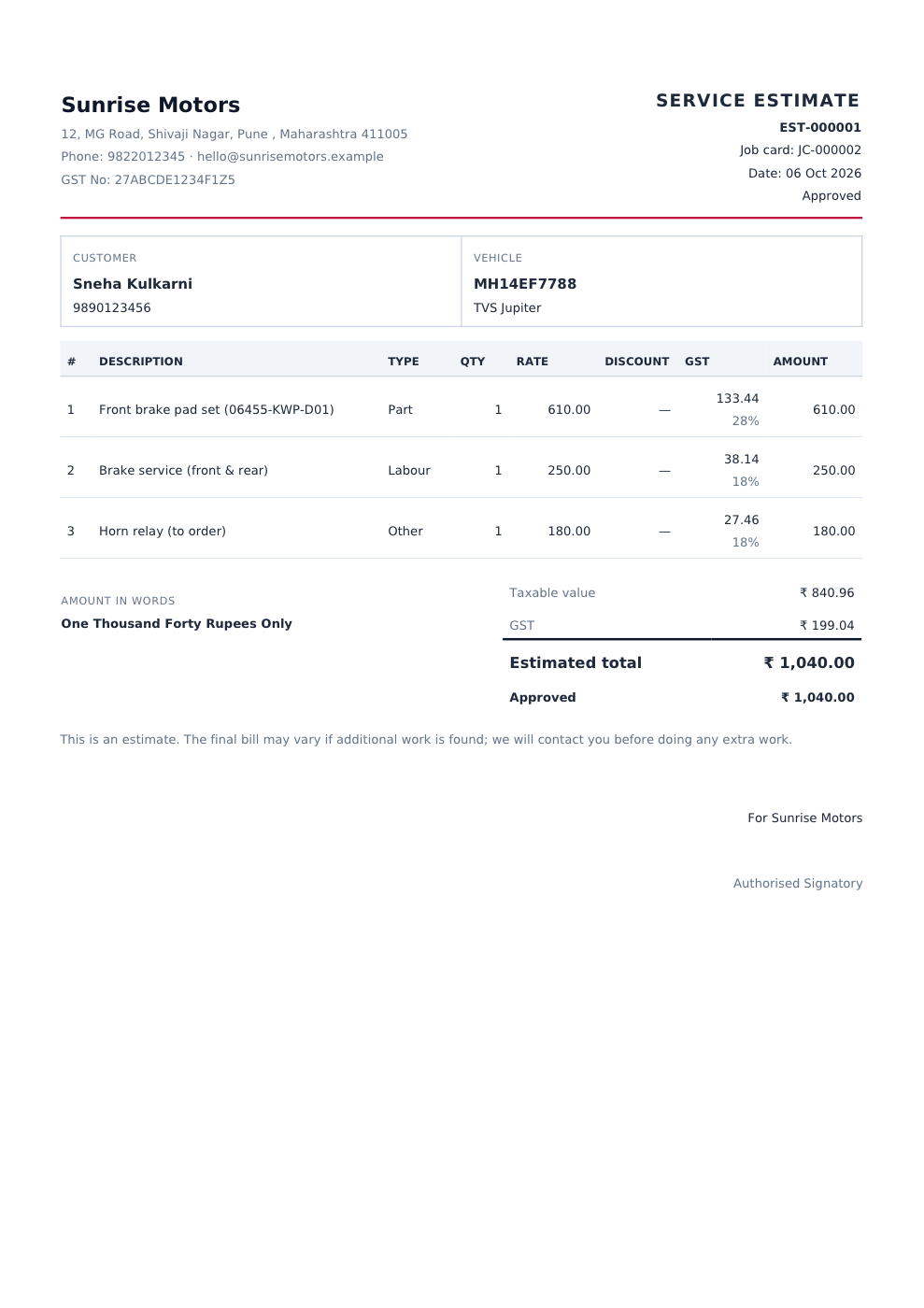
Click Print for the estimate PDF, which has a customer signature line. Hand it over or send it on WhatsApp.
Recording the customer's decision
When the customer replies (in person or on the phone):
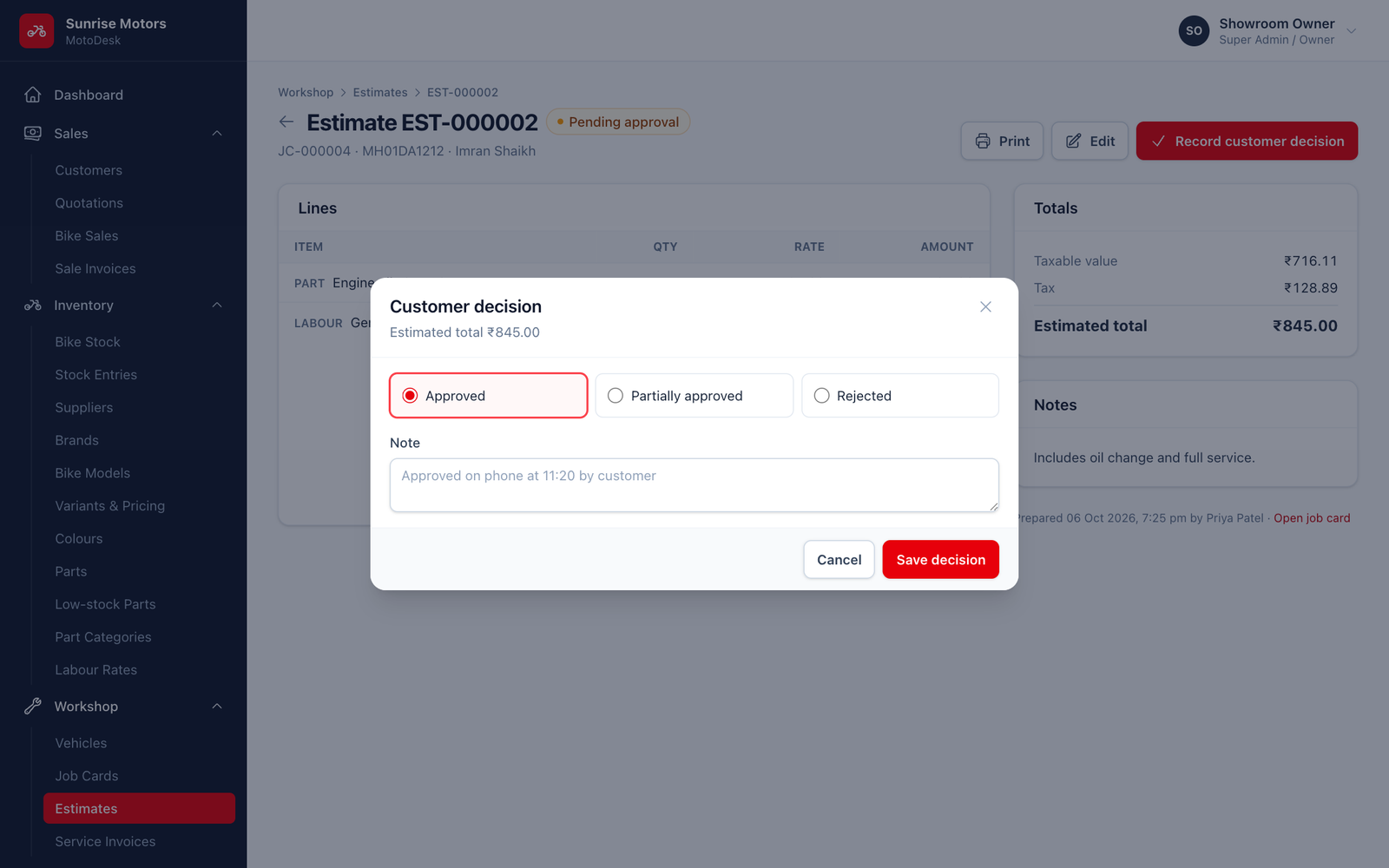
- Open the estimate and click Record customer decision.
- Choose:
- Approved: all lines are approved.
- Partially approved: tick only the lines the customer approved.
- Rejected: the customer does not want the work.
- Add a Note, such as "Approved on phone at 11:20 by customer".
- Click Save decision.
The decision can only be recorded once.
Revised estimates
An estimate cannot be changed after the customer has decided. If more work is found, go to the job's Estimate tab and click Revised estimate to make a new one. All estimates for a job stay listed on its Estimate tab.
Estimates can only be added while the job is open.
The estimates list
Workshop › Estimates lists all estimates. Filter by Decision (Pending approval, Approved, Partially approved, Rejected) and date, and Print or View any of them.