Reports
Opening a report
Open Reports in the sidebar. The reports are grouped into Sales, Inventory, Service and Finance.
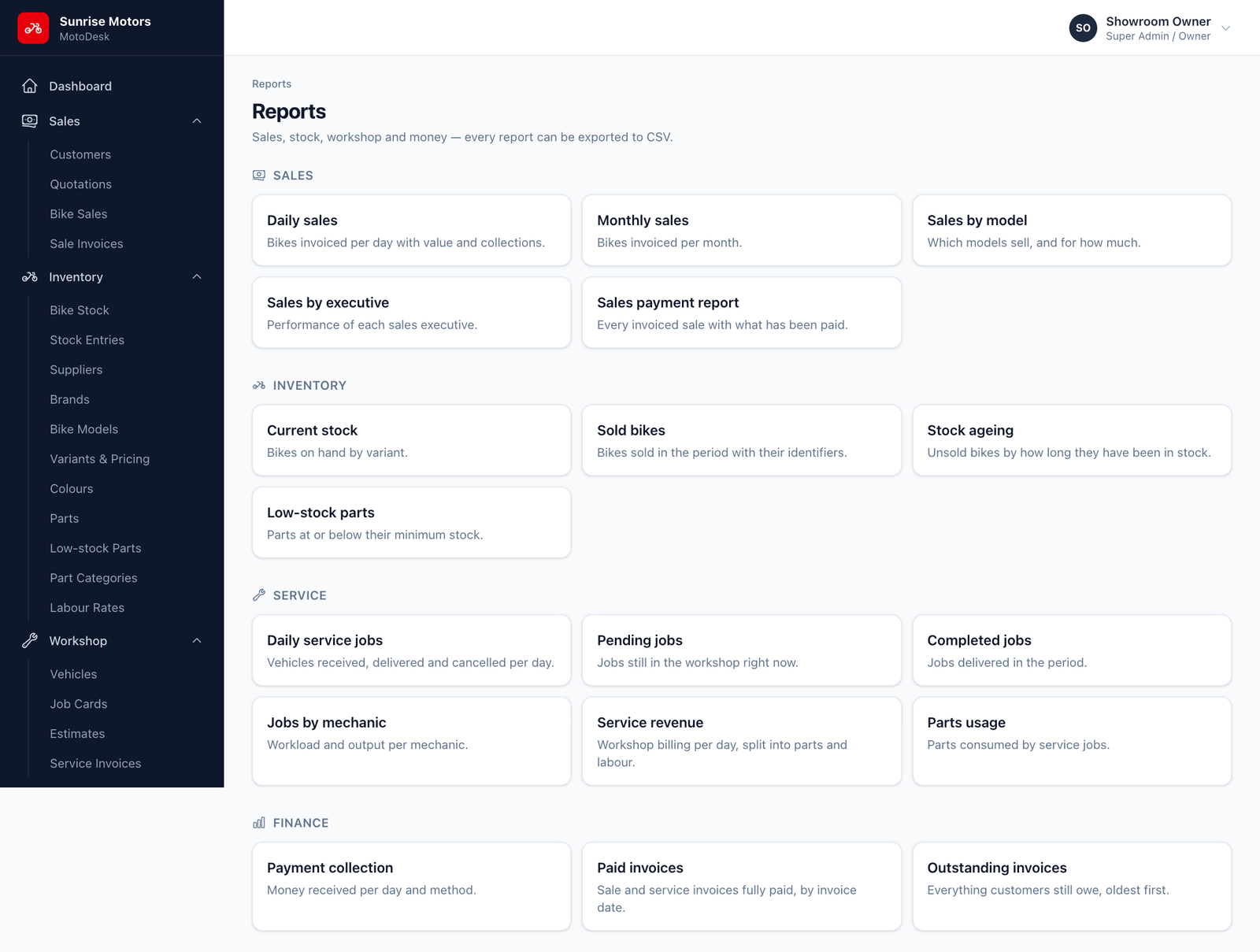
- Click a report.
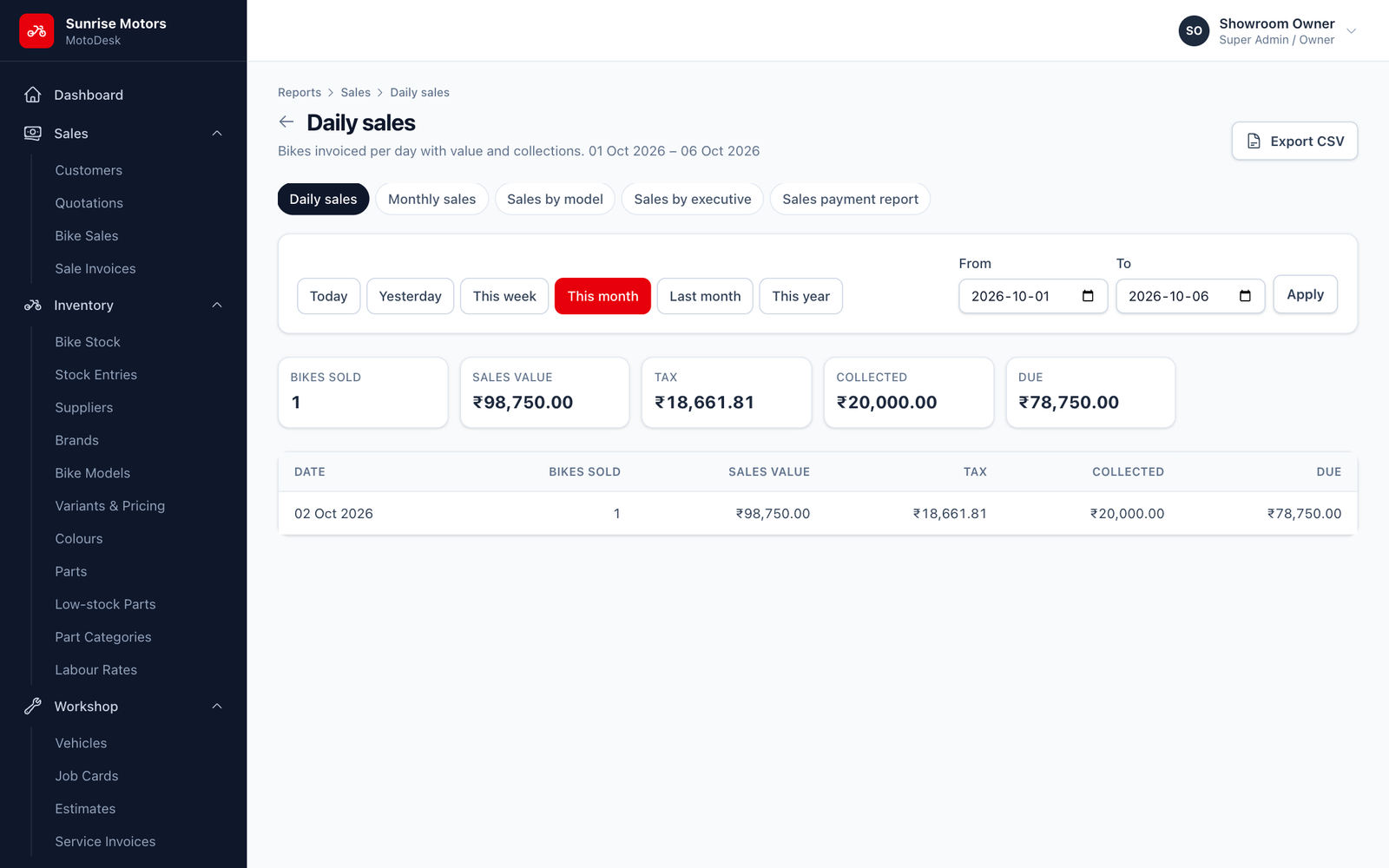
- Set the From and To dates (where the report uses dates) and click Apply.
- Click Export CSV to download it for Excel or your accountant.
Sales reports
| Report | What it shows |
|---|---|
| Daily sales | Bikes invoiced per day, with value and collections. |
| Monthly sales | Bikes invoiced per month. |
| Sales by model | Which models sell, and for how much. |
| Sales by executive | Performance of each sales executive. |
| Sales payment report | Every invoiced sale with what has been paid. |
Inventory reports
| Report | What it shows |
|---|---|
| Current stock | Bikes on hand by variant. |
| Sold bikes | Bikes sold in the period, with chassis and engine numbers. |
| Stock ageing | Unsold bikes by how long they have been in stock. Use it to push older stock. |
| Low-stock parts | Parts at or below their minimum stock. |
Service reports
| Report | What it shows |
|---|---|
| Daily service jobs | Vehicles received, delivered and cancelled per day. |
| Pending jobs | Jobs still in the workshop right now. |
| Completed jobs | Jobs delivered in the period. |
| Jobs by mechanic | Workload and output per mechanic. |
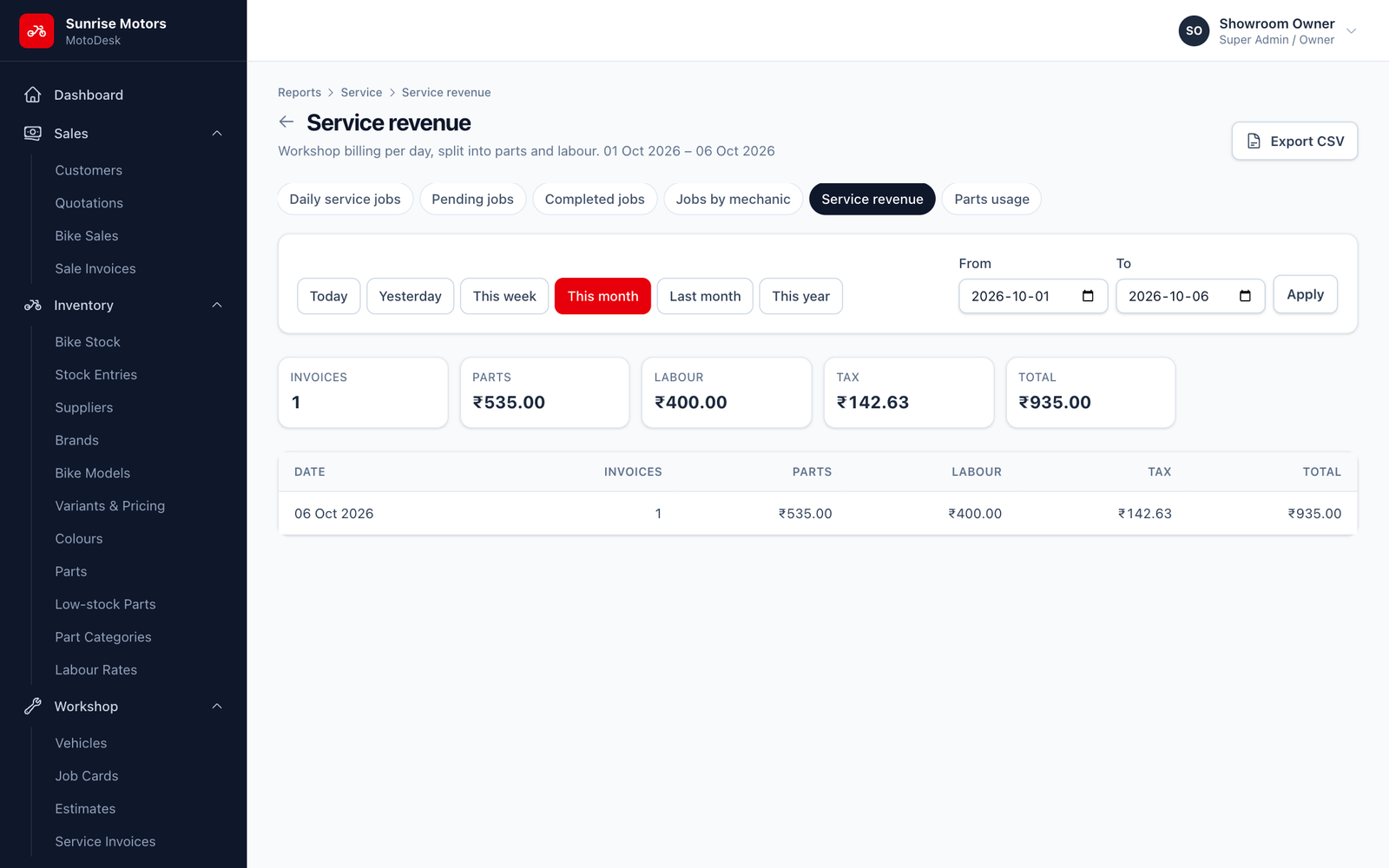
| Service revenue | Workshop billing per day, split into parts and labour. |
| Parts usage | Parts consumed by service jobs. |
Finance reports
| Report | What it shows |
|---|---|
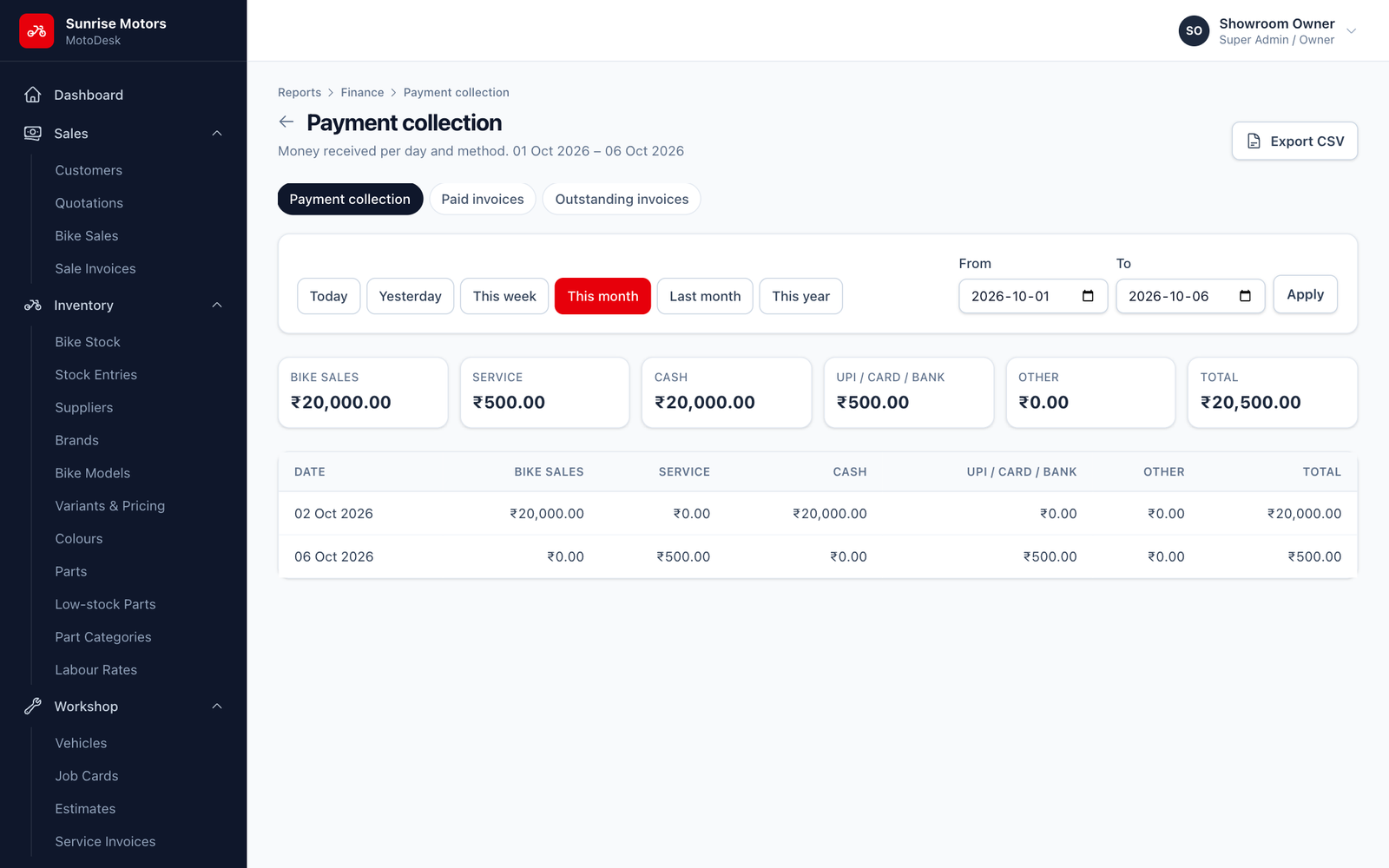
| Payment collection | Money received per day and by method (cash, UPI, card…). |
| Paid invoices | Sale and service invoices fully paid, by invoice date. |
| Outstanding invoices | Everything customers still owe, oldest first. |
Who can see costs
Reports are available to users with View reports (Accountant / Cashier and Super Admin by default). Cost and margin columns are hidden from users who are not allowed to see purchase prices.