Customers
- Who can use it
- Finding a customer
- Adding a customer
- Quick-create during a sale or job card
- The customer page
- Deleting a customer
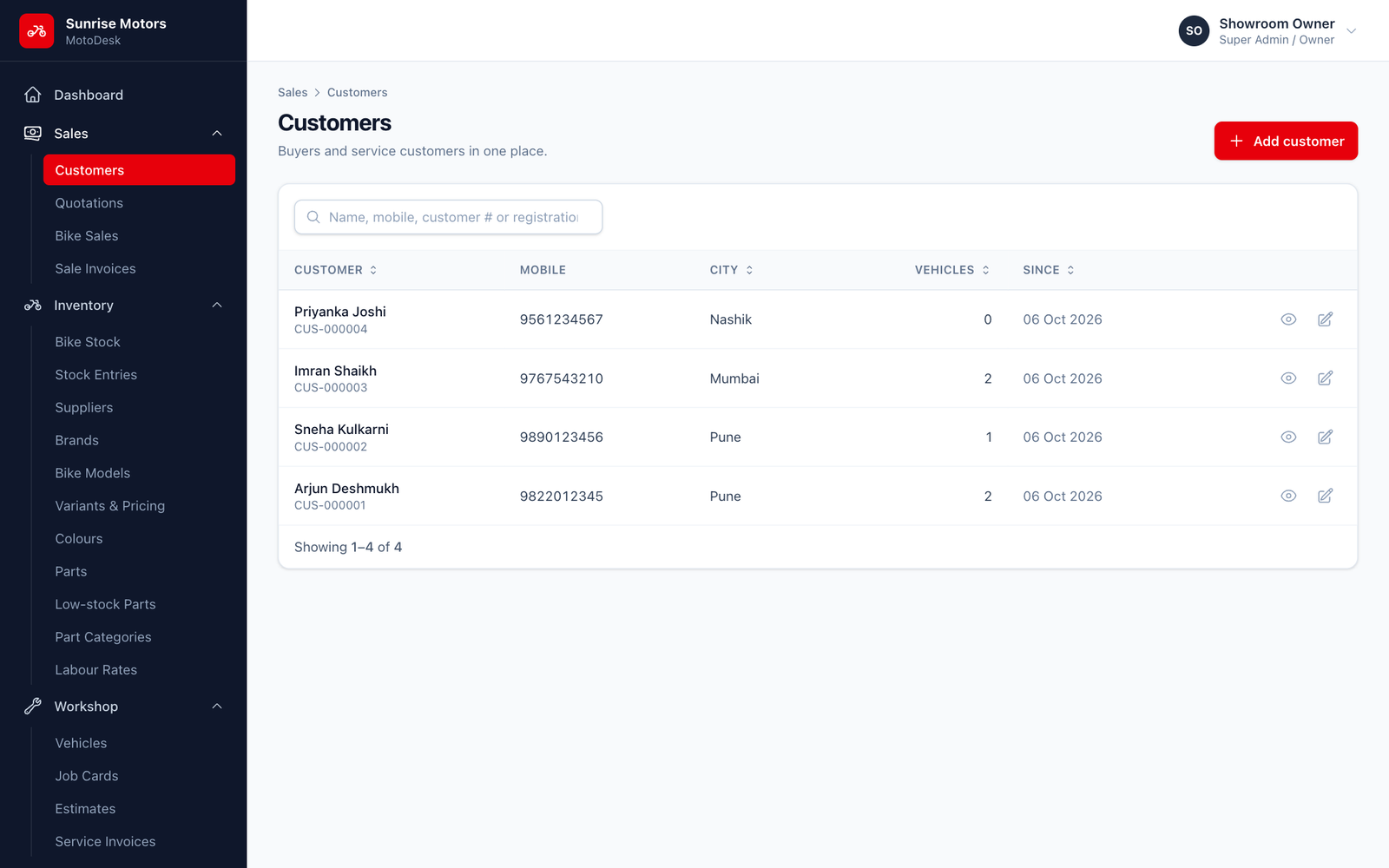
One customer list serves both bike buyers and service customers, so each customer's full history is in one place. Every customer gets a number such as CUS-000001.
Who can use it
- View: View customers (Sales Executive, Service Advisor, Accountant and Super Admin).
- Add, edit, delete: Manage customers & vehicles (Sales Executive, Service Advisor and Super Admin).
Finding a customer
Open Sales › Customers. Search by name, mobile, customer number or vehicle registration number.
Adding a customer
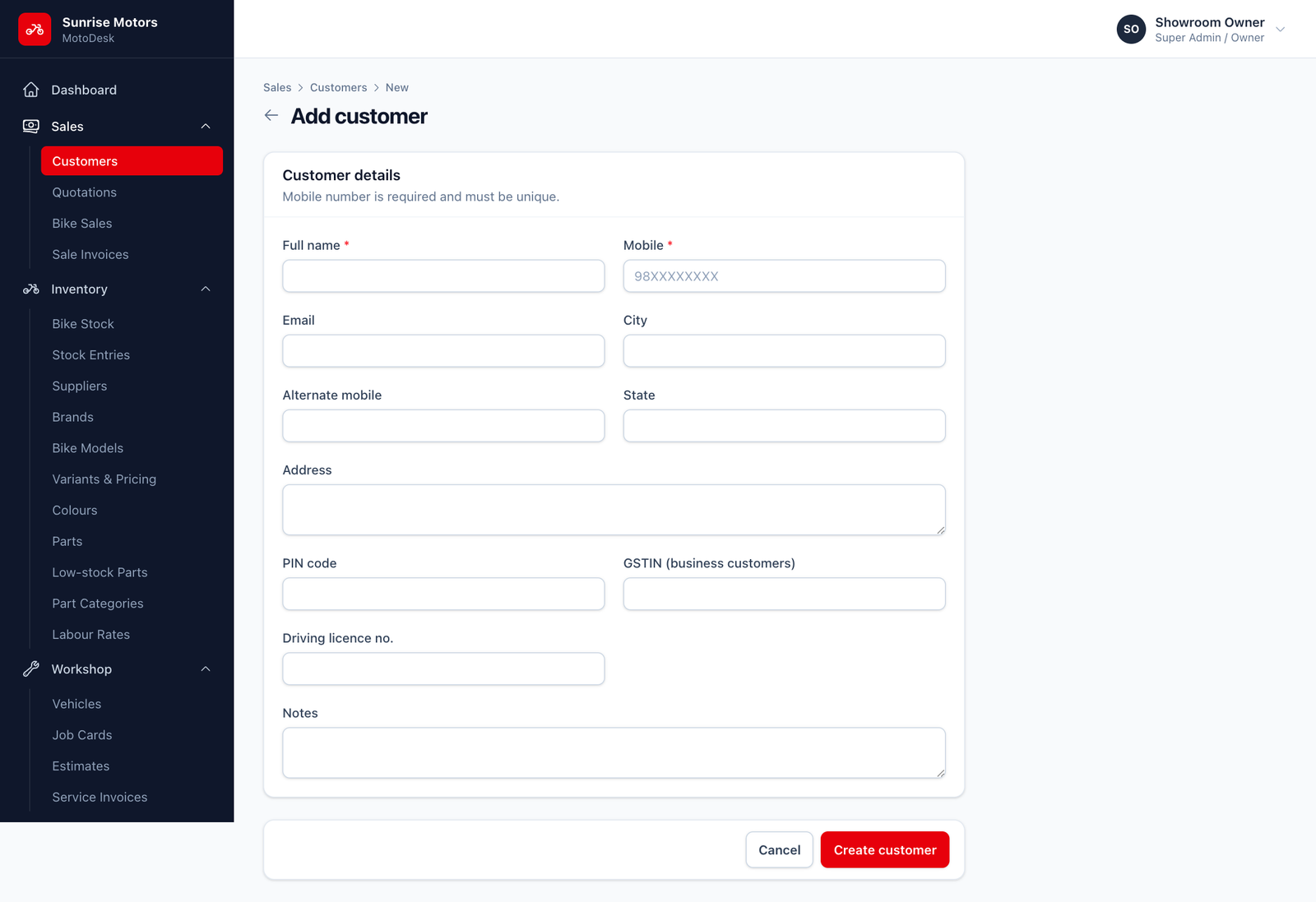
Click Add customer, fill in the form and click Create customer.
| Field | Rules |
|---|---|
| Full name | Required. |
| Mobile | Required. It must be a valid 10-digit Indian mobile number starting with 6, 7, 8 or 9, and unique: two customers cannot share a mobile number. |
| Alternate mobile | Optional. It must be different from the main mobile. |
| Optional. | |
| Address, City, State | Optional, but printed on invoices. |
| PIN code | 6 digits. |
| GSTIN (business customers) | Only for business buyers who need a GST invoice in their name. It must be 15 characters (capital letters and digits). |
| Driving licence no. | Optional, useful for RTO paperwork. |
| Notes | Anything else worth remembering. |
If you see "A customer with this mobile number already exists", the customer is already in MotoDesk. Search for them instead of creating a duplicate.
Quick-create during a sale or job card
You do not need to leave the screen when a new customer walks in. On the sale or job card form, click + New customer next to the Customer field. Enter just the Full name, Mobile, Email and City, then click Create customer. You can add the address and documents later from the customer's page.
The customer page
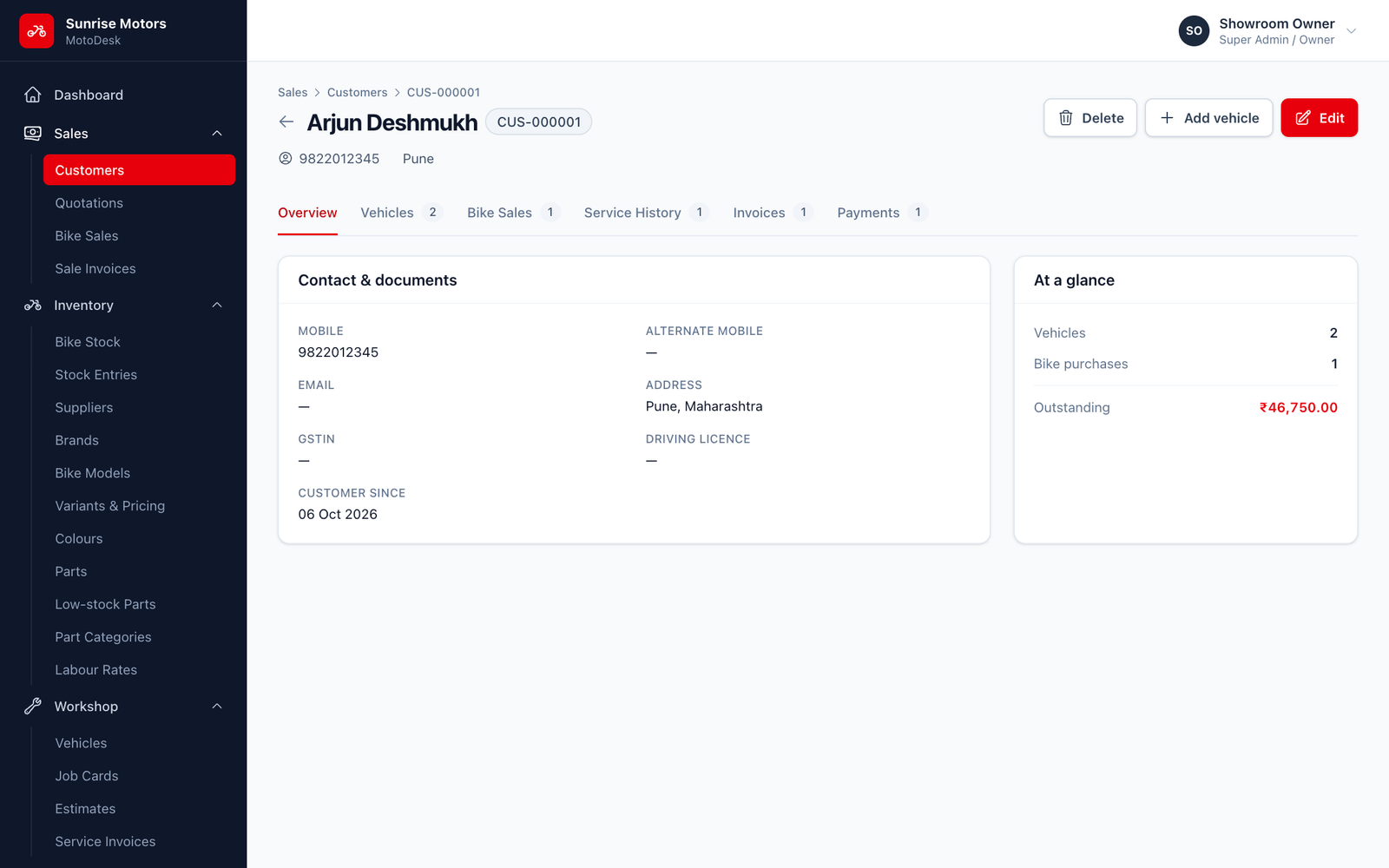
Click a customer to open their page:
- At a glance: how many vehicles and bike purchases the customer has, and their total Outstanding balance.
- Contact & documents: phone, address, GSTIN and licence.
- Vehicles: every bike they own. Click Add vehicle to register one (see Vehicles).
- Bike purchases: sales made to this customer. Click New sale to start one.
- Invoices: their bills and what is still unpaid on each.
Deleting a customer
A customer can only be deleted if they have no sales and no service history. This keeps your invoices and reports correct. For a mistaken duplicate with no history, open it and click Delete.